
Job Tracking Activities provides the activity names selected when time is recorded on an Order or Estimate. The names are maintained on Job Activity Types. Enable Job Tracking turns tracking on, and each Activity Name appears in the Activity list in Job Tracking.
Table of Contents
- Job Activity Types
- Adding a Job Activity Type
- Editing a Job Activity Type
- Frequently Asked Questions
- Related Articles
Job Activity Types
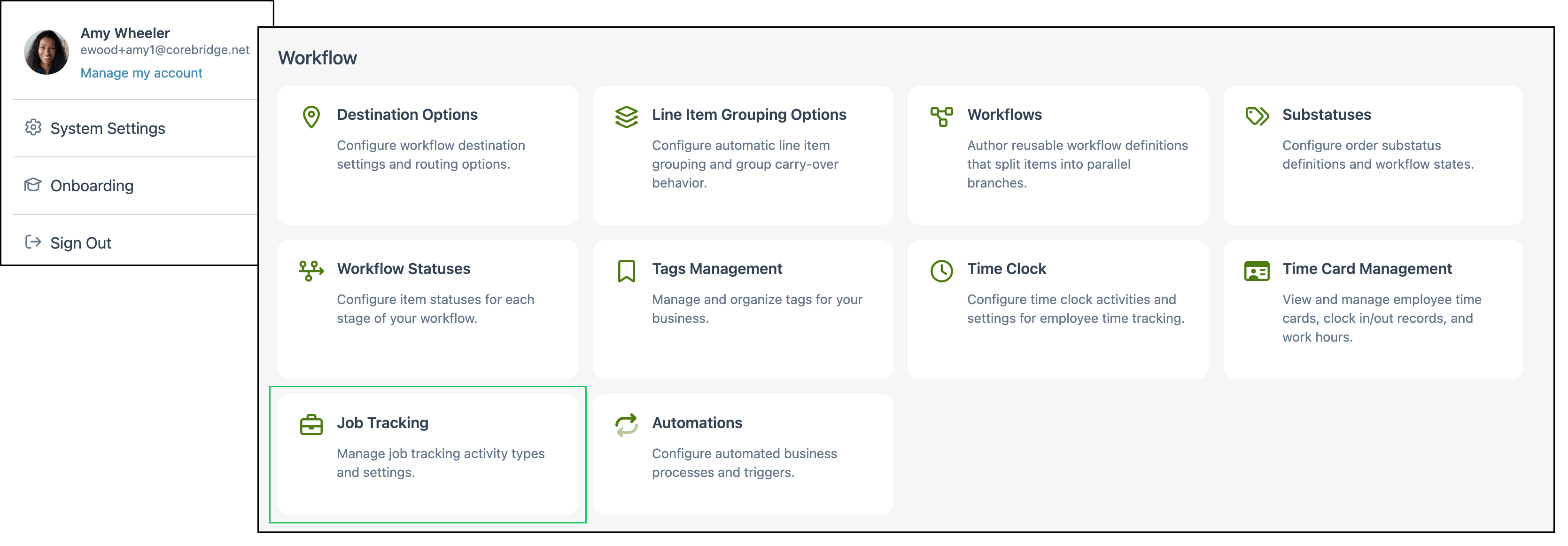
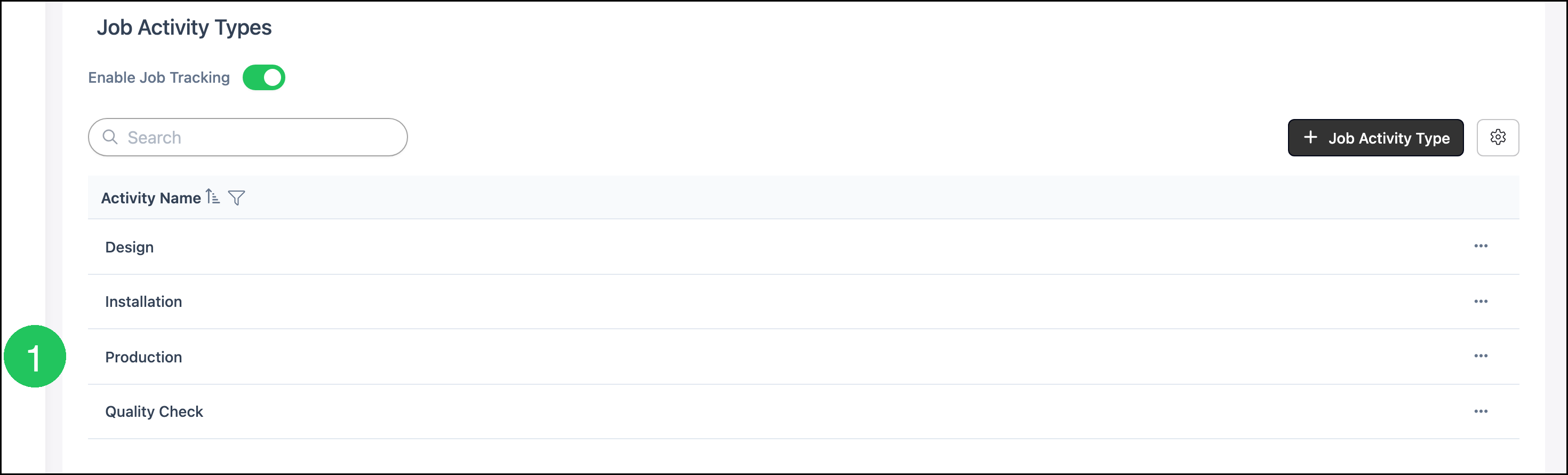
Navigate to System Settings / Workflow / Job Tracking.
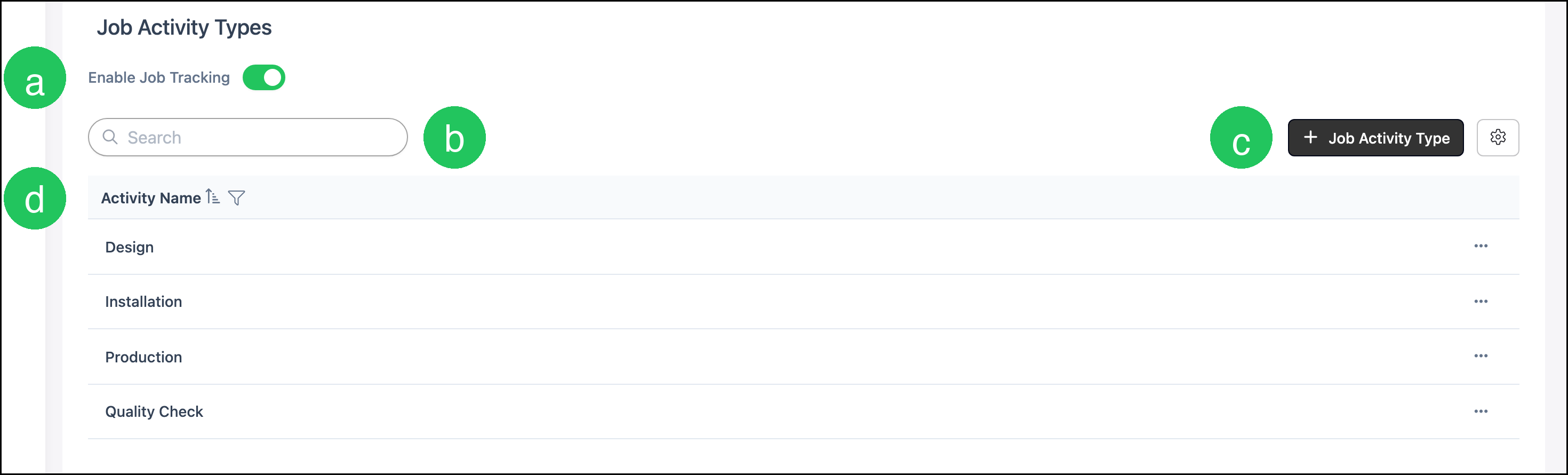
a. Enable Job Tracking turns Job Tracking on.
b. Search finds an activity type by Activity Name.
c. Job Activity Type opens Add Job Activity Type.
d. Activity Name is the name selected in Job Tracking. Click the name to open Edit Job Activity Type.
Note: More Actions on a row includes Set Inactive and Delete.
Note: The button to the right of Job Activity Type opens Show Inactive Records.
Note: Job Activity Types requires permission to open Workflow settings. See Employee Roles and Permissions in Settings.
Adding a Job Activity Type
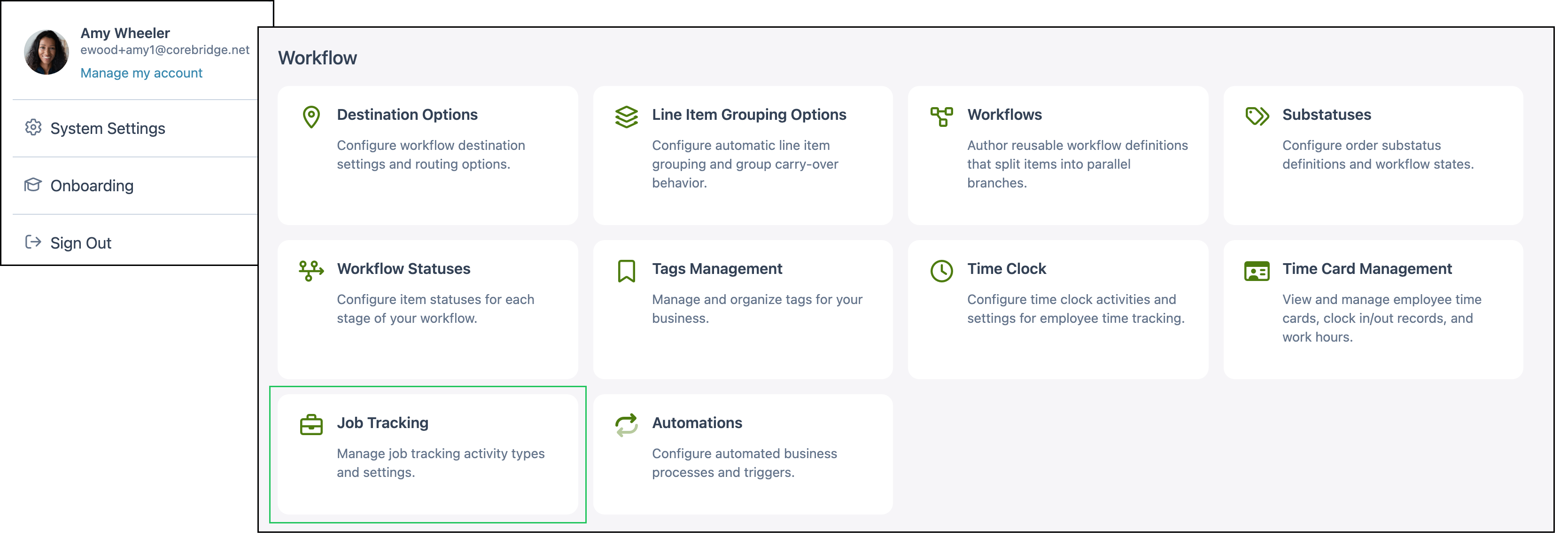
Navigate to System Settings / Workflow / Job Tracking.
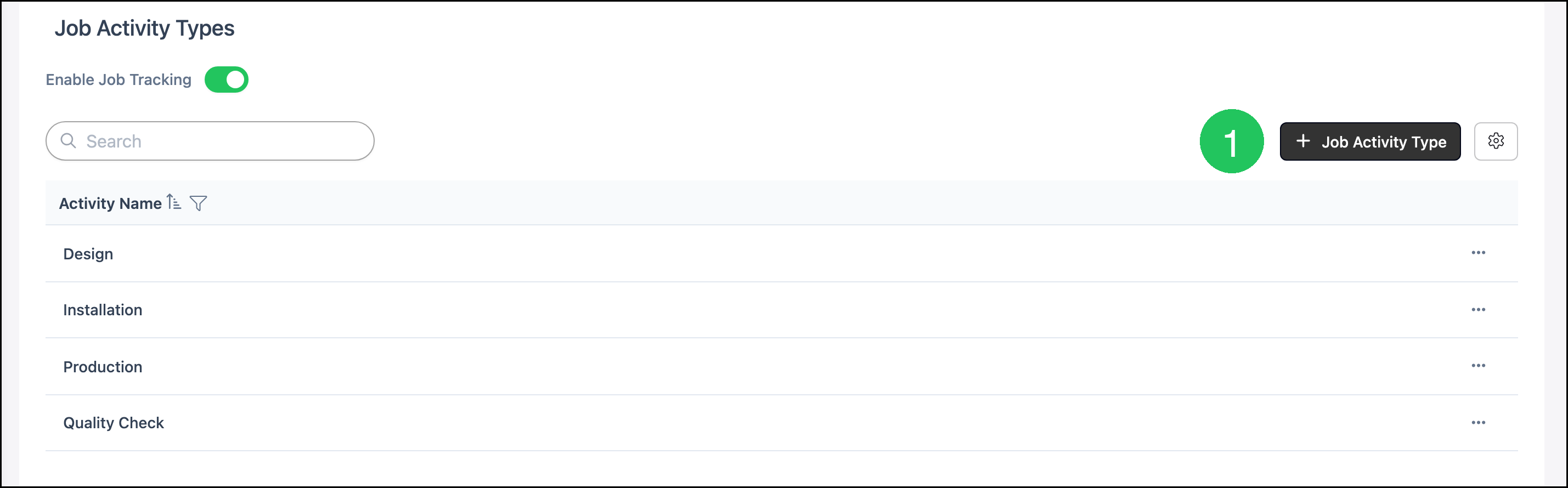
1. Click Job Activity Type.
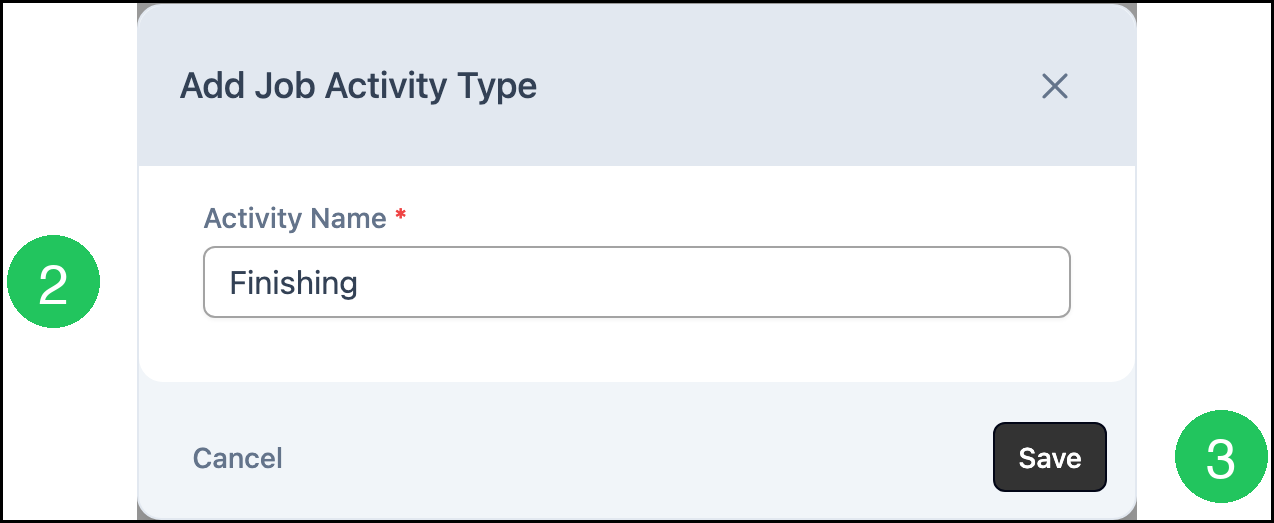
2. Enter an Activity Name.
Note: Activity Name is required.
Example: Finishing.
3. Click Save.
Editing a Job Activity Type
1. On Job Activity Types, click the Activity Name.
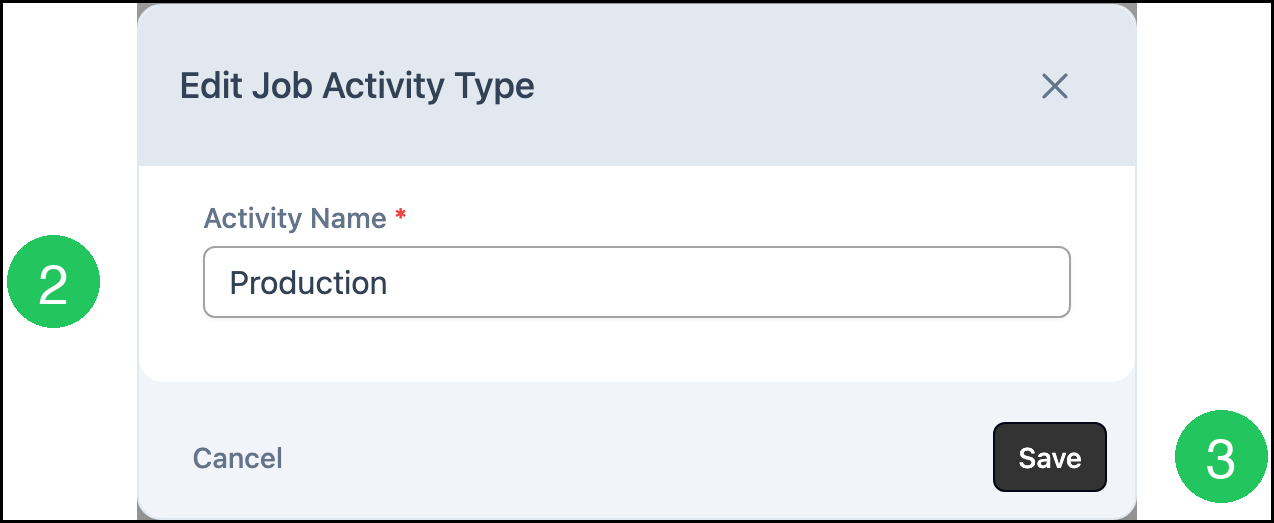
2. Update Activity Name.
3. Click Save.
Frequently Asked Questions
1. Where do Job Activity Types appear?
Answer: Each Activity Name appears in the Activity list in Job Tracking when time is recorded on an Order or Estimate.
2. What does Enable Job Tracking do?
Answer: Enable Job Tracking turns Job Tracking on so an Activity Name can be selected while time is recorded.
3. How do I hide an activity type?
Answer: Open More Actions on the row and click Set Inactive. Show Inactive Records displays inactive activity types.
4. How is this different from Time Clock activities?
Answer: Job Activity Types are the names selected when time is recorded on an Order or Estimate. Time Clock activities are maintained in Time Clock. See Time Tracking for Employees.