
The Fiserv US integration connects CoreBridge with Fiserv to process credit card and ACH (eCheck) payments for US businesses. Once installed from the Integrations Marketplace and connected to a Fiserv merchant account, Credit Card (Fiserv US) and eCheck (Fiserv US) are available as payment methods in Apply Payment.
Note: CoreBridge can help with integration setup and how the integration works within the system. Questions related to Fiserv merchant accounts, rates, or banking should be directed to Fiserv or your payment provider.
Table of Contents
- Before You Begin
- Benefits of Integrating with Fiserv US
- How to Integrate CoreBridge with Fiserv US
- Configure Fiserv US
- Enable Fiserv US in Payment Methods
- Use a Card Reader
- Take a Card Reader Payment
- Related Articles
Before You Begin
Fiserv US is available in the Integrations Marketplace for US CoreBridge businesses. Your business must have the Fiserv US integration enabled before the card appears or can be installed.
You need access to Settings and permission to install and configure integrations. You also need an active Fiserv merchant ID before you can connect the integration.
Benefits of Integrating with Fiserv US
Connecting Fiserv US lets your team accept integrated card and ACH payments without leaving CoreBridge.
- Integrated card capture. Apply payments on orders and invoices using Fiserv-hosted card entry.
- ACH (eCheck) support. Accept bank payments when ACH is enabled for your merchant account.
- Location flexibility. Connect one Fiserv account for all locations, or separate accounts per location.
- Card reader payments. Take a card payment on a connected Fiserv card reader from Apply Payment when Credit Card Reader Enabled is turned on.
How to Integrate CoreBridge with Fiserv US
This section explains how to install the Fiserv US integration from the Integrations Marketplace.
Navigate to Settings / My Business / Integrations Marketplace.
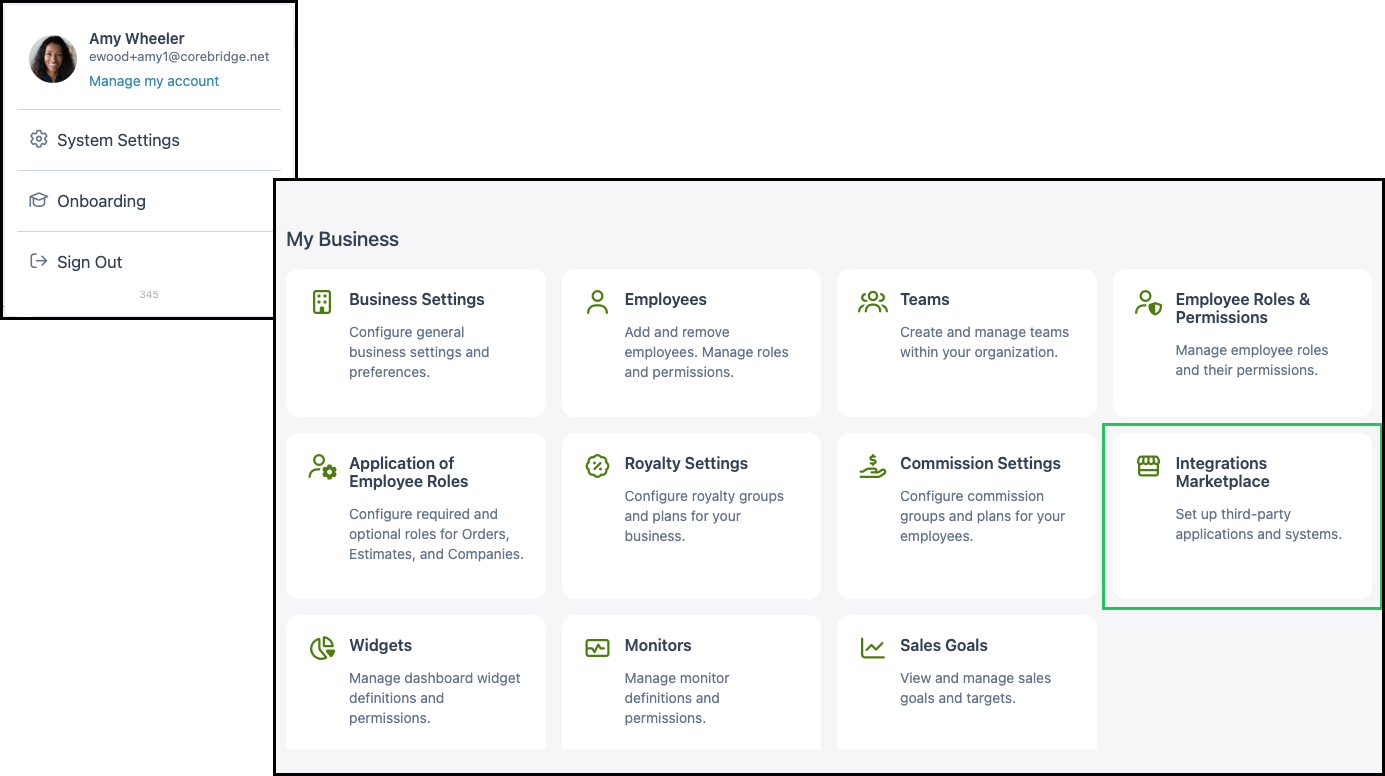
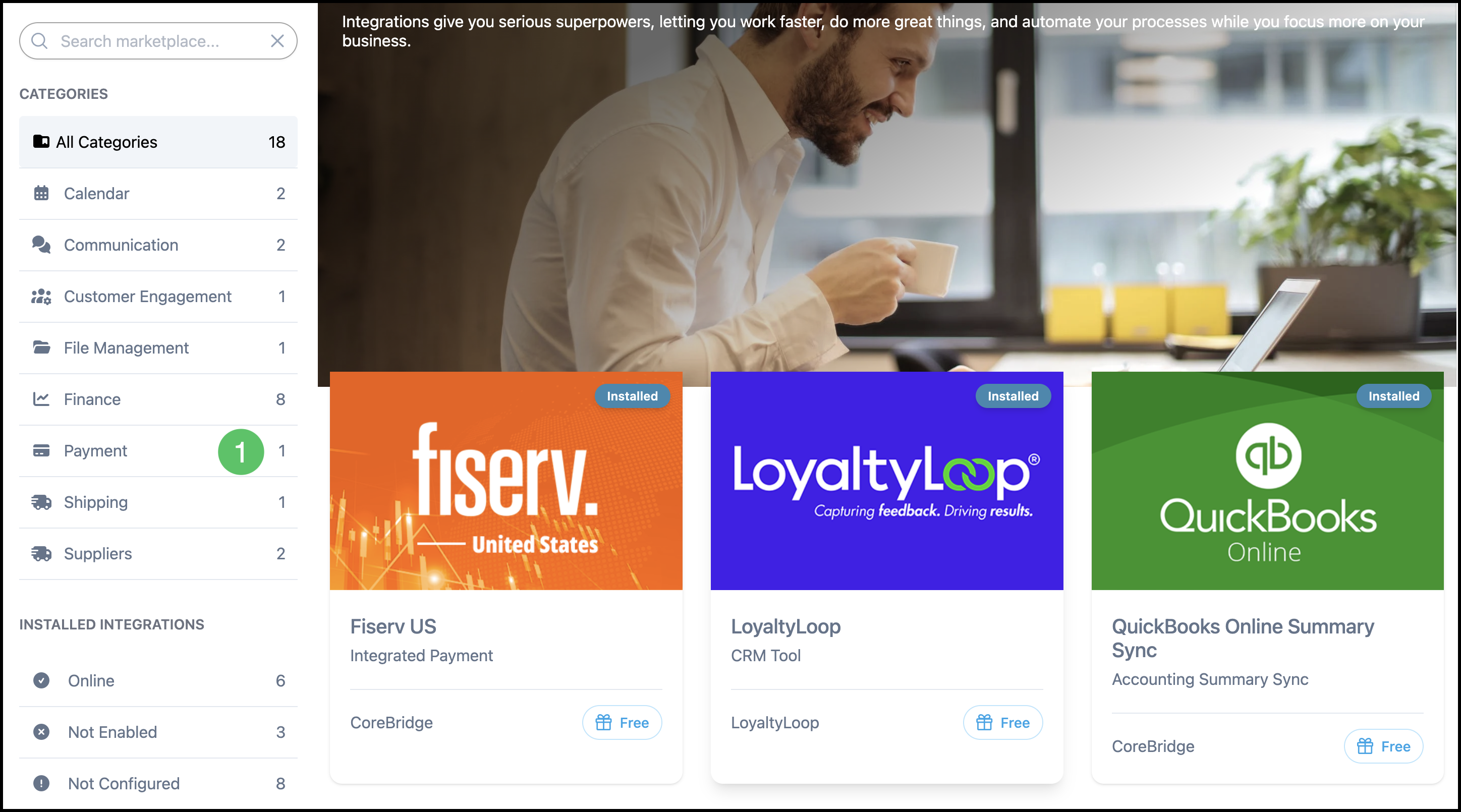
1. Click the Payment category, or type Fiserv US in Search marketplace.
Note: You can also find Fiserv US using Search marketplace or by browsing All Categories.
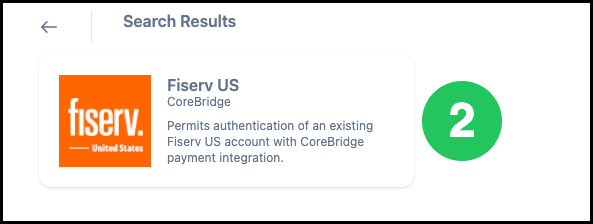
2. Click the Fiserv US card.
3. Click Install.
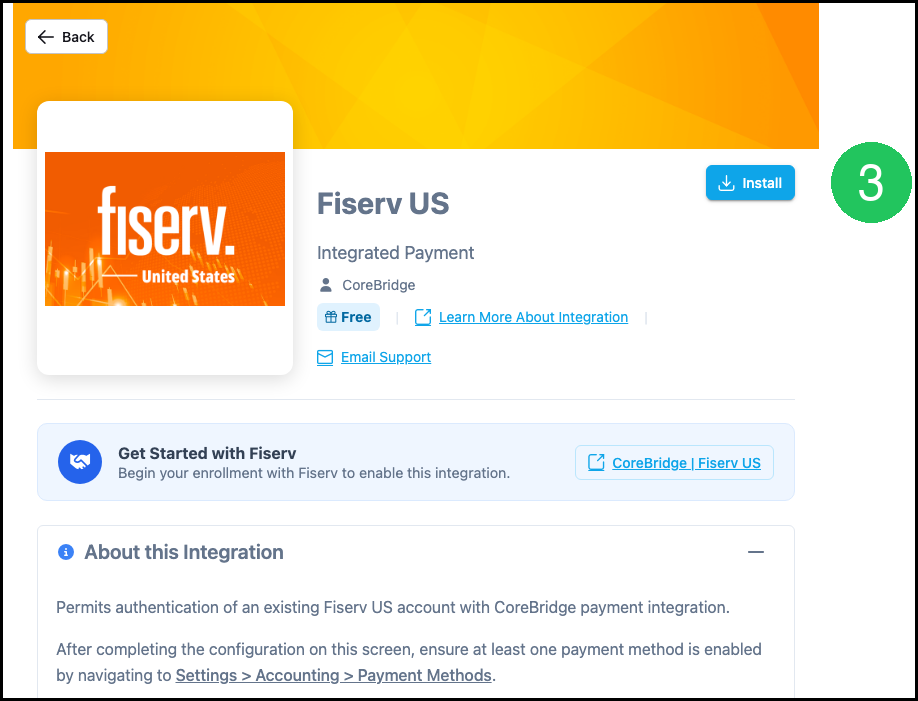
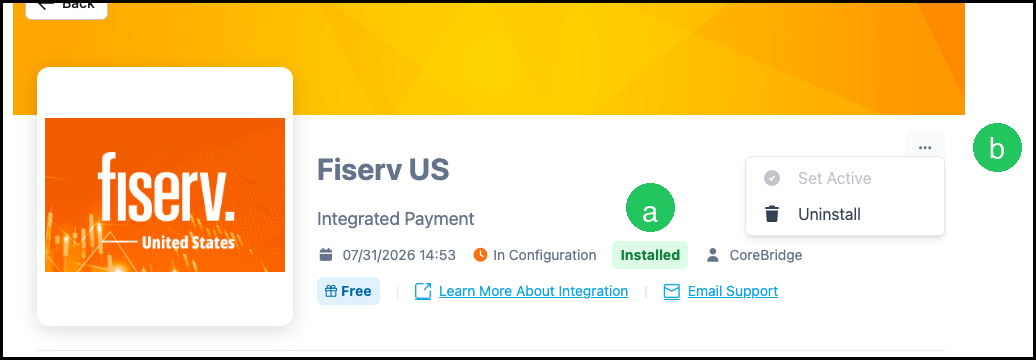
a. After installation, the integration detail screen shows Installed when setup is complete.
b. The More Actions menu includes options such as Set Active, Set Inactive, or Uninstall, depending on the integration state.
Configure Fiserv US
After installation, connect your Fiserv merchant account on the integration detail screen.
1. Choose whether All Locations connect to a single Fiserv US account, or Each Location connects to a separate account.
2. Enter your Merchant ID.
3. Click Connect and complete any Fiserv prompts in the browser window.
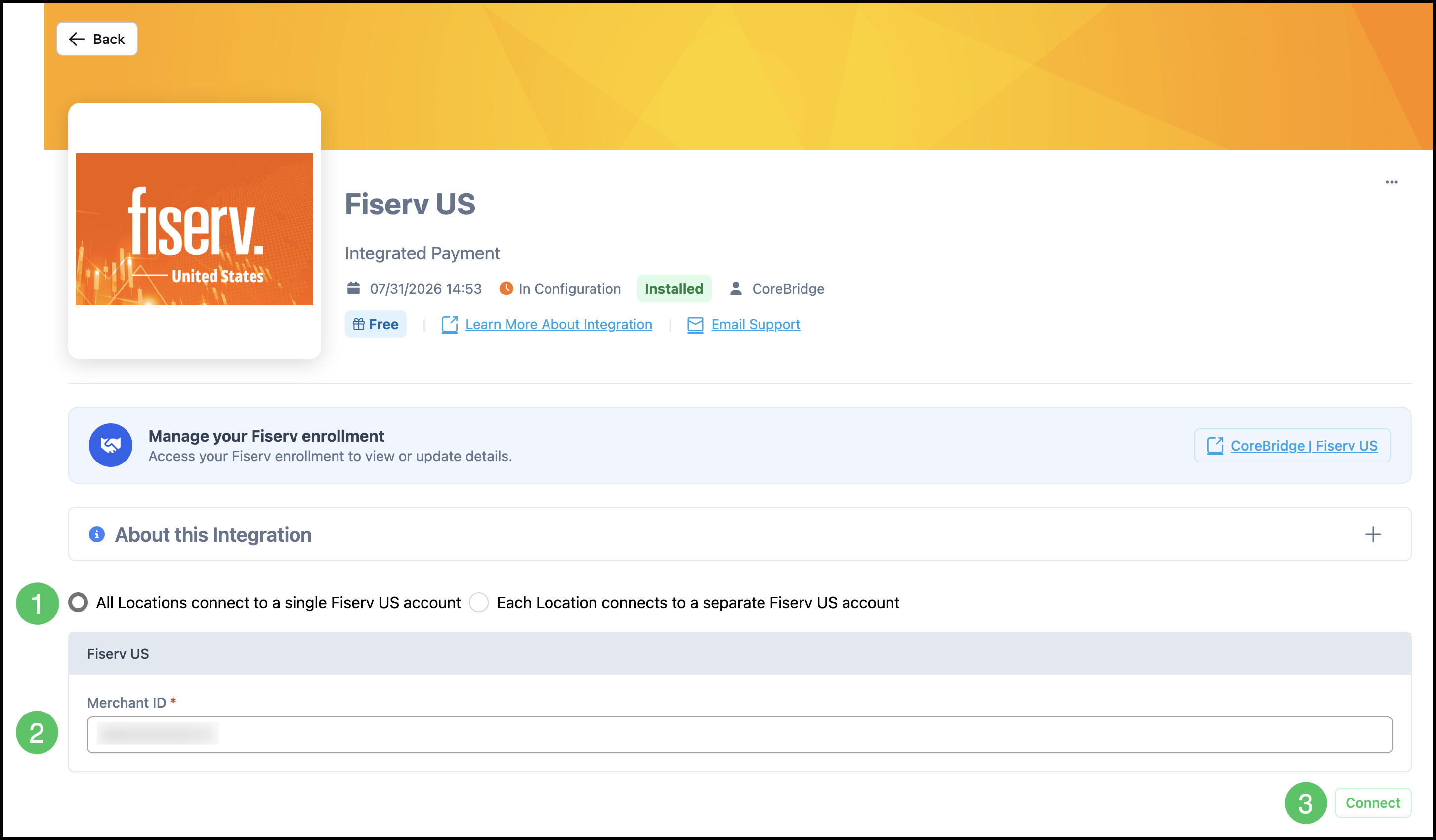
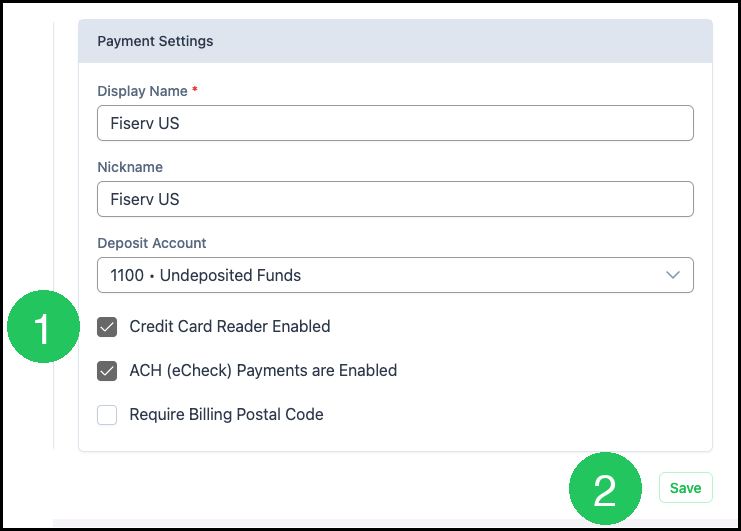
Note: After the merchant account is connected, the status shows Online. Payment Settings include Display Name, Nickname, and Deposit Account, along with Credit Card Reader Enabled, ACH (eCheck) Payments are Enabled, and Require Billing Postal Code. Test Connection checks the merchant account, and Edit Credentials is where the merchant account details are changed. Save stores the Payment Settings.
Enable Fiserv US in Payment Methods
After Fiserv US is installed and connected, enable the processor in Payment Methods so it is available when applying payments.
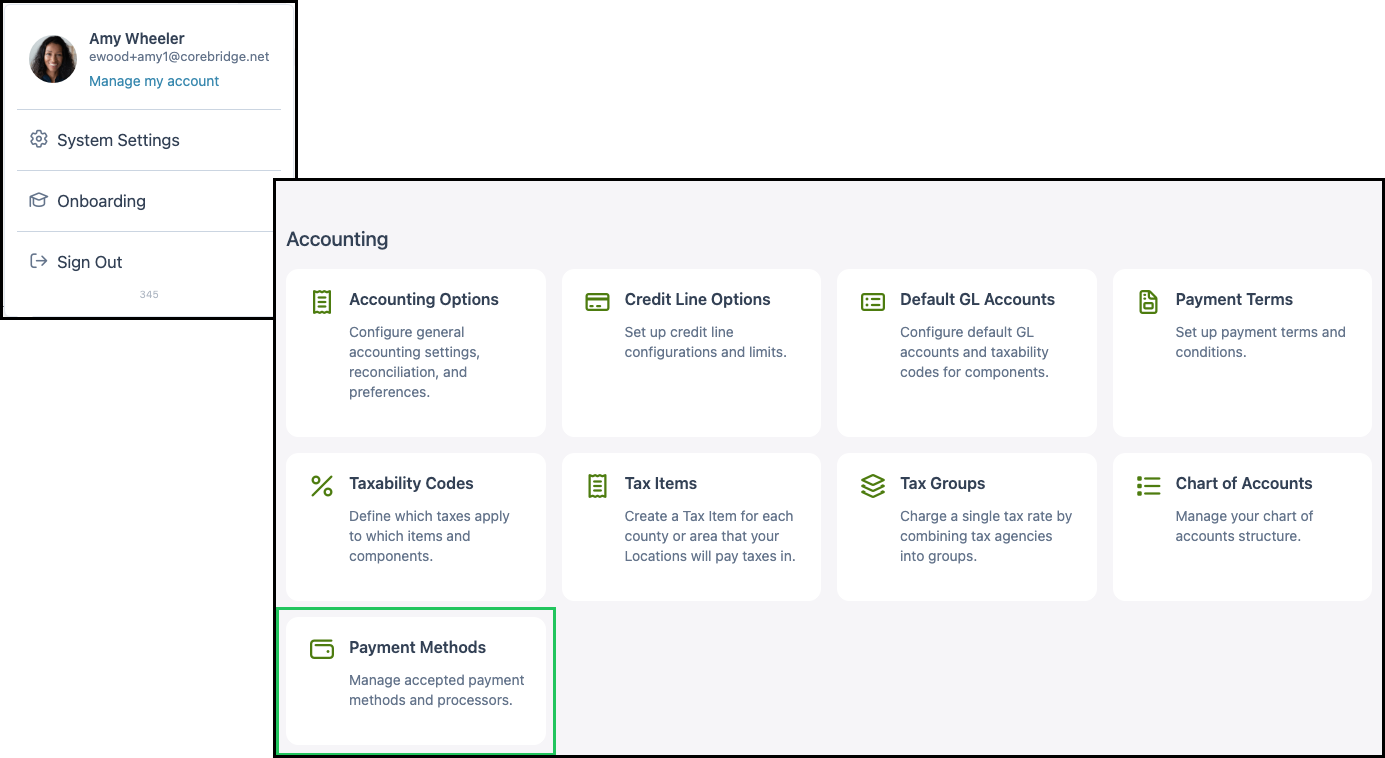
Navigate to System Settings / Accounting / Payment Methods.
1. In the Payment Integrations section, confirm Credit Card (Fiserv US) appears when the integration is online.
2. If no integrations are online yet, complete Fiserv US configuration first. The section displays No Payment Integrations are currently Online. until a connected integration is active.
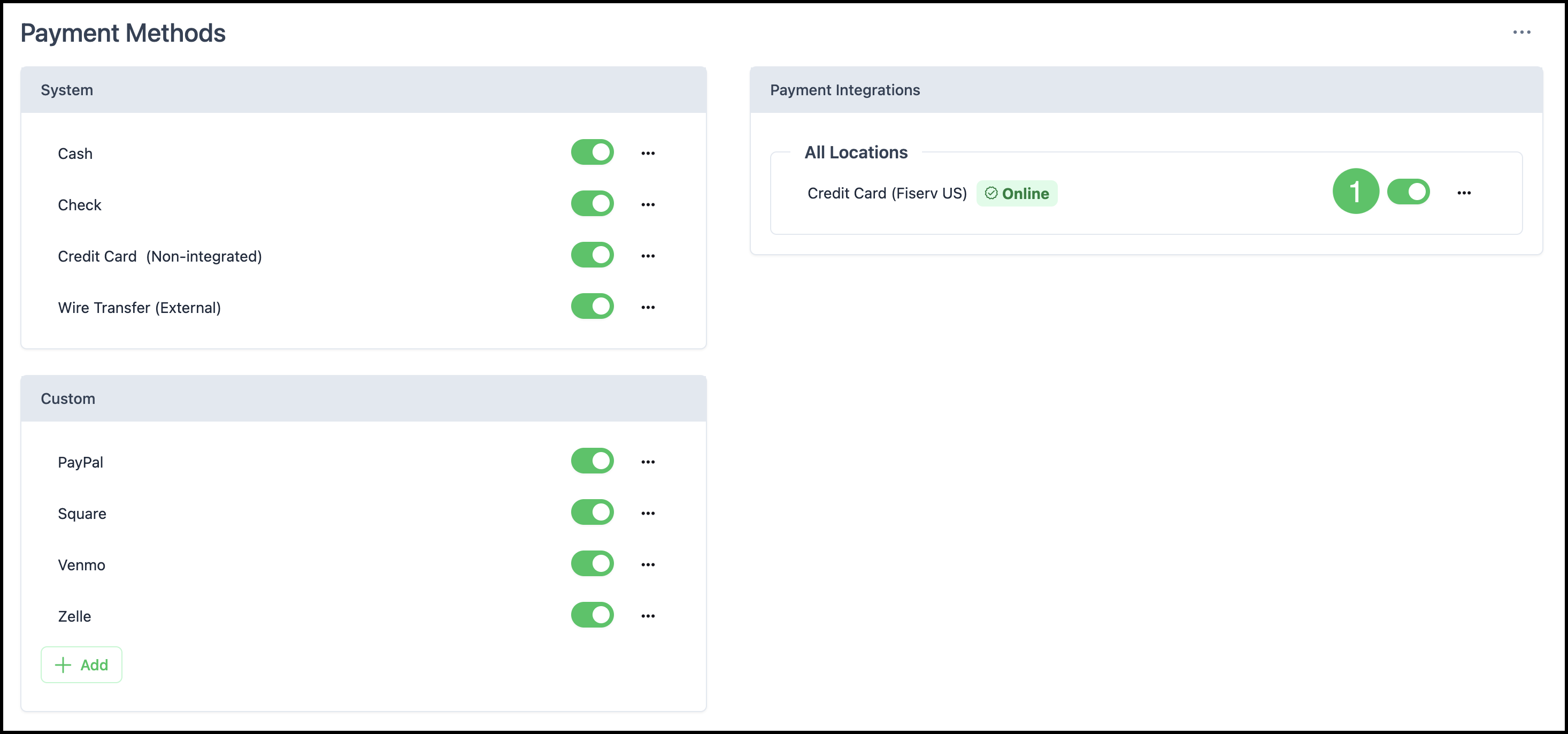
Note: When Fiserv US is online, Apply Payment includes Credit Card (Fiserv US) for card payments and eCheck (Fiserv US) when ACH is enabled.
Use a Card Reader
When a Fiserv card reader is used at the counter, turn it on in Payment Settings on the Fiserv US integration screen.
1. Check Credit Card Reader Enabled.
2. Click Save.
Take a Card Reader Payment
When Credit Card Reader Enabled is turned on, Apply Payment for Credit Card (Fiserv US) includes a Card Reader section. Select the reader, then send the payment to that reader.
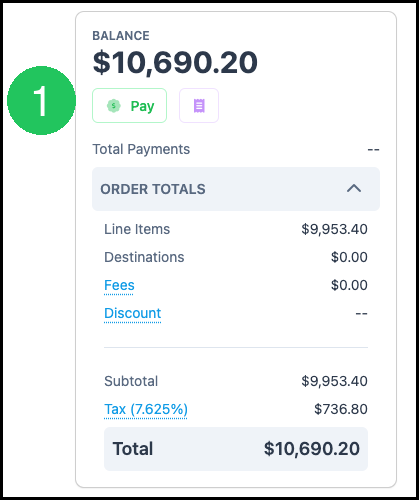
1. On the order, invoice, or statement, click Pay.
2. In Apply Payment, select Credit Card (Fiserv US) from Payment Method.
3. Select the reader from Card Reader Device.
4. Click Use Card Reader.
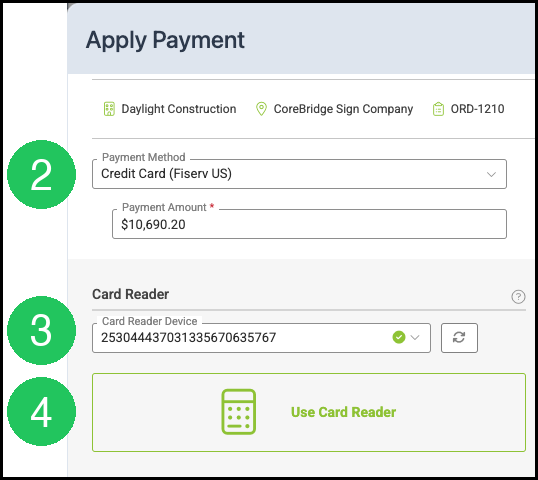
Note: When the selected card reader has a built-in printer, Print receipt appears under Use Card Reader. Check it to print a receipt from the reader.
Note: Card number, expiration, and security code can still be entered on the same Apply Payment screen when the payment is not taken on the reader.
Related Articles
CoreBridge's Integrated Merchant Service Providers