
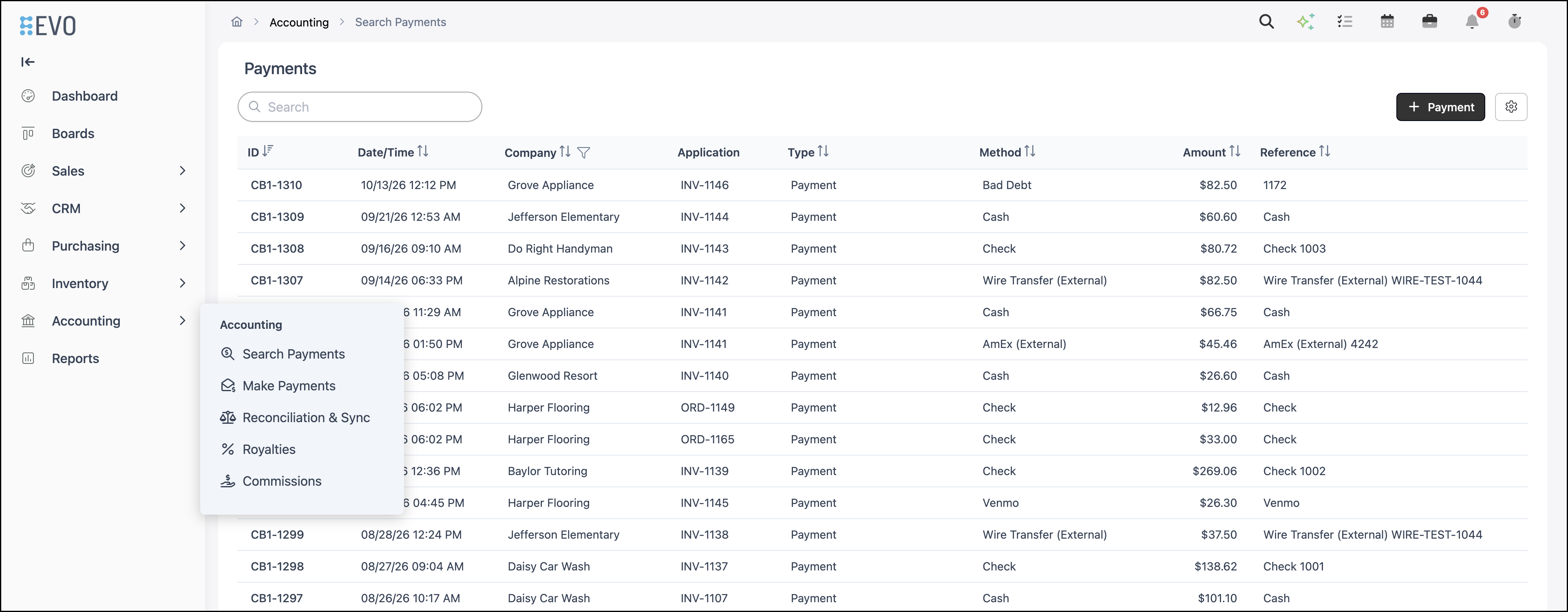
Search Payments is the payment ledger for payments recorded for a Company. It lists each payment, what it was applied to, and the details for that payment. The Company filter and the columns chosen in Search Settings stay for your login on this business.
Table of Contents
Open Search Payments
The payment history for a Company is the payment ledger.
Navigate to Accounting / Search Payments.
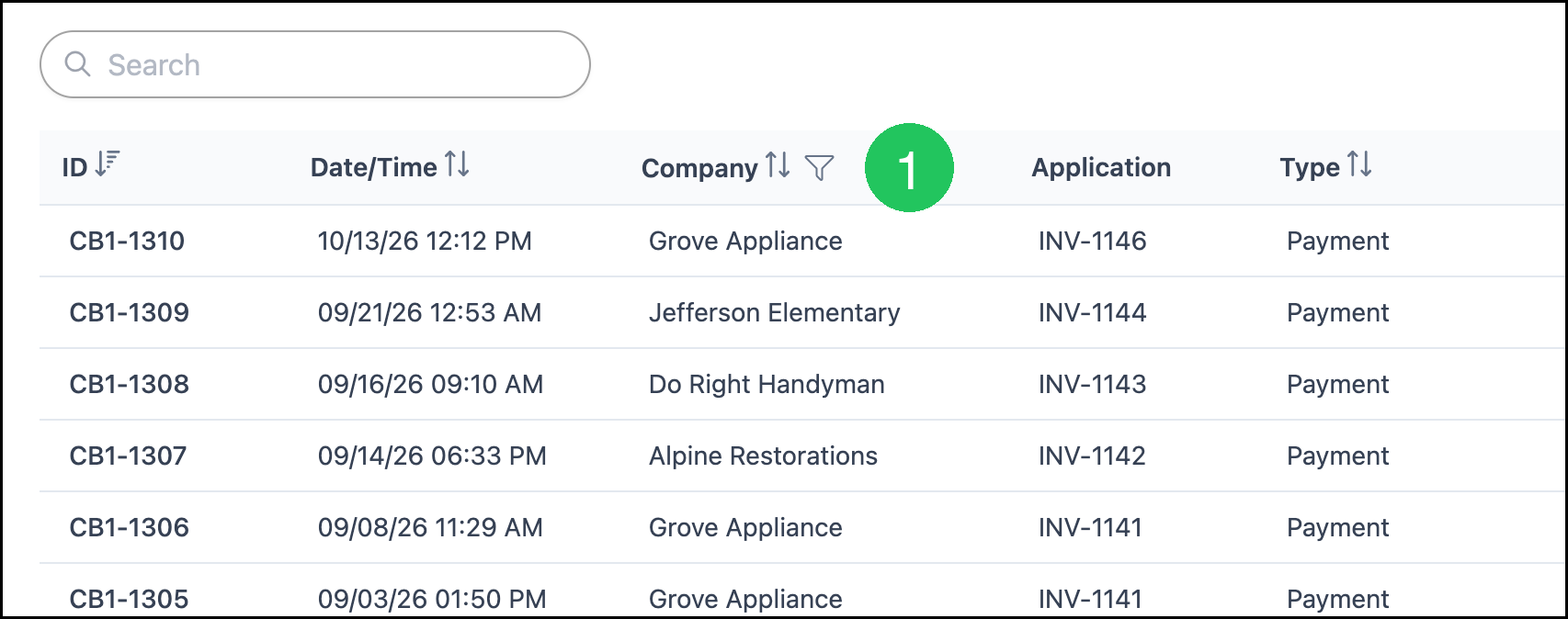
Show One Company's Payments
1. Click the filter on the Company column.
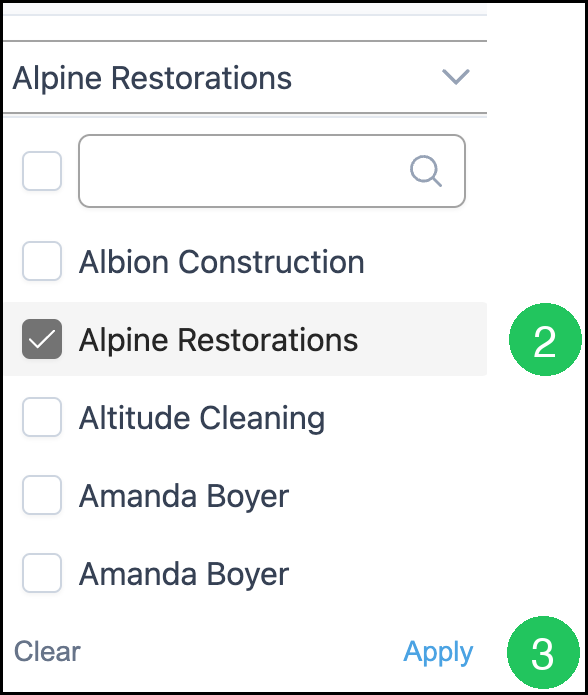
2. Select the Company.
3. Click Apply.
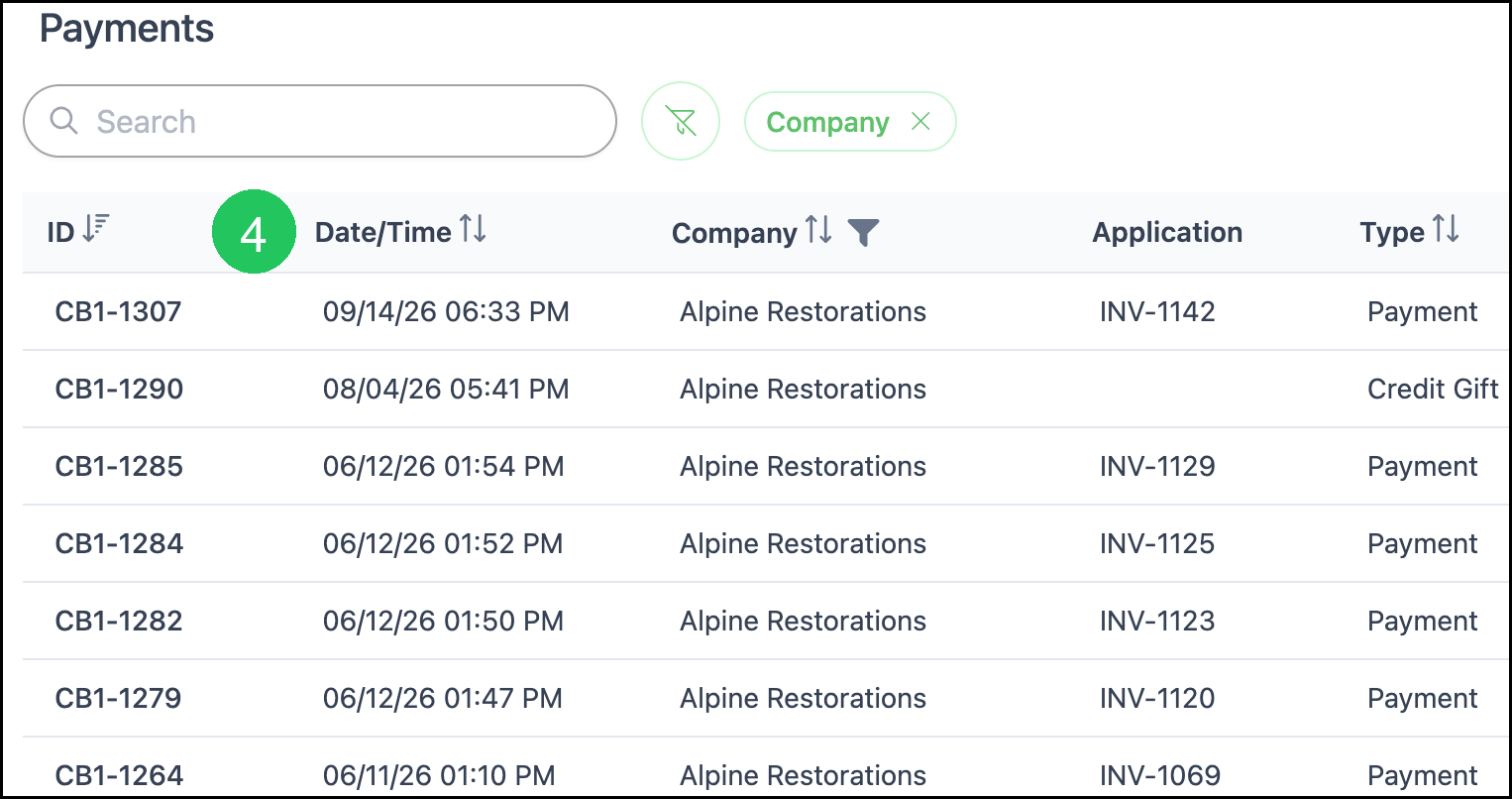
4. Click the Date/Time column header to change the sort order.
Notes:
- Checking a Company does not change the list until you click Apply.
- The Company filter, and the columns you choose in Search Settings, stay for your login on this business. They are still there after you sign out and sign back in. Search Payments does not replace the Dashboard as the first screen after you sign in. Open Accounting, then Search Payments, to return to the saved filter.
Open One Payment
1. Click the payment row.
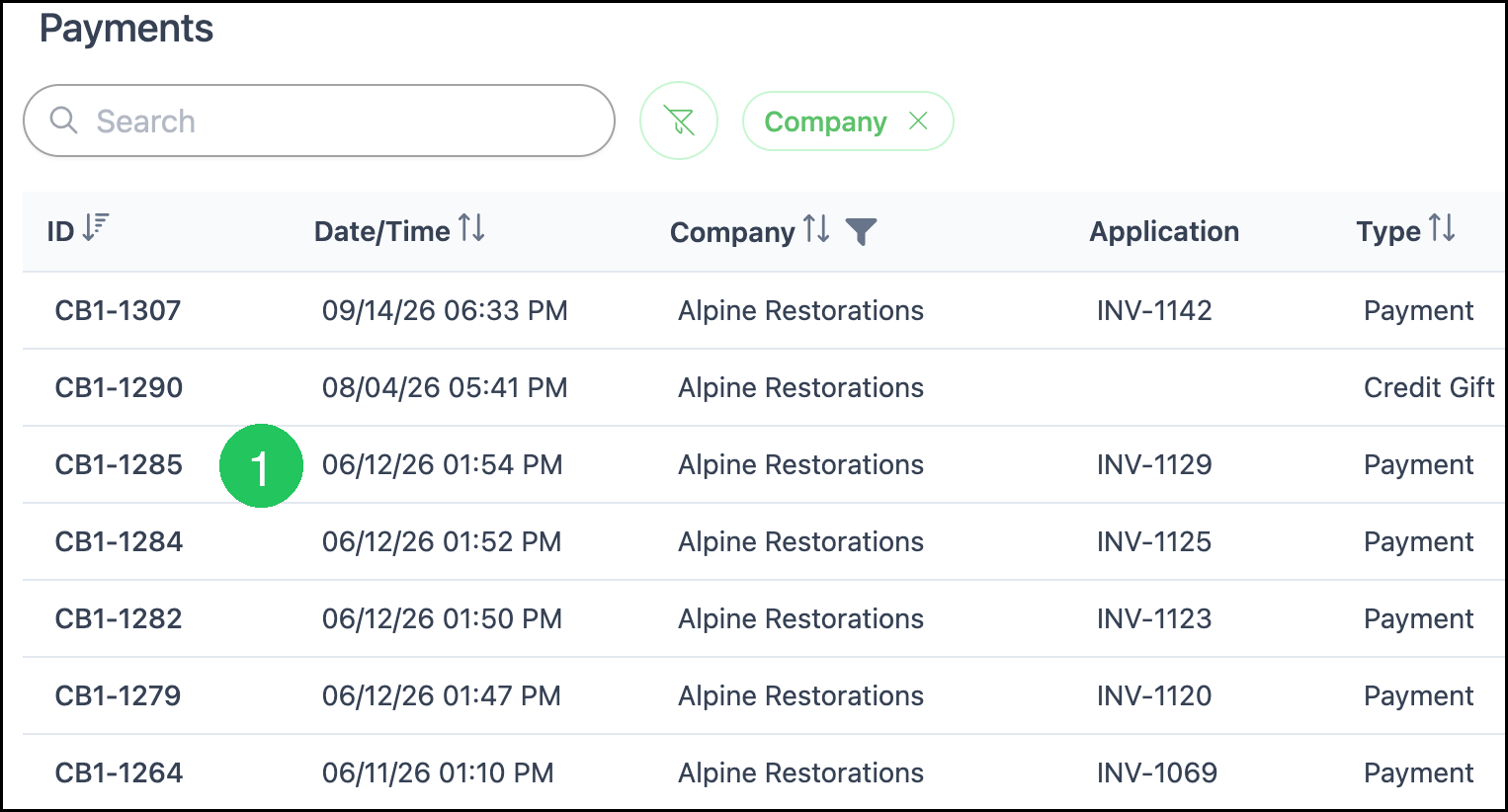
Payment Details opens in a dialog on the same screen.
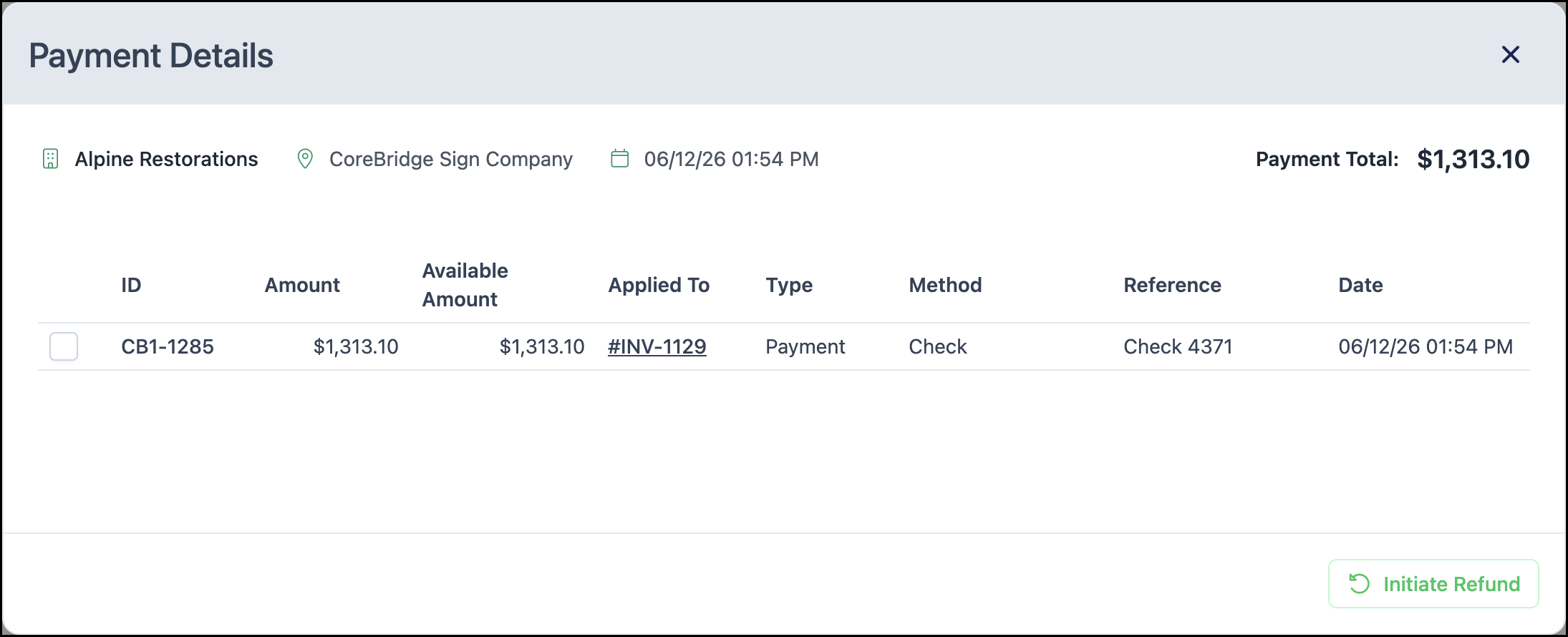
Note: The Company name and the Order, Invoice, or Credit Memo in the Application column are links. Clicking those leaves Search Payments and opens that record. Click the row, not those links, to stay on the payment.