
Custom Work Sheet is a product for pricing custom work from the parts added on the Sales Form. It is stored in Products & Modifiers. Name on customer documents is Work Sheet. The Sales Form takes a quantity, finished sizes, and components. Each component can add sourced goods, material, labor, or flat stock. The Pricing card uses a Custom formula, and Calculate uses that formula. The same Sales Form is used when Custom Work Sheet is added on an Estimate or Order.
Table of Contents
- Where to Find Custom Work Sheet
- What Custom Work Sheet Includes
- Product Settings
- Linked Components
- Enter Finished Sizes
- Add a Part
- Review the Price
- Add Custom Work Sheet to an Estimate
- Frequently Asked Questions
- Related Articles
Where to Find Custom Work Sheet
Navigate to System Settings / Components / Products & Modifiers.
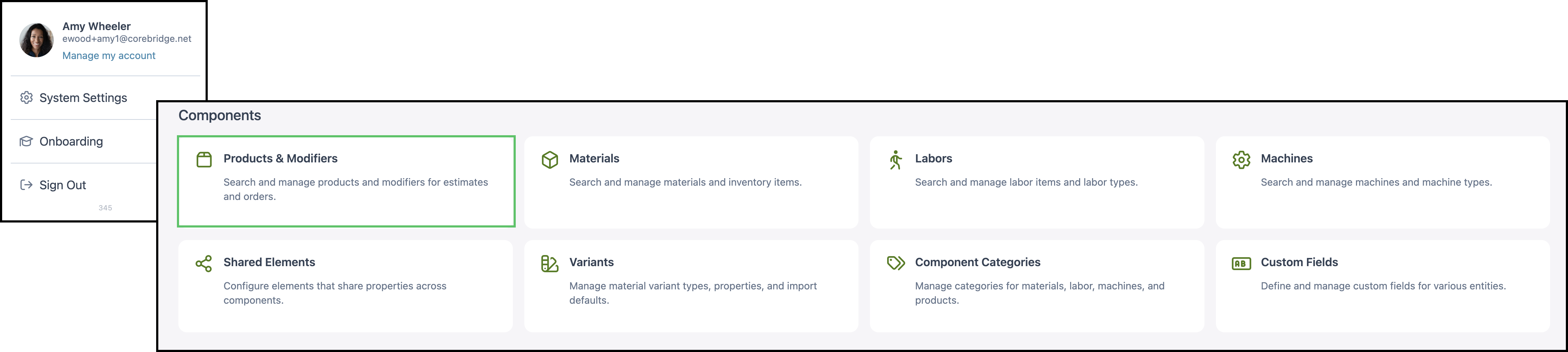
1. Open Custom Work Sheet.

What Custom Work Sheet Includes
a. The name is Custom Work Sheet. Name on customer documents is Work Sheet. The description is Custom Work Sheet.

b. Pricing is the method Calculate uses. On this product the method is Custom.
- For the fields on this card, see Product Details.
- For how each method calculates, see Understanding Market-Based vs. Cost-Plus Pricing, Cost Based Pricing, and Market Based Pricing.
- For tables, minimums, and fees, see Markup and Margin Pricing Tables and Product Minimums and Fees.
c. Product Settings holds lead time, order-entry visibility, and assembly defaults. This product has 6 settings.
d. Linked Components are the modifiers this product can use. The card shows 2 linked and 0 unlinked.
e. Accounting & Tax assigns income, expense, and tax. This product shows Configured.
- For the fields on this card, see Product Details.
- Taxability Codes are managed at System Settings / Accounting / Taxability Codes. See Taxability Codes.

Product Settings
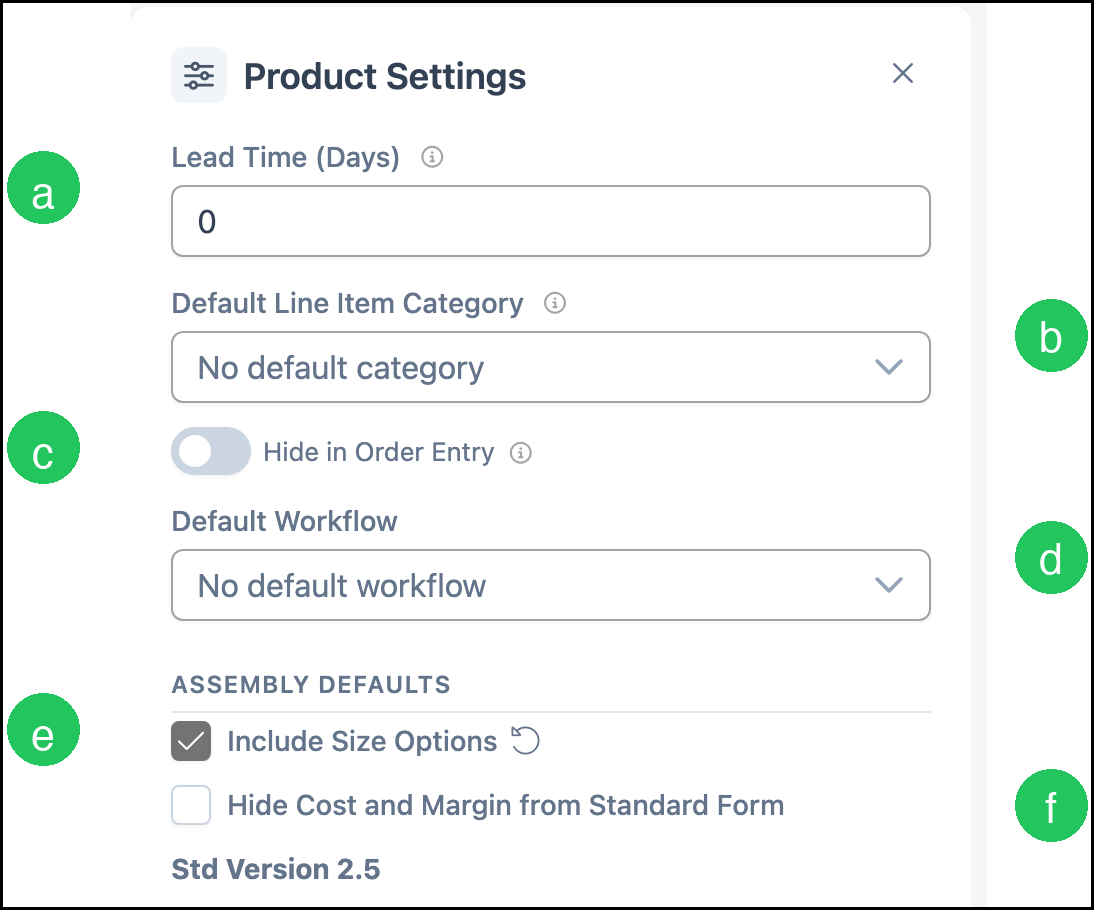
Product Settings holds the defaults that follow the product onto an Estimate or Order. The card shows how many settings are saved. This product has 6 settings.
a. Lead Time (Days) is the number of days orders use when calculating a production due date. On this product it is 0.
b. Default Line Item Category is the starting category for a new line. On this product it is No default category.
c. Hide in Order Entry, when on, keeps the product out of the Estimate and Order list without deleting it. On this product it is off, so Custom Work Sheet can be added to a line.
d. Default Workflow is the starting workflow for a new line. On this product it is No default workflow.
e. Include Size Options shows Finished Sizes on the Sales Form. On this product it is on.
f. Hide Cost and Margin from Standard Form, when on, hides cost and margin on the standard Sales Form. On this product it is off.
Note: Under Assembly Defaults, the card shows Std Version 2.5.
- For every setting on the card, see Product Details.
Linked Components
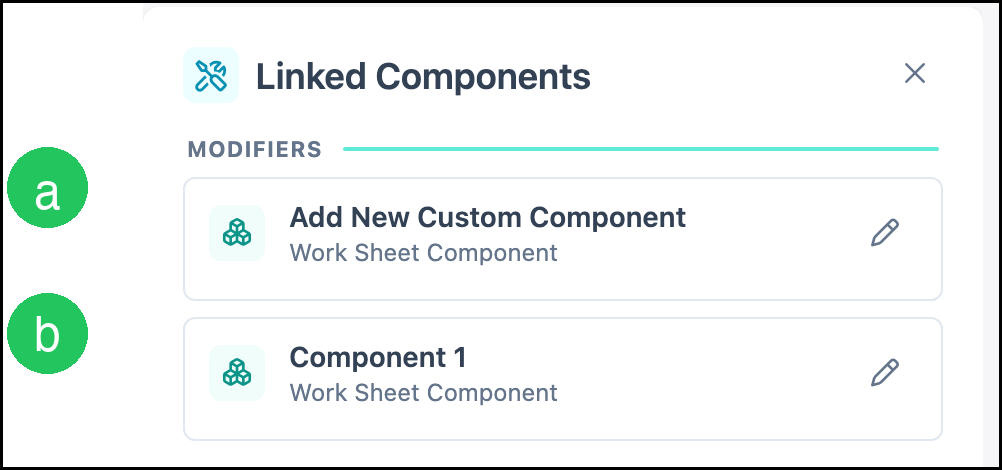
Linked Components are the materials, labor, machines, and modifiers the product is allowed to use. The card counts linked rows and unlinked rows. This product links modifiers only: 2 linked and 0 unlinked.
a. Add New Custom Component is the modifier used when the Sales Form adds another component. On this product it is Work Sheet Component.
b. Component 1 is the first component on the form. On this product it is Work Sheet Component.
- For how to link or unlink a component, see Linked Components.
- For how a modifier differs from a product, see Products vs. Modifiers.
Enter Finished Sizes
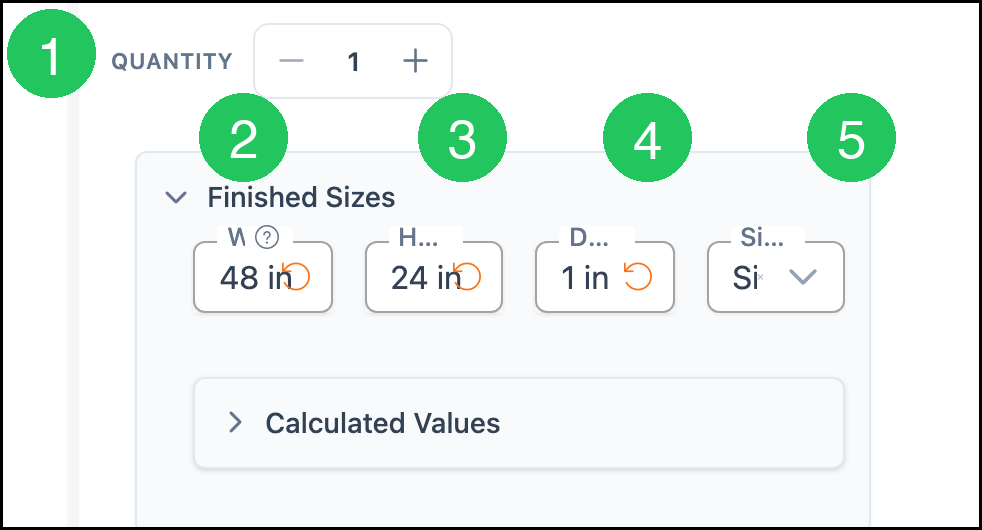
Finished Sizes is on the Sales Form because Include Size Options is on.
1. Set Quantity.
2. Enter Width.
3. Enter Height.
4. Enter Depth.
5. Set Sides. The choices are Single and Double.
6. Select Component Name. The choices on this product are Cabinet, Structure, Letters, Tactile, Face, and Finishing. This example uses Face.
Note: Calculated Values shows Total Cost, Markup (%), Margin (%), and Sub-Total Price after Calculate runs.

Add a Part
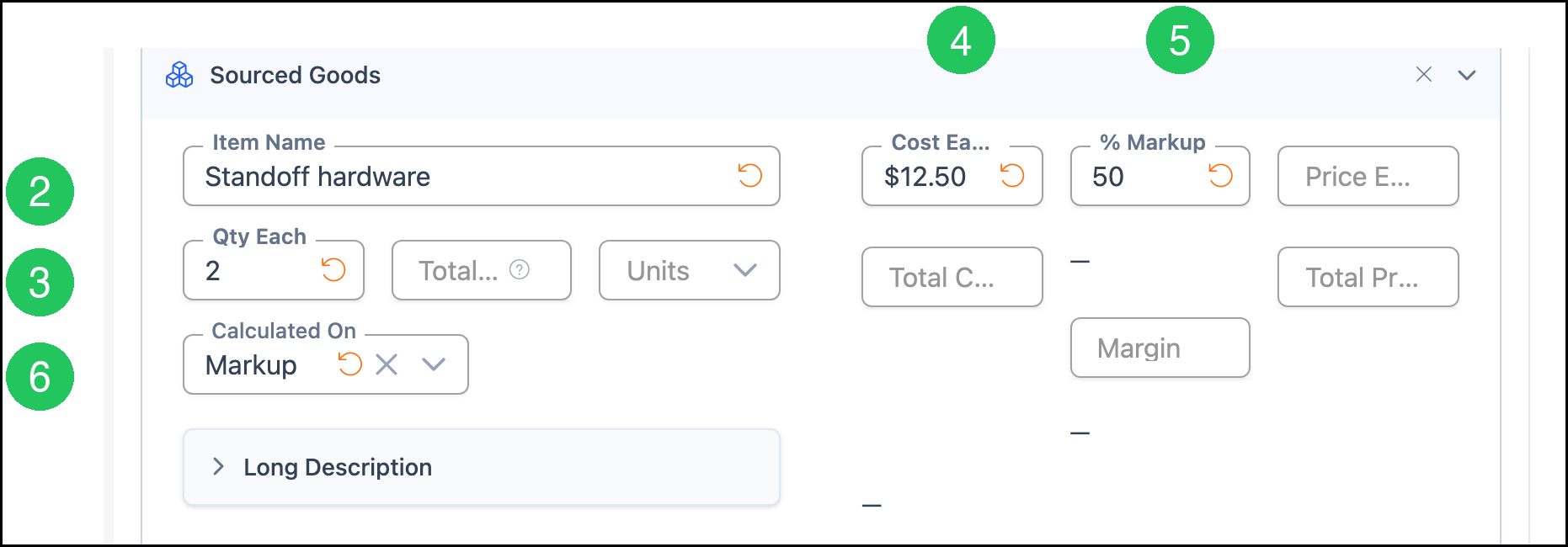
Each component has four ways to add a part. Select one button to open that part.
1. Select Sourced Goods to add a purchased item.
b. All Material adds a material from the material list.
c. Labor adds labor time.
d. Flat Stock Material (Sample) adds a flat stock material.

2. Enter Item Name. This example uses Standoff hardware.
3. Enter Qty Each. This example uses 2.
4. Enter Cost Each. This example uses $12.50.
5. Enter % Markup. This example uses 50.
6. Set Calculated On. The choices are Markup, Margin, and Retail. This example uses Markup.
Note: Price Each and Total Price fill when the formula on the Pricing card returns a price. The formula saved on this product is =0, so those fields stay blank until the formula changes. All Material, Labor, and Flat Stock Material (Sample) use the same cost, markup, and Calculated On fields after their own item is chosen.
Review the Price
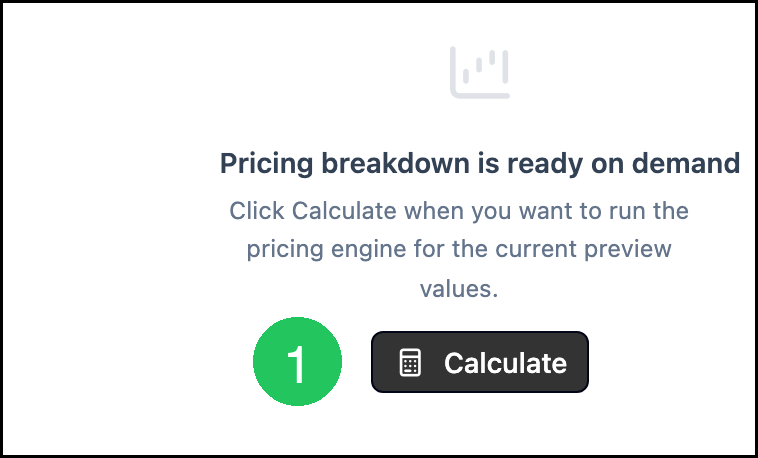
1. Click Calculate.
Note: Calculate prices the current Sales Form with the formula on the Pricing card. The formula saved on this product is =0. Change that formula when the line price should follow the parts, the finished size, or another calculation. Click Calculate again after the form or the formula changes.
Add Custom Work Sheet to an Estimate
Navigate to Sales / Estimates.
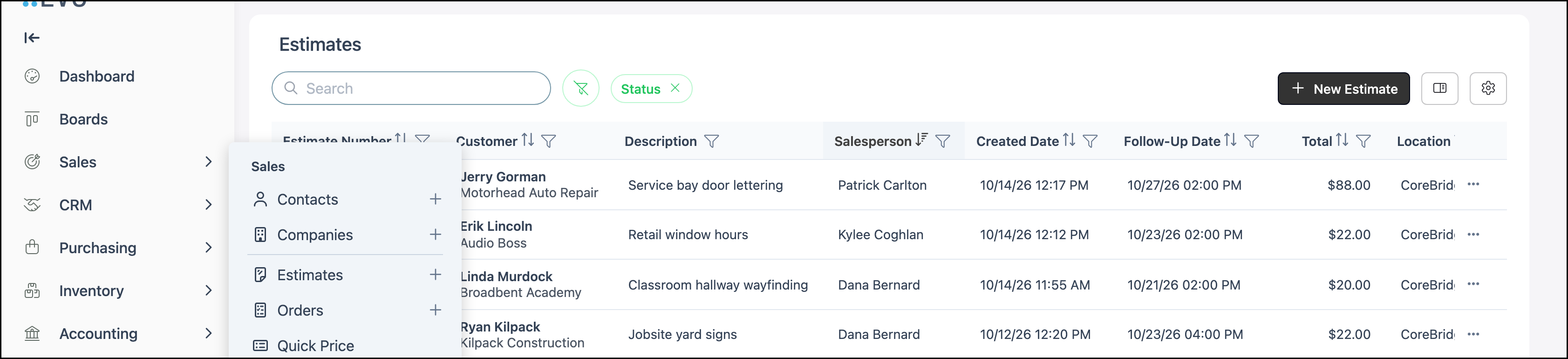
Open an Estimate from Sales / Estimates and add a line item for the Product named Custom Work Sheet. The Sales Form on the line is the same form shown above. Set Quantity, the finished size, and Component Name, then add a part. The line price follows the formula saved on the Pricing card. See Adding Products During Estimate or Order Entry.
Frequently Asked Questions
1. What name is printed on customer documents?
Answer: Customer documents print Name on customer documents. On this product that name is Work Sheet. The name you search for can be different.
2. Why does Calculate follow a formula of =0?
Answer: =0 is the Custom formula saved on this product. Calculate uses the formula on the Pricing card. Change the formula when the price should come from the parts or from another calculation.
3. What is the difference between the four part buttons?
Answer: Sourced Goods is a purchased item with an item name and a cost. All Material uses a material from the material list. Labor uses labor time. Flat Stock Material (Sample) uses a flat stock material. Each part then takes a quantity, a cost, a markup, and Calculated On.
Related Articles
Adding Products During Estimate or Order Entry