
Flatbed Prints is a product for a rigid panel printed on a flatbed printer, such as a yard sign, a real estate sign, or a panel sign. It is stored in Products & Modifiers, in the Digital / Vinyl category. The Sales Form takes a material, a width, and a height. The Pricing card sets the method Calculate uses. The same Sales Form is used when Flatbed Prints is added on an Estimate or Order.
Table of Contents
- Where to Find Flatbed Prints
- What Flatbed Prints Includes
- Product Settings
- Linked Components
- Enter the Size
- Printing Options
- Review the Price
- Add Flatbed Prints to an Estimate
- Frequently Asked Questions
- Related Articles
Where to Find Flatbed Prints
Navigate to System Settings / Components / Products & Modifiers.
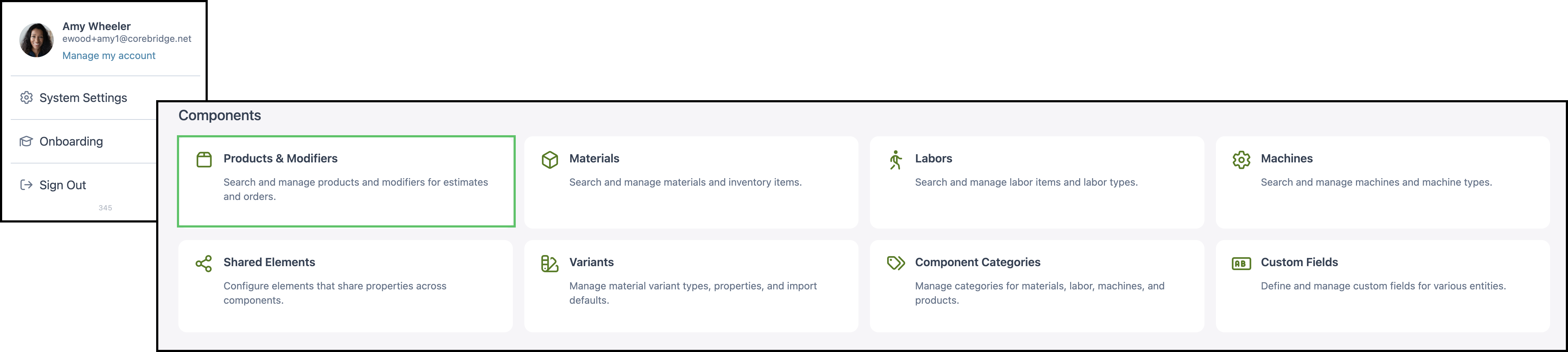
1. Open Flatbed Prints.
Note: A search for Flatbed also lists Flat Stock Prints. That row is a different product, and its description is Flatbed Prints. Open the row whose Name is Flatbed Prints.

What Flatbed Prints Includes
a. The name is Flatbed Prints. The category is Digital / Vinyl. The description is Flatbed Printer used to create Panel, Yard, Pop-Up, Real Estate Signs, etc.

b. Pricing is the method Calculate uses. On this product the card shows 100% Cost Plus - Markup.
- For the fields on this card, see Product Details.
- For how each method calculates, see Understanding Market-Based vs. Cost-Plus Pricing, Cost Based Pricing, and Market Based Pricing.
- For tables, minimums, and fees, see Markup and Margin Pricing Tables and Product Minimums and Fees.
c. Product Settings holds lead time, Order Entry visibility, and assembly defaults. The card shows 24 settings.
d. Linked Components are the materials, labor, machines, and modifiers this product can use. The card shows 11 linked and 1 unlinked.
e. Accounting & Tax is Configured. Income uses Single Income Allocation and 4000 • Income. Expense uses Single Expense Allocation and 5000 • COGS. The taxability code is Goods.
- For the fields on this card, see Product Details.
- Taxability Codes are managed at System Settings / Accounting / Taxability Codes. See Taxability Codes.

Product Settings
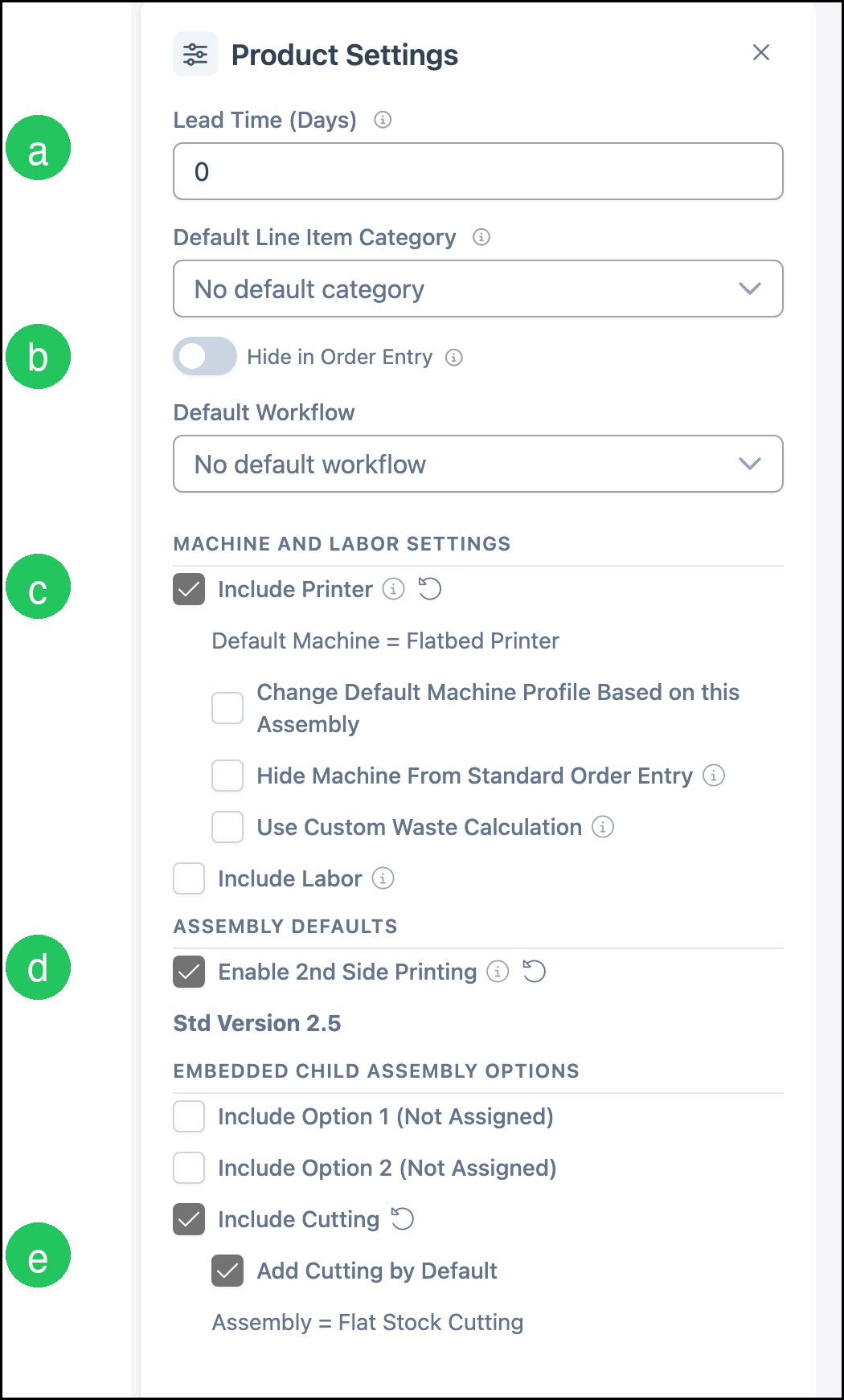
Product Settings holds the defaults that follow the product onto an Estimate or Order. The card shows how many settings are saved.
a. Lead Time (Days) is 0. Orders use this number when calculating a production due date.
b. Hide in Order Entry is off, so Flatbed Prints can be added to a line.
c. Include Printer is on. The default machine is Flatbed Printer. Include Labor is off.
d. Enable 2nd Side Printing is on. Std Version is 2.5.
e. Include Cutting is on, and Add Cutting by Default is on. The assembly is Flat Stock Cutting. Include Option 1 (Not Assigned) and Include Option 2 (Not Assigned) are off.
Note: Default Line Item Category is No default category. Default Workflow is No default workflow. Both are optional starting values.
- For every setting on the card, see Product Details.
Linked Components
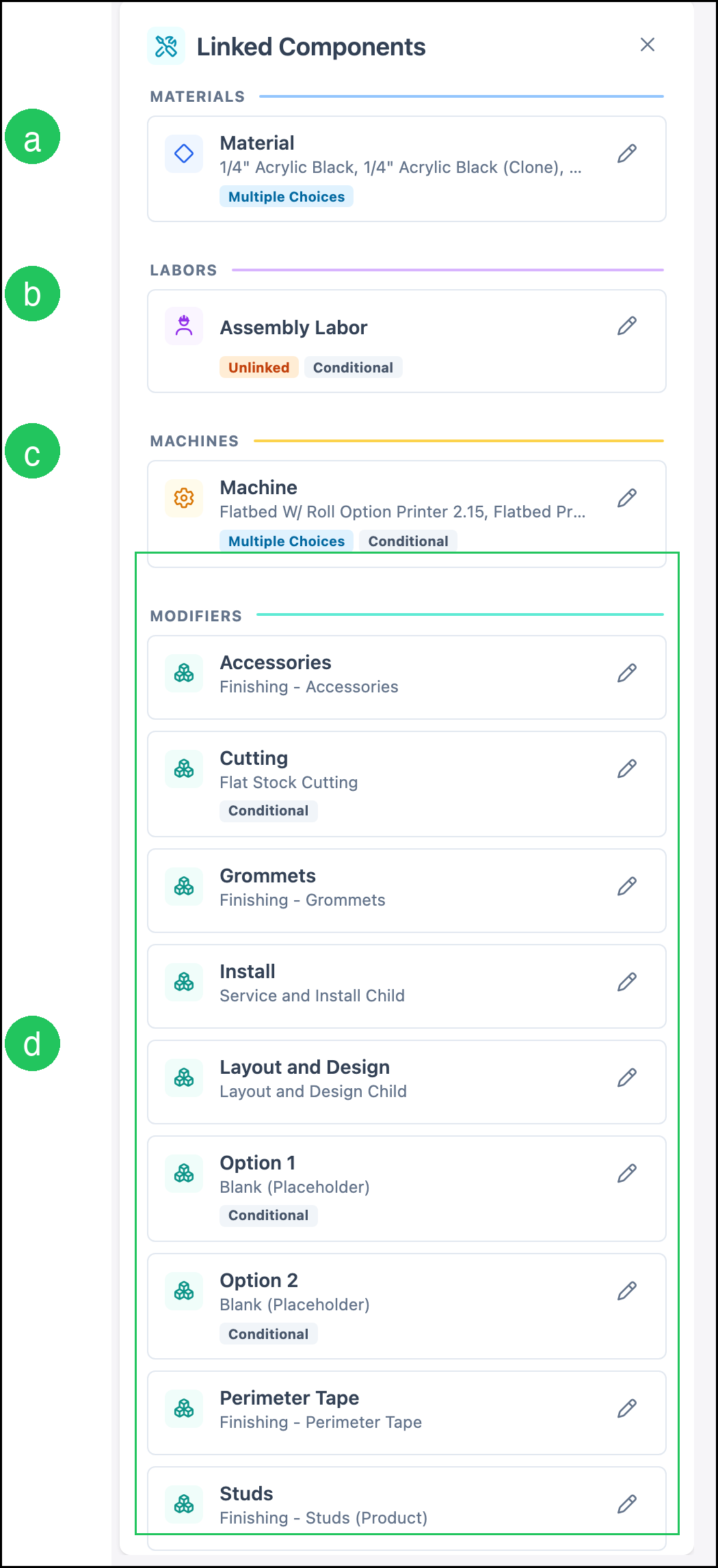
Linked Components are the materials, labor, machines, and modifiers the product is allowed to use. The card counts linked rows and unlinked rows. A shop links its own catalog.
a. Material is a multiple-choice list of sheet goods, including 1/4" Acrylic Black, Coroplast, aluminum, and wood.
b. Assembly Labor is the unlinked row. Link a labor there when the product should include assembly time.
c. Machine is a multiple-choice list. The machines are Flatbed W/ Roll Option Printer 2.15 and Flatbed Printer 2.15.
d. The modifiers are Accessories, Cutting (Flat Stock Cutting), Grommets, Install, Layout and Design, Option 1, Option 2, Perimeter Tape, and Studs. Option 1 and Option 2 are Blank (Placeholder).
- For how to link or unlink a component, see Linked Components.
- For how a modifier differs from a product, see Products vs. Modifiers.
Enter the Size
Use Preview on the Sales Form to price a sample before the product is added to an Estimate.
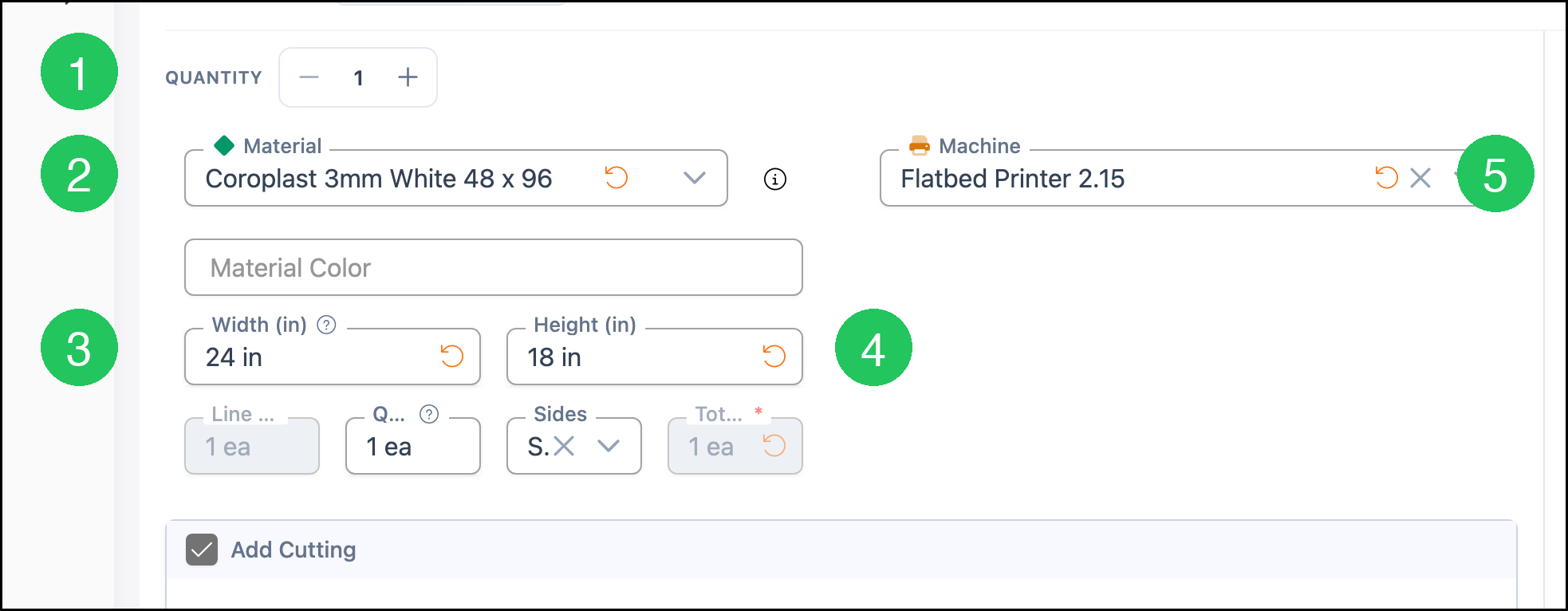
1. Set Quantity. This example uses 1.
2. Select the Material. This example uses Coroplast 3mm White 48 x 96.
3. Enter Width (in). This example uses 24.
4. Enter Height (in). This example uses 18.
5. Select the Machine. This example uses Flatbed Printer 2.15.
Note: Material Color stays blank for Coroplast 3mm White 48 x 96. Sides stays Single. Double is available because Enable 2nd Side Printing is on. Line Item Qty, Qty Each, and Total Qty show the quantity. Add Cutting is selected because Add Cutting by Default is on.
Printing Options
a. Printing Options lists Install, Grommets, Perimeter Tape, Accessories, Layout and Design, and Studs.
Note: Selecting Grommets adds Material and Placement for that option. AddOption1 and AddOption2 are the unassigned Option 1 and Option 2 rows.

Review the Price
1. Click Calculate.
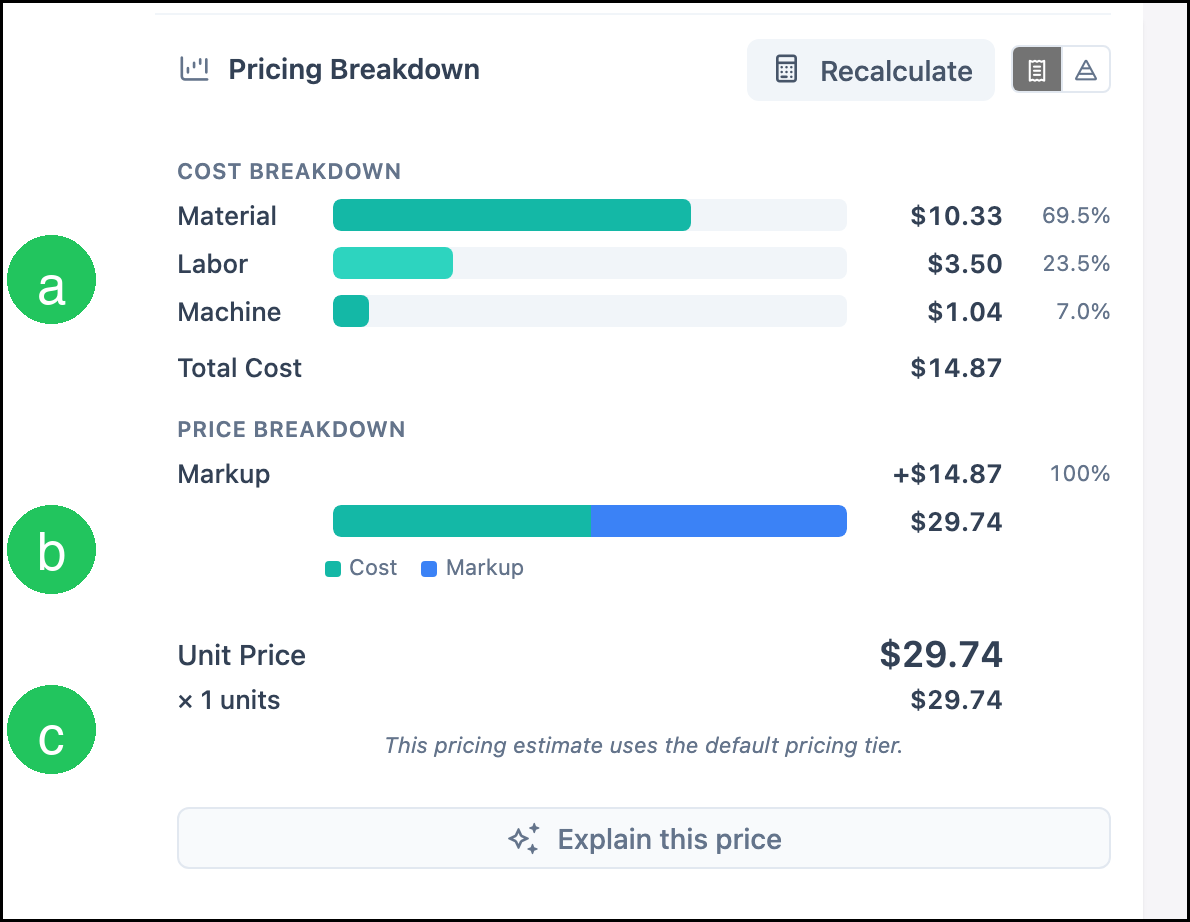
a. Cost Breakdown lists Material, Labor, Machine, and Total Cost.
b. Markup is the amount added by the saved Cost Plus - Markup method. In this example it is 100%.
c. Unit Price is the price for one. The line total is Unit Price times the quantity.
Note: Calculate prices the current Sales Form with the method on the Pricing card. The amounts below are one example: Coroplast 3mm White 48 x 96 at 24 in by 18 in, quantity 1, machine Flatbed Printer 2.15, with Add Cutting selected and the saved method Cost Plus - Markup at 100%. Material is $10.33, Labor is $3.50, Machine is $1.04, and Total Cost is $14.87. The markup is $14.87, so Unit Price is $29.74. A different method, percentage, or form value produces a different price. Click Calculate again after the form changes. The button label then reads Recalculate. The note under the price says this pricing estimate uses the default pricing tier.
Add Flatbed Prints to an Estimate
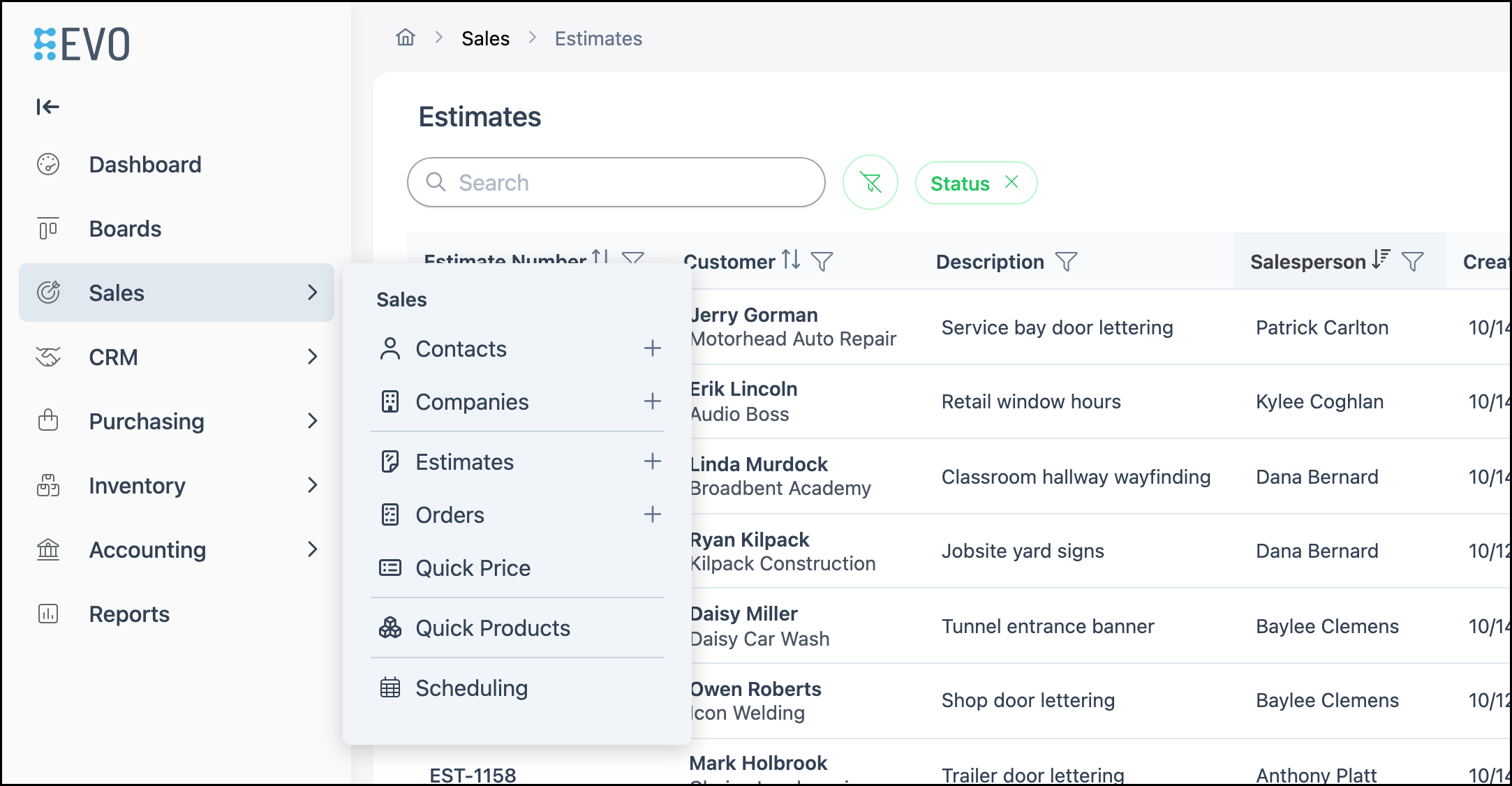
Navigate to Sales / Estimates.
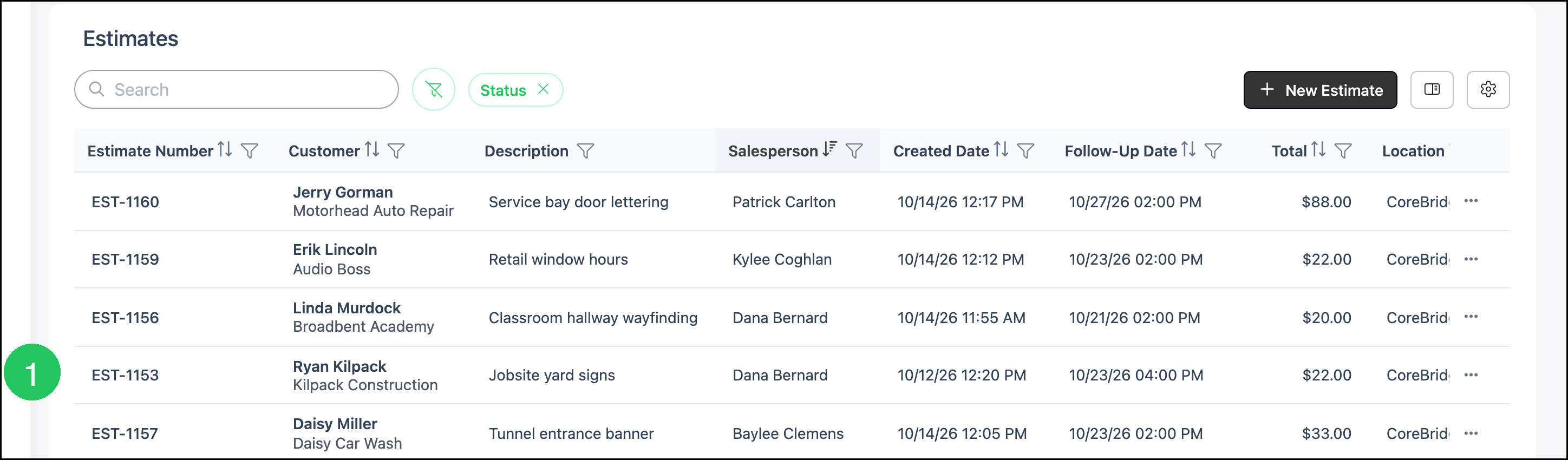
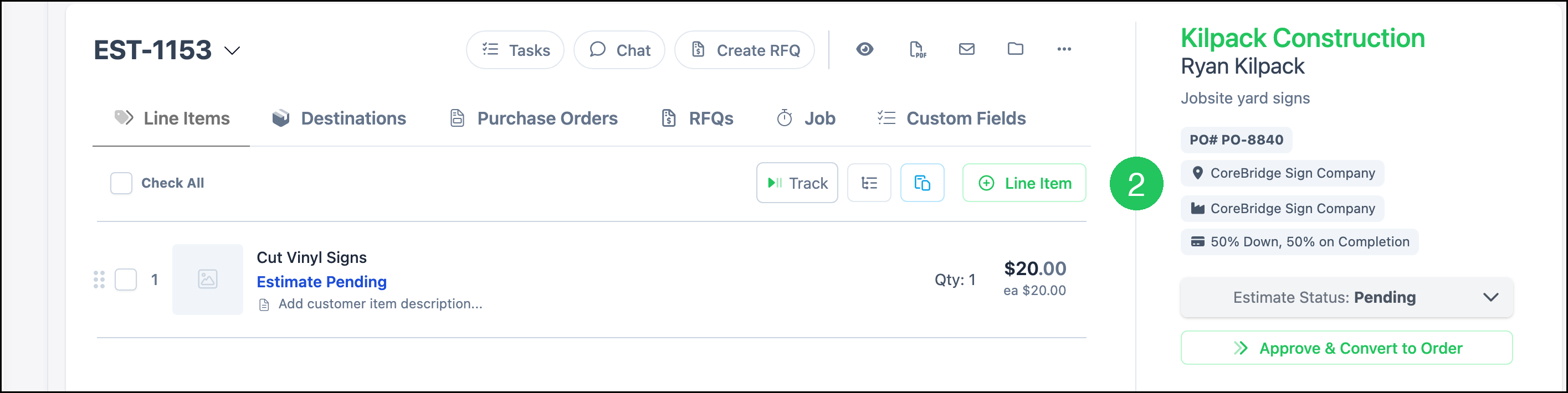
1. Click the Estimate. This example is EST-1153 for Ryan Kilpack, Kilpack Construction. The description is Jobsite yard signs.
2. Click Line Item.
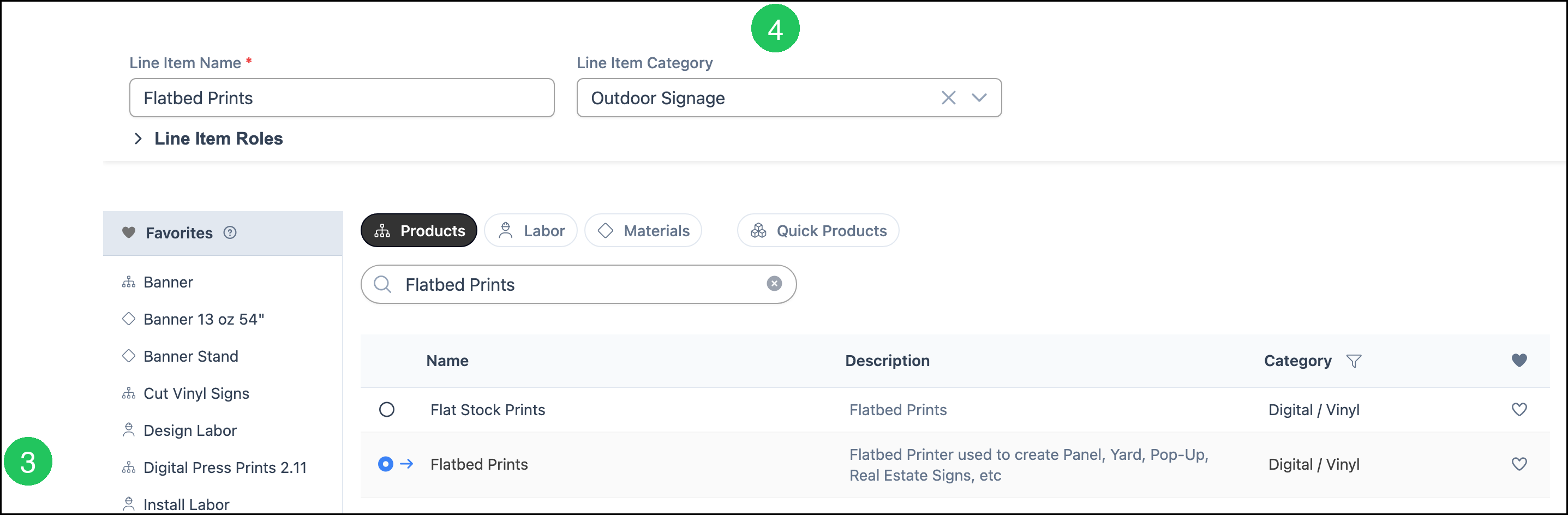
3. On the Products tab, click Flatbed Prints. Line Item Name fills with Flatbed Prints.
4. Select a Line Item Category. This example uses Outdoor Signage.
5. Click Next.

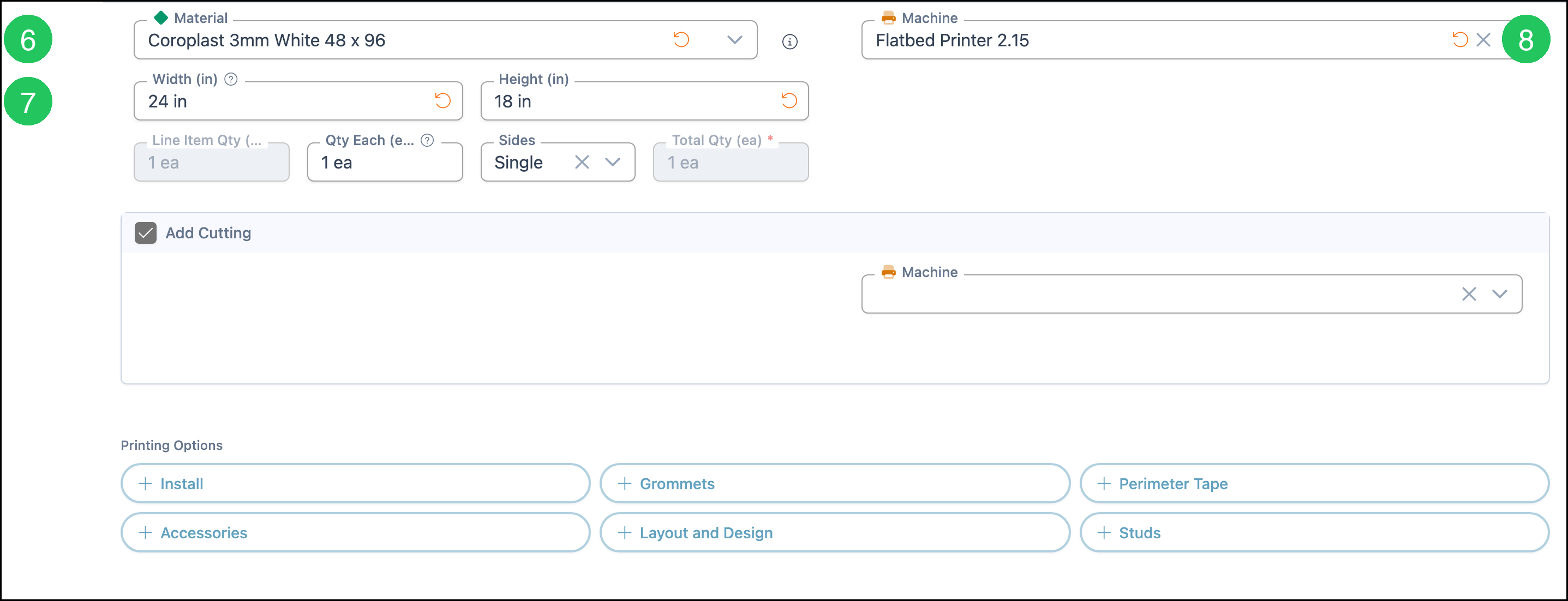
6. Select the Material.
7. Enter Width (in) and Height.
8. Select the Machine. This example uses Flatbed Printer 2.15. Add Cutting stays selected.
9. Click Save Changes. Line Item Price is calculated from the material, size, quantity, machine, and the pricing method on the product.

Frequently Asked Questions
1. Why does a search for Flatbed show two products?
Answer: Flatbed Prints and Flat Stock Prints are different products. The description on Flat Stock Prints is Flatbed Prints. Open the row whose Name is Flatbed Prints.
2. What are AddOption1 and AddOption2?
Answer: They are Option 1 and Option 2. On this product both are Blank (Placeholder), and Include Option 1 and Include Option 2 are off.
3. Does Flatbed Prints have to use 100% Cost Plus - Markup?
Answer: No. 100% Cost Plus - Markup is only the method saved on this product. Method on the Pricing card can be Cost Plus - Margin, Cost Plus - Markup, Market - Product, Market - Component, or Custom. Calculate uses the method that is saved.
Related Articles
Adding Products During Estimate or Order Entry