
Garment & Decoration is a product for pricing a garment and a decoration technique. It is stored in Products & Modifiers. The description is Item and decoration technique. The Sales Form collects a garment group, the garment, and a decoration. The Pricing card uses the method Custom. The same Sales Form is used when Garment & Decoration is added on an Estimate or Order.
Table of Contents
- Where to Find Garment & Decoration
- What Garment & Decoration Includes
- Product Settings
- Linked Components
- Add a Catalog Garment
- Add a Sourced Garment
- Decoration Options
- Review the Price
- Add Garment & Decoration to an Estimate
- Frequently Asked Questions
- Related Articles
Where to Find Garment & Decoration
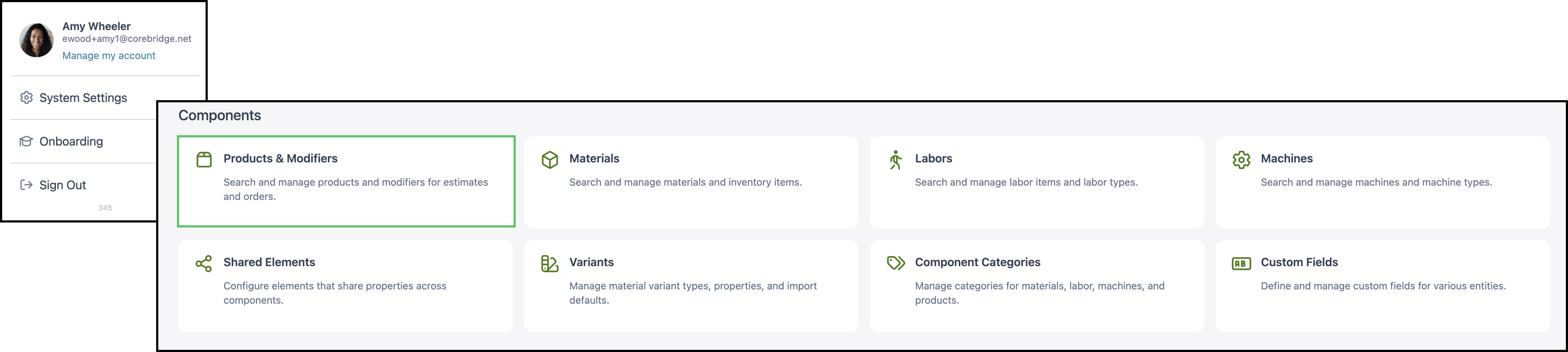
Navigate to System Settings / Components / Products & Modifiers.
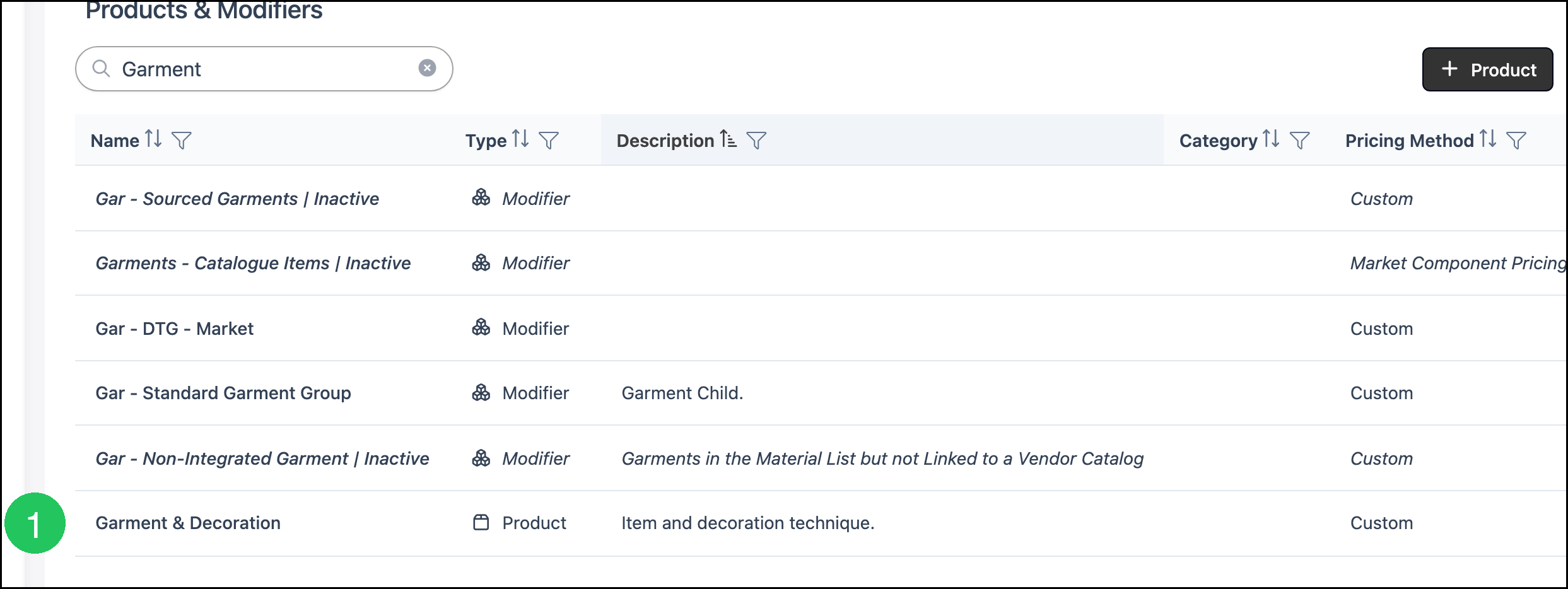
1. Open Garment & Decoration.
Note: Search can also list modifiers, including Gar - DTG - Market and Gar - Standard Garment Group. Open the row whose Type is Product.
What Garment & Decoration Includes
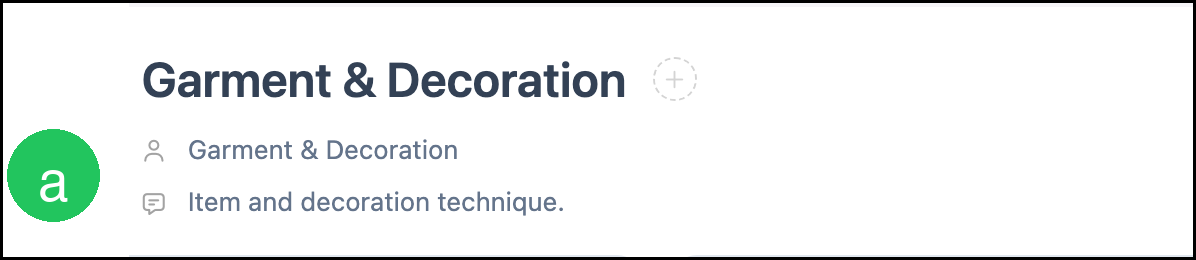
a. The name is Garment & Decoration. The description is Item and decoration technique.
b. Pricing is the method the line price uses. On this product the method is Custom. The formula adds the subtotal from each garment group.
- For the fields on this card, see Product Details.
- For how each method calculates, see Understanding Market-Based vs. Cost-Plus Pricing, Cost Based Pricing, and Market Based Pricing.
- For tables, minimums, and fees, see Markup and Margin Pricing Tables and Product Minimums and Fees.
c. Product Settings holds lead time, order-entry visibility, and assembly defaults.
d. Linked Components are the modifiers this product can use.
e. Accounting & Tax assigns income, expense, and tax. Income uses By Modifier Income Account, and the modifier is Direct to Garment (DTG). Expense uses By Modifier Expense Account for the same modifier. The Taxability Code is Goods.
- For the fields on this card, see Product Details.
- Taxability Codes are managed at System Settings / Accounting / Taxability Codes. See Taxability Codes.

Product Settings
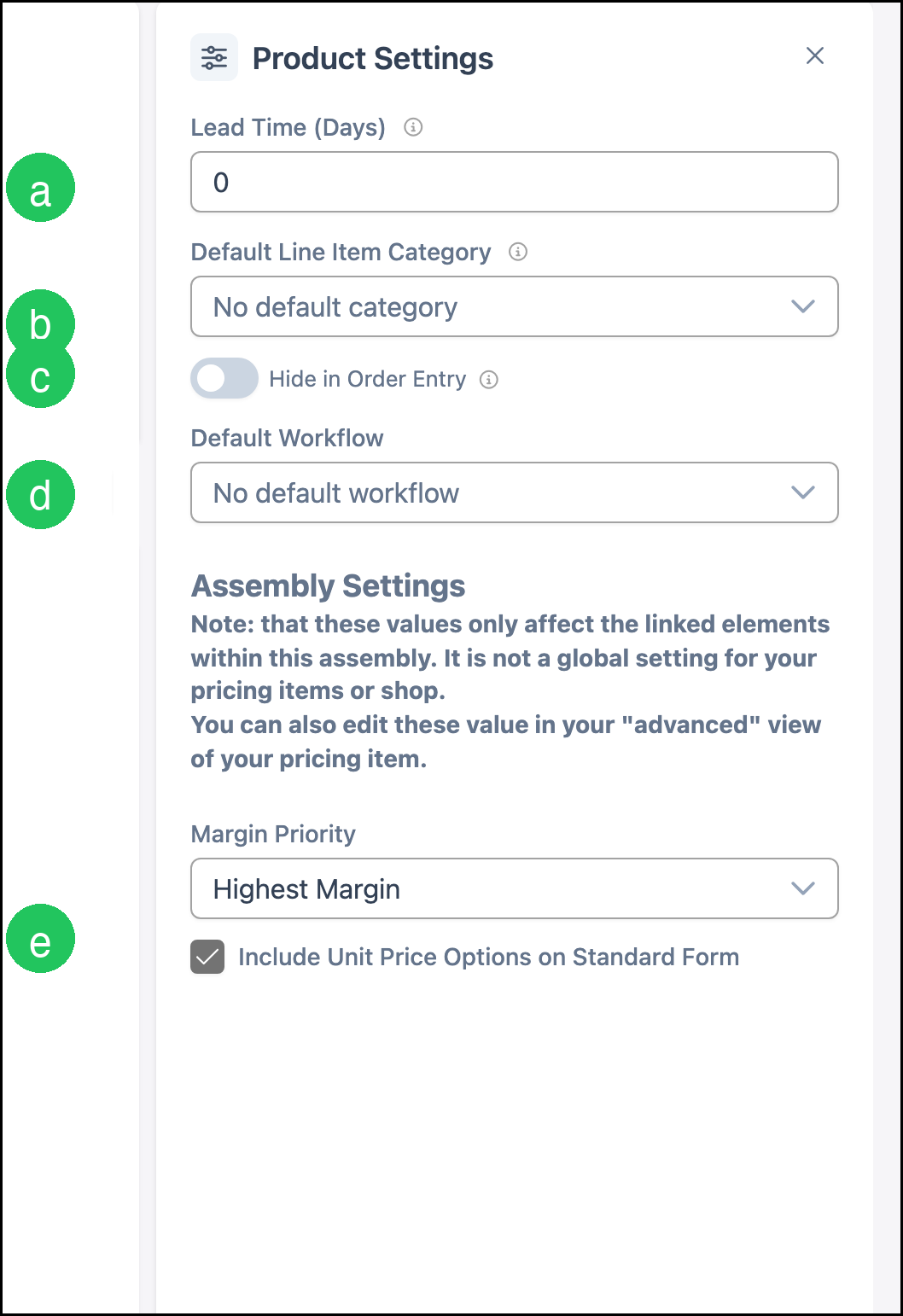
Product Settings holds the defaults that follow the product onto an Estimate or Order. The card shows how many settings are saved.
a. Lead Time (Days) is 0.
b. Default Line Item Category is No default category.
c. Hide in Order Entry is off, so Garment & Decoration can be added to a line.
d. Default Workflow is No default workflow.
e. Margin Priority is Highest Margin. Include Unit Price Options on Standard Form is selected.
Note: Default Line Item Category and Default Workflow are optional starting values.
- For every setting on the card, see Product Details.
Linked Components
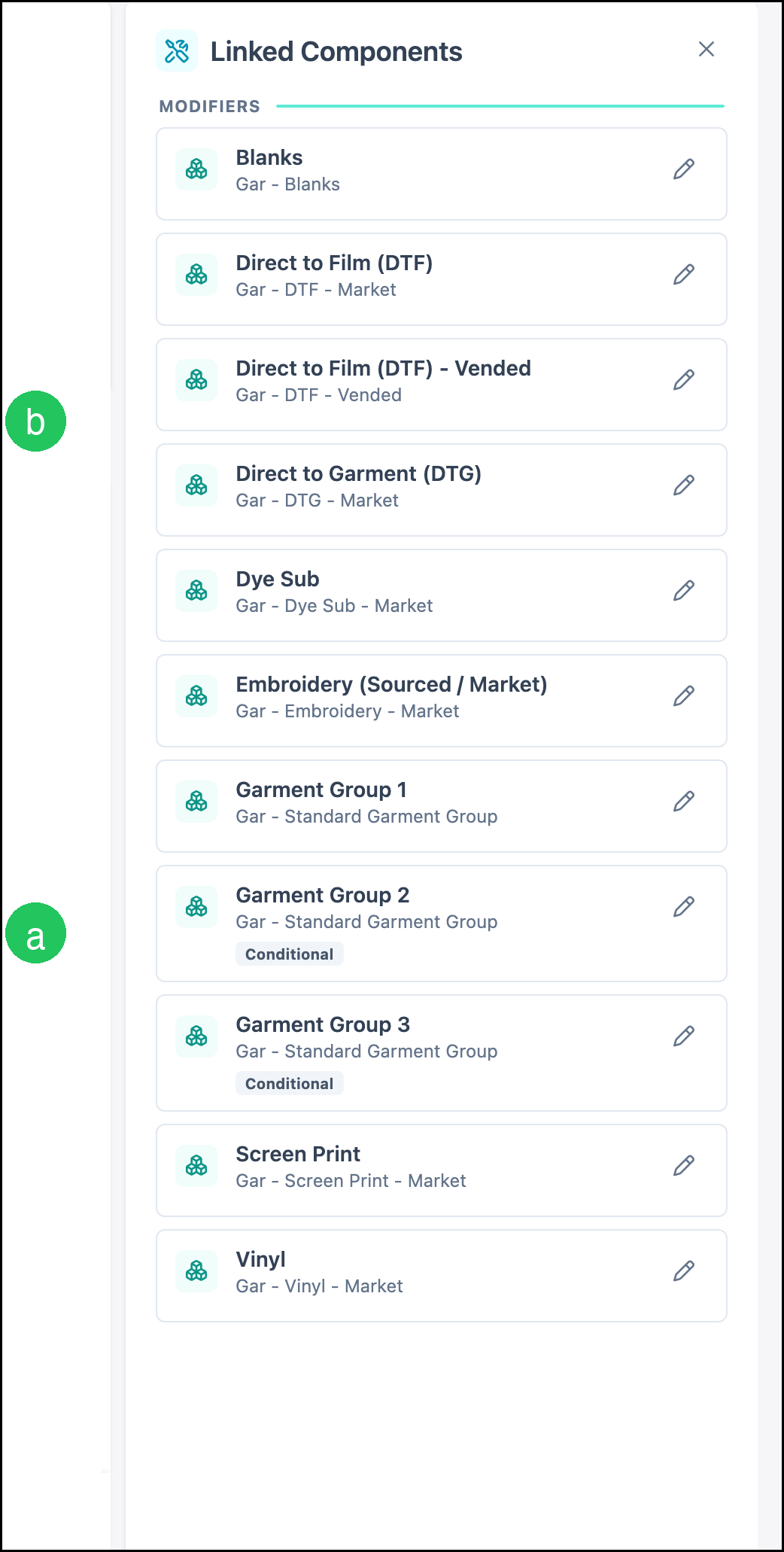
Linked Components are the modifiers the product is allowed to use. The card counts linked rows and unlinked rows. On this product, 11 modifiers are linked and none are unlinked.
a. Garment Group 1, Garment Group 2, and Garment Group 3 are the garment groups. Garment Group 2 and Garment Group 3 are marked Conditional.
b. The decoration modifiers are Blanks, Direct to Film (DTF), Direct to Film (DTF) - Vended, Direct to Garment (DTG), Dye Sub, Embroidery (Sourced / Market), Screen Print, and Vinyl.
- For how to link or unlink a component, see Linked Components.
- For how a modifier differs from a product, see Products vs. Modifiers.
Add a Catalog Garment
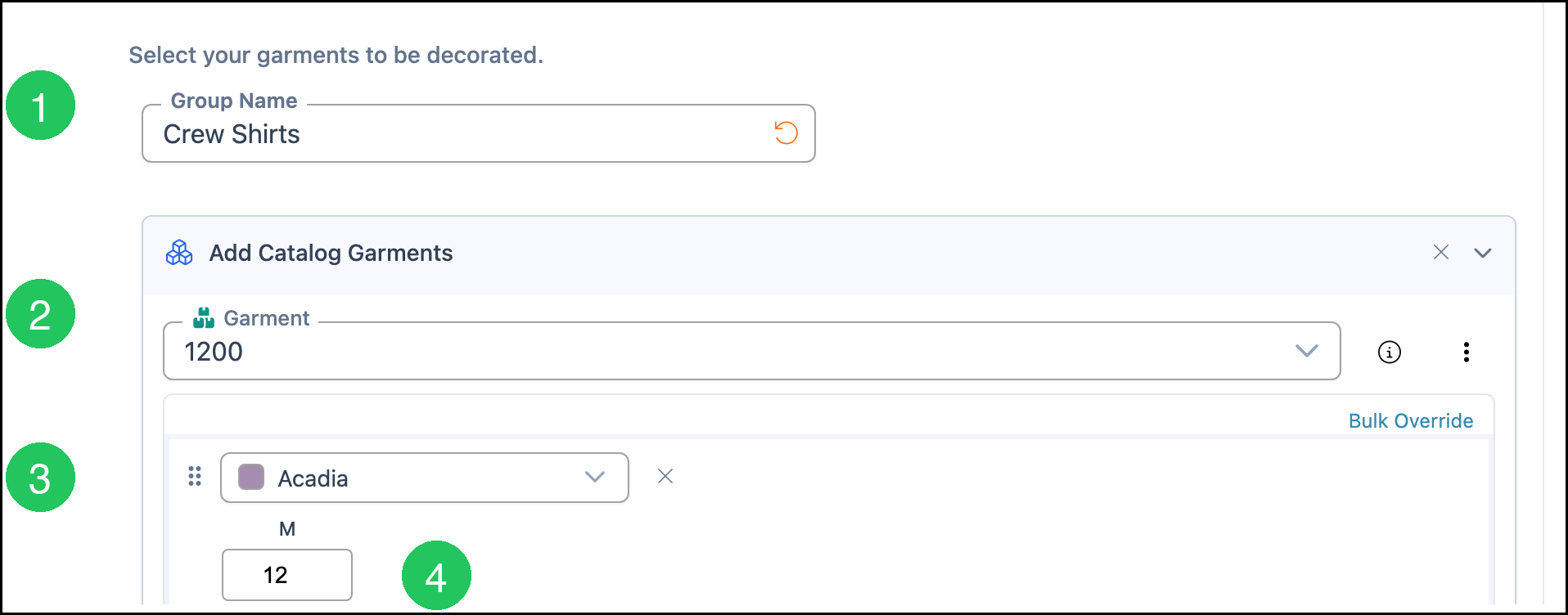
1. Enter a Group Name. This example uses Crew Shirts.
2. Click Add Catalog Garments and select the Garment. This example uses 1200.
3. Select the color. This example uses Acadia. The size in this example is M.
4. Enter the Qty. This example uses 12.
Note: Add Sourced Garment and Add Non-Integrated are the other ways to add a garment on the same form. Add Group 2 adds another garment group.
Add a Sourced Garment
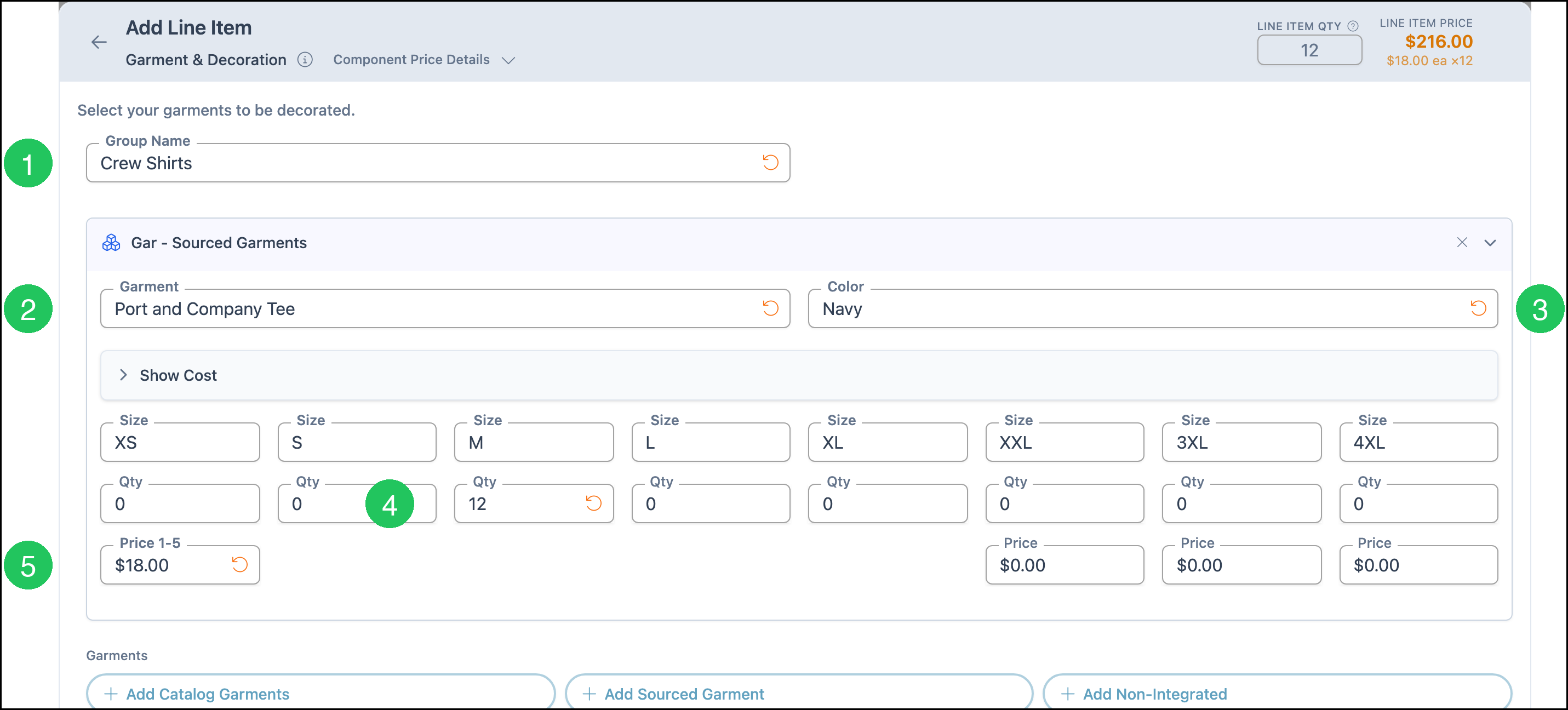
1. Enter the Group Name. This example uses Crew Shirts.
2. Click Add Sourced Garment. Enter the Garment. This example uses Port and Company Tee.
3. Enter the Color. This example uses Navy.
4. Enter the Qty for the size. The sizes XS, S, M, L, XL, XXL, 3XL, and 4XL are already listed. This example uses 12 for M.
5. Enter Price 1-5. That price applies to XS, S, M, L, and XL. This example uses $18.00.
Note: Show Cost can be opened when a cost should be recorded. A size with quantity 0 is not included in the line. The separate Price fields apply to XXL, 3XL, and 4XL.
Decoration Options
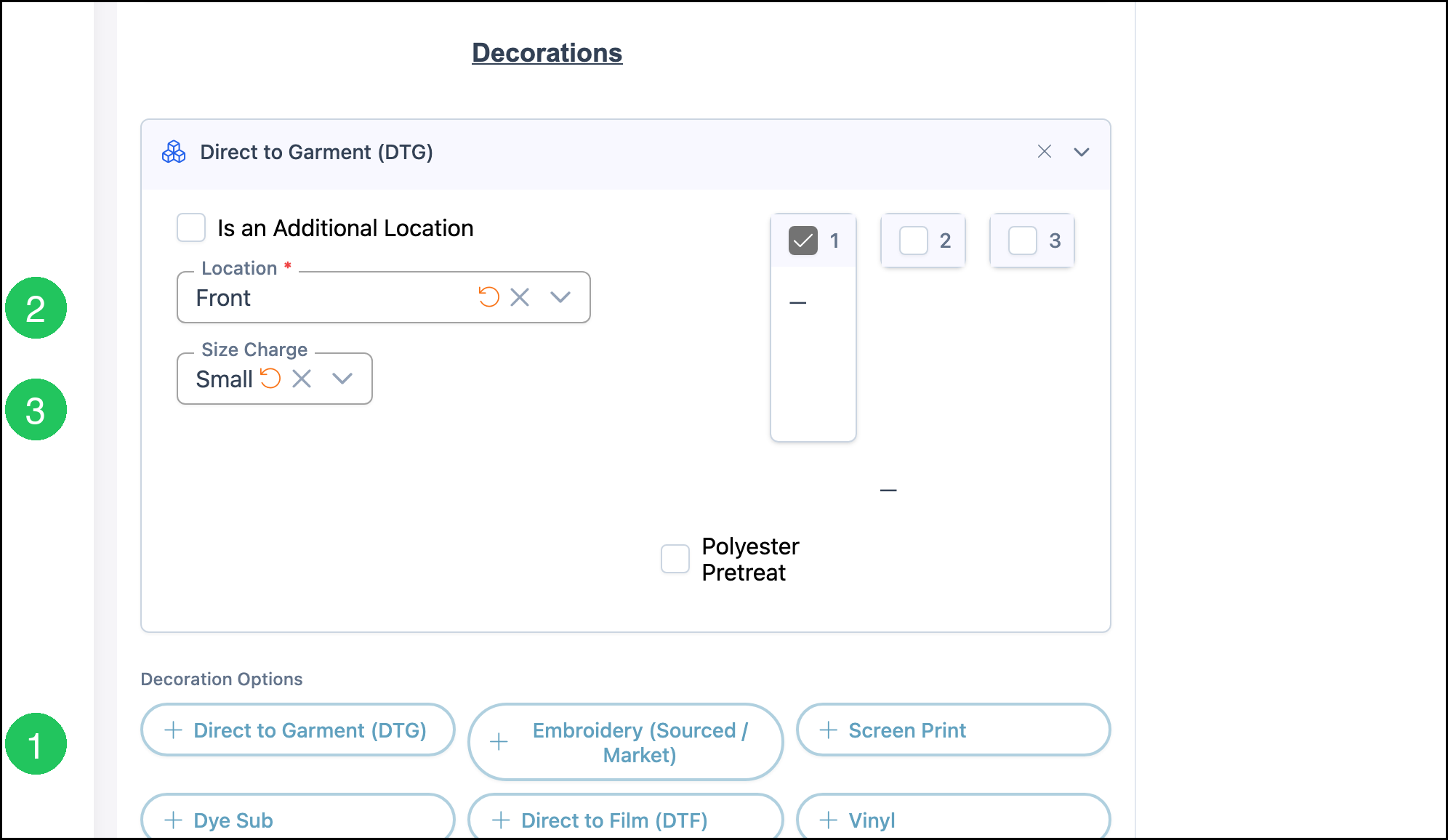
1. Click Direct to Garment (DTG).
2. Select Location. This example uses Front.
3. Select Size Charge. This example uses Small.
Note: The other decoration options on the form are Embroidery (Sourced / Market), Screen Print, Dye Sub, Direct to Film (DTF), Vinyl, Direct to Film (DTF) - Vended, and Blanks. Group 1 is selected for the decoration in this example. Polyester Pretreat is optional.
Review the Price
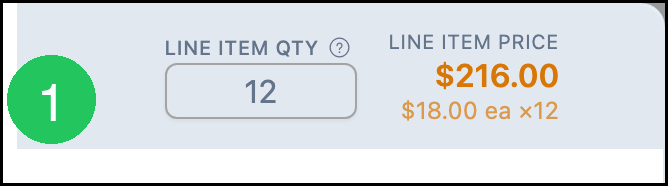
1. Read Line Item Price. In this example, quantity 12 at $18.00 each is $216.00. The line shows $18.00 each for a quantity of 12.
Note: The method on the Pricing card is Custom. It adds the garment group subtotals. A different price or quantity changes the line price. Line Item Qty in this example is 12, matching the size quantity.
Add Garment & Decoration to an Estimate
Navigate to Sales / Estimates.
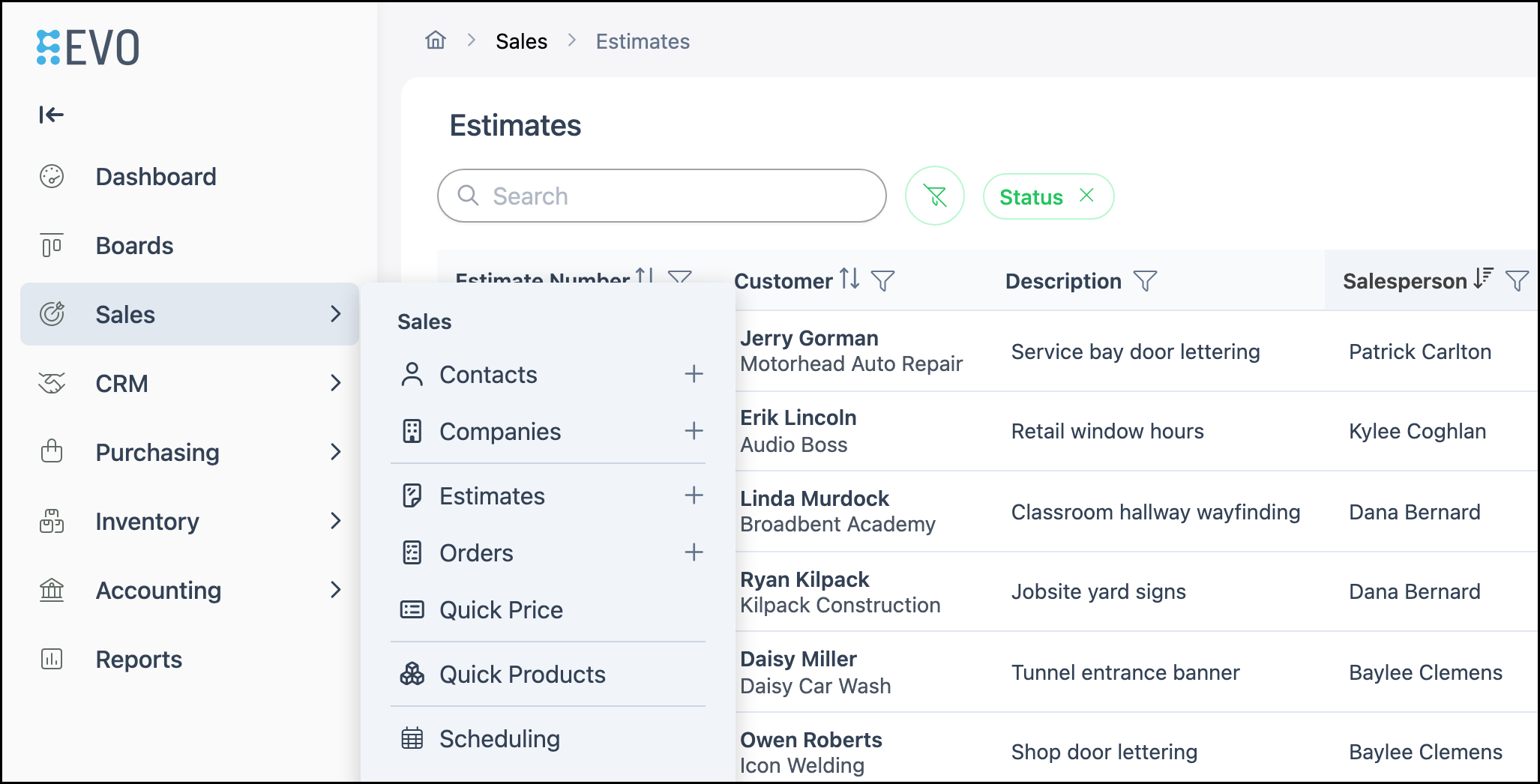
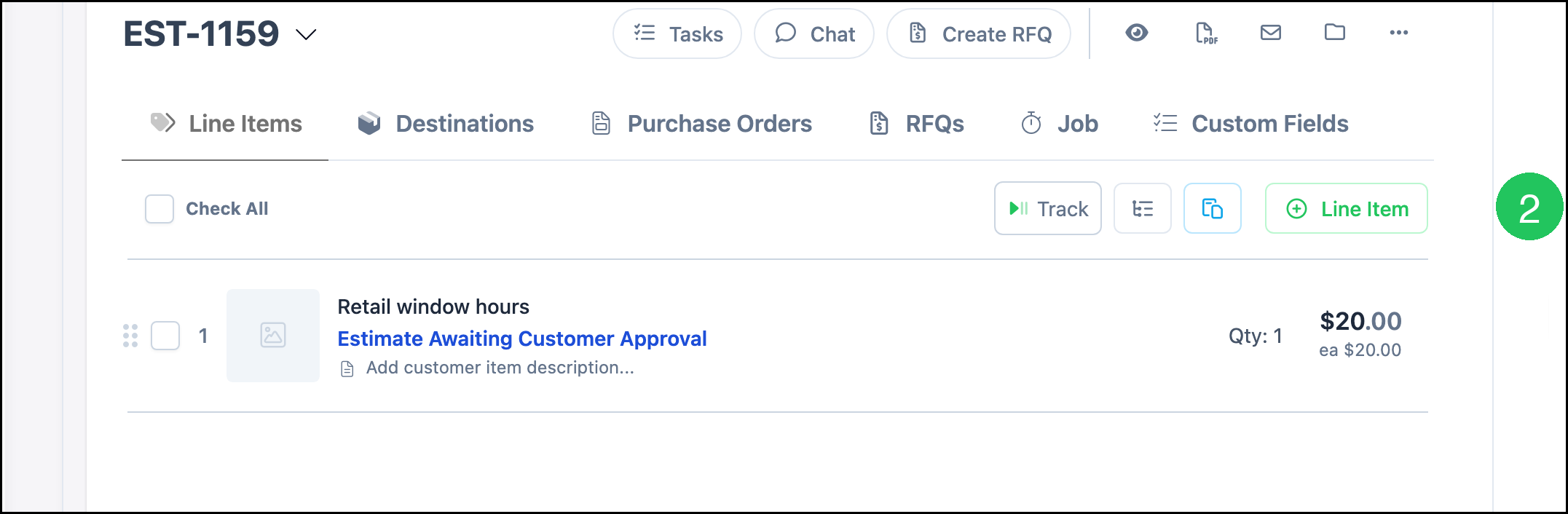
1. Click the Estimate.

2. Click Line Item.
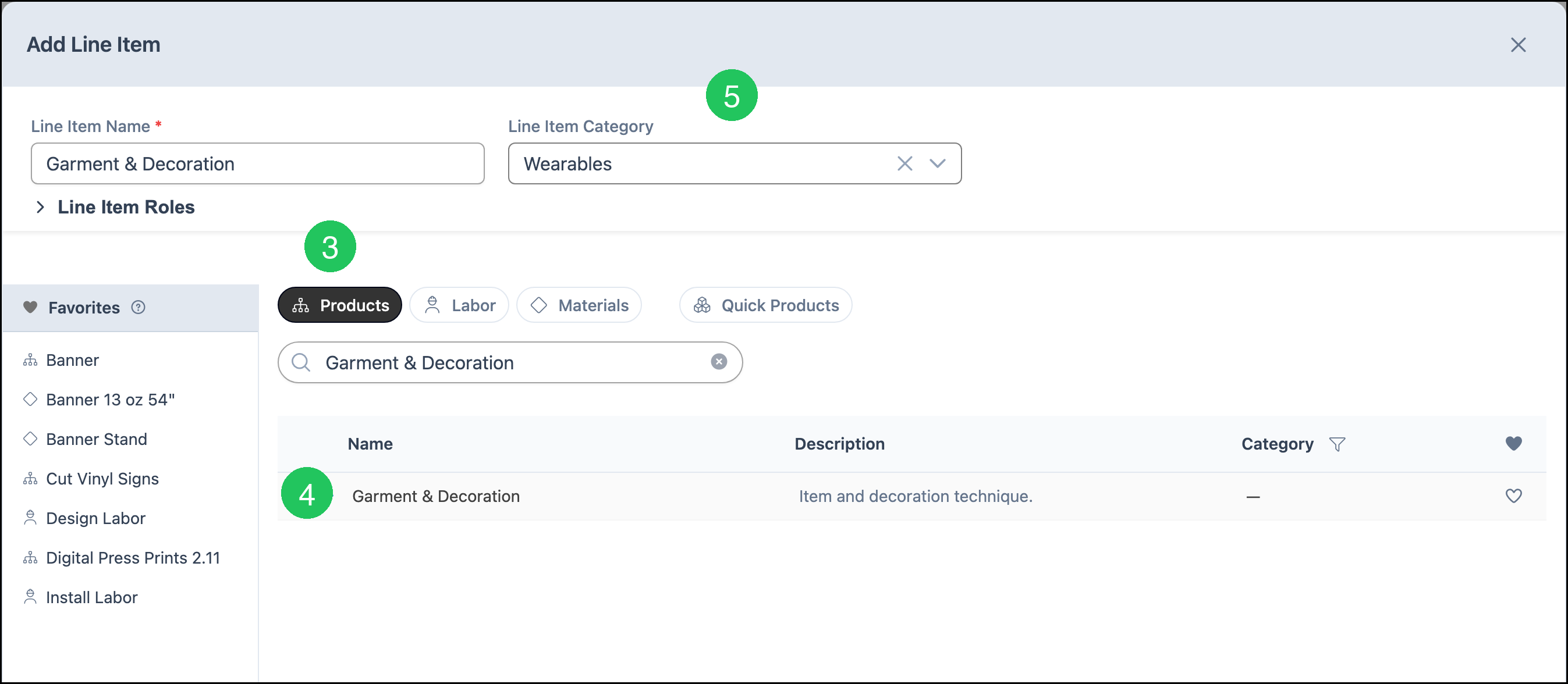
3. On the Products tab, search can be used to find the product.
4. Click Garment & Decoration. Line Item Name fills with Garment & Decoration.
5. Select a Line Item Category. This example uses Wearables.
6. Click Next.
7. Complete the Sales Form as described in Add a Sourced Garment, then click Save Changes.
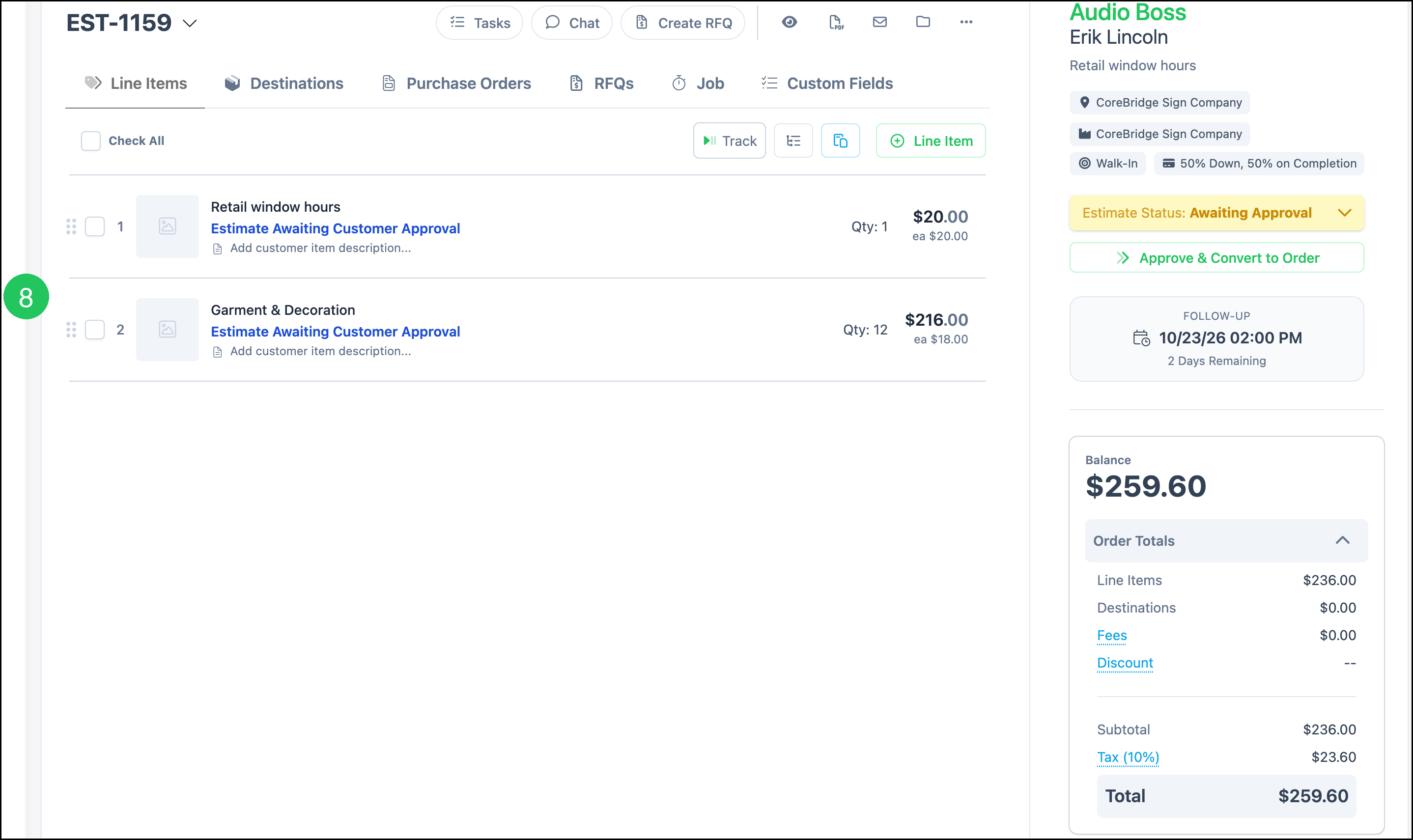
8. The line is saved on the Estimate. This example shows quantity 12 and a line price of $216.00.
Frequently Asked Questions
1. What is the difference between a catalog garment and a sourced garment?
Answer: Add Catalog Garments selects a garment, color, and size from the catalog. Add Sourced Garment is where the garment name, color, size quantity, and price are typed. Add Non-Integrated is a third way to type a garment that is not from the catalog.
2. Why does search show more than one row for Garment?
Answer: One row is the Product named Garment & Decoration. The other rows are modifiers, such as Gar - Standard Garment Group. Open the Product to use this Sales Form.
3. Does Garment & Decoration have to use the Custom method?
Answer: No. Custom is the method saved on this product. Method on the Pricing card can be Cost Plus - Margin, Cost Plus - Markup, Market - Product, Market - Component, or Custom. The line price uses the method that is saved.
4. What are garment groups 1, 2, and 3?
Answer: Each group is a set of garments on the Sales Form. Garment Group 1 is the first group. Add Group 2 adds the next group. Garment Group 2 and Garment Group 3 are marked Conditional in Linked Components.
Related Articles
Adding Products During Estimate or Order Entry