
Service and Install is a product for pricing service labor, travel, and equipment. It is stored in Products & Modifiers, in the Digital / Vinyl category. The Sales Form takes service time, a labor, the number of employees, travel, and equipment. The Pricing card sets the method Calculate uses. The same Sales Form is used when Service and Install is added on an Estimate or Order.
Table of Contents
Where to Find Service and Install
Navigate to System Settings / Components / Products & Modifiers.
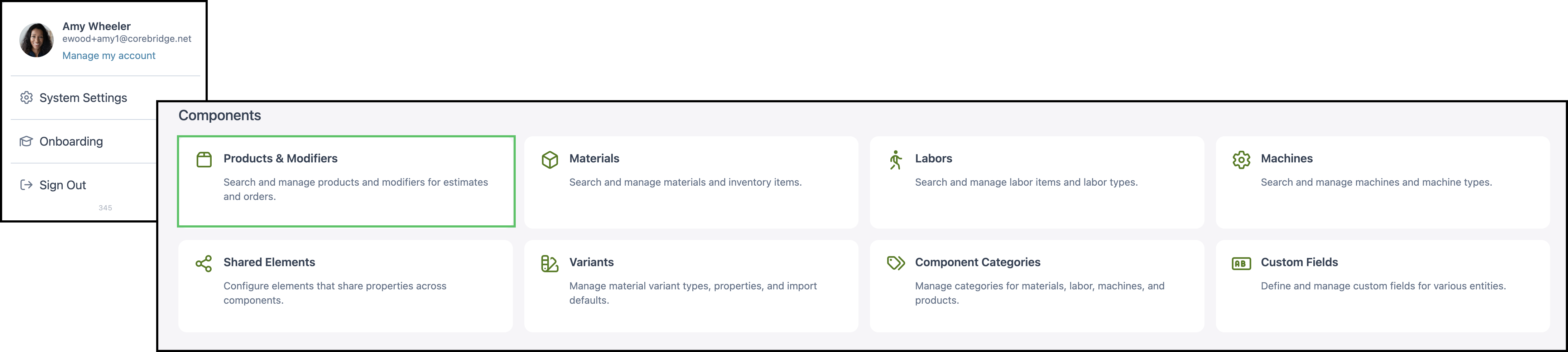
1. Open Service and Install.
Search can also list Service and Install 2.50, the modifier Service and Install Child, and Service Equipment. Open the row whose Type is Product and whose name is Service and Install.

What Service and Install Includes
a. The product name is Service and Install. The category is Digital / Vinyl, and the description is Service Equipment and Labor.
b. Pricing is set to Market - Component. Method is the pricing method Calculate uses.
- For the fields on this card, see Product Details.
- For how each method calculates, see Understanding Market-Based vs. Cost-Plus Pricing, Cost Based Pricing, and Market Based Pricing.
- For tables, minimums, and fees, see Markup and Margin Pricing Tables and Product Minimums and Fees.
c. Product Settings holds lead time, order-entry visibility, and assembly defaults.
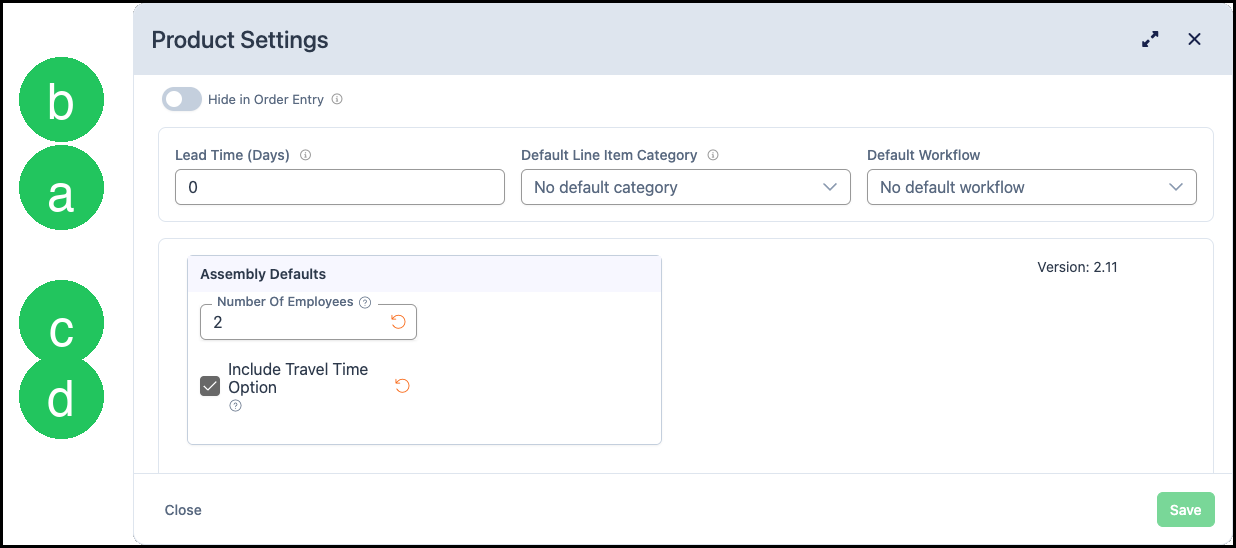
c. Product Settings holds lead time, Hide in Order Entry, and the default number of employees and travel option.
d. Linked Components holds the labor, the equipment, and the options the Sales Form can add.
e. Accounting & Tax assigns income, expense, and tax for the product.
- For the fields on this card, see Product Details.
- Taxability Codes are managed at System Settings / Accounting / Taxability Codes. See Taxability Codes.

Product Settings
a. Lead Time (Days) is 0 on this product.
b. Hide in Order Entry is off, so Service and Install can be added on an Estimate or Order.
c. Number Of Employees defaults to 2.
d. Include Travel Time Option is on, so the Sales Form includes travel.
Default Line Item Category and Default Workflow have no default selected.
- For every setting on the card, see Product Details.
Linked Components
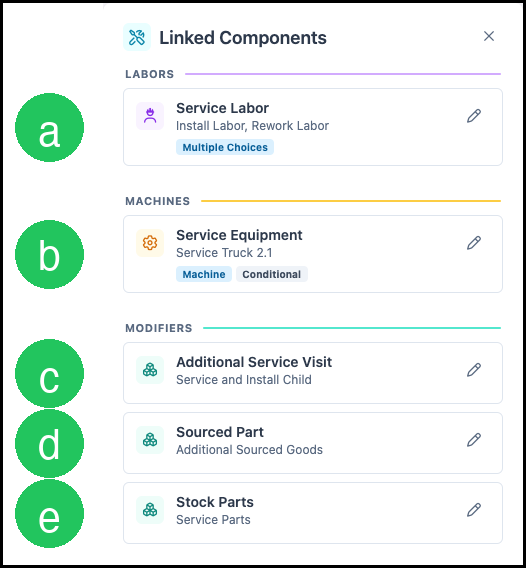
a. Service Labor links Install Labor and Rework Labor. The link type is Multiple Choices.
b. Service Equipment links Service Truck 2.1. The link type is Machine, and the link is Conditional.
c. Additional Service Visit links the modifier Service and Install Child.
d. Sourced Part links Additional Sourced Goods.
e. Stock Parts links Service Parts.
- For how to link or unlink a component, see Linked Components.
- For how a modifier differs from a product, see Products vs. Modifiers.
Enter Service Time
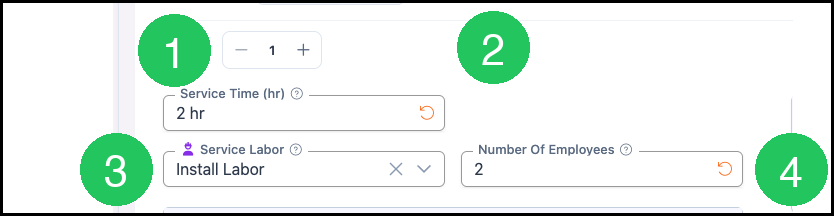
The Sales Form on the product is the same form used when Service and Install is added on an Estimate or Order.
1. Quantity is 1 in this example.
2. Set Service Time (hr) to 2 hr.
3. Service Labor is Install Labor. Rework Labor is the other choice.
4. Number Of Employees is 2.
Total Labor Hours (hr) is Service Time plus Travel Time, multiplied by Number Of Employees, when travel is included.
Travel and Location
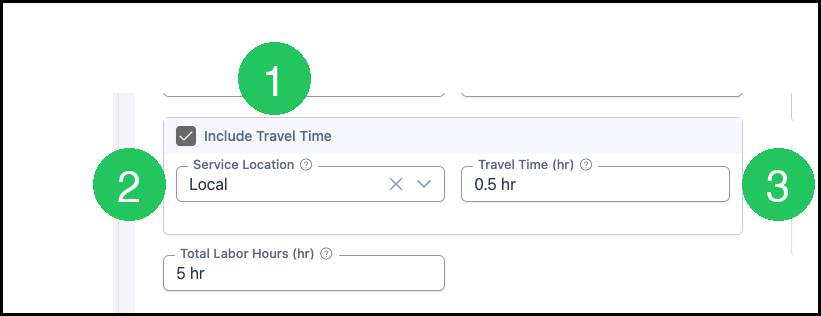
1. Leave Include Travel Time on.
2. Service Location is Local. Regional and Custom are the other choices.
3. Travel Time (hr) is 0.5 hr.
With 2 hr of service time, 0.5 hr of travel, and 2 employees, Total Labor Hours (hr) is 5 hr.
Equipment and Height
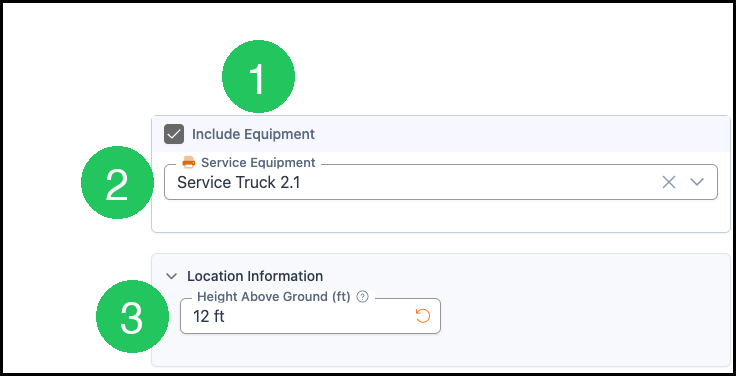
1. Leave Include Equipment on.
2. Service Equipment is Service Truck 2.1.
3. Set Height Above Ground (ft) to 12 ft.
Standard Options
a. Additional Service Visit adds another service block for a return visit. That block takes service time, the number of employees, a labor, travel, equipment, and location.
b. Stock Parts adds material and labor quantities for parts used on the job.
c. Sourced Part adds a sourced part with a name, notes, quantity, cost, markup, and price.
Adding one option disables the other two until that option is removed.

Review the Price
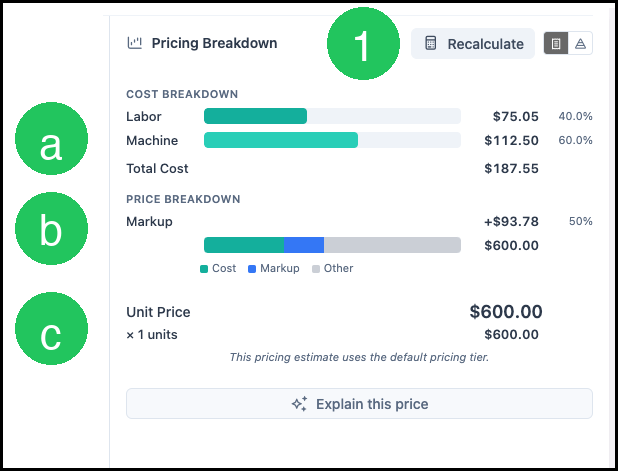
1. Click Calculate. After the price is shown, the button reads Recalculate.
a. Cost Breakdown lists Labor and Machine. In this example, Labor is $75.05 (40%) and Machine is $112.50 (60%). Total Cost is $187.55.
b. Markup is +$93.78 (50%). The chart shows Cost, Markup, and Other.
c. Unit Price is $600.00. Quantity 1 keeps the line at $600.00.
Calculate uses Market - Component, the method saved on the Pricing card. Unit Price is the market price of the linked components. A different method, or a different value on the Sales Form, produces a different price. The note under the price says the price uses the default pricing tier.
See:
Understanding Market-Based vs. Cost-Plus Pricing
Markup and Margin Pricing Tables
Add Service and Install to an Estimate
Navigate to Sales / Estimates.
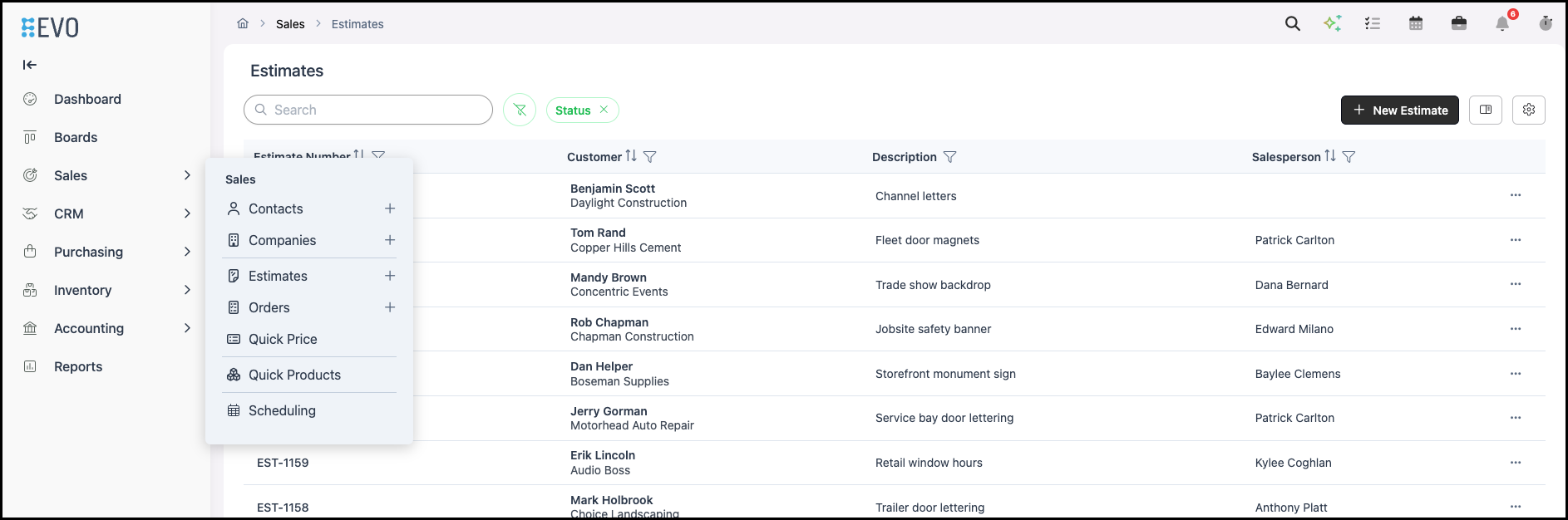
1. Open the Estimate.
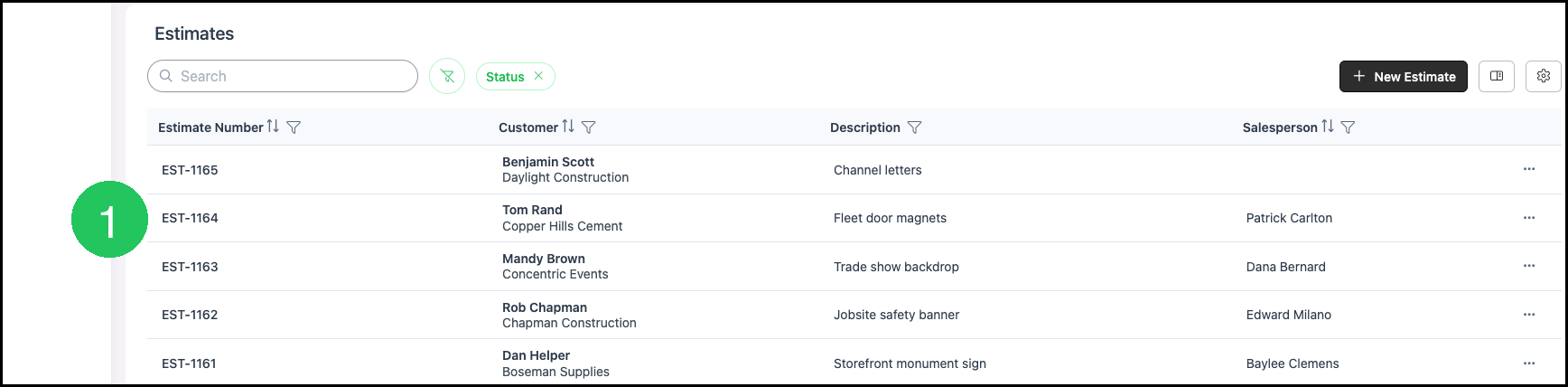
2. Click Line Item.

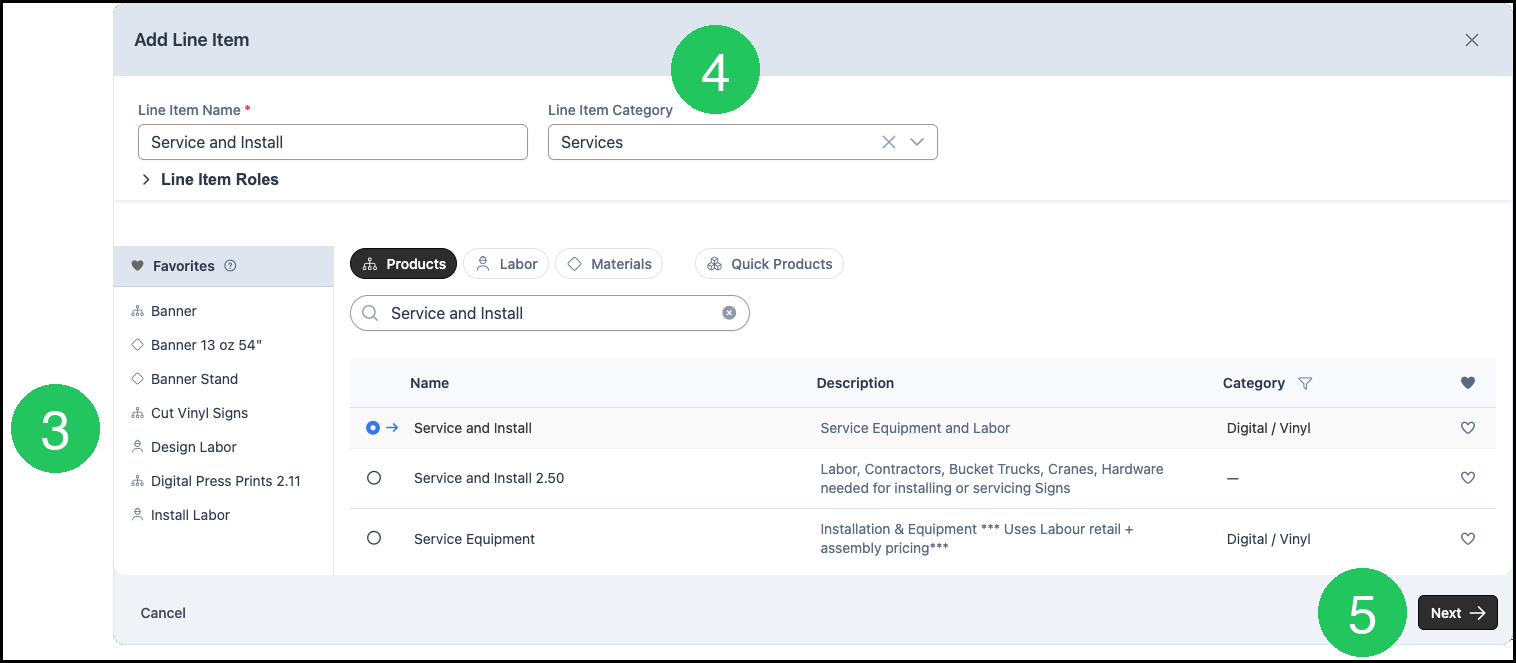
3. Select Service and Install. Choose the row whose name is Service and Install.
4. Set the category to Services.
5. Click Next.
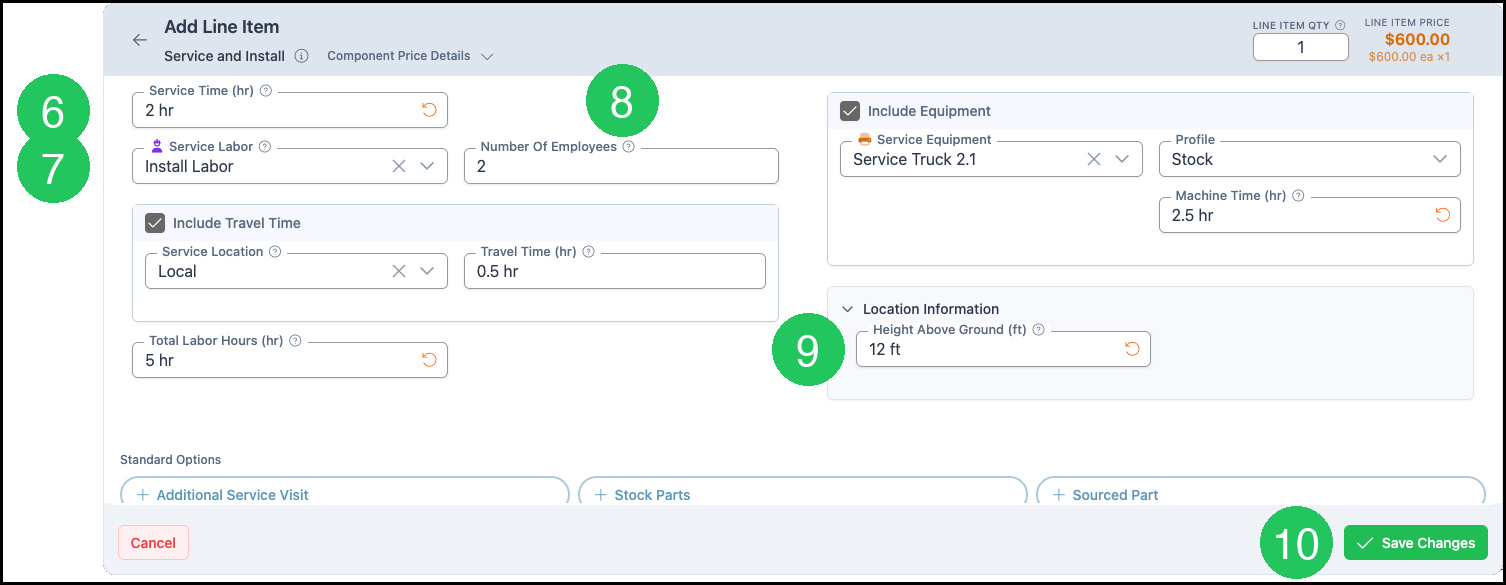
6. Set Service Time (hr) to 2 hr.
7. Leave Service Labor on Install Labor.
8. Leave Number Of Employees at 2.
9. Set Height Above Ground (ft) to 12 ft.
10. Click Save Changes.
This example also leaves Include Travel Time on, with Service Location set to Local and Travel Time (hr) at 0.5 hr. Include Equipment stays on, with Service Equipment set to Service Truck 2.1 and Profile set to Stock. Total Labor Hours (hr) is 5 hr, and Machine Time (hr) is 2.5 hr. Line Item Price is $600.00.
See:
Adding Products During Estimate or Order Entry
FAQ
1. What is the difference between Service and Install and Service and Install Child?
Answer: Service and Install is the product. Service and Install Child is the modifier used by Additional Service Visit. Open the product to use this Sales Form.
2. Why does search list more than one Service and Install row?
Answer: Search can list the product Service and Install, the product Service and Install 2.50, the modifier Service and Install Child, and the product Service Equipment. Open the row whose Type is Product and whose name is Service and Install.
3. Does Service and Install have to use Market - Component?
Answer: No. Market - Component is the method saved on this product. Method on the Pricing card can be Margin, Markup, Market - Product, Market - Component, or Custom. Calculate uses the method that is saved.
Related Articles
Adding Products During Estimate or Order Entry