
A Workflow places a Line Item in more than one production status at the same time. On Line Item Details, Workflow assigns the workflow. Branches lists each path with its own Status, due date, and assignee. While the Line Item is split, Status and Substatus are updated on the branch.
Table of Contents
Assigning a Workflow
Navigate to Sales / Orders.
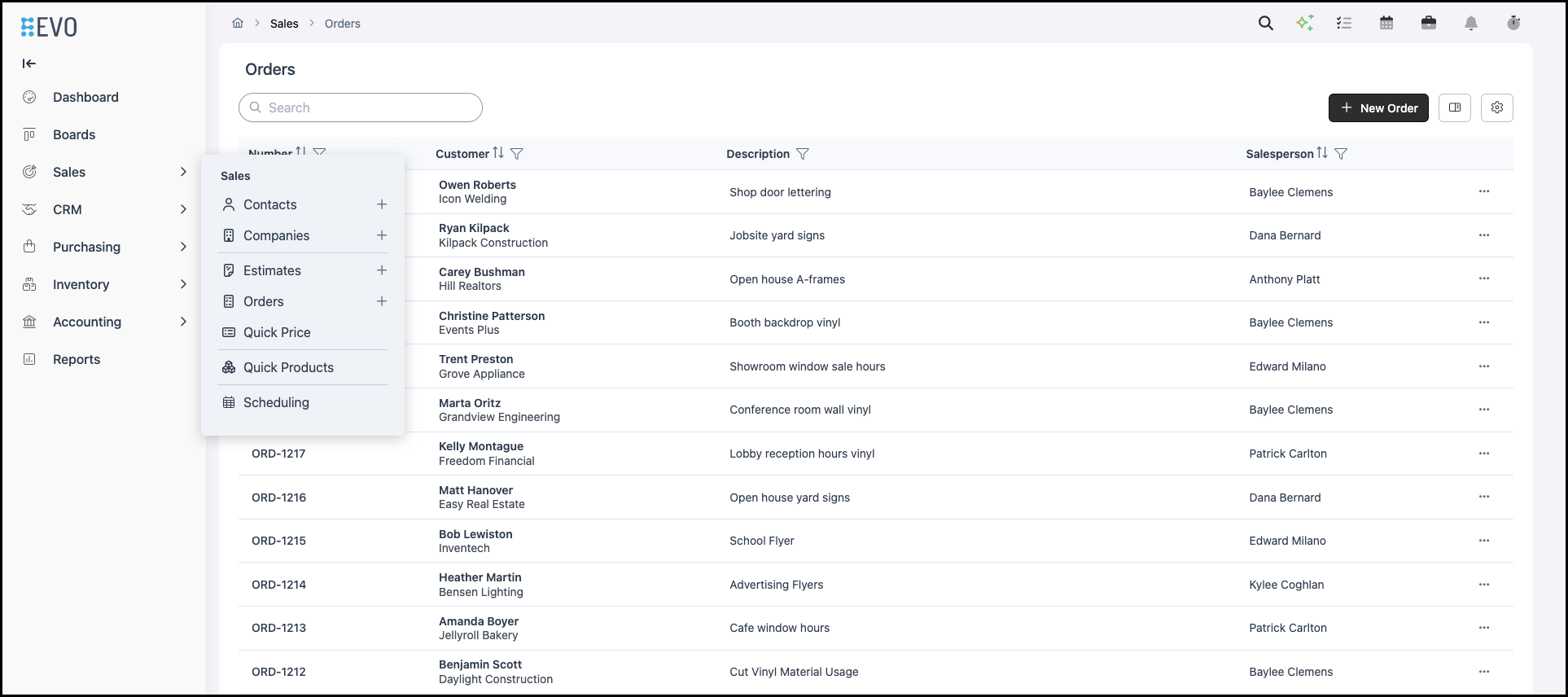
1. Open the Order.
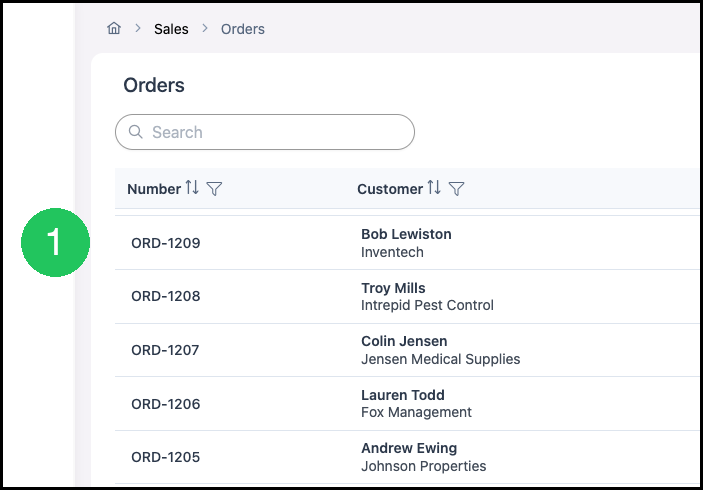
2. Click the Line Item.
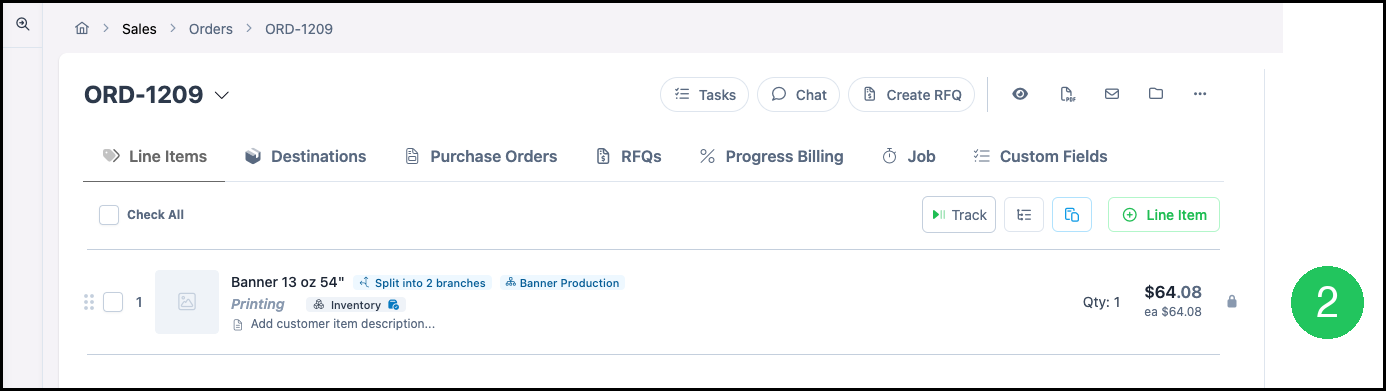
3. In Workflow, select the workflow.
Note: Trigger shows the status that creates the branches. Split now creates the branches before the Line Item reaches that status.
Working the Branches
Branches lists each path. The Line Item shows that it is split and which workflow is assigned. Update each branch from its row.
1. Click on the appropriate branch to expand.
2. Set Status.
3. Set Due Date.
4. Set Assigned To.
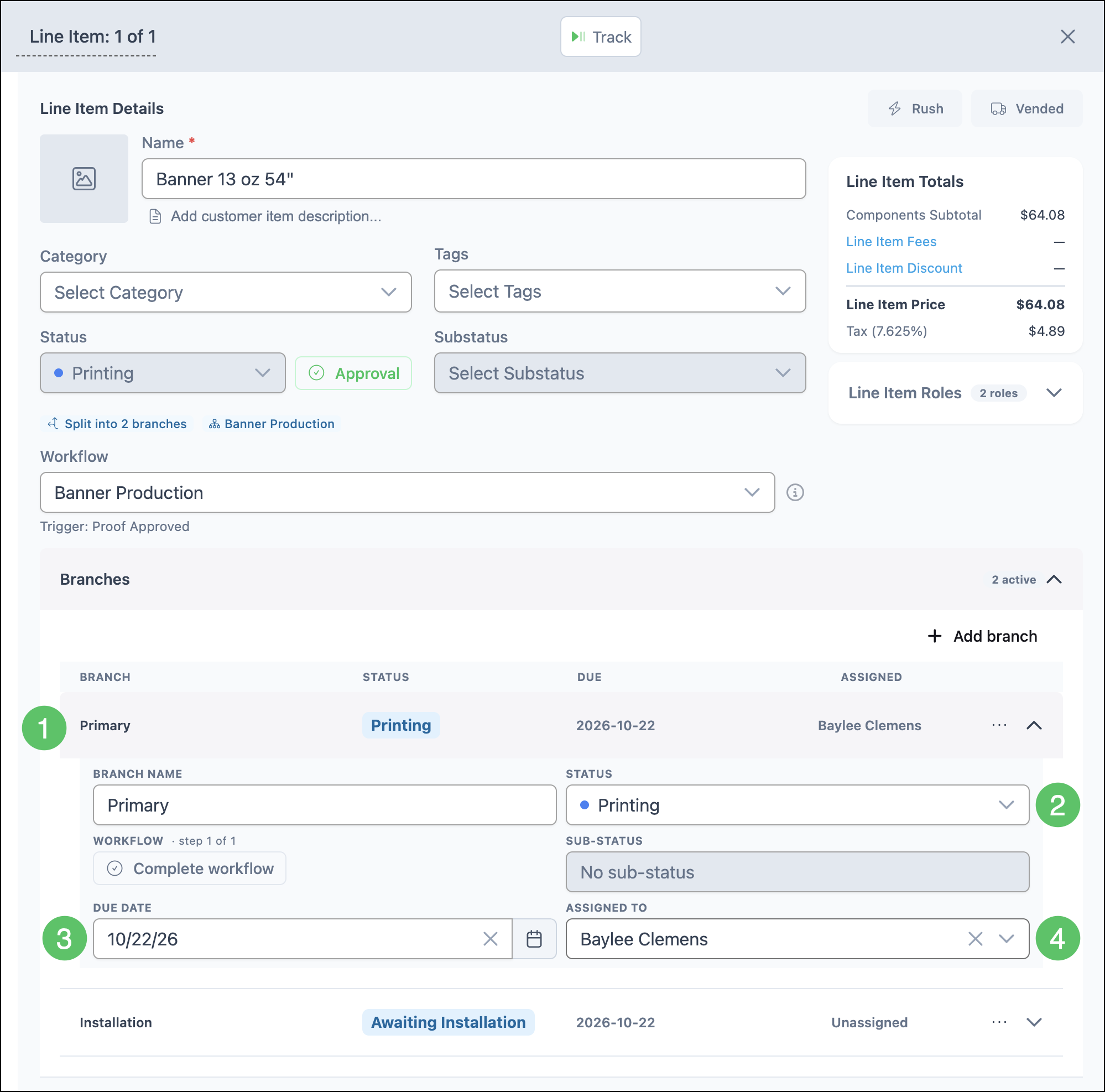
Note: Add branch adds a path. The menu on a branch has Join and Delete.
Note: While the Line Item is split, Status and Substatus on the Line Item cannot be changed. Update Status on the branch. The Line Item Status follows the Primary branch.
Frequently Asked Questions
1. When do the branches appear?
Answer: Branches appear when the Line Item reaches the Trigger status. Split now creates the branches before that status.
2. Why can't Status be changed on the Line Item?
Answer: While the Line Item is split, Status and Substatus are updated on each branch. The Line Item Status follows the Primary branch.
3. How is a branch added?
Answer: On Branches, click Add branch.