
Job Tracking records time spent on an Estimate or Order, including a specific Line Item. Employees start and stop tracking from the Estimate or Order, or from the Job Tracking window. Completed time is stored on the record and in My Job Tracking.
Note: Job Tracking is separate from the Time Clock. For clocking in and out, see Time Tracking for Employees.
Table of Contents
- Start Tracking on an Estimate or Order
- Stop Tracking
- Track a Line Item
- Review Tracked Time
- My Job Tracking
- Frequently Asked Questions
- Related Articles
Start Tracking on an Estimate or Order
Navigate to Sales / Orders.
An Estimate uses Sales / Estimates. Track works the same way on an Estimate.
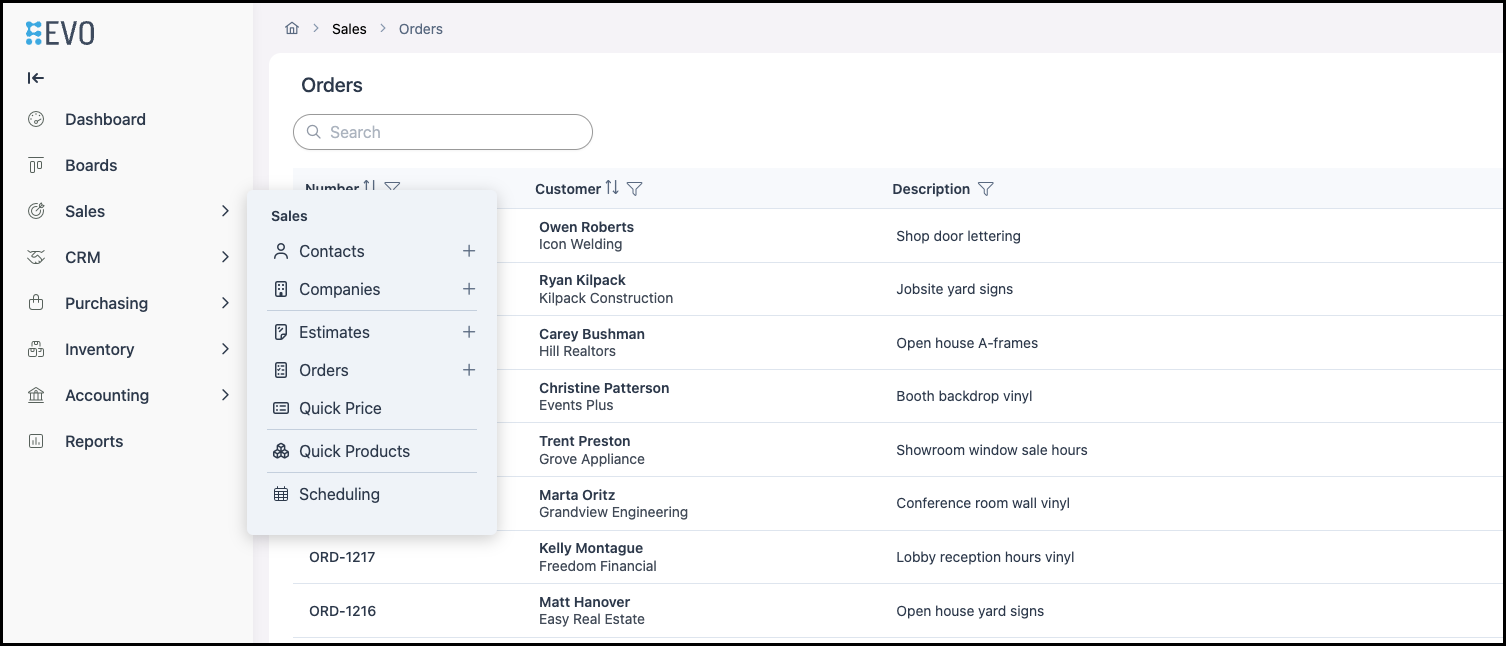
1. Open the Order.
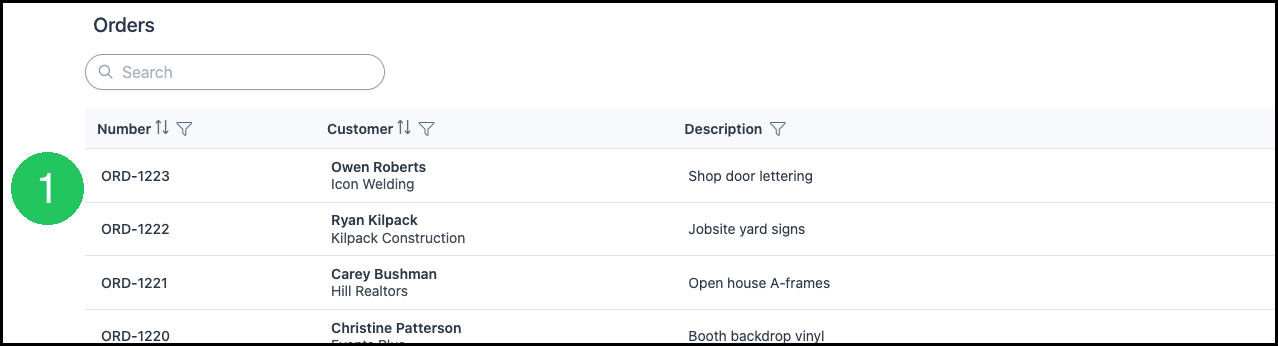
2. Click Track.

3. Select an activity. The activities in the list are the activities available for your business. Selecting an activity starts tracking, and Track changes to a timer. For information on managing activities, please see Job Tracking Activities.
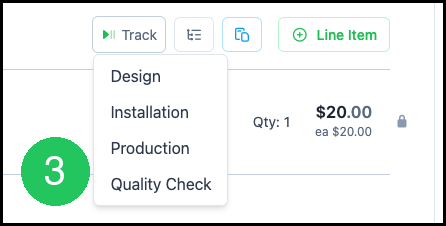
Stop Tracking
1. Click the timer on the Line Items toolbar. The timer shows a stop icon and the elapsed time. Tracking stops, and the time is saved on the Estimate or Order.

Track a Line Item
Time can be recorded on one Line Item from the Job Tracking window.
1. Click Job Tracking in the header.

2. In Order/Estimate, select the Line Item.
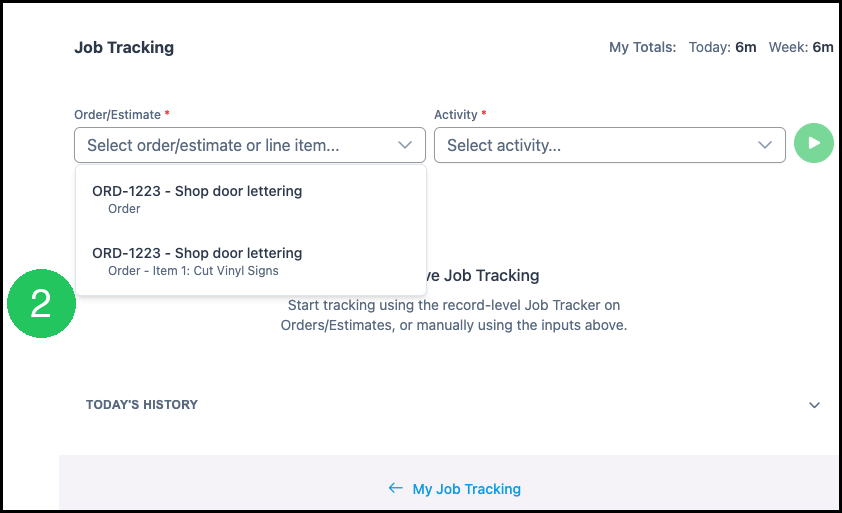
3. Select an Activity.
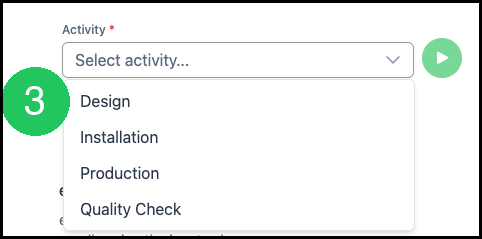
4. Click the button beside Activity. The Line Item appears under Current Activity.
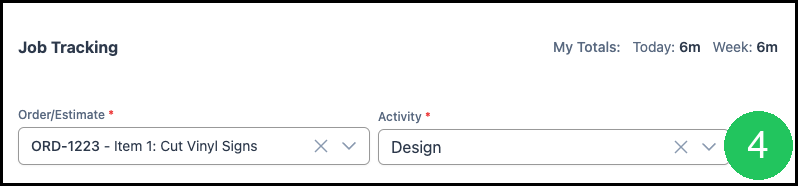
While a Line Item is being tracked, Track on the Estimate or Order stays Track. Click the stop button in Current Activity to end that entry.
Review Tracked Time
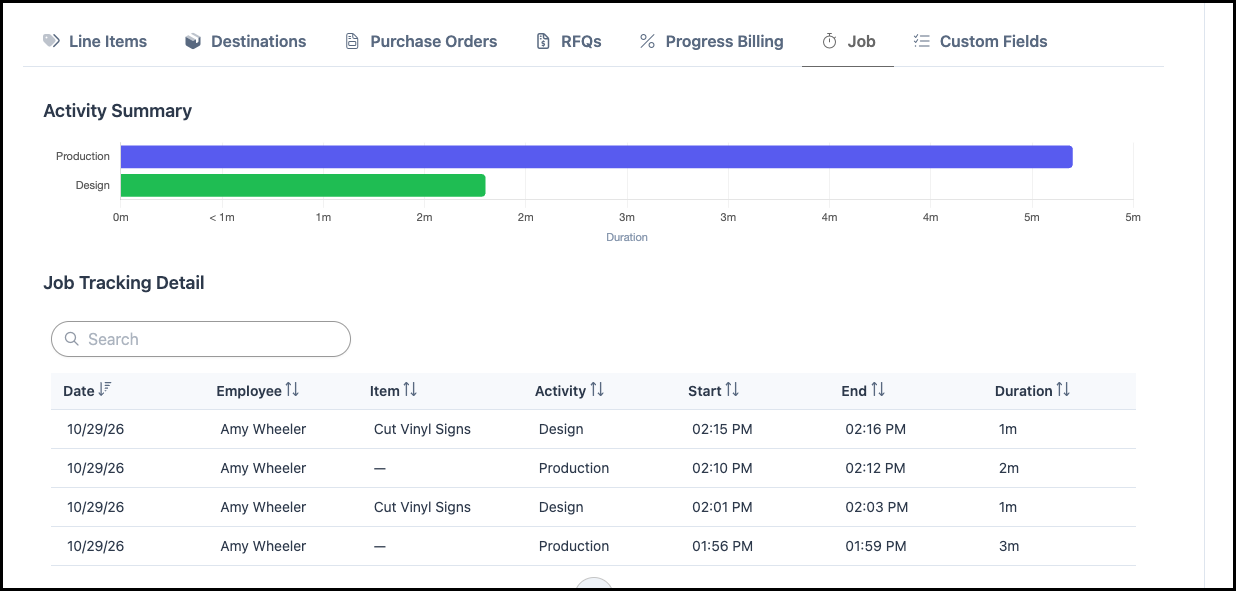
Open the Estimate or Order, then open the Job tab.
a. Activity Summary shows time by activity.
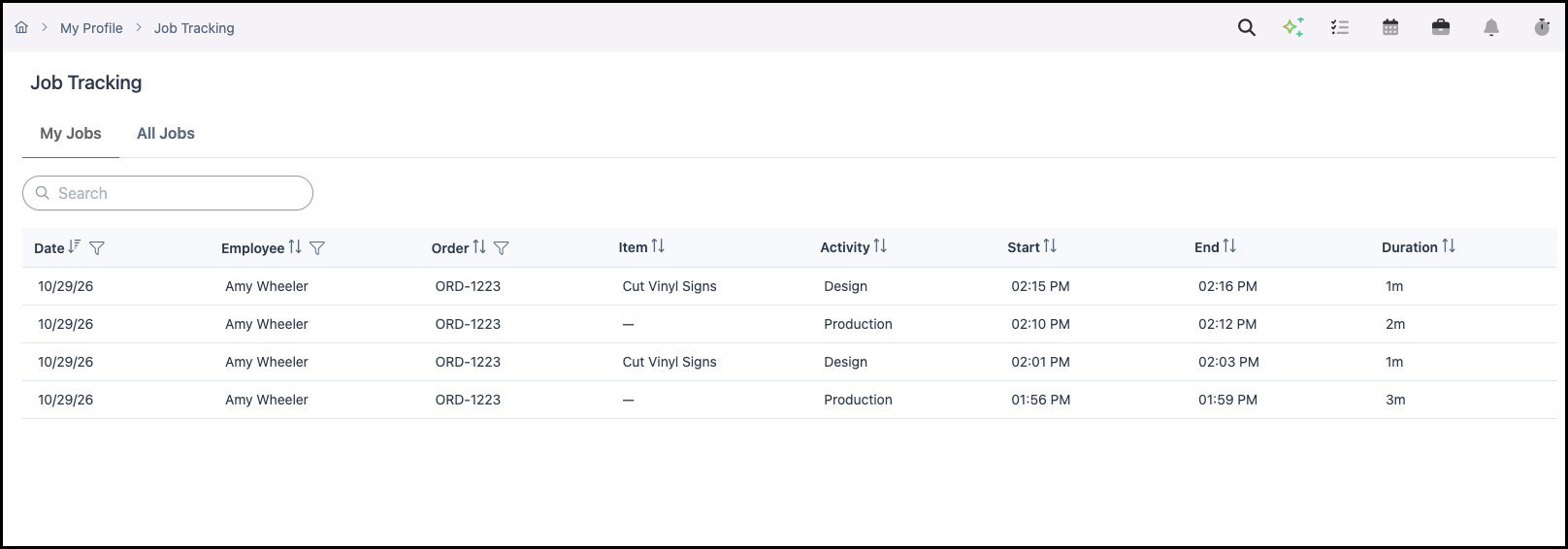
b. Job Tracking Detail lists each entry. Columns are Date, Employee, Item, Activity, Start, End, and Duration.
c. Item shows the Line Item name when time was tracked on a line, and a dash when time was tracked on the Estimate or Order.
My Job Tracking
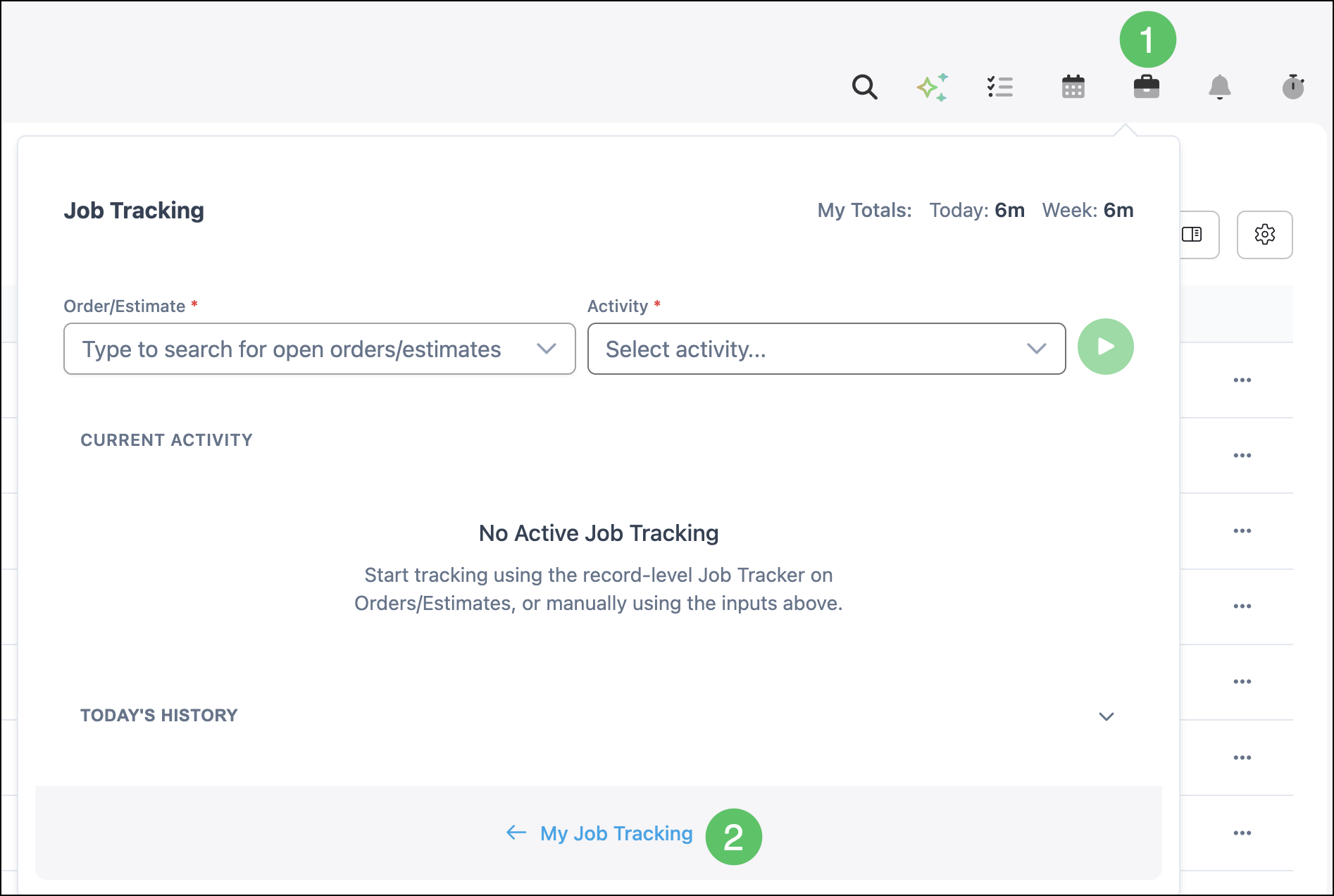
1. Select Job Tracking in the header.
2. In the Job Tracking window, click My Job Tracking.
Note:
- My Jobs lists entries for the employee who is signed in.
- All Jobs lists Job Tracking entries in one table.
Frequently Asked Questions
1. How is Job Tracking different from the Time Clock?
Answer: The Time Clock records shift time. Job Tracking records time on an Estimate, an Order, or a Line Item. For the Time Clock, see Time Tracking for Employees.
2. Can time be tracked on a Line Item?
Answer: Yes. Open the Job Tracking window, select the Line Item in Order/Estimate, select an Activity, and click the button beside Activity.
3. Where does completed time appear?
Answer: Completed time appears on the Job tab of the Estimate or Order and in My Job Tracking.