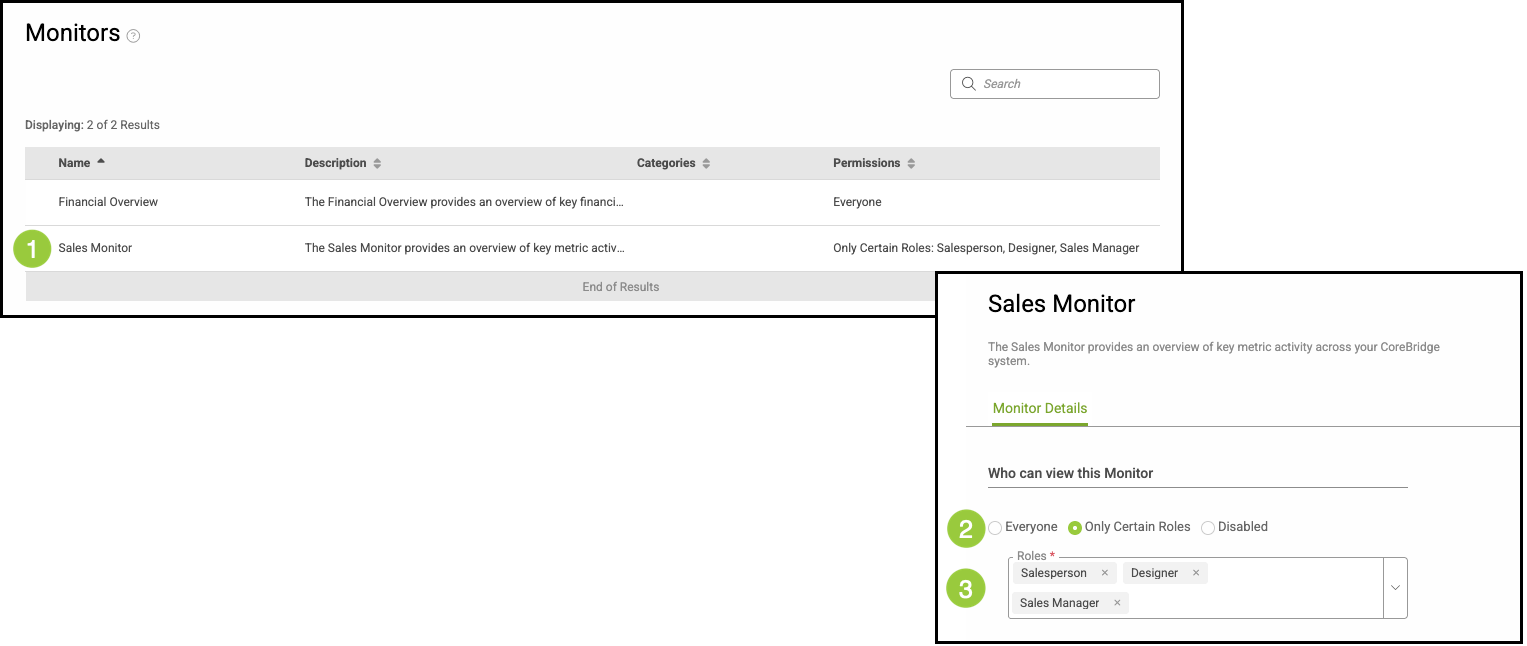
Monitors automatically track specific system activities, giving you a clear, detailed overview without the need for manual checks. Access to monitors is role-based, meaning only employees with the appropriate permissions can view them.
Table of Contents
Accessing the Monitor Screen
To locate the Monitor Screen, navigate to Sales / Dashboard.
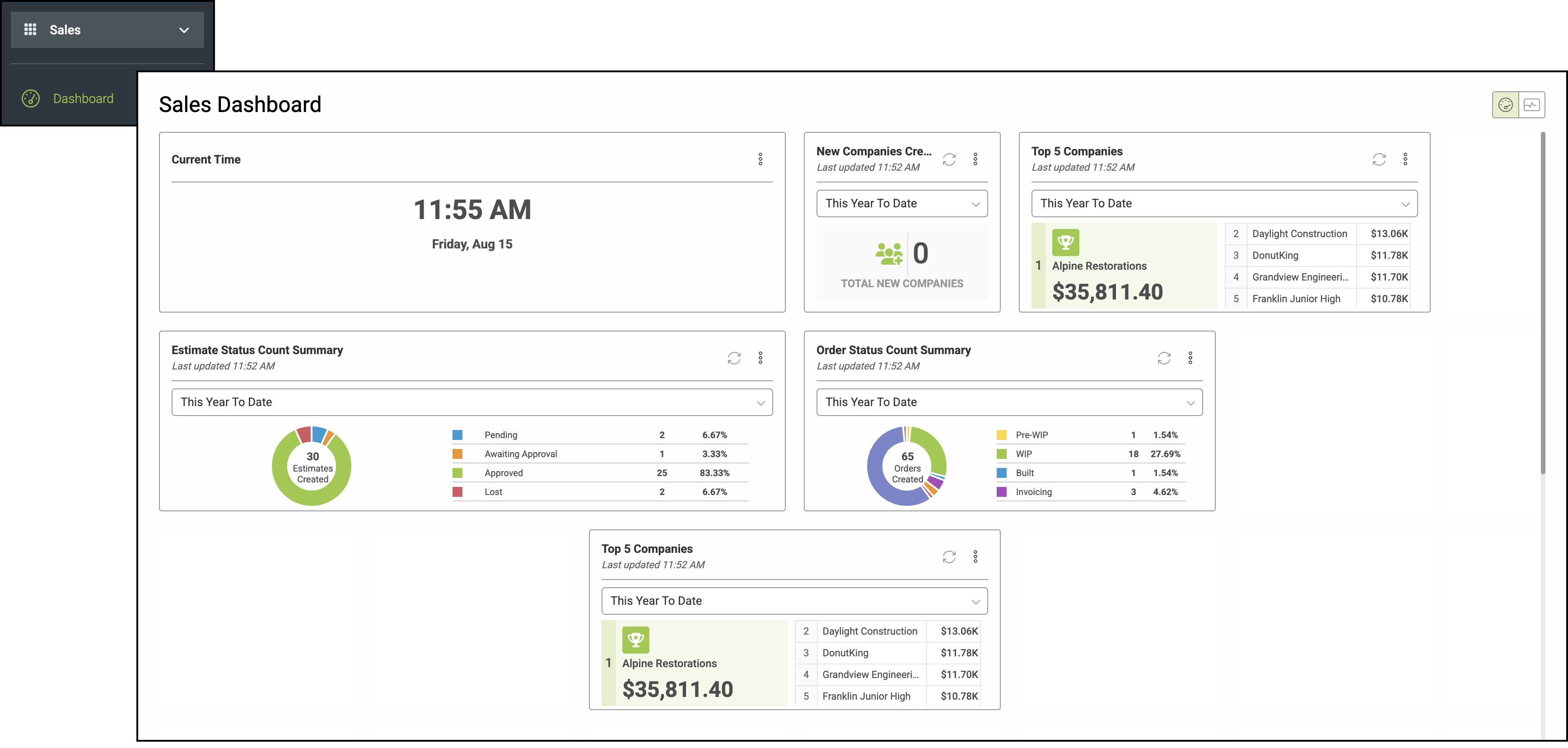
1. Select the Monitor View in the top right corner of the screen.
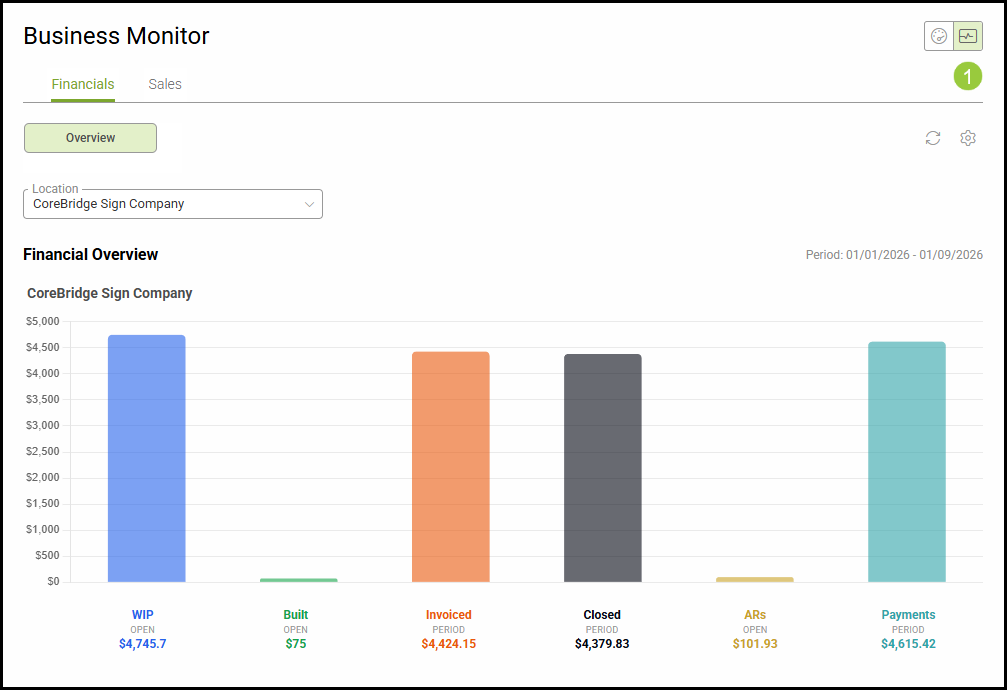
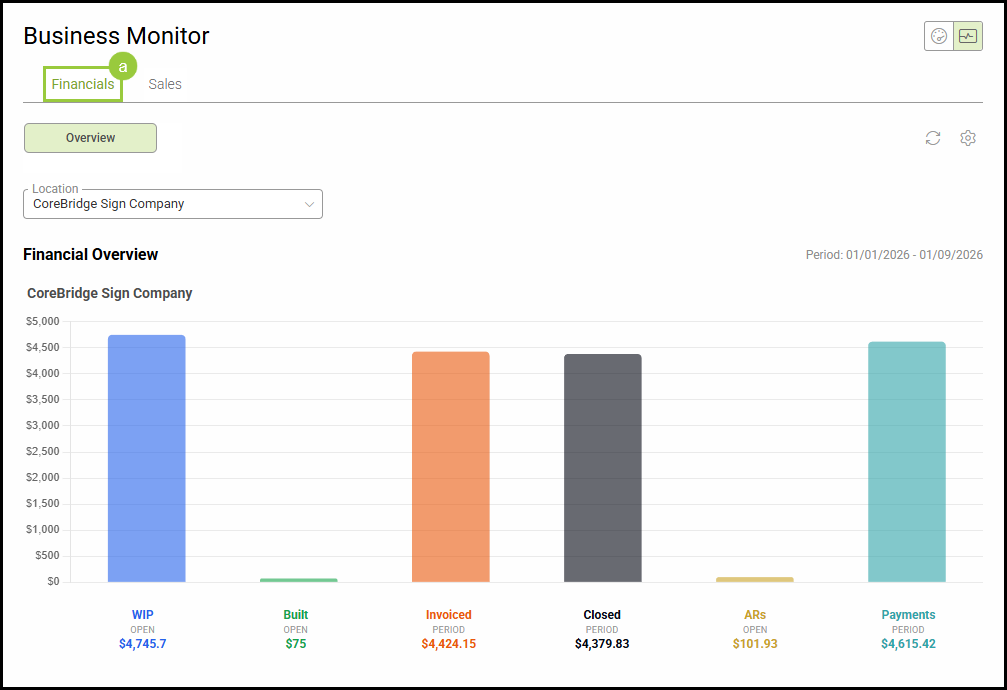
There are currently two monitors available: Financials and Sales.
a. Financials: Provides a visual representation of the monetary value of all open Pre-WIP, WIP, Built, or Invoicing Orders as well as any Invoiced or Closed Orders that have been completed during the set date range. You may also see all open Account Receivables, Payments made within the set date range, and the set Sales Goals for the date range.
Note: All of these options can be adjusted to be displayed or hidden using the Monitor Settings. Please see the Overview of the Monitor Screen section below for information on where the Monitor Settings can be found.
b. Sales: Provides a summary of the monetary value of all Estimates Created, Pending, Awaiting Approval, Approved, Lost, and Voided shown in orange, as well as a summary of the monetary value of all Orders Created, Pre-WIP, WIP, Built, Invoicing, Invoiced, Closed, and Voided shown in green. It also includes Payments and Refunds shown in grey. All information shown reflects the values for the day as well as that month to date.
Note: All of these options can be adjusted to be displayed or hidden using the Monitor Settings. Please see the Overview of the Monitor Screen section below for information on where the Monitor Settings can be found.
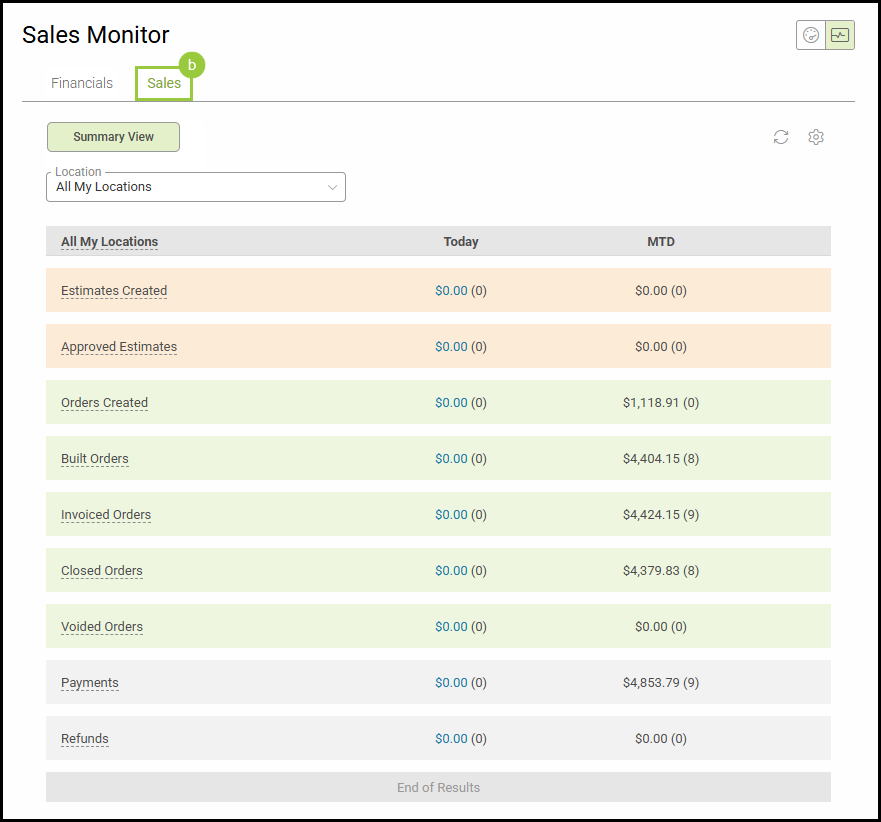
Overview of the Monitor Screen
Both monitors will include the following options:
a. For systems with multiple Locations, use this dropdown to choose a specific Location to view, or select All My Locations to see them together.
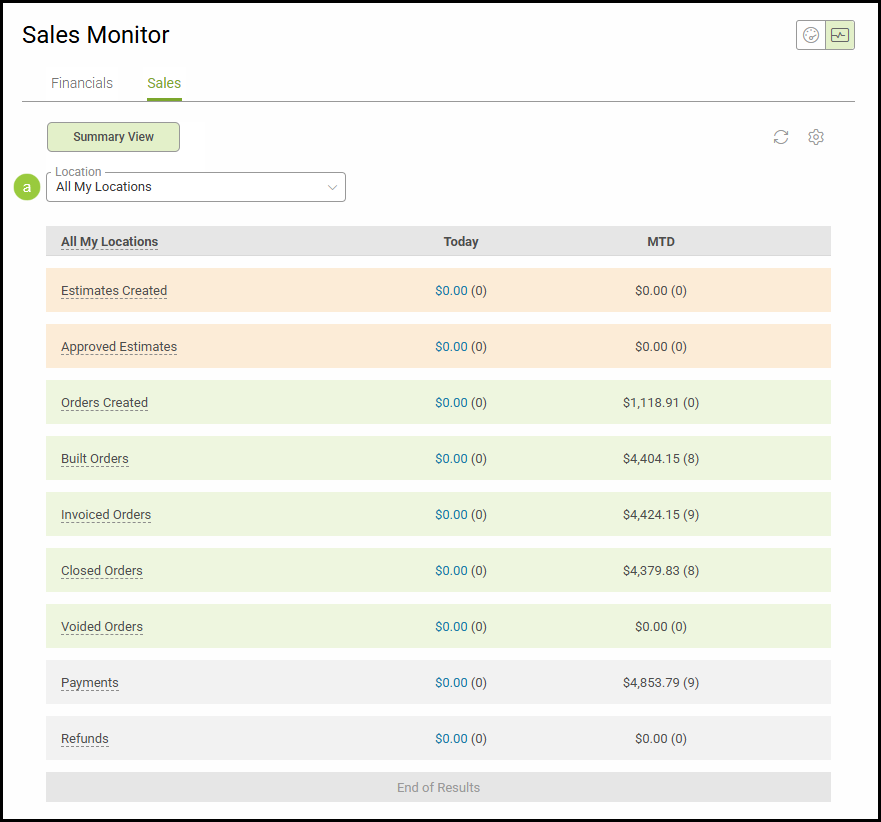
c. Dashboard View icon to return to the dashboard view.
d. Monitor View icon to view all monitors.
e. Refresh icon to manually update the monitors.
f. Settings icon to adjust what you see on the monitor.

Monitor Settings
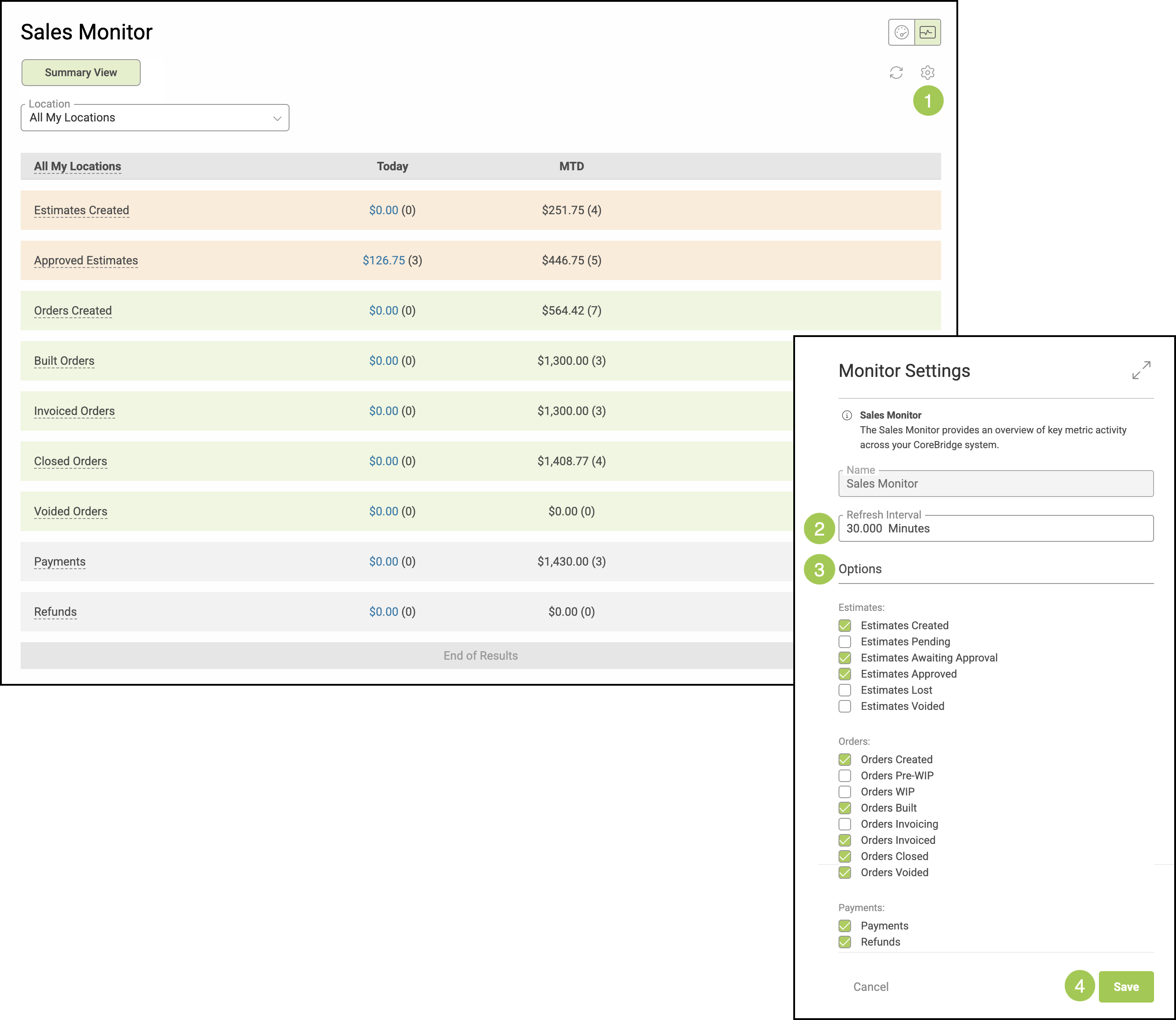
1. Click the Settings icon on the Monitor Screen.
2. Set how often the information automatically refreshes.
Note: The minimum amount of time is 30 minutes and a value is required in this field.
Permissions in Settings
To manage permissions, navigate to Settings / Dashboards / Monitors.
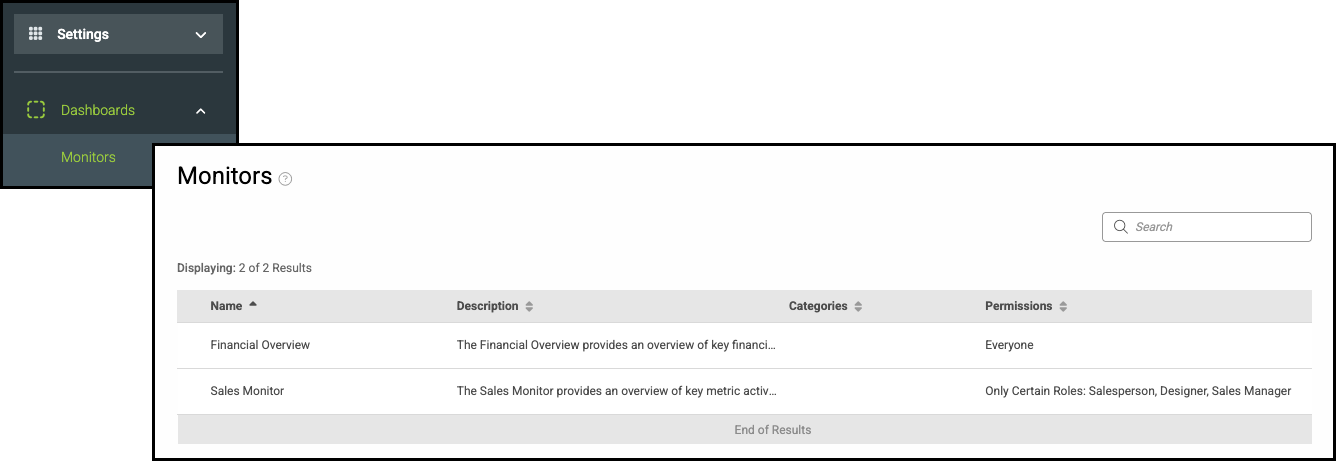
1. Click into the appropriate Monitor.
2. Select how the permission will be set.
3. If Only Certain Roles has been selected, a dropdown will appear for you to select the specific Roles that can have viewing permission.