
When an Estimate is marked Lost, CoreBridge keeps the record for reference, but the Estimate is locked and its pricing is cleared to $0.00. This article explains how Lost Estimates are handled, including reviewing the original record, cloning a new Estimate, preserving pricing and the Lost Reason, and tracking win/loss counts.
Table of Contents
- What Happens When an Estimate Is Marked Lost
- How to Mark an Estimate as Lost
- Reviewing a Lost Estimate
- Cloning a Lost Estimate
- Keeping Lost-Business Details
- Related Articles
What Happens When an Estimate Is Marked Lost
After the Estimate (or a line item) is marked Lost:
- The Estimate remains in the system and stays searchable from Sales / Estimates.
- Live pricing on the Lost Estimate or Lost line items is set to $0.00, and header totals recalculate accordingly.
- Customer, description, line item names, and related non-price details remain on the record for qualitative review.
Note: Because live prices are cleared, a dollar-value post mortem cannot rely on the totals still shown on that Lost Estimate. Capture pricing before Mark Lost when you need the quoted amount later, or reopen the Estimate as described below when recompute can restore pricing.
How to Mark an Estimate as Lost
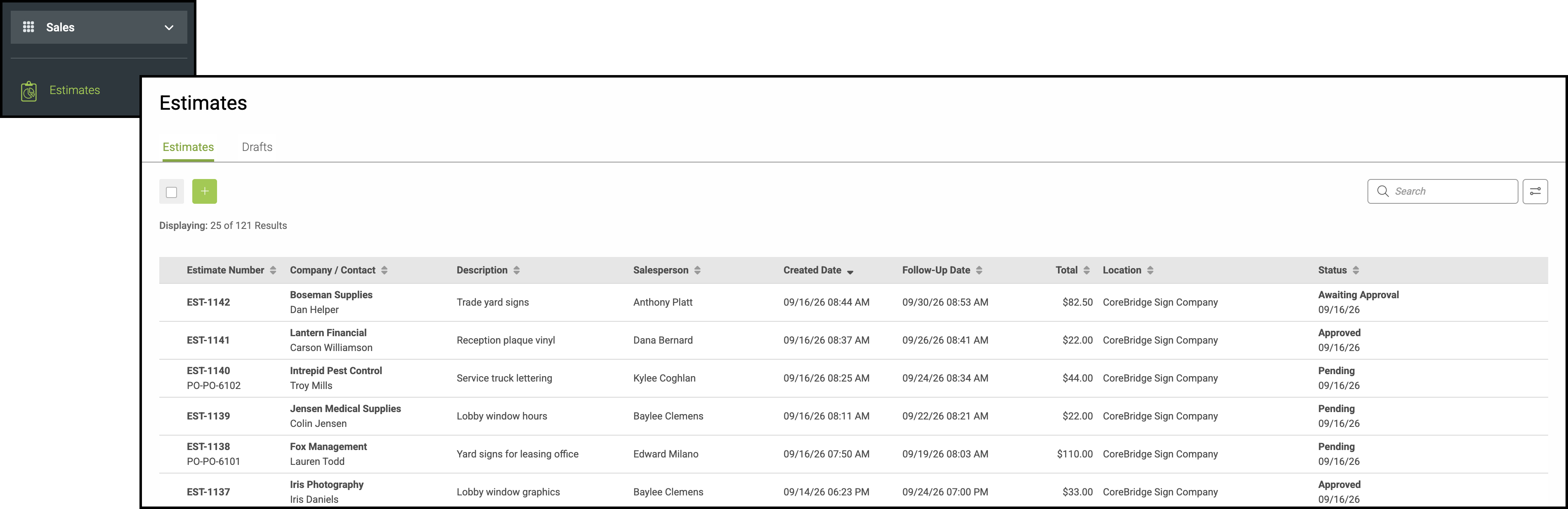
Navigate to Sales / Estimates and select the appropriate Estimate.
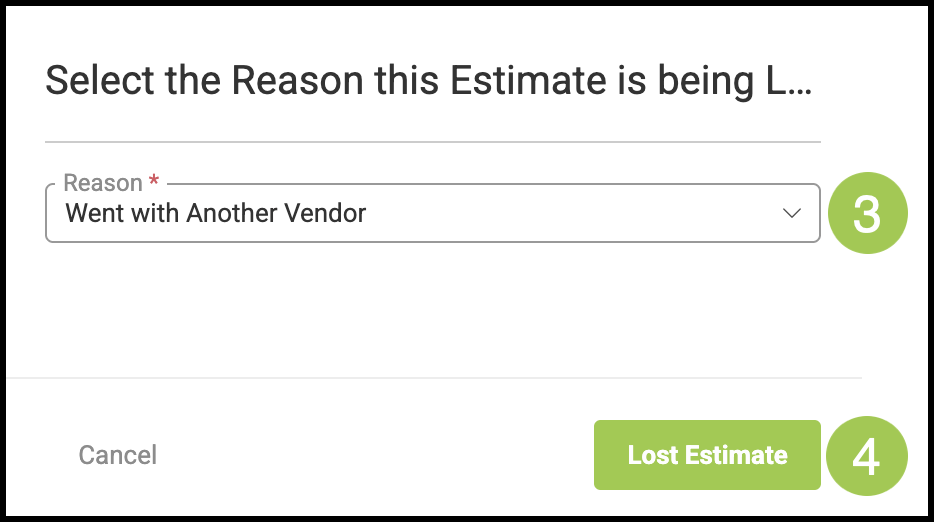
1. Click the More Actions menu.
2. Select Mark Lost.

3. Select a Reason.
4. Click Lost Estimate.
Reviewing a Lost Estimate
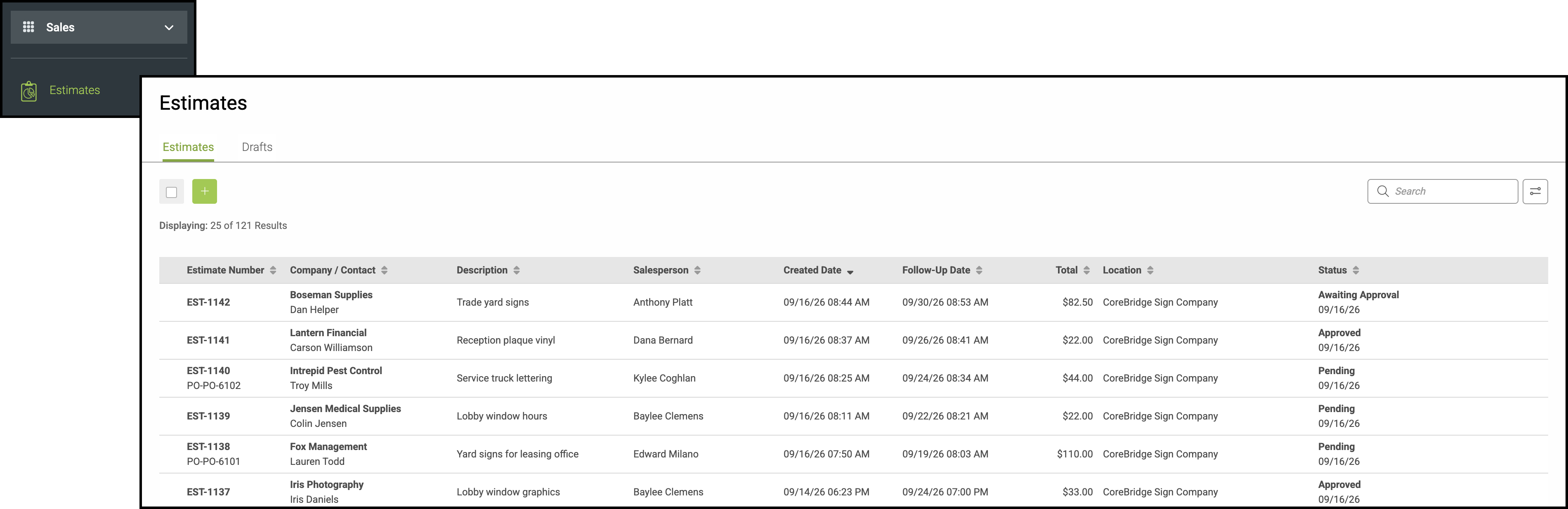
Navigate to Sales / Estimates.
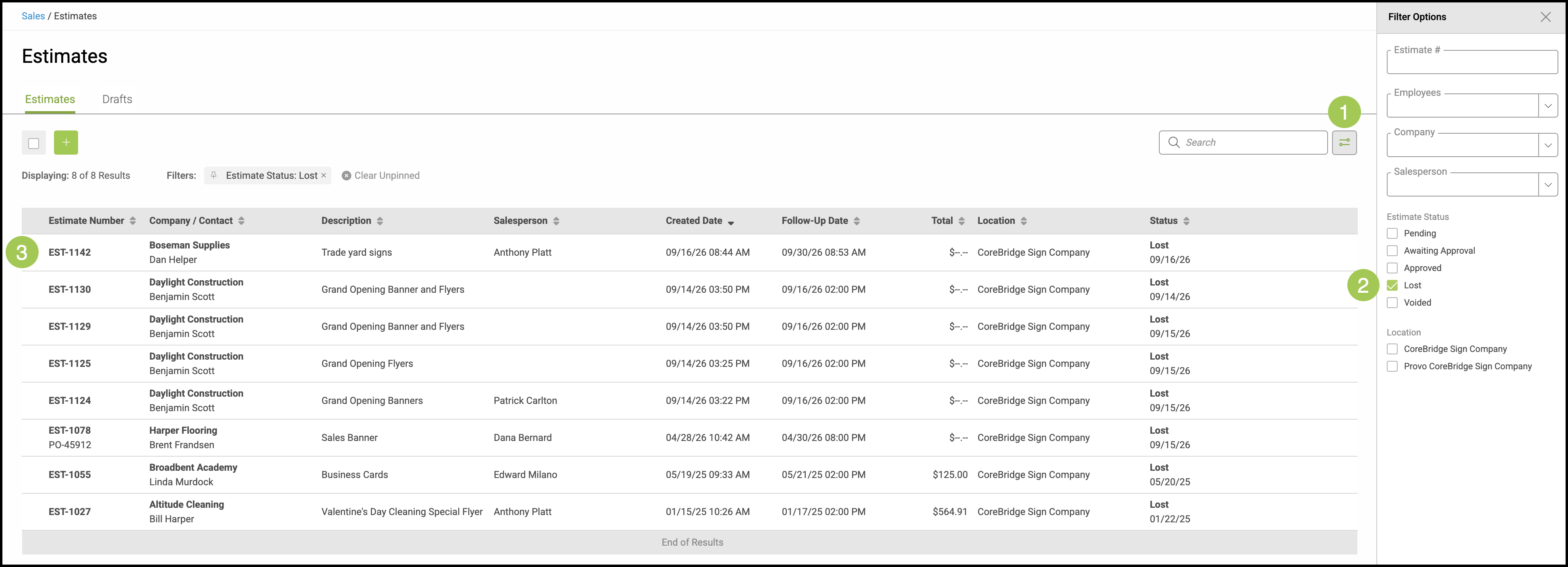
1. Click the Filter icon.
2. Select Lost.
3. Open the Estimate.
Cloning a Lost Estimate
A Lost Estimate is locked and cannot be edited or returned to an open Status. If the opportunity becomes active again, clone the Lost Estimate to create a new Estimate. The original remains available for reference.
Note: When cloning, Update Pricing applies current pricing rules rather than retaining the original quoted amounts.
Navigate to the Lost Estimate using the steps above.
1. Hover over the Locked icon.
2. Click Clone.
Note: You can also find Clone under the More Actions menu.

Keeping Lost-Business Details
Use these steps when you need a priced copy of the quote, a Lost Reason for the team, or a view of win/loss counts after the Estimate is marked Lost.
- Clone First - Select More Actions, then Clone, before you mark the original Lost. Cloning first keeps a priced Estimate you can keep for reference. After Mark Lost, live pricing on the original is $0.00. A later clone with Update Pricing recalculates from current pricing. It does not restore the original quoted amounts.
- Lost Reason - Select a Lost Reason when prompted. Reasons help the team report why work was lost. Manage these reasons in Settings / Sales / Reason Lists.
- Win Loss Report - After Estimates are marked Lost, go to Sales / Reports / Pipeline Reports and open an Estimate Win Loss report for conversion vs lost counts and ratios. These reports use the current Estimate value, so Lost dollar amounts show as $0.00. Use the clone from step 1 when you need the quoted amount.