
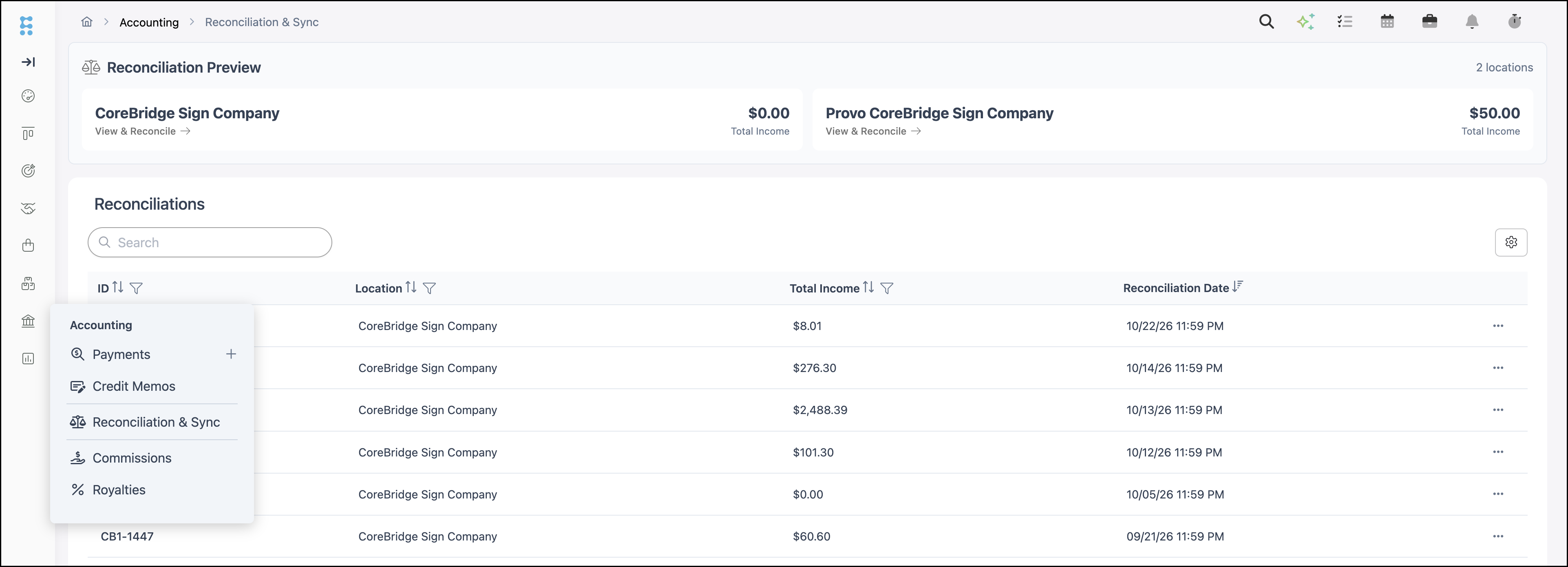
The Reconciliations list on Reconciliation & Sync shows posted reconciliation history for each Location. Each row lists the ID, Location, Total Income, and Reconciliation Date. After a period is posted, it can be sent to a connected accounting integration with Sync Now, or exported with Download.
Table of Contents
- Reconciliation History
- Open a Posted Reconciliation
- Download a Reconciliation
- Frequently Asked Questions
- Related Articles
Reconciliation History
Navigate to Accounting / Reconciliation & Sync.
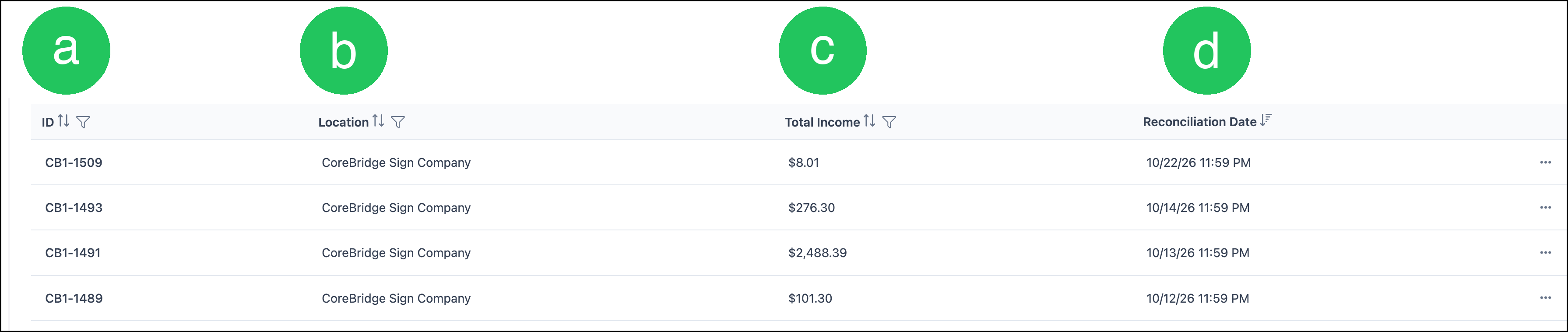
a. ID - The reconciliation number. Click the ID to open the posted reconciliation.
b. Location - The Location the period belongs to.
c. Total Income - Income posted for the period.
d. Reconciliation Date - The date and time the period was reconciled.
Note: More Actions on a row includes Download.
Note: Column settings on the list can add Status. When no accounting integration is connected for the Location, Status shows a dash, and Sync Now is unavailable.
Note: Reconciliation Preview is the open period that has not been posted. To complete a reconciliation, see Reconciliation Overview.
Open a Posted Reconciliation
Navigate to Accounting / Reconciliation & Sync.
1. Click the reconciliation ID.

The posted reconciliation shows the sync status and the period totals.
a. Sync Now - Sends the posted reconciliation to the accounting integration connected for the Location. Sync Now is unavailable when no integration is connected.
b. Not Synced - The posted reconciliation has not been sent to an accounting integration.

c. Reconciliation Period - The date range that was reconciled.
d. Reconciled On - The date and time the period was posted.
e. Total Income - Income included in the posted period.
f. Total Payments - Payments included in the posted period.
g. Payment Summary, Payments & Refunds, and Financial Summary - Review the posted totals, the payments and refunds in the period, and the financial summary.

Note: The Documents menu on the posted reconciliation opens the reconciliation PDF and document settings. For that PDF, see Reconciliation Overview.
Important: Sync Now sends a reconciliation that is already posted. Automatic closing, and syncing in Automatic with Reconciliation mode, are set in Accounting Options. For those settings, see Automatic Reconciliation and Sync.
Download a Reconciliation
1. On the posted reconciliation, click Download.

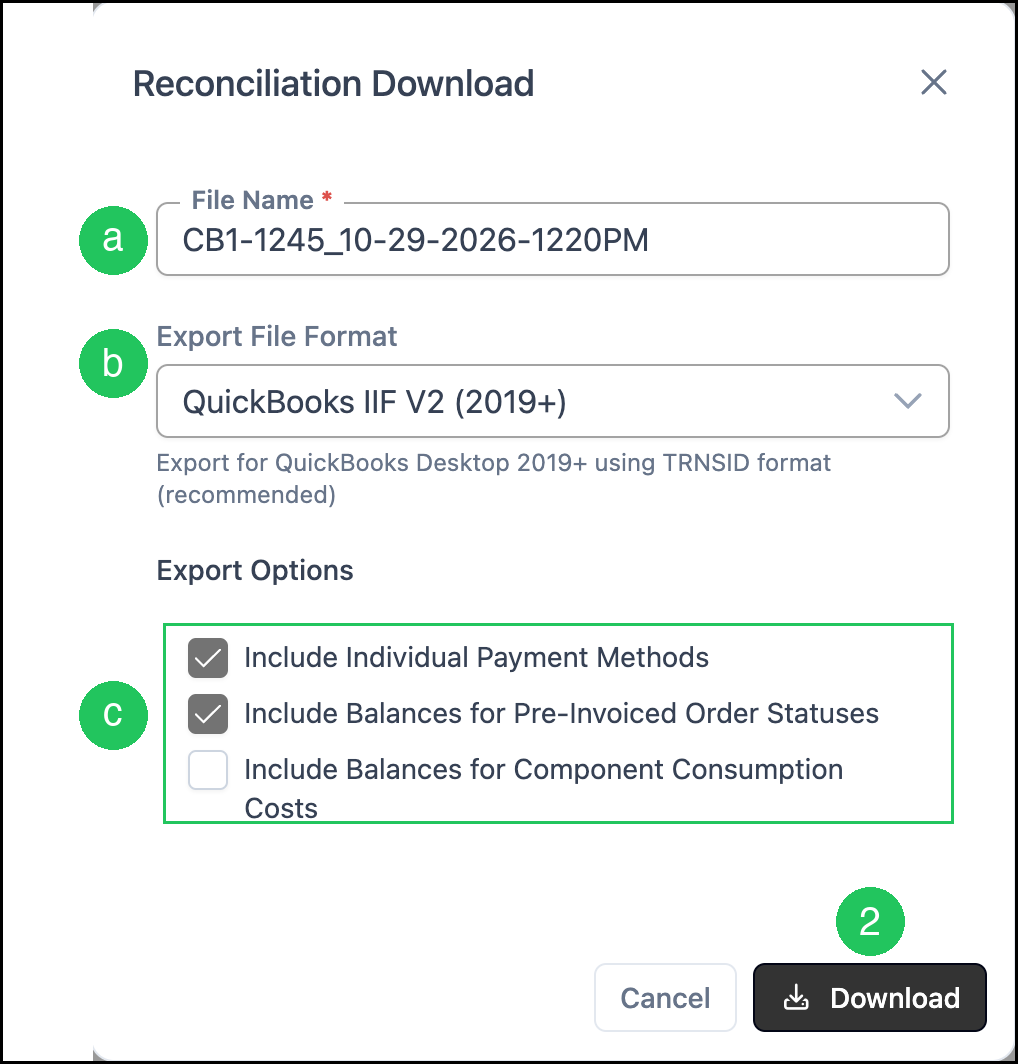
2. On Reconciliation Download, confirm the file name and format, then click Download.
a. File Name - The name of the export file. A name is filled in. Change it when a different name is needed. Download stays unavailable until File Name is filled in.
b. Export File Format - The format for the accounting software.
Note:The default is QuickBooks IIF V2 (2019+), for QuickBooks Desktop 2019 and later. Other formats are QuickBooks IIF (Legacy), QuickBooks Canada, Generic CSV, Sage 2017, Sage 50, and Shireburn SFM.
c. Export Options - Include Individual Payment Methods and Include Balances for Pre-Invoiced Order Statuses are selected. Include Balances for Component Consumption Costs is cleared. Change an option when the export should include or leave out that information.
Frequently Asked Questions
1. Why is Sync Now unavailable?
Answer: Sync Now is unavailable when no accounting integration is connected for the Location. The posted reconciliation shows Not Synced. Connect the integration for that Location before using Sync Now. To send reconciliations automatically when they are posted, see Automatic Reconciliation and Sync.
2. What is the difference between Sync Now and Download?
Answer: Sync Now sends the posted reconciliation to the connected online accounting integration. Download saves an export file, such as a QuickBooks IIF file or a CSV file, that can be imported into accounting software.