
Quick Add Company is the short Company form inside New Order. It creates the Company and selects that Company as the Customer for the Order in one step. The full Company record is a longer form on the Companies screen.
Table of Contents
Important Information
- Use Quick Add Company when the Customer is not already in CoreBridge and you are starting an Order. If the Company may already exist, search Select Customer first.
- Create & Select creates the Company and selects that Company as the Customer for the Order. You then enter the Order Description and continue the New Order steps.
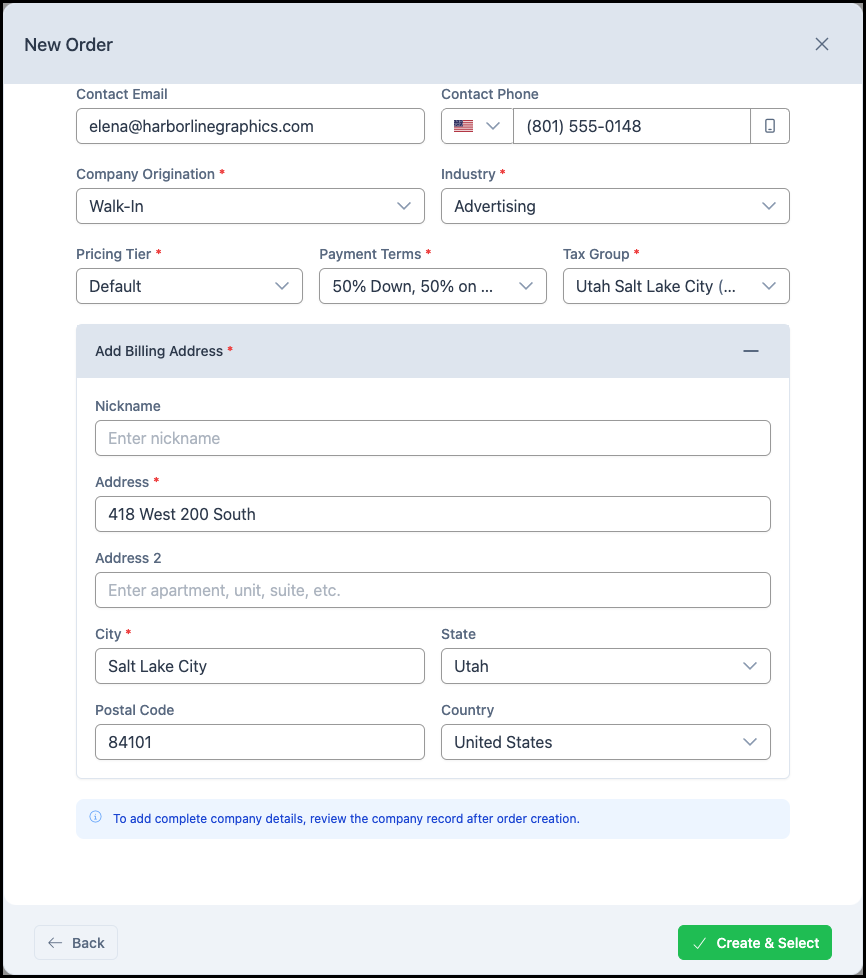
- Quick Add Company is shorter than the Company record. The Company record includes more, such as a billing contact, a shipping address, tax exempt status, and contact roles. The form shows this note: To add complete company details, review the company record after order creation.
- Turn on Personal Account when the Customer is a person rather than a Company. Personal Account hides Company Name, Company Email, Company Origination, and Industry.
- A red asterisk marks a required field. Company Options controls which extra fields are required, such as Company Origination, Industry, or a billing address. When a billing address is required, Add Billing Address is open, and Address and City show a red asterisk.
Using Quick Add Company
Navigate to Sales / Orders.
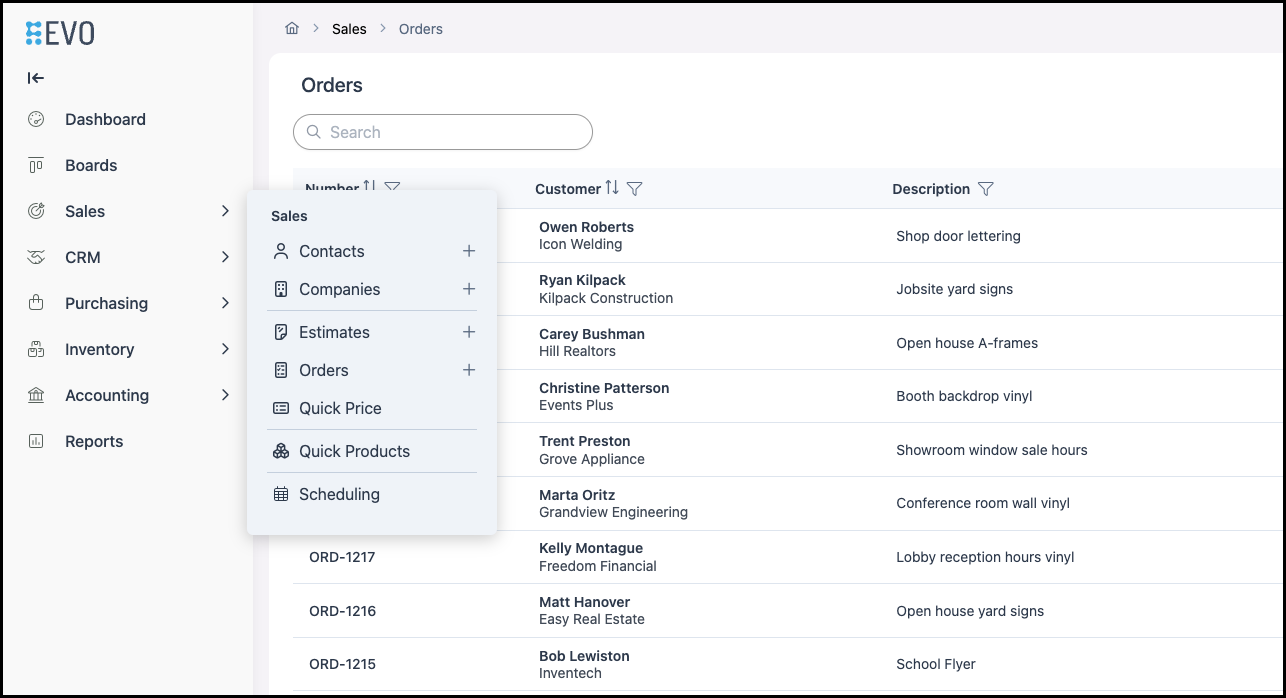
1. Click New Order.
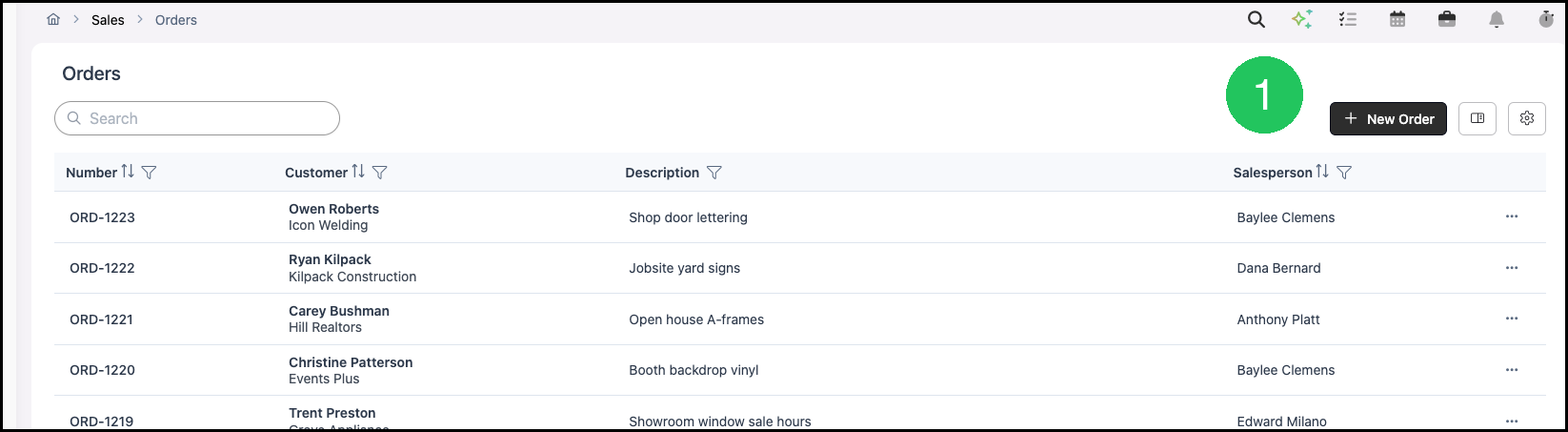
2. Click the + next to Select Customer. The Customer step changes to Quick Add Company.
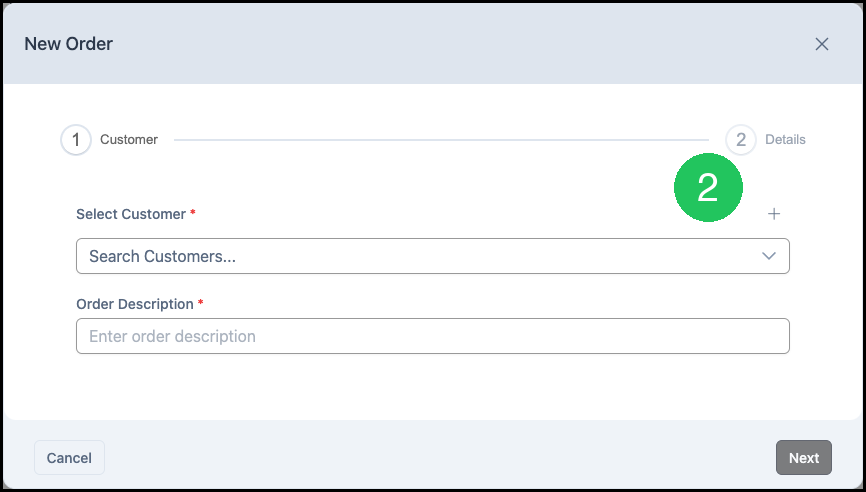
3. Fill the form, then click Create & Select.
a. Leave Personal Account off for a Company. Turn Personal Account on for a person.
b. Enter Company Name.
c. Enter Company Email when you have it.
d. Enter Contact First Name and Contact Last Name. Enter Contact Email and Contact Phone when you have them.
e. Select Company Origination and Industry when those fields show a red asterisk.
f. Review Pricing Tier, Payment Terms, and Tax Group. Payment Terms and Tax Group are required and may already show a default.
g. Complete Add Billing Address when it is required. Enter Address and City. Select State and enter Postal Code. If CoreBridge asks you to confirm the address, click Save as Entered to keep the address you typed.
Scroll the form to finish City, State, Postal Code, and Country.
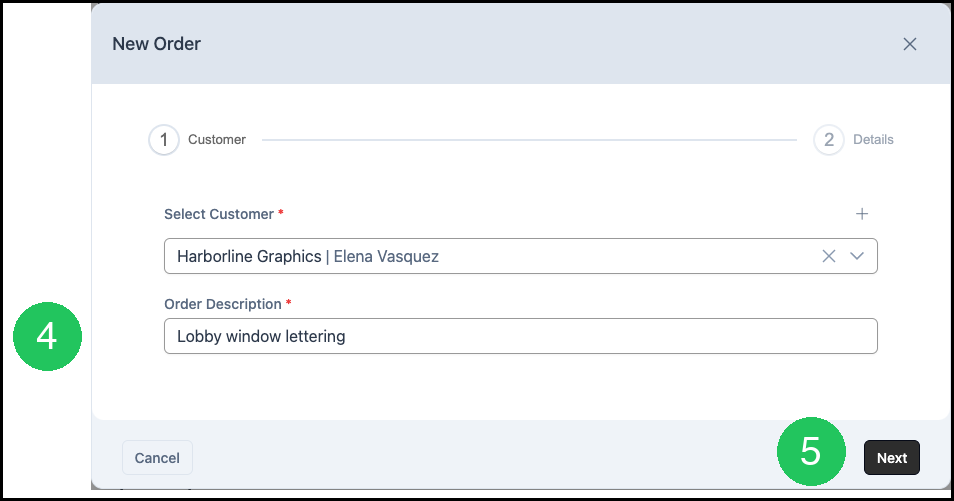
4. Enter the Order Description. The new Company shows in Select Customer.
5. Click Next to continue the New Order steps. For the rest of the Order, see Creating an Order.
Frequently Asked Questions
1. What is the difference between Quick Add Company and the Company record?
Answer: Quick Add Company is the short form inside New Order. It creates the Company and selects it for that Order. The Company record is the longer form. Open it from Sales / Companies when you need the rest of the Company details.