
Page History provides a record of saved changes on a settings screen, including the setting, the values before and after the change, the employee who saved it, and the time. History is a button next to the screen title, or it is a command in the More Actions menu. Change History opens in a Side Panel and stays with the screen you opened it from.
Table of Contents
- Important Information
- Where History Appears
- Reading Change History
- Filtering Change History
- Frequently Asked Questions
- Related Articles
Important Information
- Saving the screen records the change in Page History.
- History is a button next to the screen title on some settings screens. On other settings screens, History is in the More Actions menu.
- The Side Panel stays with the screen you opened it from.
- An entry can show Created, Updated, or Deleted. A screen that records a message or a signature can also show Message or Signature.
- An Order or Estimate uses Change History on that record. For more information, please see Order and Estimate Change History.
Where History Appears
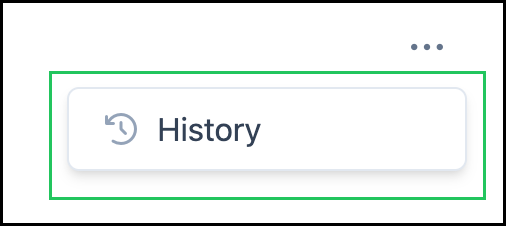
Page History allows you to review changes made to a record. Depending on the screen, History is available as a button in the header or as an option in the More Actions menu. Both options open the same Change History Side Panel. See the examples below.
Example: On Customer Portal Options, History is a button next to the screen title.

Example: On Company Options, History is in the More Actions menu.
Reading Change History
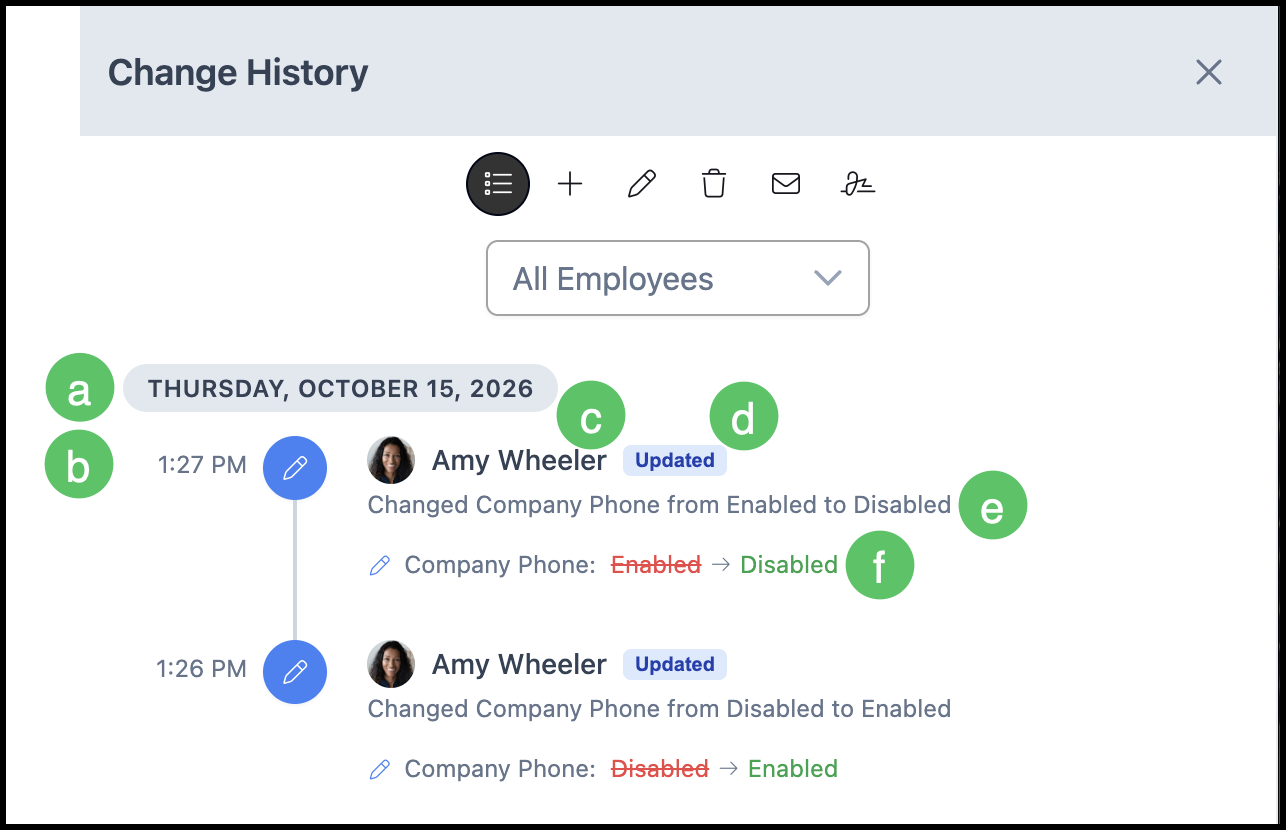
Click History to open the Change History Side Panel. This panel displays a record of changes made to the page, including when each change was saved, who made it, and the specific information that was updated.
a. Date – Groups saved changes by date.
b. Time – Shows when the change was saved.
c. Employee – Identifies the employee who saved the change.
d. Action – Indicates the type of change, such as Updated.
e. Summary – Displays the setting that was changed, including its previous and new values.
f. Change Details – Shows the specific setting, its previous value, and its new value.
Filtering Change History
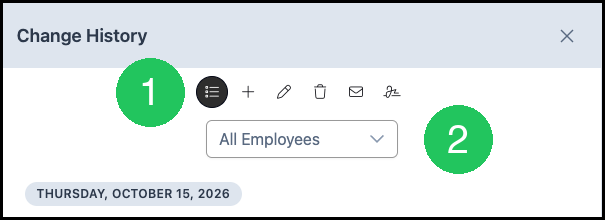
1. Click an action to show one kind of change. All shows every saved change. Created, Updated, Deleted, Message, and Signature each show only that action.
2. Open All Employees and select an employee to show only that employee's changes. Select All Employees to show every employee.
Frequently Asked Questions
1. Why does Change History say No History Yet?
Answer: Changes appear after you save the screen. A screen with no saved changes shows No History Yet.
2. Where do I see changes to an Order?
Answer: Open the Order or Estimate and open Change History there. For more information, please see Order and Estimate Change History.