
A Dynamic Group provides optional modifiers that can be added to a Product during Estimate or Order entry. Dynamic Groups are configured in the Product Designer, where you can define how the options appear and which modifiers are available. Modifiers in a Dynamic Group are only included on the Line Item when they are added.
Table of Contents
- Important Information
- Understanding Dynamic Groups
- Adding a Dynamic Group
- Configuring a Dynamic Group
- Adding Modifiers to a Dynamic Group
- Previewing a Dynamic Group
- Frequently Asked Questions
- Related Articles
Important Information
In the Product Designer palette, this feature is named Dynamic Group.
- Dynamic Group options are opt-in. Order-takers add only the modifiers they need. Linked components are different: those parts stay on the Product unless you unlink them. For more information, see Linked Components.
- Each layout is built separately. Add the Dynamic Group on the Standard layout for Estimate and Order entry. Repeat the setup on the Invoice and Work Order layouts if those documents should show the same group.
- When you add a Dynamic Group, CoreBridge EVO also places a Dynamic Target on the canvas. The target is the area where added options appear during order entry.
Understanding Dynamic Groups
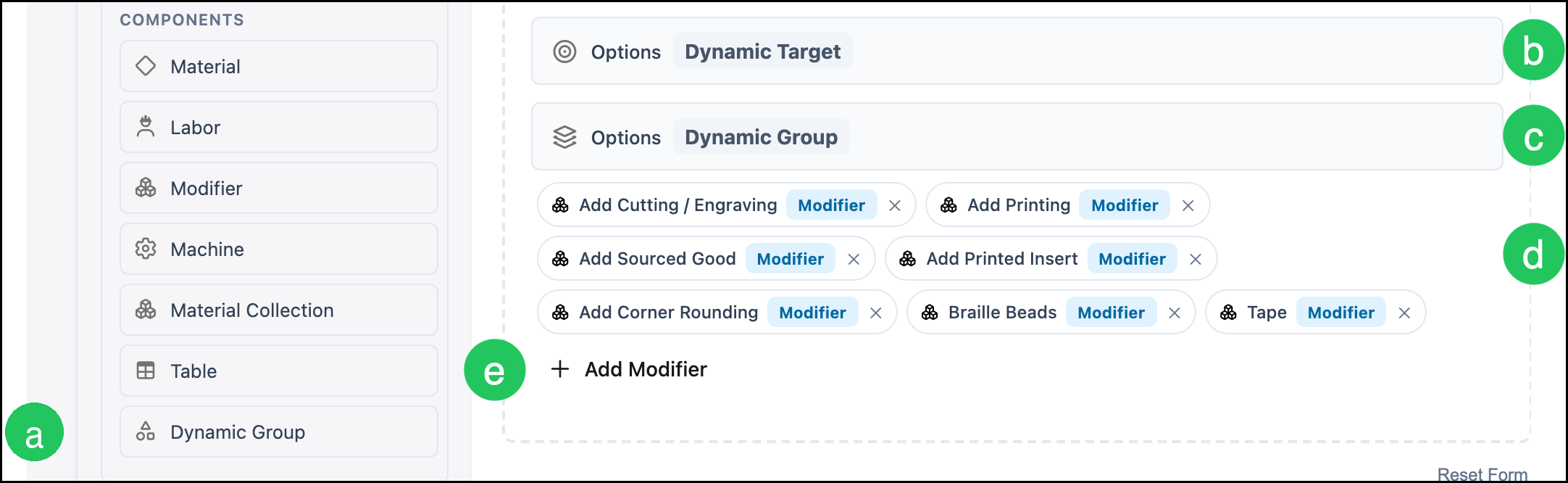
On Sales Form in the Product Designer, a Dynamic Group includes these parts:
a. Dynamic Group in the COMPONENTS palette is the item you drag onto the canvas.
b. The Dynamic Target is the area where selected options appear during Estimate and Order entry.
c. The Dynamic Group on the canvas holds the optional modifiers and displays the group label, such as Options.
d. Each attached modifier appears as a pill in the group. You can reorder or remove modifiers from this list.
e. Add Modifier opens a dialog so you can attach another modifier to the group.
Adding a Dynamic Group
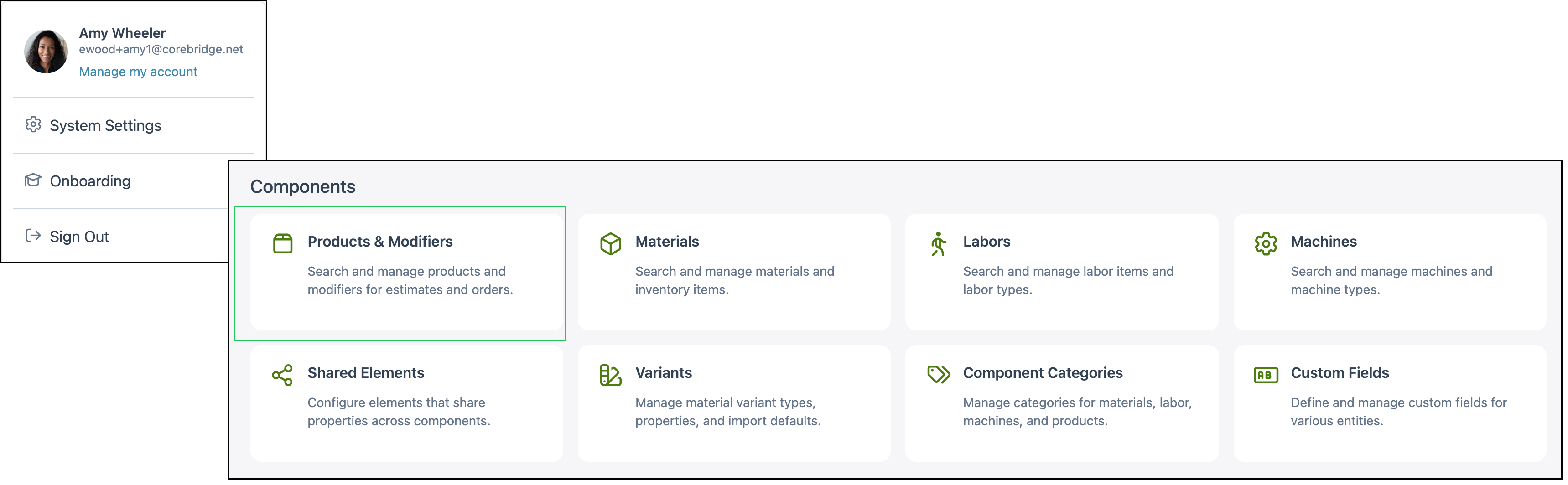
Navigate to System Settings / Components / Products & Modifiers.
1. Select the Product.

2. Click Edit on Sales Form.

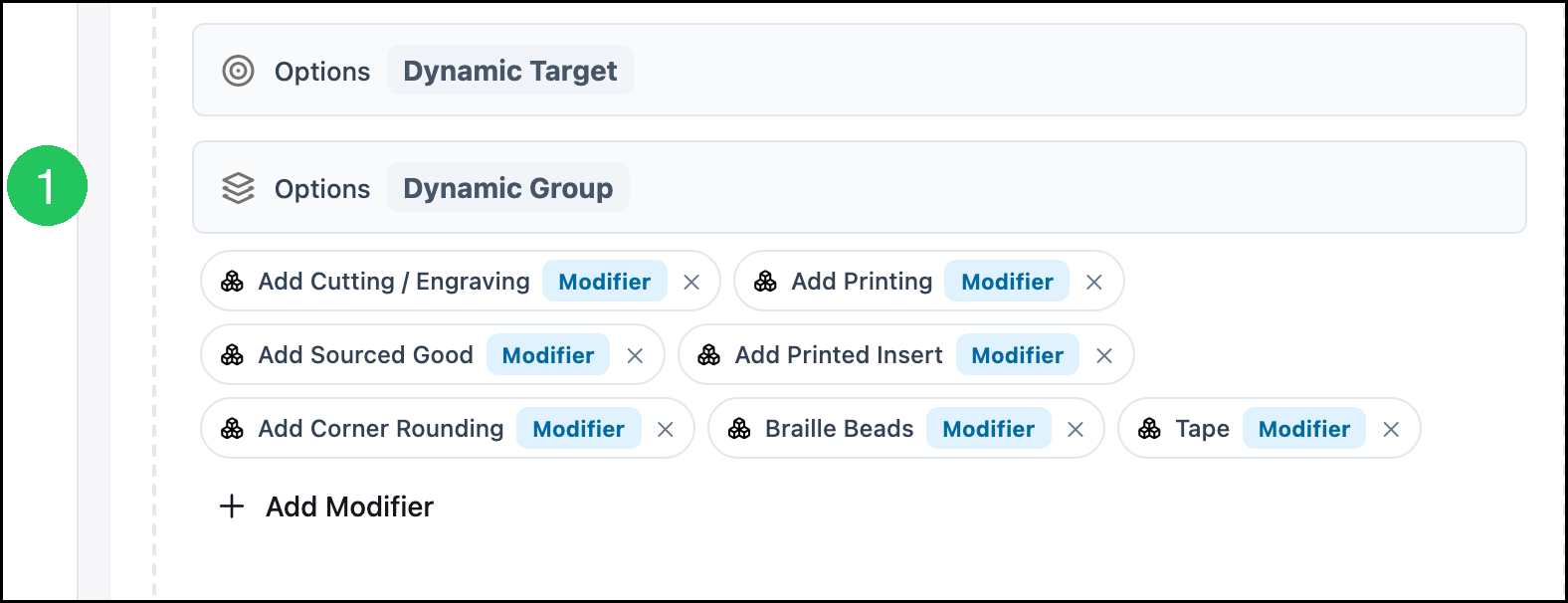
3. Drag Dynamic Group from the COMPONENTS palette onto the canvas. A matching Dynamic Target appears with the group.

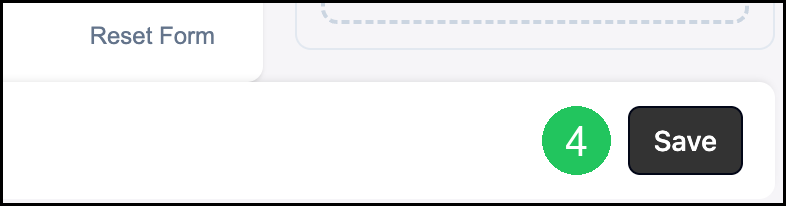
4. Click Save.
Configuring a Dynamic Group
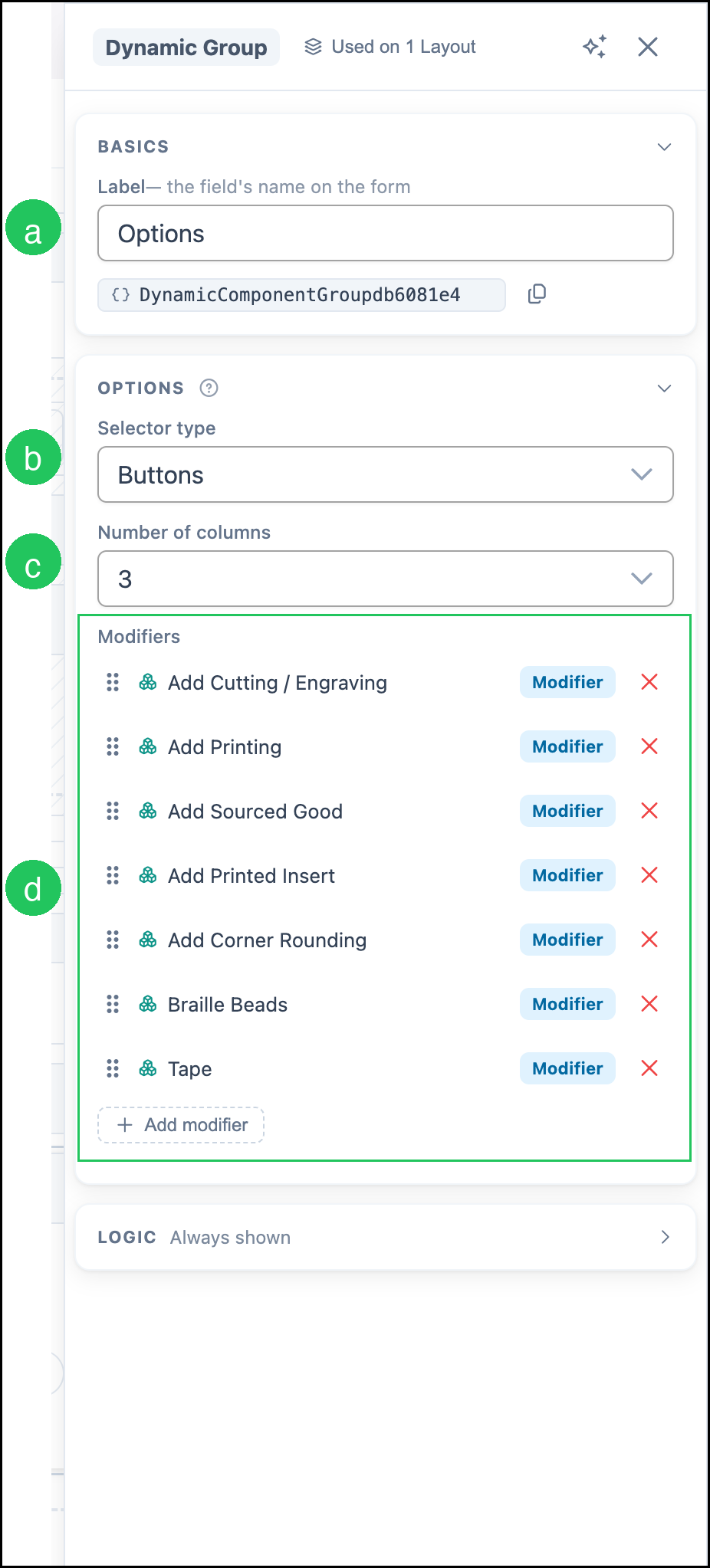
1. Click the Dynamic Group on the canvas. The Side Panel opens.
The Side Panel is where you name the group and choose how options appear during order entry.
a. Label is the name of the group on the form, such as Options.
b. Selector type controls how choices appear. Buttons shows a button for each option. Dropdown shows a list. Inline shows the options in an inline list.
c. Number of columns sets how many button columns appear when Selector type is Buttons.
d. Modifiers lists the modifiers attached to the group. Drag the handle to reorder them. Click Add modifier to attach another modifier.
2. Click Save.
Adding Modifiers to a Dynamic Group
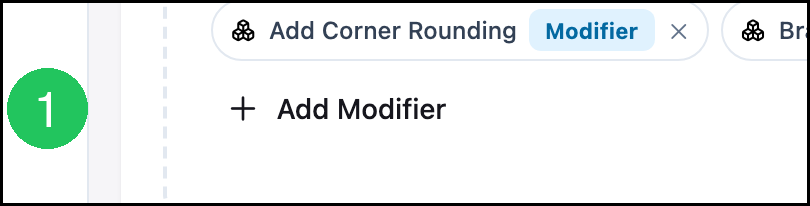
1. Click Add Modifier on the Dynamic Group.
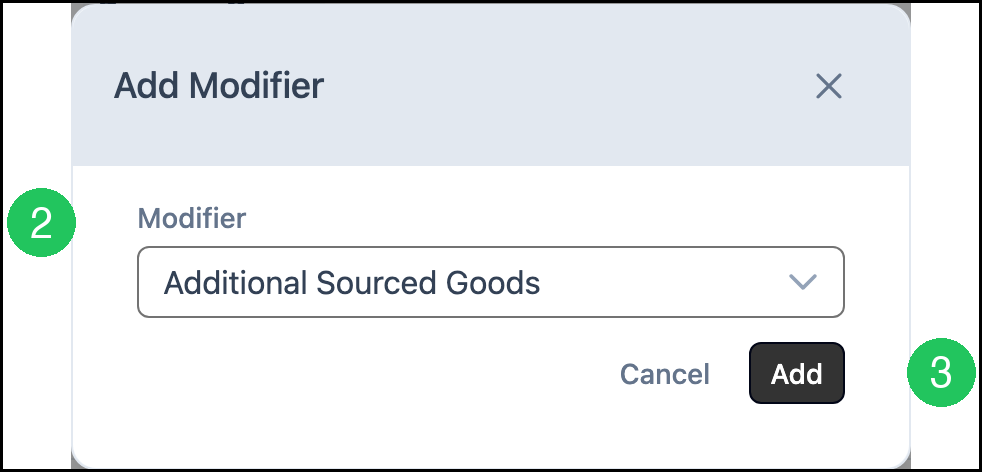
2. Select a Modifier.
3. Click Add.
4. Click Save.
Previewing a Dynamic Group
1. Click Preview to see how the Dynamic Group appears during Estimate and Order entry.
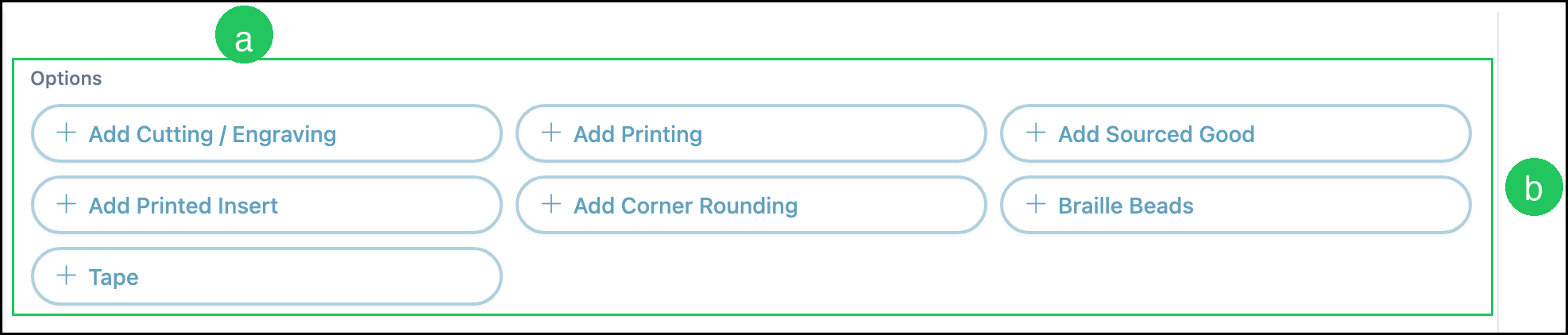
On Sales Form, a Buttons selector shows each option as an Add control. Order-takers add only the options they need.
a. The group Label appears above the choices.
b. Each attached modifier appears as an option. Clicking an option adds that modifier to the line item.
Frequently Asked Questions
1. How is a Dynamic Group different from linked components?
Answer: Linked components stay on the Product unless you unlink them. Dynamic Group modifiers are optional. They are added during Estimate or Order entry only when someone selects them.
2. Do I need to add the Dynamic Group to every layout?
Answer: Yes, if you want it on that document. The Standard, Invoice, and Work Order layouts are separate. Add and configure the Dynamic Group on each layout where it should appear.
3. When does Number of columns apply?
Answer: Number of columns applies when Selector type is Buttons. It does not apply to Dropdown or Inline.
4. Are Dynamic Group modifiers included in the price before anyone adds them?
Answer: No. Options in the group stay off the line item until an order-taker adds them during Estimate or Order entry.
Related Articles
Introduction to Products
Linked Components
Product Details
Products vs. Modifiers