
CoreBridge Shipping connects your CoreBridge system to supported parcel carriers so you can rate shipments, choose services, and purchase shipping labels without leaving your workflow.
For more information on setting up CoreBridge Shipping, please see Setting Up CoreBrige Shipping.
Note: CoreBridge can help with how the shipping integration behaves inside CoreBridge. Questions about carrier contracts, claims, refunds, or services on the carrier side should go to your carrier or shipping provider.
Important Information
- Fields such as Ship By and estimated delivery may be filled in automatically when the shipment is first created. When you learn the real production schedule or carrier commitment, return to those fields and update them so internal and customer-facing documents stay accurate.
- Shipping address fields support a Nickname so you can recognize commonly used ship-from or ship-to locations in drop-down lists.
- For Ship To, you can choose an existing customer contact or enter a one-off Custom contact for special cases such as drop shipments. Entering a custom contact for a shipment does not create a new customer record in CoreBridge; it only applies to that shipping context.
- When more than one item is on a shipment, packages are not chosen for you automatically. Select the package or packages that match how you will physically ship the goods.
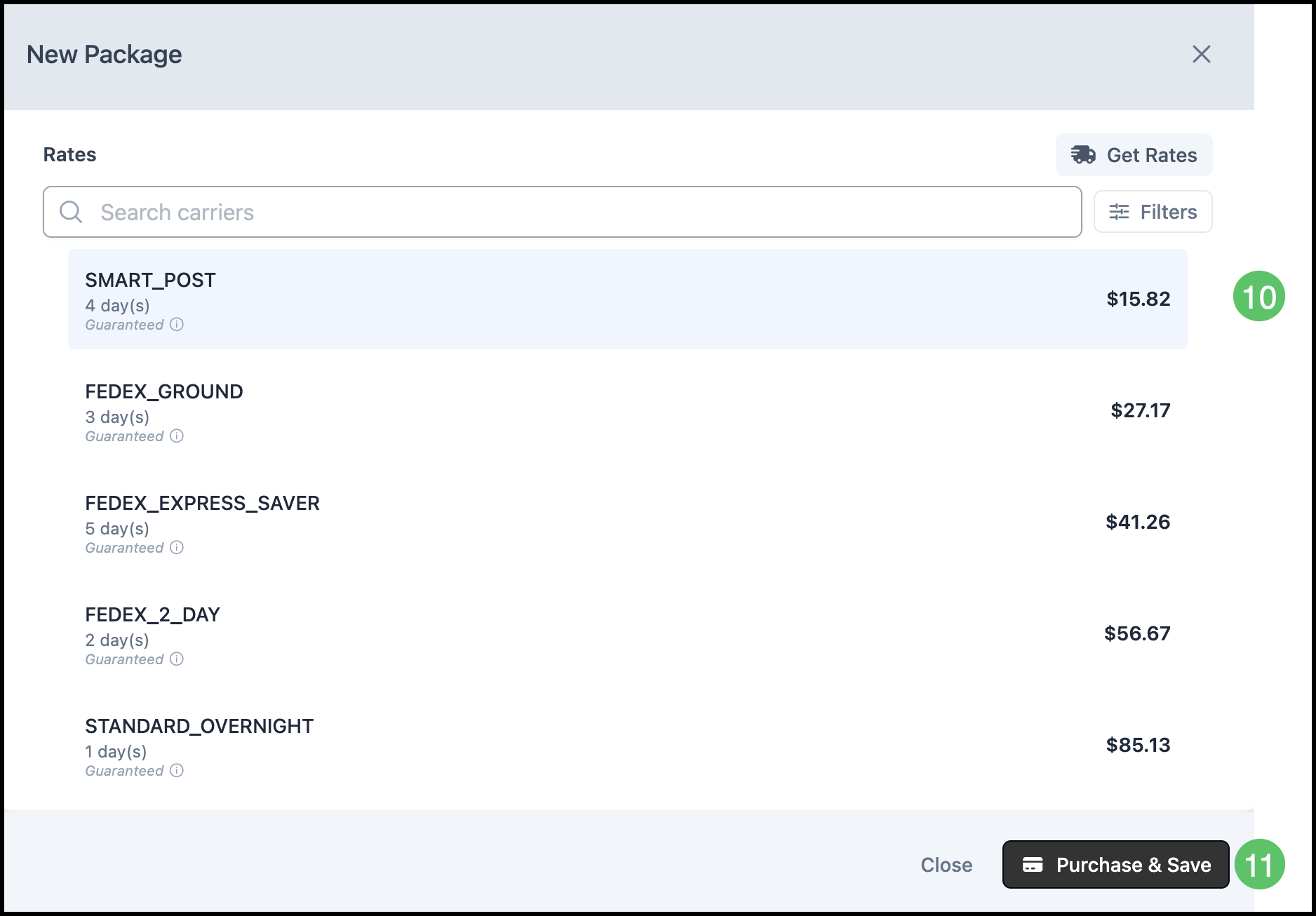
- After you choose packages, available carrier services and prices appear. Service names and descriptions match what the carrier returns (for example, the same naming you would see directly from UPS or FedEx), so they should look familiar if you already use that carrier’s tools.
- The Destination Status does not update automatically when a package ships or is delivered. Update the Status manually once the package is on its way.
- If you would like to test this in an environment where the shipping integration test labels are not charged to a live billing account, contact support at supportdesk.corebridge.net.
Using CoreBridge Shipping
CoreBridge Shipping is implemented on an Estimate or Order level.
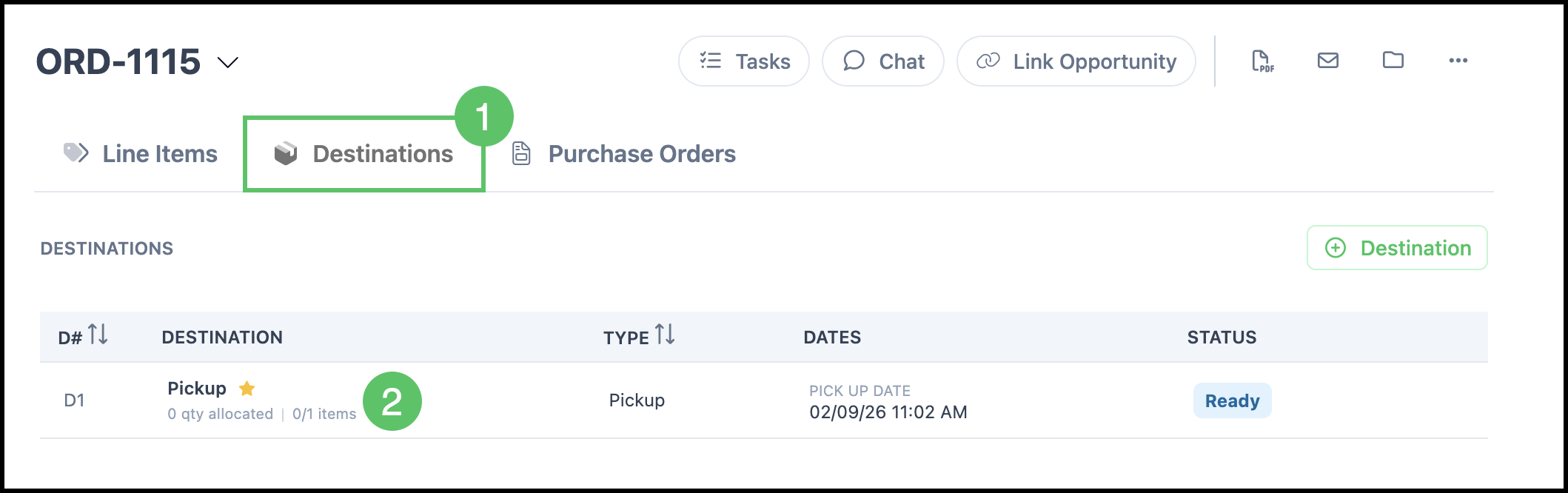
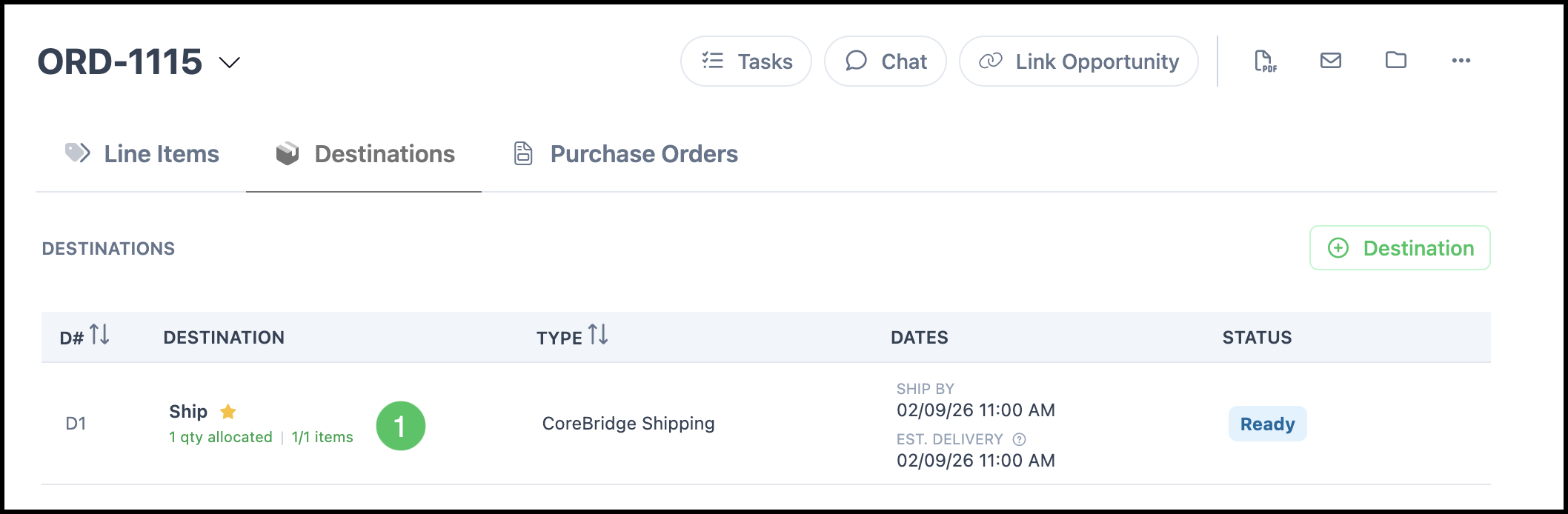
1. Select the Destinations tab.
2. Click Destination line to open the side panel.
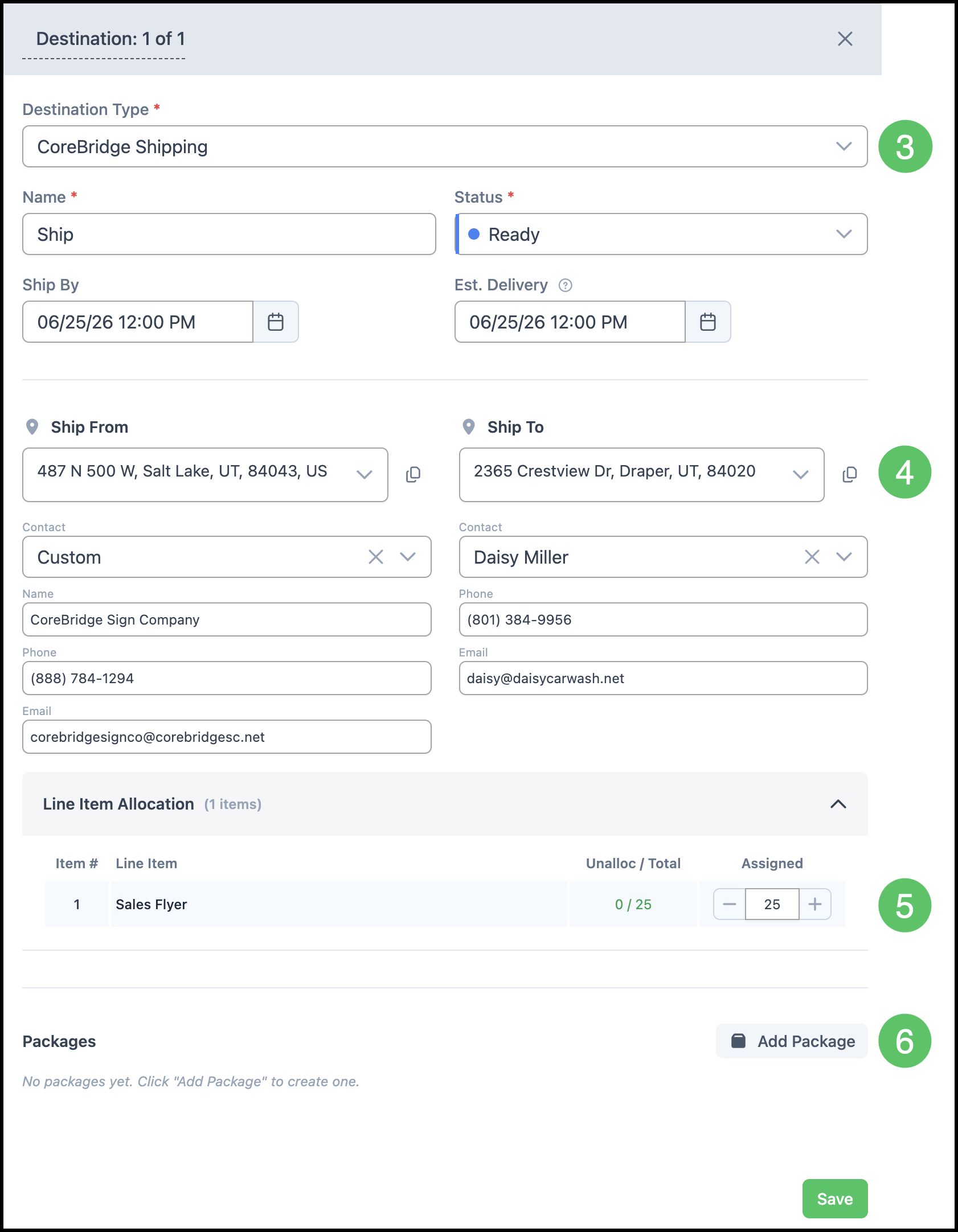
3. Select CoreBridge Shipping from the Destination Type.
4. Verify or update Ship From and Ship To addresses.
5. Update Allocation of Line Items.
6. Click Add Package.
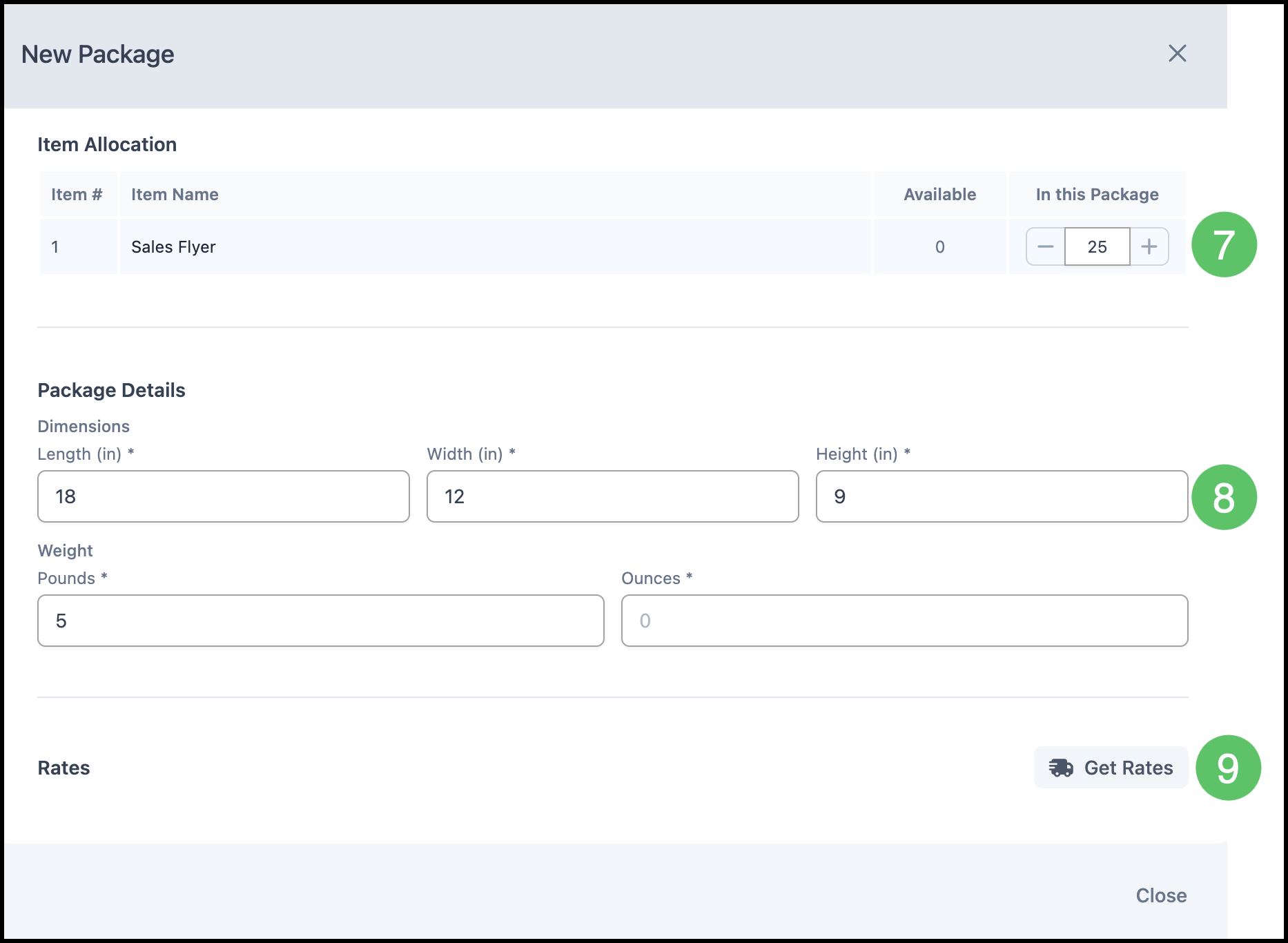
7. Select the items in the package.
Note: This does not auto-allocate.
8. Enter Package Details.
9. Click Get Rates.
10. Select Rate.
11. Click Purchase & Save.
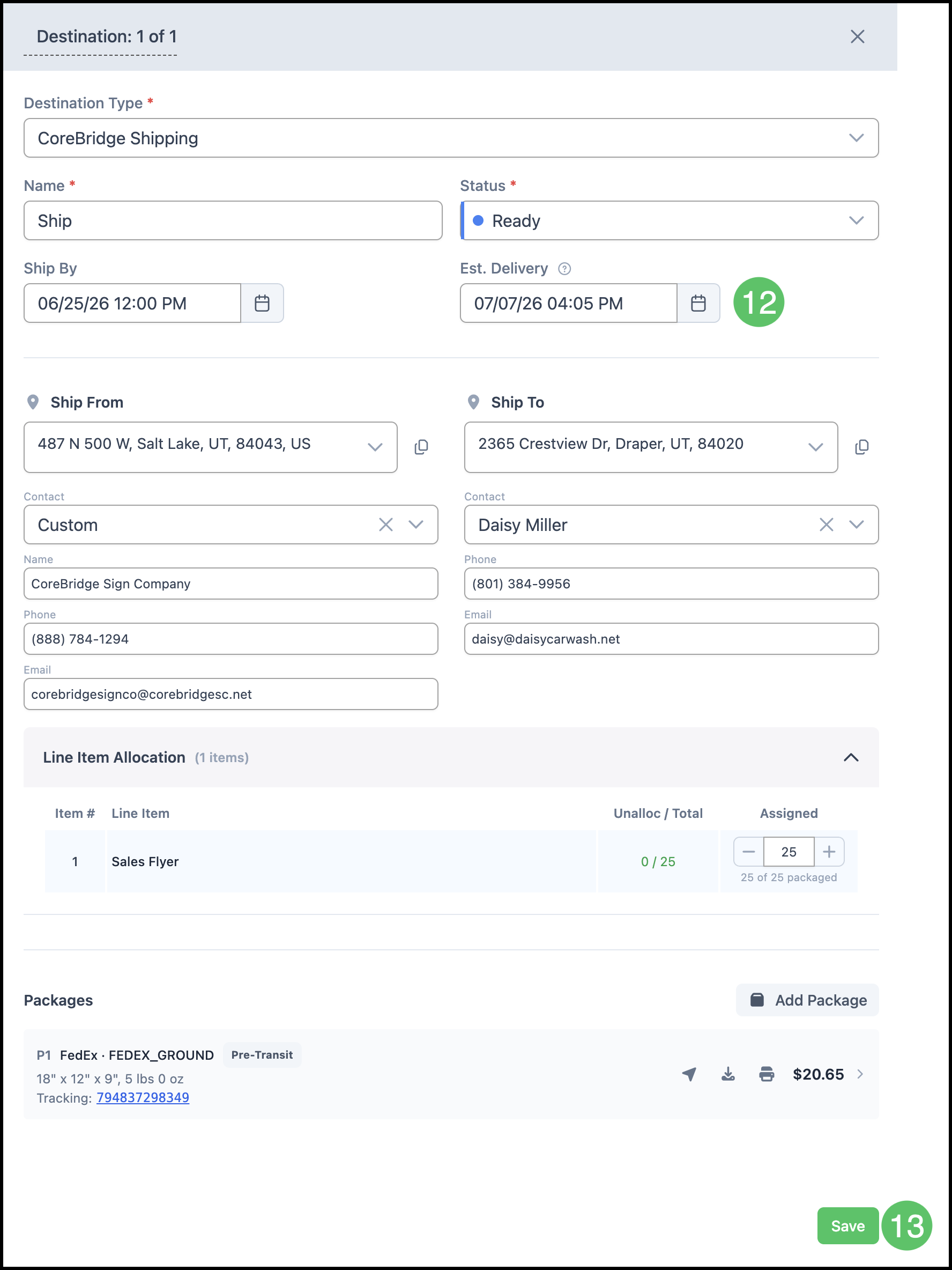
12. Verify Ship By and Est. Delivery.
Note: Ship By and Estimated Delivery dates populate automatically after rate selection. Verify that the dates are correct.
13. Click Save.
Package Details
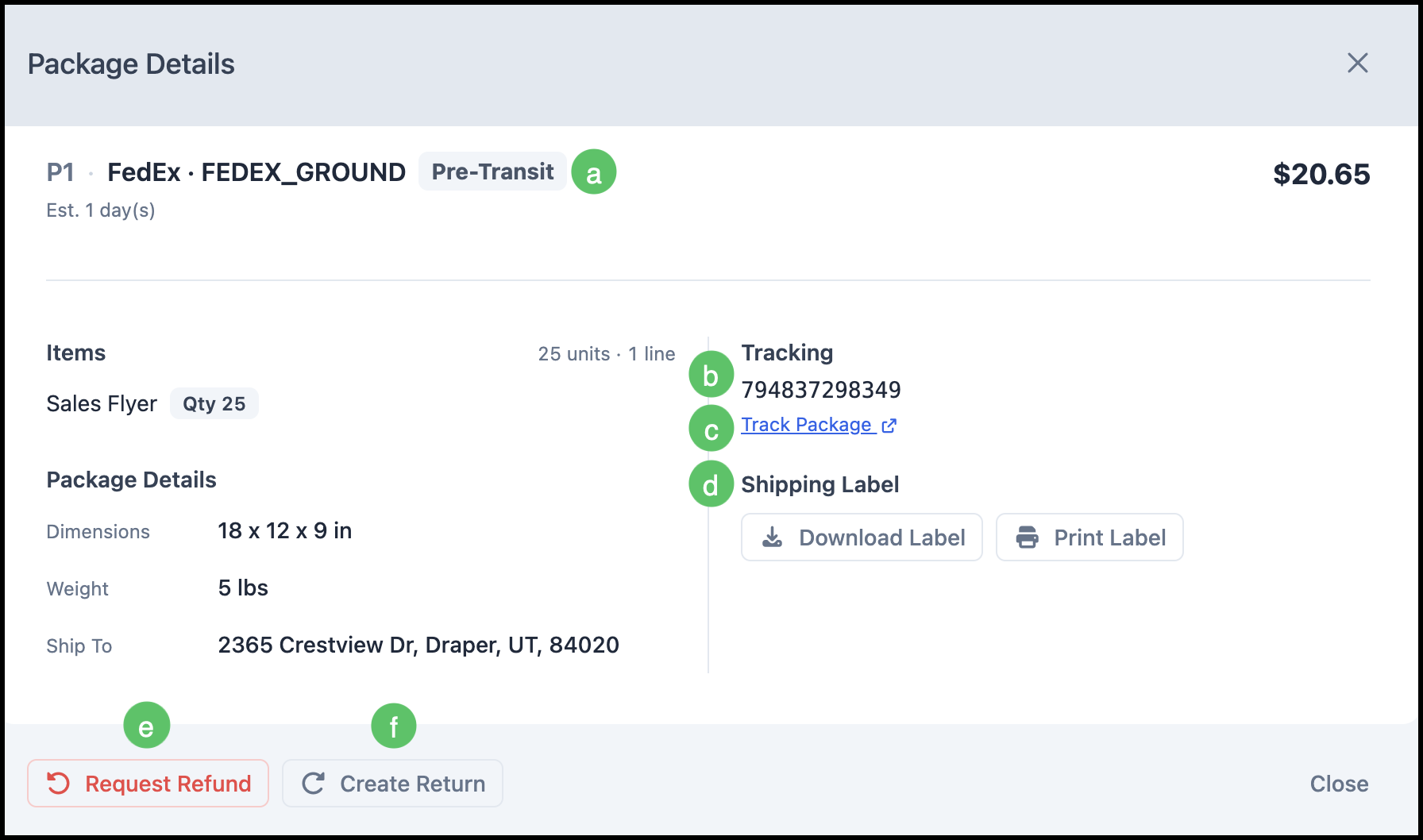
The Package Details section contains important shipment information for the selected package, including current shipping status, tracking information, and a direct link to package tracking. Label download and printing options are also available here.
1. Click the Destination line to open up the side panel.
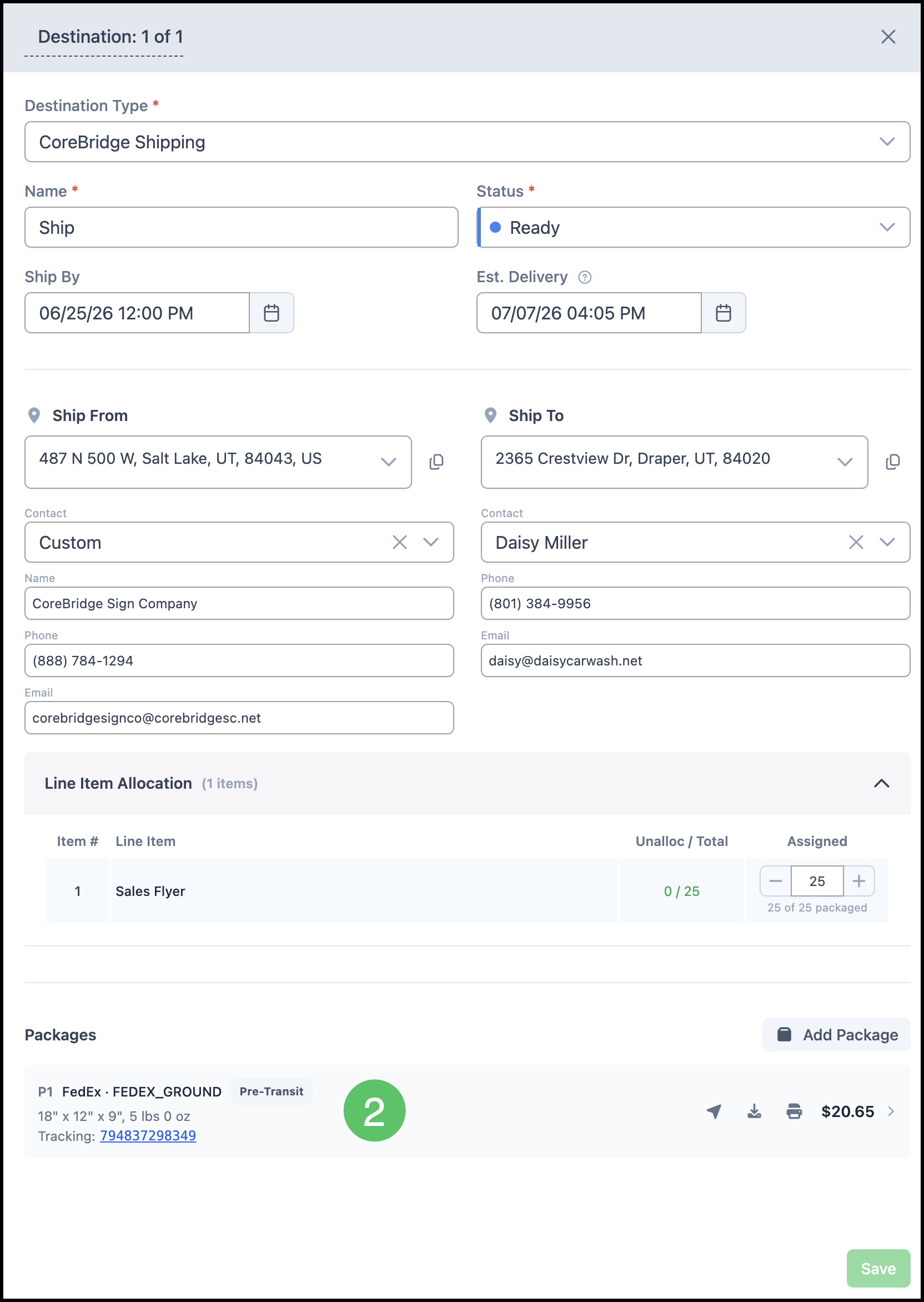
2. Click on the Package.
a. The Shipment Status is displayed here.
b. The shipment tracking number is available here for reference.
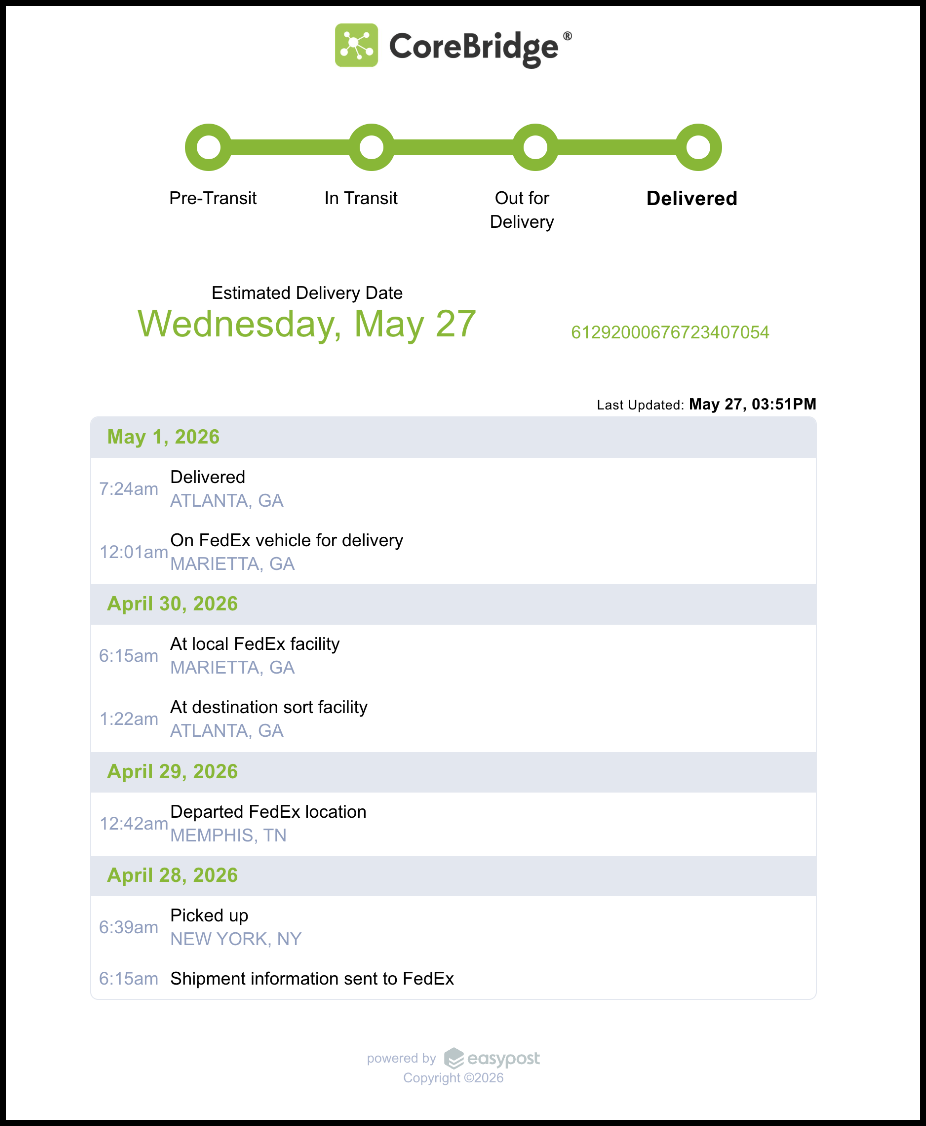
c. The tracking link opens a dialog with current shipment tracking information. See Tracking Example below.
d. Shipping Label options are available for downloading or printing the label.
Note: A label can't be edited once it's purchased. If the shipping address changes, refund the existing label, then create a new package with the updated address.
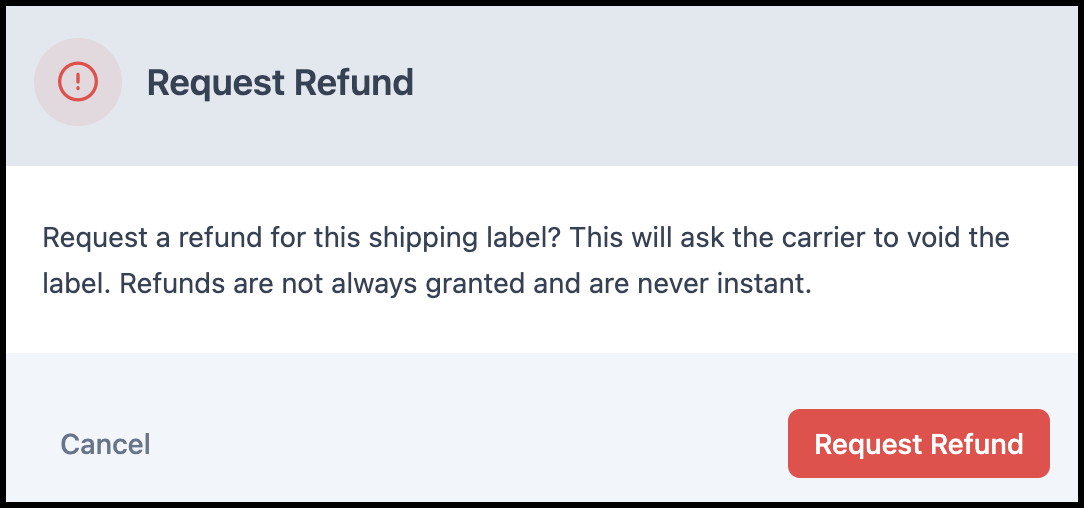
e. The Refund Request option is available here. A confirmation dialog will open here allowing you to proceed or cancel. See Refund Request Example below.
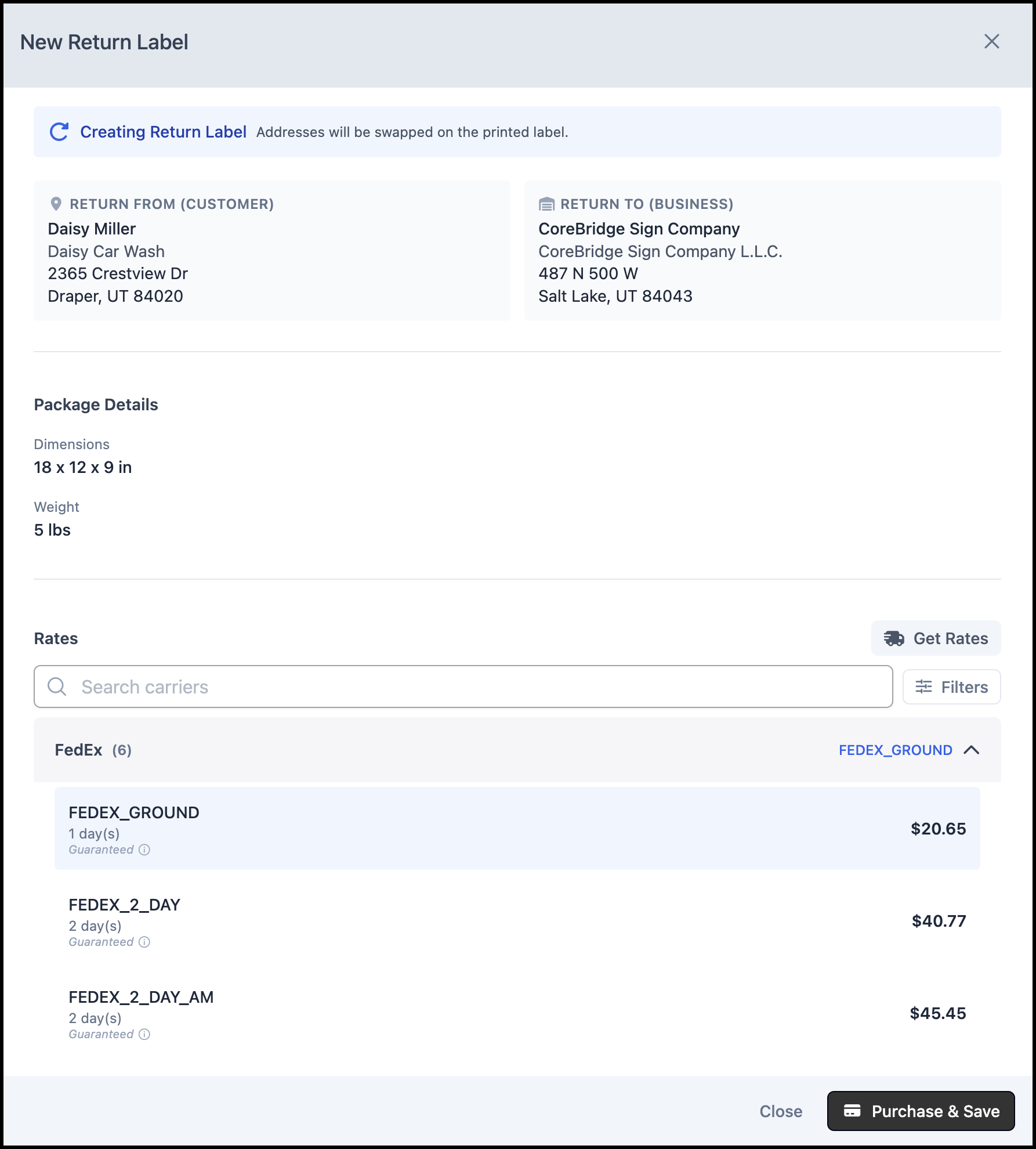
f. The Return Label option lets you generate a label for a Customer to send an item back. Click Return Label to open the request, click Get Rates and select and option, then click Purchase & Save to create the label. The return label becomes available for download and printing alongside the original shipping label. See Return Label Example below.
Tracking Example:
Refund Request Example:
Return Label Example:
Related Articles
Setting Up CoreBridge Shipping