
Reconciliation & Sync closes a location's payments for a period. Payment Summary and Payments and Refunds on that reconciliation keep the payment methods that were included when the period posted. A later reconciliation does not change those totals.
Table of Contents
Before Reconciling
Navigate to Accounting / Reconciliation & Sync.
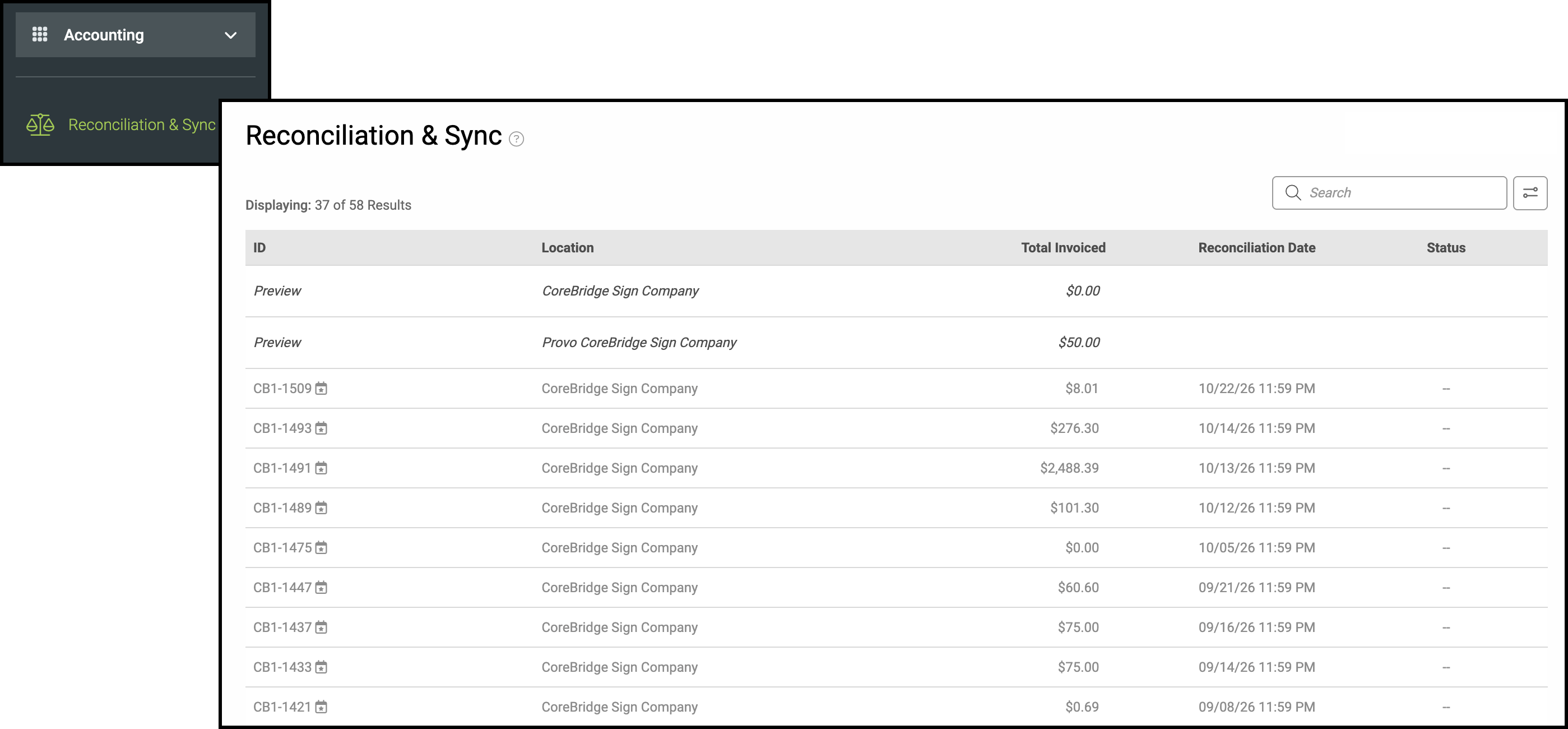
1. Click Preview for the location.
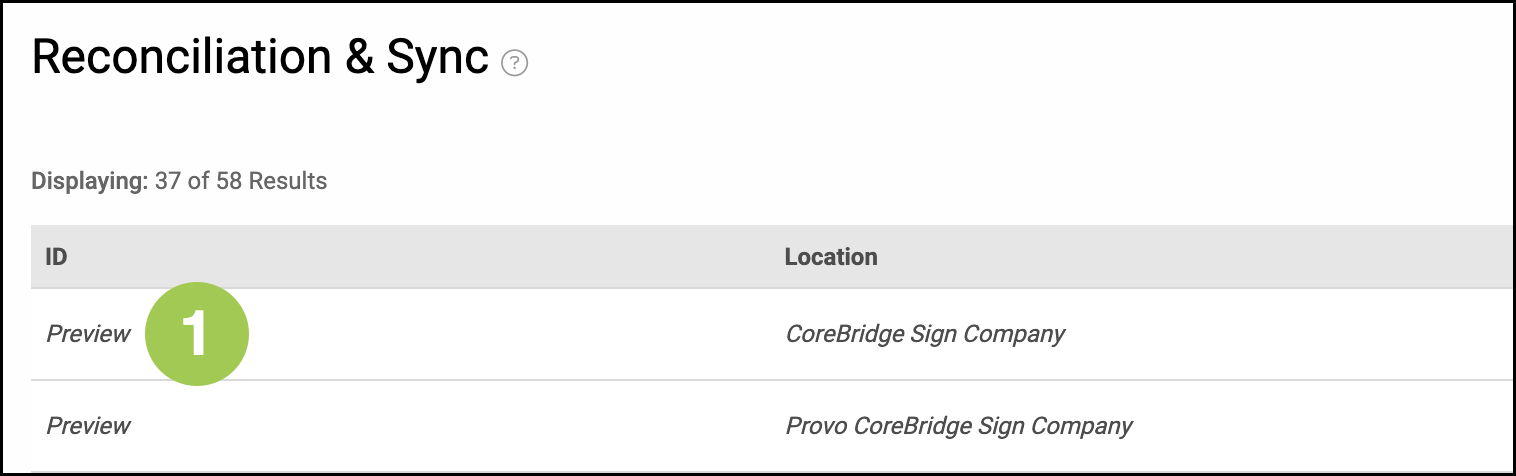
2. Select Payment Summary.
3. Enter Actual Counted for each payment method so Difference is $0.00.
4. Click Reconcile to post the period.

Note: Payments and Refunds lists each payment and its Method. CoreBridge does not change the Method on a payment that is already recorded. If the method is wrong and the period is still a Preview, refund that payment and enter a new payment with the correct Payment Method before you click Reconcile. See Refunds and Taking Payments.
After the Period is Posted
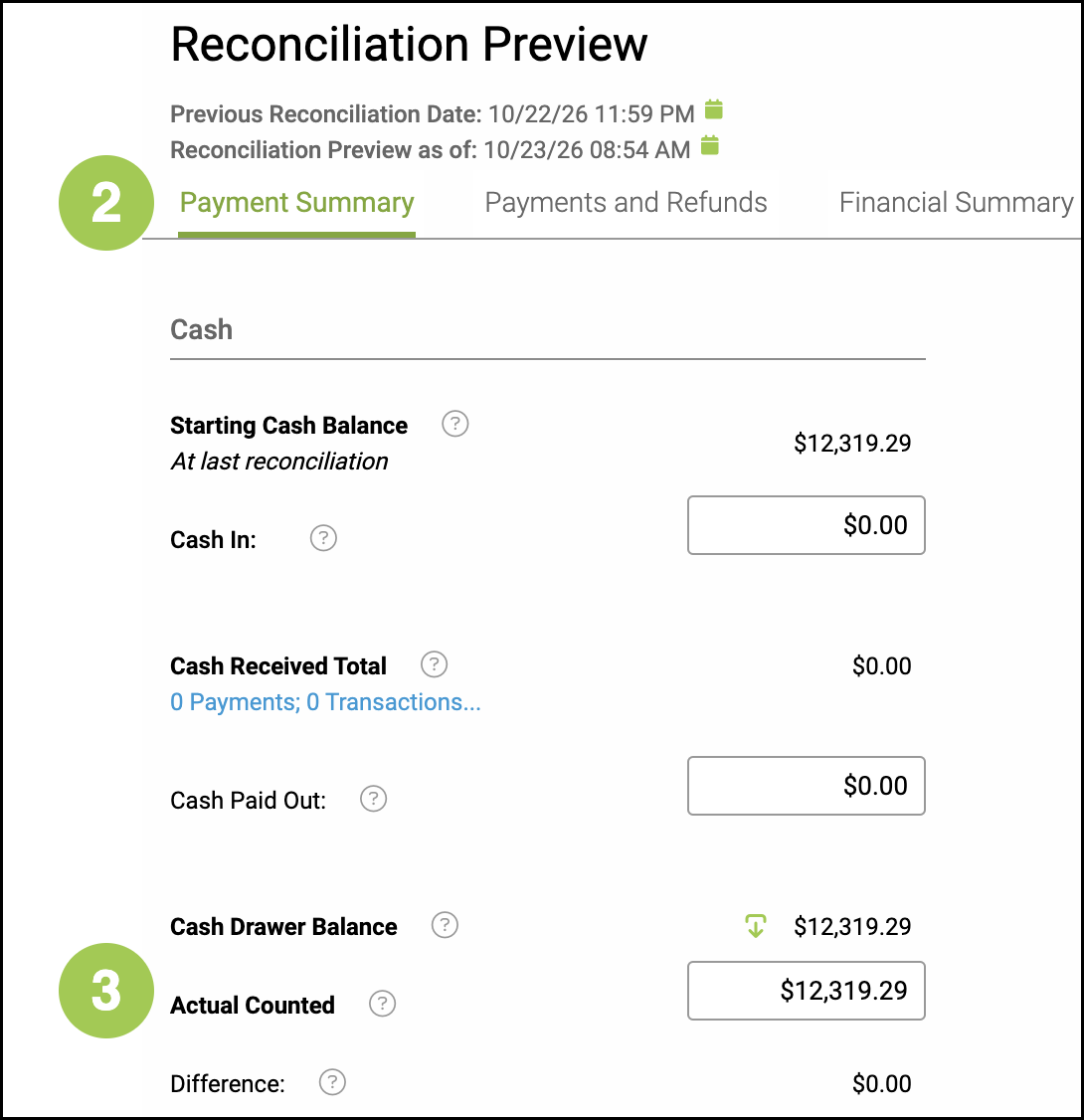
A completed reconciliation shows the period that closed and who posted it.
a. Reconciled On shows when the period posted.
b. Payments and Refunds lists each payment with the Method that closed in that period.
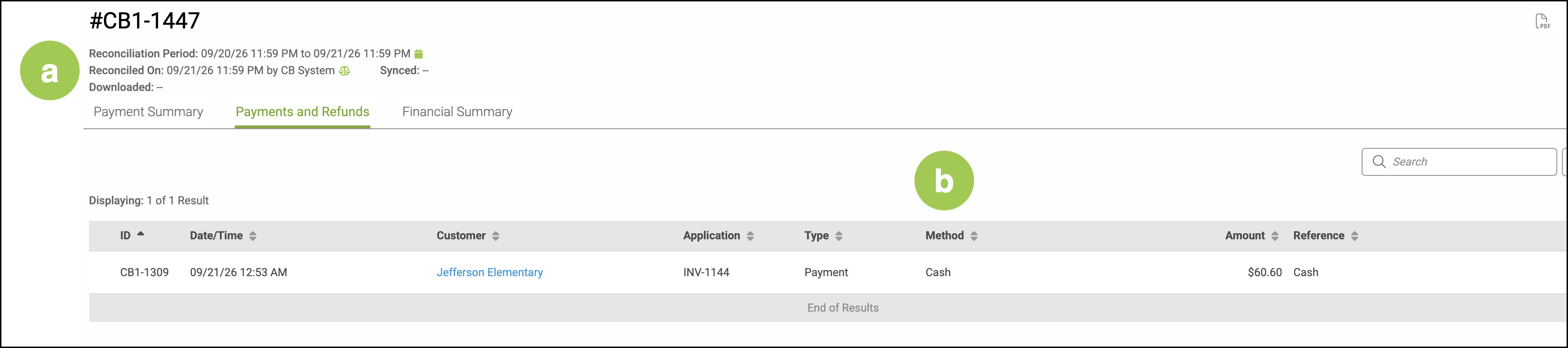
Note: This screen uses Close and Done. It does not include Reconcile. There is no control to reopen the period or change a Method on these rows. A refund or a new payment is new activity. It appears on a later reconciliation. It does not change this posted Payment Summary.
QuickBooks and Downloads
On a posted reconciliation, More Actions includes Download. Use Download for a file you enter manually in QuickBooks Desktop. Sync is in that same menu when an accounting integration is connected for the location. Sync stays unavailable on a Preview until the period is reconciled, and it stays unavailable when the location has no accounting integration.
Note: Do not enter the same download into QuickBooks a second time. A second entry can duplicate the period.
If the wrong method is already in QuickBooks, correct the deposit or journal in QuickBooks with one correcting entry. Do not download that reconciliation again to change the method.
If the download has not been entered yet, enter each payment method amount to the correct QuickBooks account when you post the journal.
Best Practice
Choose the correct Payment Method when you take the payment. On the Preview, review Payment Summary and confirm Difference is $0.00 before you click Reconcile.