
Perimeter Complexity is the list of cut-difficulty choices on a Machine Profile. Each choice has a name and a relative multiplier that CoreBridge uses when calculating machine time. Custom labels and integers belong to that profile, and Default restores the Machine Template choices.
Table of Contents
- Important Information
- Set Perimeter Complexity on a Machine Profile
- Set the Complexity Options
- Save the Machine Profile
- Frequently Asked Questions
- Related Articles
Important Information
- Include Perimeter Complexity is available on a Machine Profile when that machine cuts around a perimeter. When it is selected, Complexity is available on the profile.
- The Label names the dropdown. Each option Label is a choice when that profile is used on an Estimate or Order. Integer is the relative multiplier for that choice. Use 1 for the baseline cut. A higher number gives that choice more machine time. Decimals are allowed, such as 1.2.
- Custom keeps the labels and integers on this profile. Default restores the Machine Template choices. Changing from Custom to Default asks for confirmation, because the custom changes are discarded.
- Perimeter Speed Settings on the same profile sets the cut speed. Perimeter Complexity sets the difficulty choices.
Set Perimeter Complexity on a Machine Profile
Navigate to System Settings / Components / Machines.
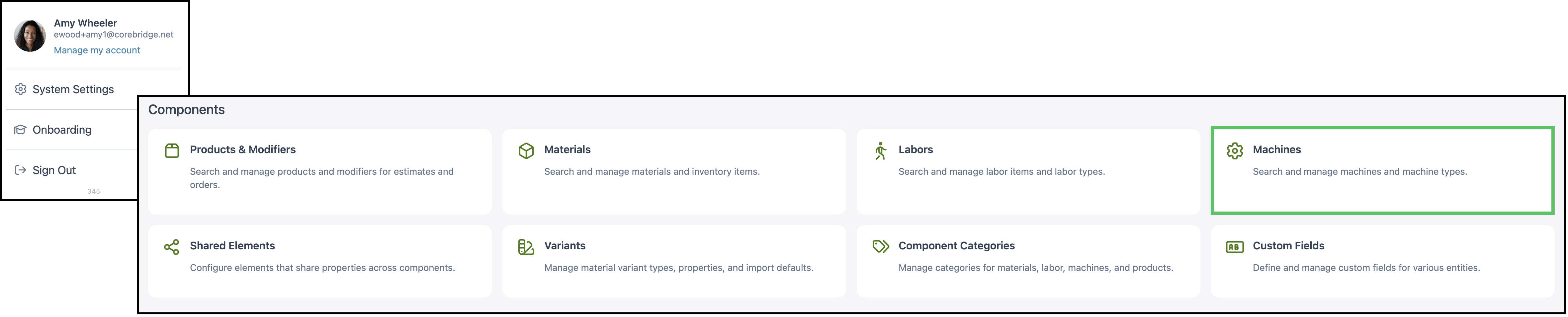
1. Select the Machine that runs the perimeter cut.

2. Select the Profiles tab.
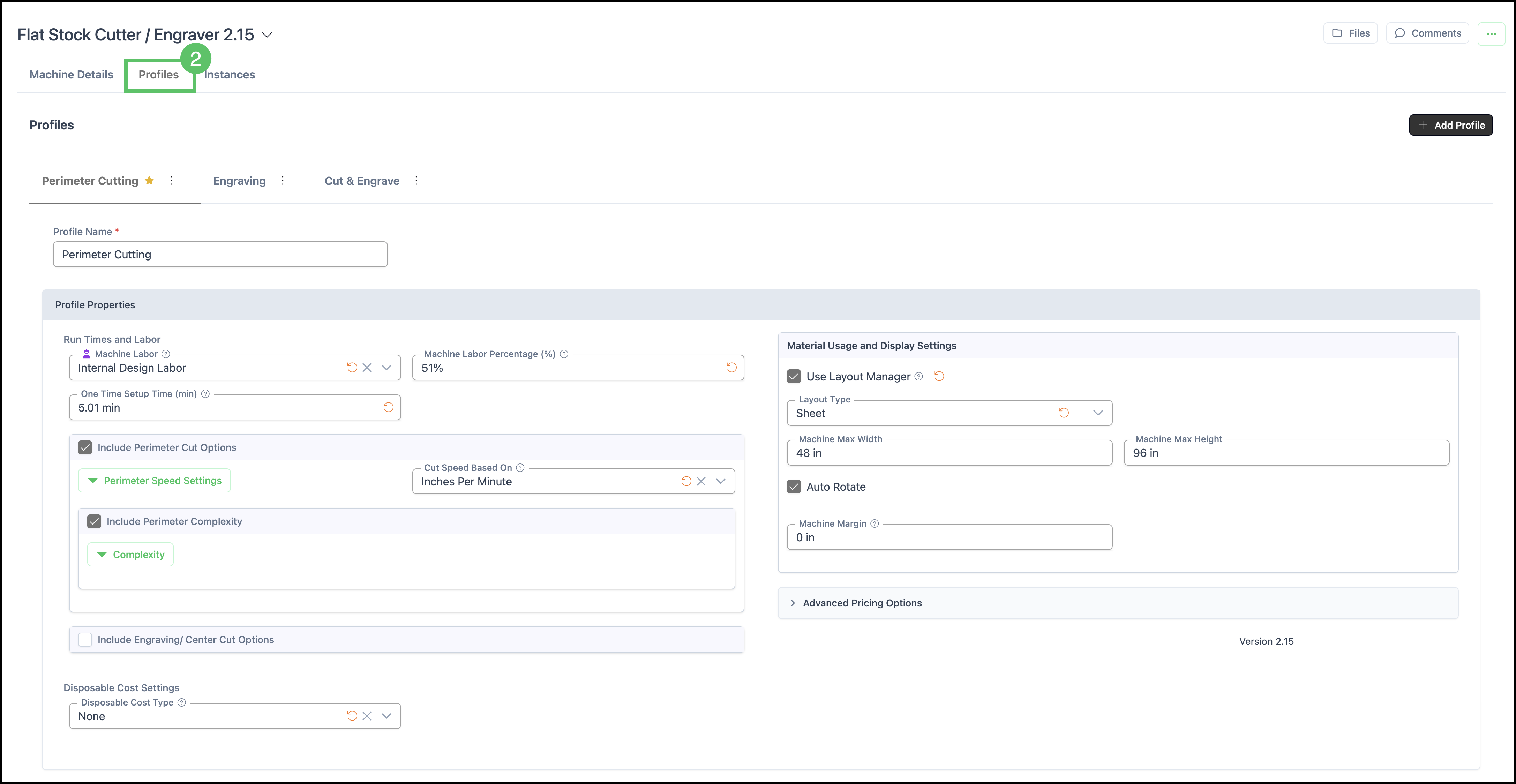
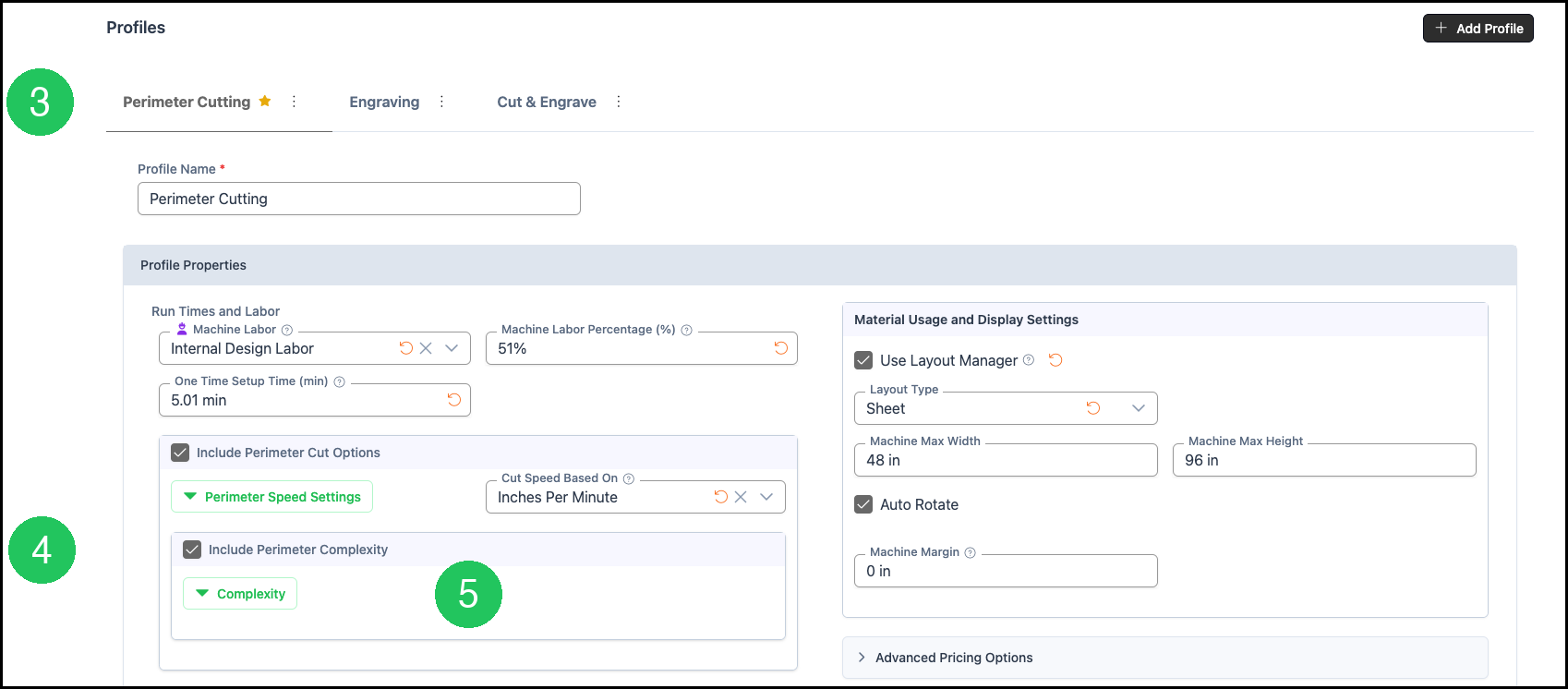
3. Select the profile for the cut, such as Perimeter Cutting.
4. Select Include Perimeter Complexity.
5. Click Complexity. The Complexity dialog opens.
Set the Complexity Options
1. Select Custom to keep the labels and integers on this profile. Select Default only when the Machine Template choices should be restored. CoreBridge asks you to confirm before custom changes are discarded.
2. Enter the Label. This name is the dropdown when the profile is used on an Estimate or Order. Tooltip is optional help text for that dropdown.
3. Under Options, set each choice.
a. Label. The choice name, such as Simple, Standard, or Complex.
b. Integer. The relative multiplier. Use 1 for the baseline cut. A higher number gives that choice more machine time. Decimals are allowed, such as 1.2.
4. Click Add option to add another choice.
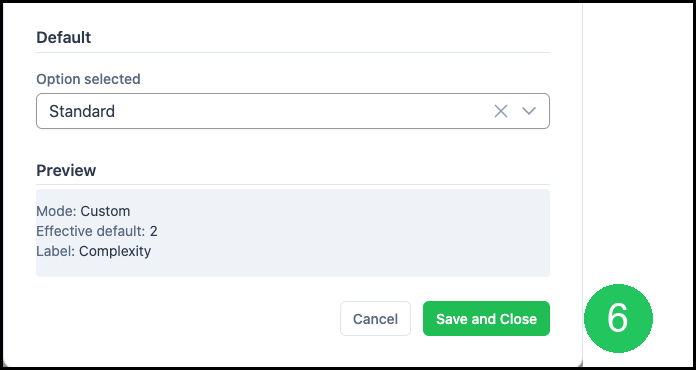
5. Under Default, select the choice that should pre-fill. The field is labeled Option selected.
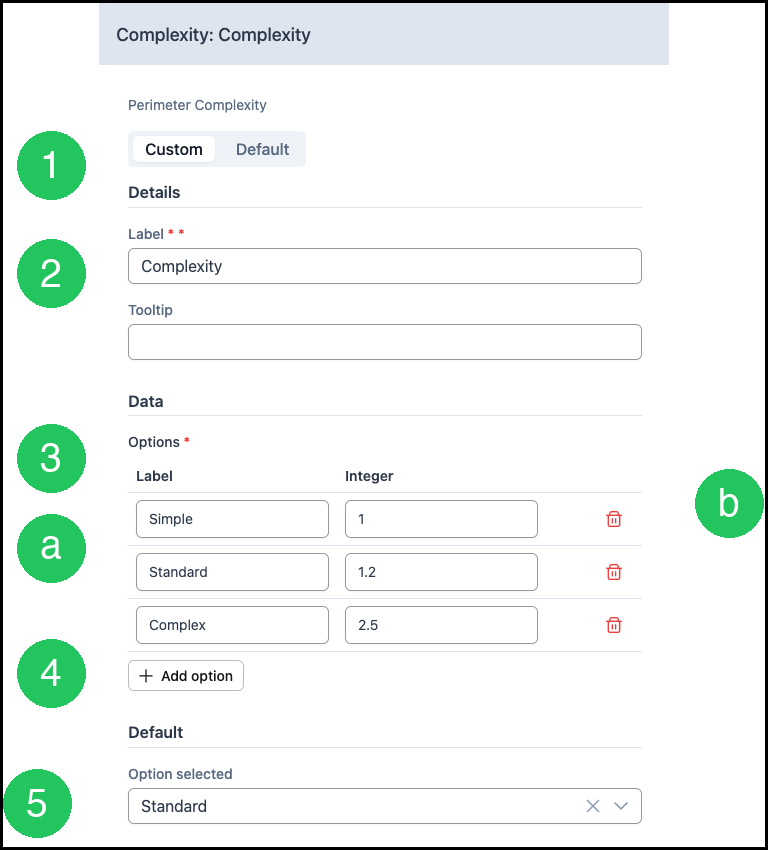
6. Click Save and Close.
Save the Machine Profile
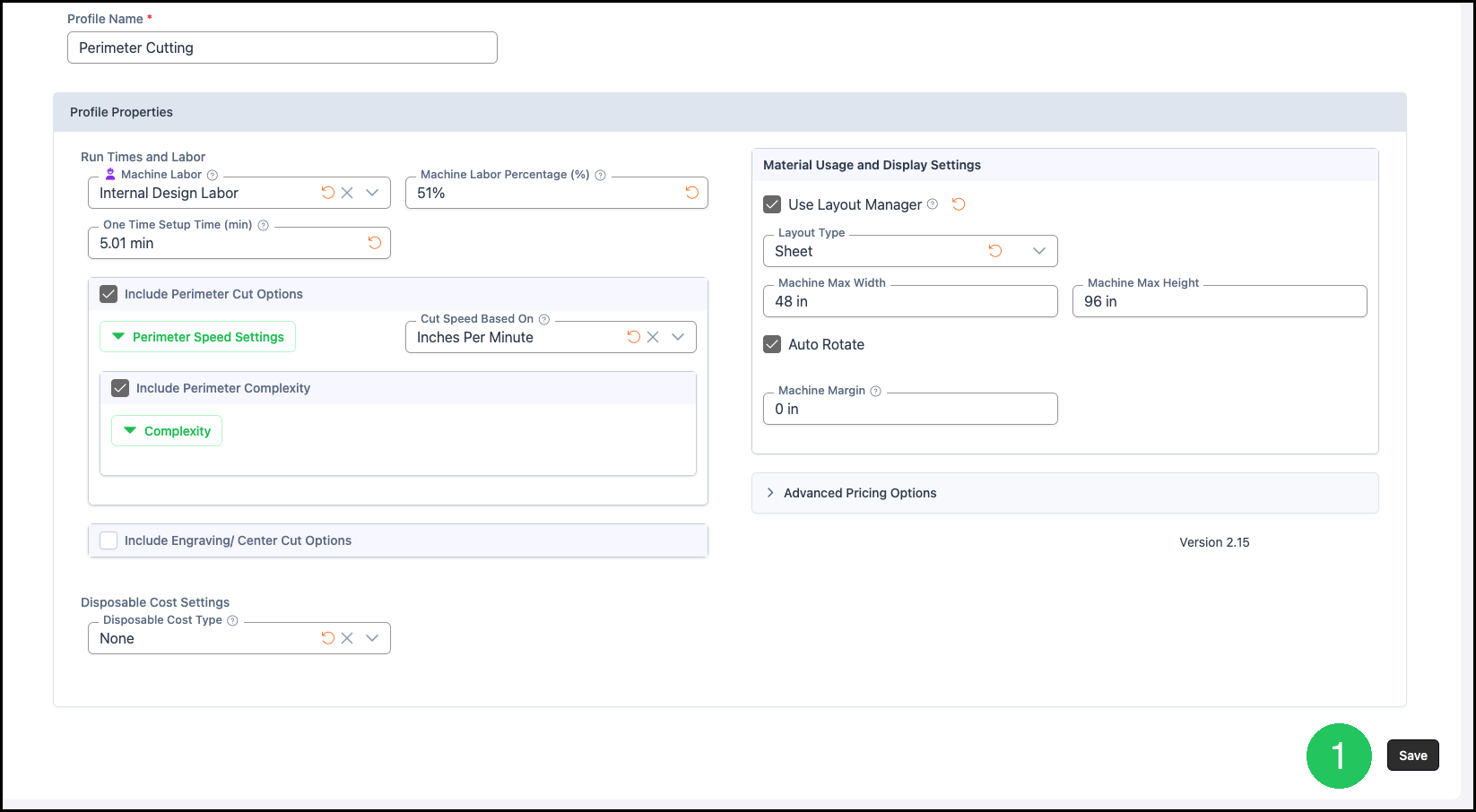
1. Click Save.
For more information on labor, layout, and adding profiles, please see Machine Profiles.
Frequently Asked Questions
1. What is the difference between Perimeter Complexity and Perimeter Speed Settings?
Answer: Perimeter Complexity is the list of cut-difficulty choices and the relative multiplier for each choice. Perimeter Speed Settings is the speed control on the same profile.
2. What happens when Default is selected?
Answer: CoreBridge restores the Machine Template choices for this variable and discards the custom labels and integers on the profile. Confirm Revert to Default only when those custom changes should be discarded.