
Automations provide an alert for your team when a Customer comments on a Line Item in the Customer Portal, and an email to the Customer when your team adds a Customer Communication reply. These Automations are available on the Automations screen in System Settings. Choose the trigger under Order/Estimate Line Item when a comment can be on an Estimate or an Order, because the same trigger name under Order Line Item runs for an Order only.
Table of Contents
- Important Information
- Notify Employees of a Customer Comment
- Email the Customer When Your Team Replies
- Frequently Asked Questions
- Related Articles
Important Information
- Creating and editing Automations requires the Access Workflow Settings permission. For more information, see Employee Roles and Permissions in Settings.
- Email actions require an authorized Email From Address.
- Portal comments on a Line Item are Customer Communications. The trigger is When line item customer communication is added. It is listed under Order Line Item and under Order/Estimate Line Item. Order/Estimate Line Item runs for Estimates and Orders. Order Line Item runs for Orders only.
- The same trigger runs when your team or the Customer adds a Customer Communication. Keep the email wording general, or create a separate Automation with its own subject when you want a different message for each.
- Employees receive in-app Notifications in the header Notifications window and on the Messages & Notifications screen. For more information, see Messages and Notifications.
Notify Employees of a Customer Comment
Navigate to System Settings / Workflow / Automations.
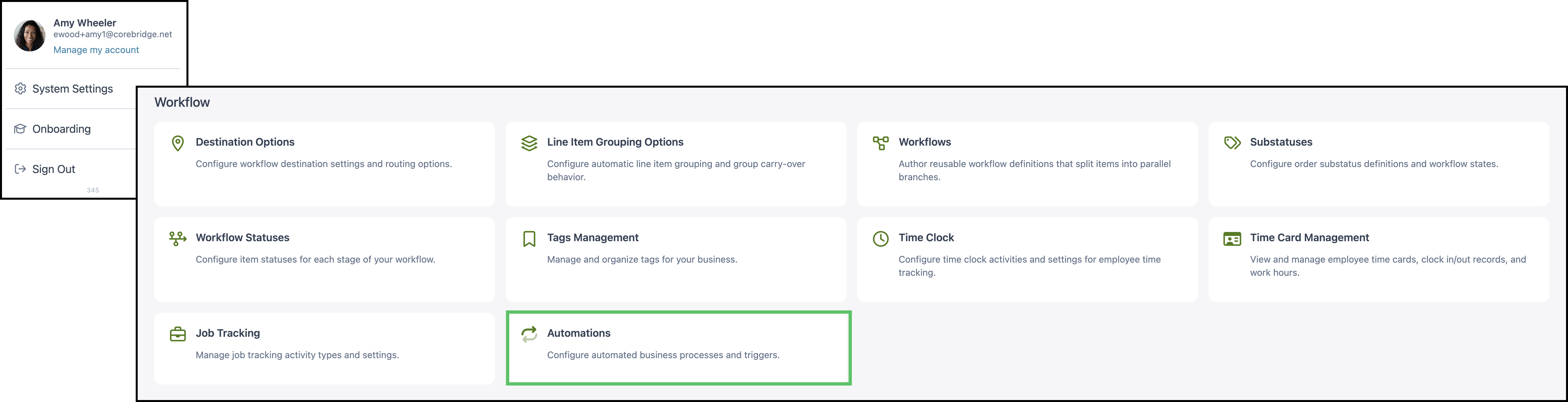
1. Click Automation.

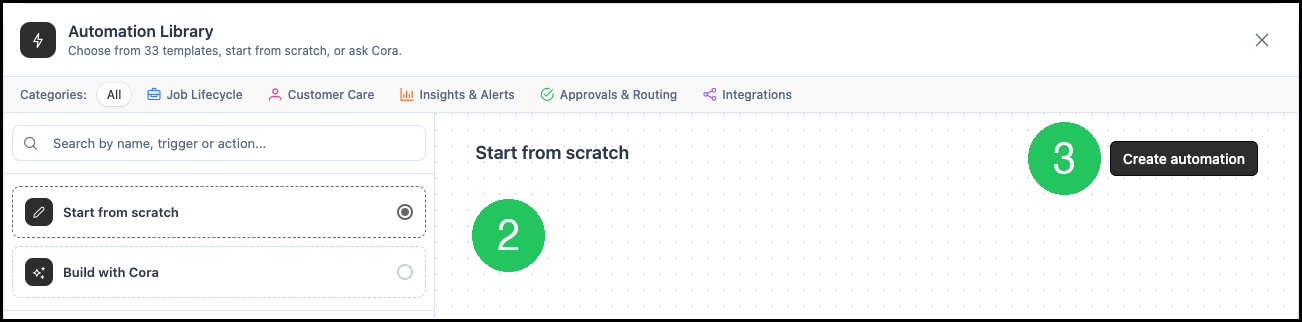
2. Select Start from scratch.
3. Click Create automation.
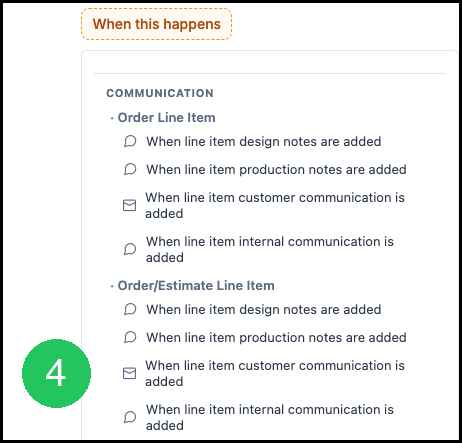
4. Click When this happens, then under Order/Estimate Line Item select When line item customer communication is added.
The builder reads When Order/Estimate Line Item customer communication is added.
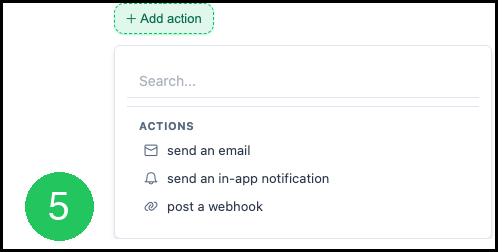
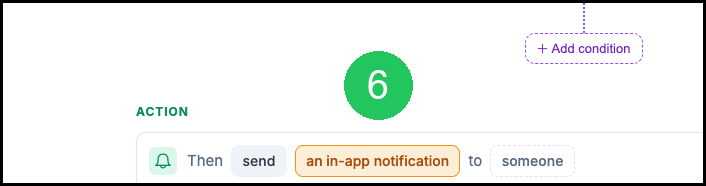
5. Click Add action, select send an in-app notification, then select the recipient. Recipients can be People or Roles. Teams are available when Teams is included in your plan.
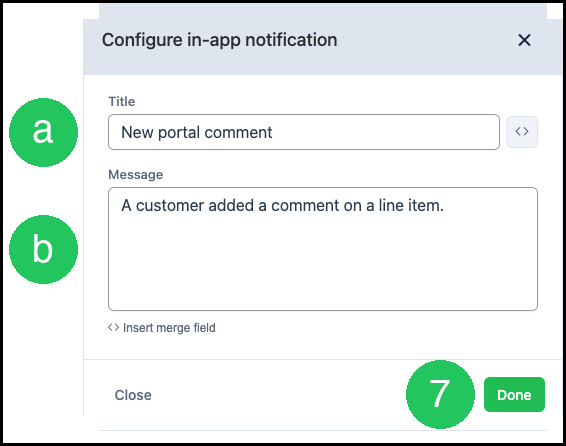
6. Click an in-app notification to open the Configure in-app notification dialog.
a. Title - The subject of the Notification. Merge fields can be inserted as needed.
b. Message - The body of the Notification. Merge fields can be inserted as needed.
7. Click Done.
8. Click Save.

Note: For more information about creating Notifications, see Creating and Managing Notifications.
Email the Customer When Your Team Replies
When your team replies in Customer Communication on the Line Item, you can send an email so the Customer knows a reply is waiting in the Customer Portal.
Navigate to System Settings / Workflow / Automations.
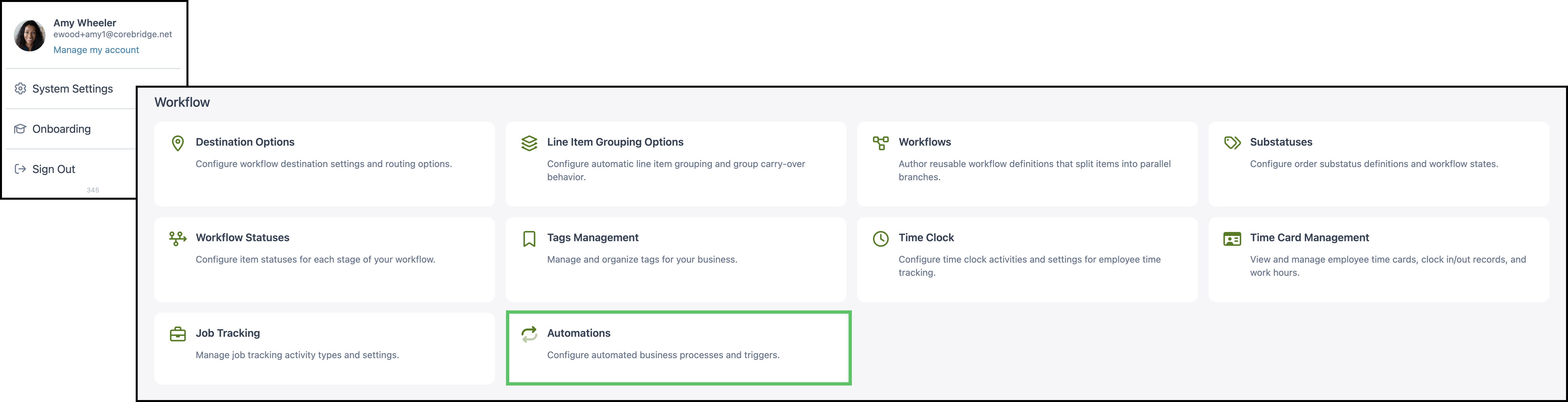
Click Automation, select Start from scratch, and click Create automation. Click When this happens, then under Order/Estimate Line Item select When line item customer communication is added.
Note: These steps are covered in more detail above.
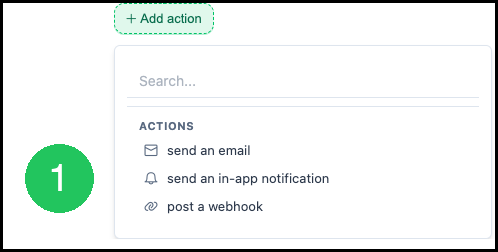
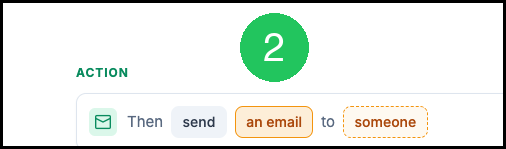
1. Click Add action and select send an email.
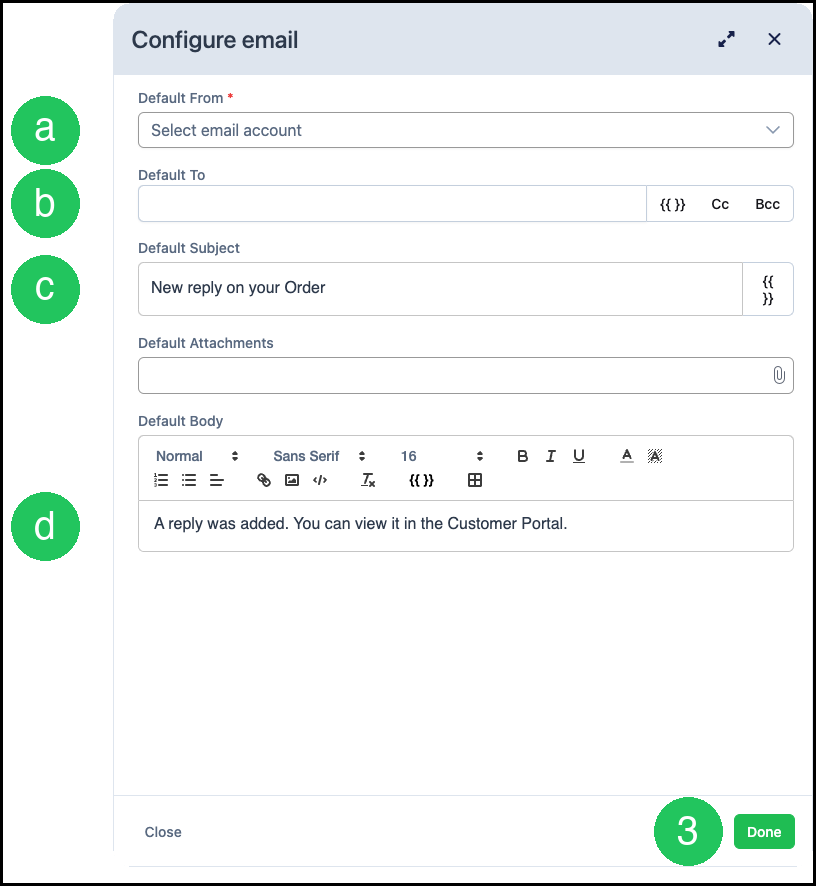
2. Click an email to open the Configure email dialog.
a. Default From - Specifies the authorized email account used to send the email. This field is required.
b. Default To - Specifies the recipient. Use a merge field for the Customer contact email when available.
c. Default Subject - Specifies the subject line, such as a new reply on their Order or Estimate.
d. Default Body - Specifies the email body. Tell the Customer a reply was added and that they can view it in the Customer Portal.
3. Click Done.
4. Click Save.

Note: The same trigger runs when a Customer Communication is added by your team or by the Customer. Keep the email wording general, or create a separate Automation with its own subject when you want a different message for each.
Frequently Asked Questions
1. Which trigger should I use for portal Line Item comments?
Answer: Select When line item customer communication is added under Order/Estimate Line Item. That Automation runs when a Customer comments on an Estimate or an Order. The same trigger name under Order Line Item runs for an Order only.
2. Is this the same as approval Notifications?
Answer: No. Approval Notifications use a Line Item status change that matches your Customer Portal Approval Process. Comment Notifications use the Customer Communication trigger.
3. Where do Customers post these comments?
Answer: In the Customer Portal, Customers open Comments on a Line Item, enter a comment, and post it. For more information, see Customer Portal Overview.
4. Does the email Automation also send when my team replies?
Answer: Yes. The trigger runs when a Customer Communication is added by your team or by the Customer. Keep the subject and body general, or create a separate Automation when you want a different message for each.
Related Articles
Creating and Managing Notifications