
A Credit Memo records that a Customer owes less, such as a courtesy, a short shipment, or a price reduction, while the Invoice stays in place. Credit Memos are available from Accounting when Enable Credit Memos is turned on in Accounting Options. A Credit Memo is its own document, with its own number, Status, and total, and it is separate from In-Store Credit and from a Refund.
Table of Contents
- Important Information
- Enable Credit Memos
- Credit Memo Search
- Opening a Credit Memo
- Creating a Credit Memo
- Frequently Asked Questions
- Related Articles
Important Information
- A Credit Memo lowers what the Customer owes. The original Invoice remains.
- Use a Credit Memo when you are reducing the amount owed. Use a Refund when you are returning money the Customer already paid. Use In-Store Credit when the Customer will apply the amount to a later Order.
- Turn on Enable Credit Memos in Accounting Options before Credit Memos appear under Accounting.
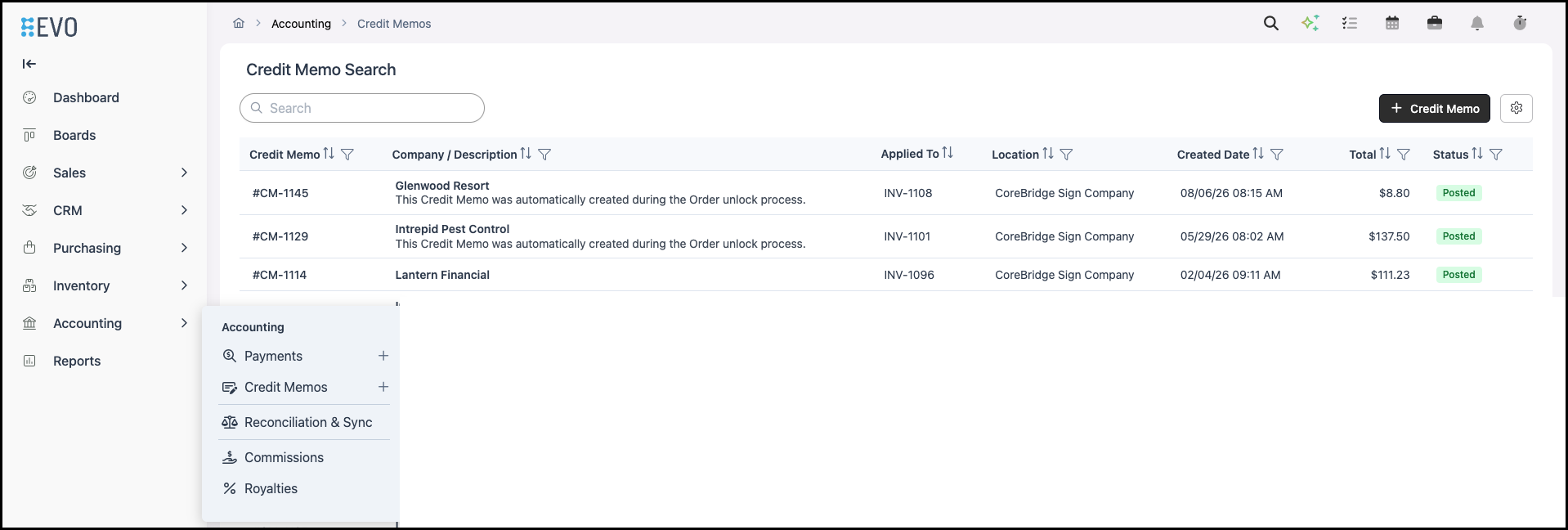
- Credit Memo Search lists the Credit Memo number, Company and description, what the Credit Memo is applied to, Location, Created Date, Total, and Status.
- A new Credit Memo starts as Unposted. Status can be Unposted, Posted, or Voided. A Posted Credit Memo shows Locked.
- Some Credit Memos are created when an Order is unlocked. The description reads “This Credit Memo was automatically created during the Order unlock process.” For more information, please see Full Unlock Feature.
Enable Credit Memos
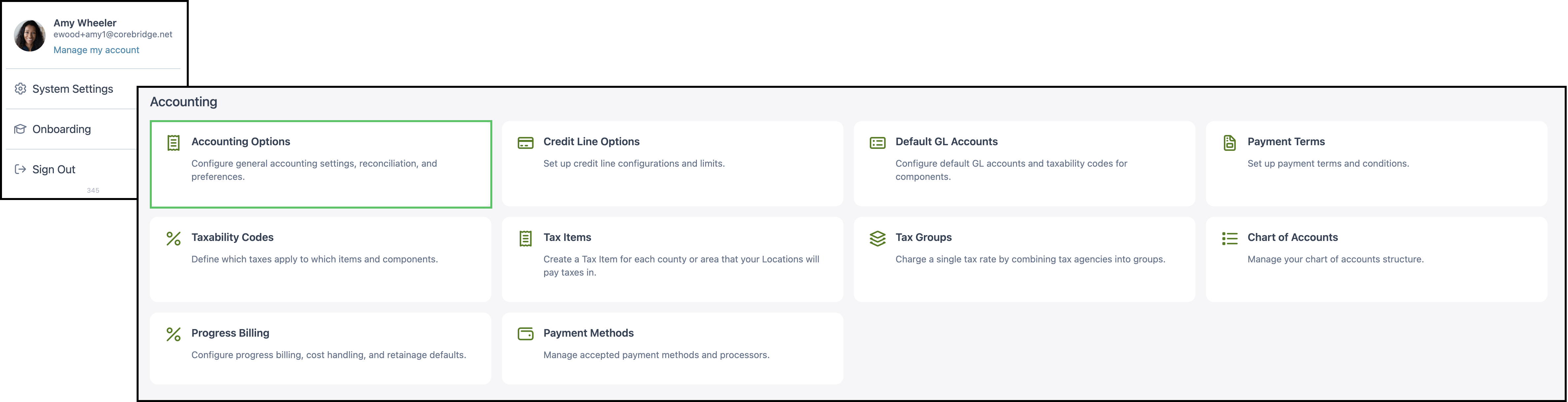
Navigate to System Settings / Accounting / Accounting Options.
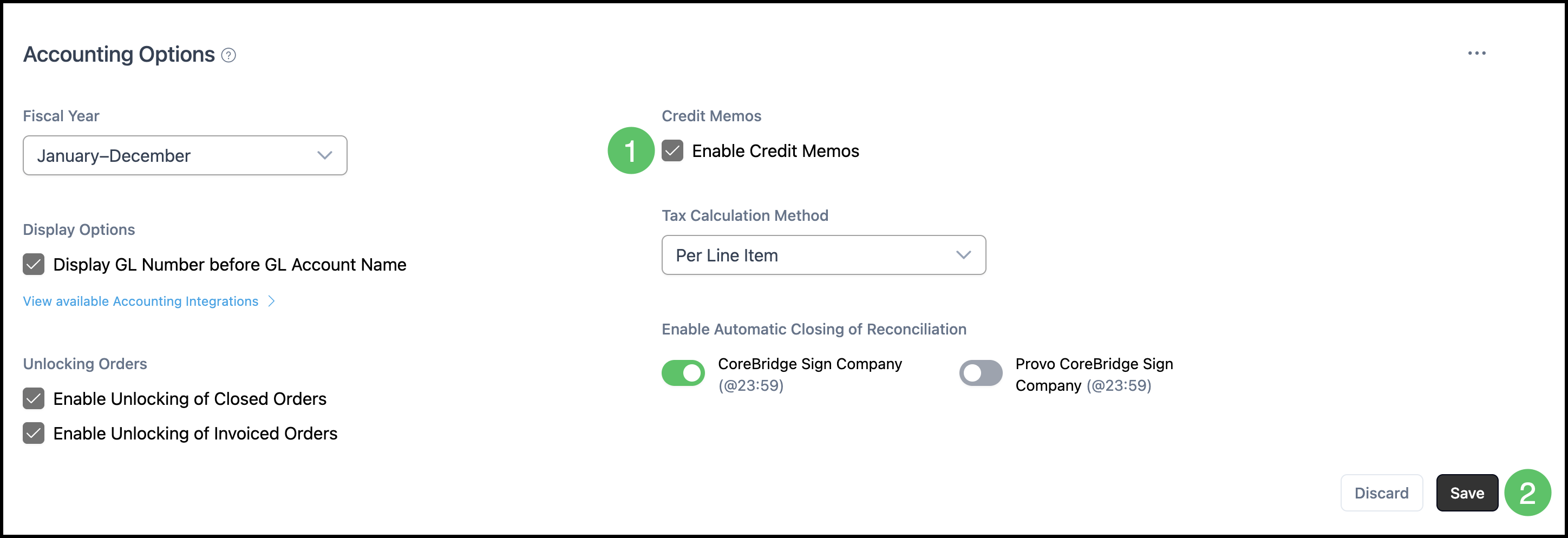
1. Check Enable Credit Memos.
2. Click Save.
Credit Memos then appear under Accounting.
Credit Memo Search
Navigate to Accounting / Credit Memos.
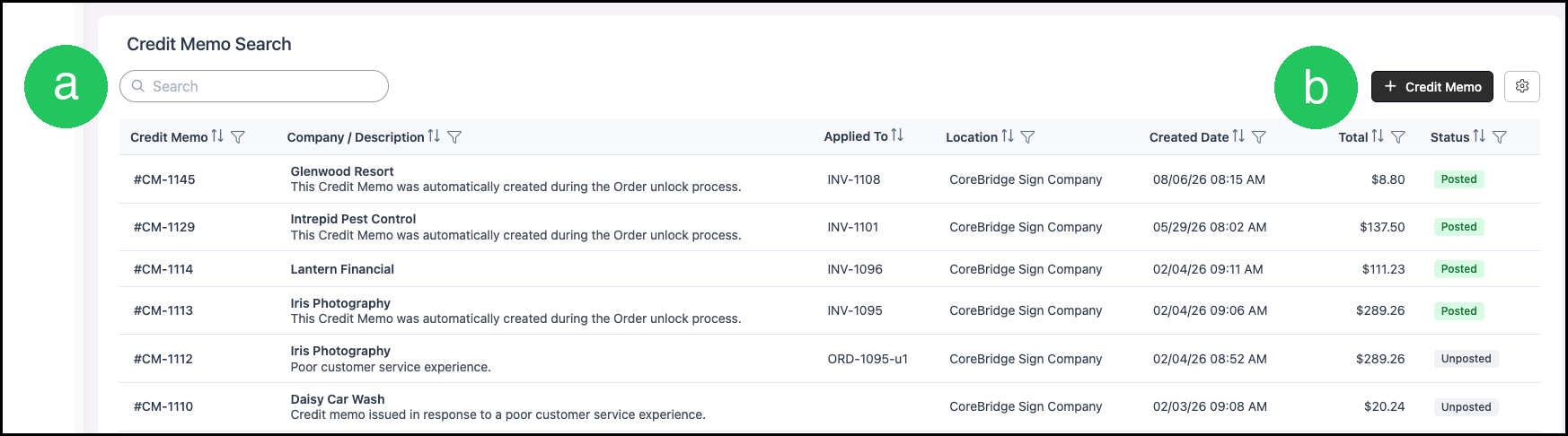
a. Use Search to find a Credit Memo.
b. Click Credit Memo to start a new Credit Memo.
The list shows Credit Memo, Company / Description, Applied To, Location, Created Date, Total, and Status.
Opening a Credit Memo
Navigate to Accounting / Credit Memos.
1. Click the Credit Memo number.
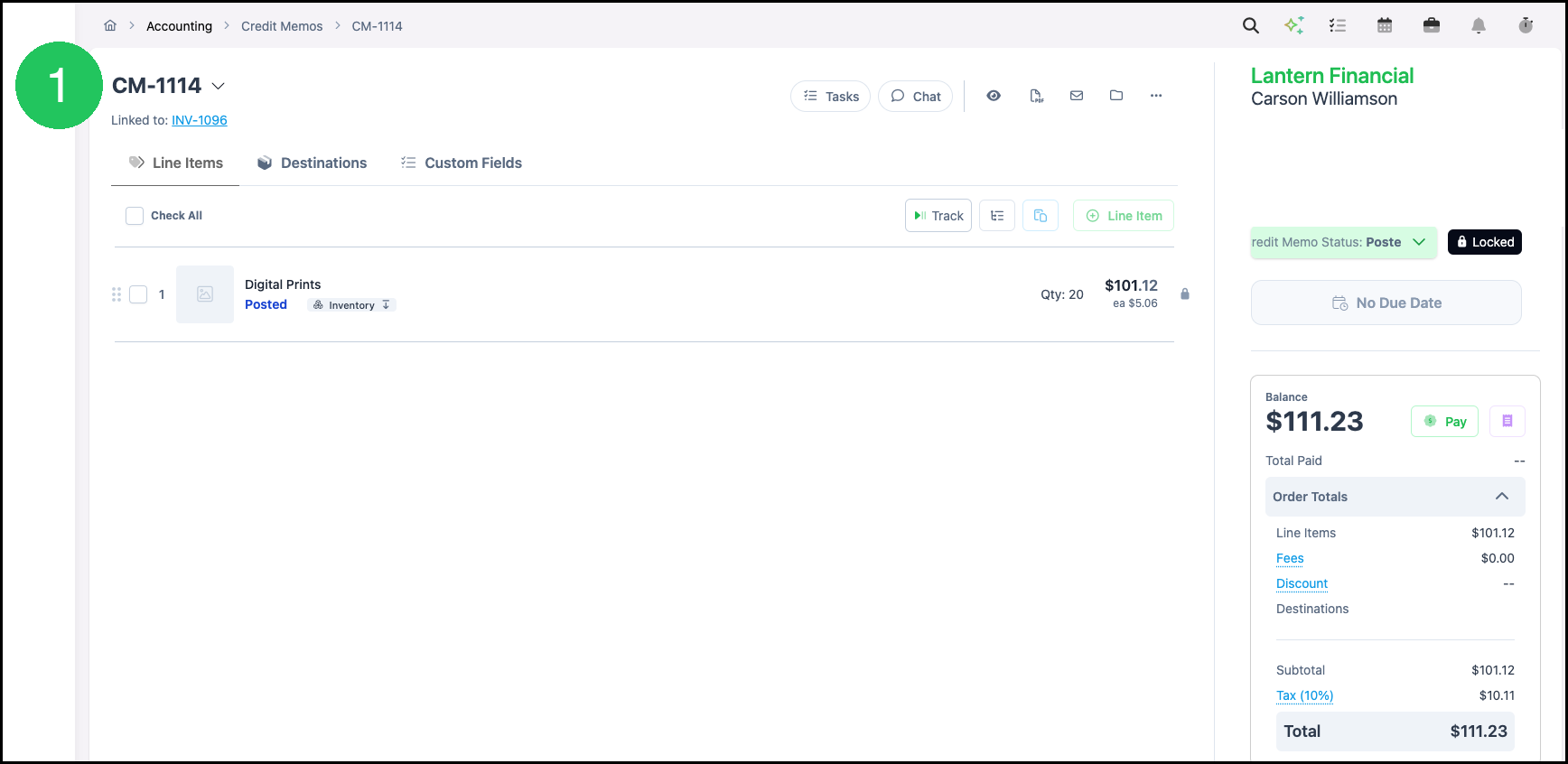
The Credit Memo shows the Company, the Invoice or Order it is linked to, and the line items. Credit Memo Status shows Unposted, Posted, or Voided. A Posted Credit Memo shows Locked. Balance and Order Totals show the amount of the Credit Memo. For more information on line items, please see Line Items Overview.
Creating a Credit Memo
Navigate to Accounting / Credit Memos.
1. Click Credit Memo.

A new Credit Memo opens with Status Unposted. Balance shows To Be Determined until line items are added.
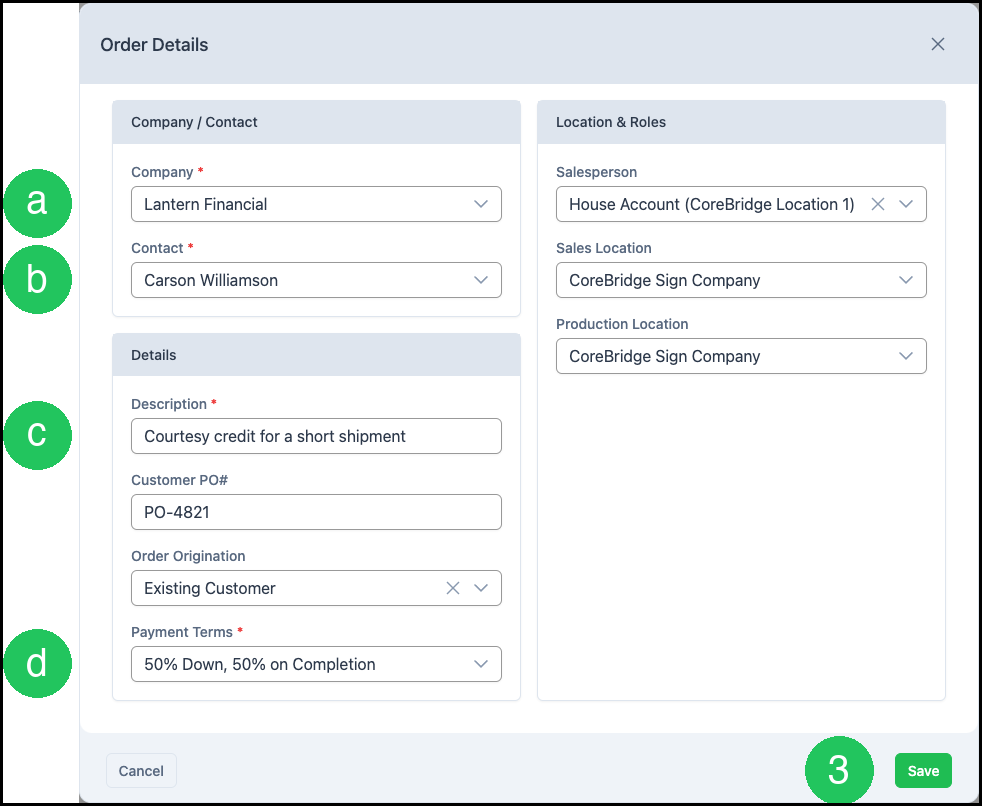
2. Click the edit icon beside the Company. The Order Details dialog opens.
a. Company
b. Contact
c. Description
d. Payment Terms
The dialog also includes Customer PO#, Order Origination, Salesperson, Sales Location, and Production Location.
3. Click Save after Company, Contact, Description, and Payment Terms are filled. Save stays unavailable until those fields are set.
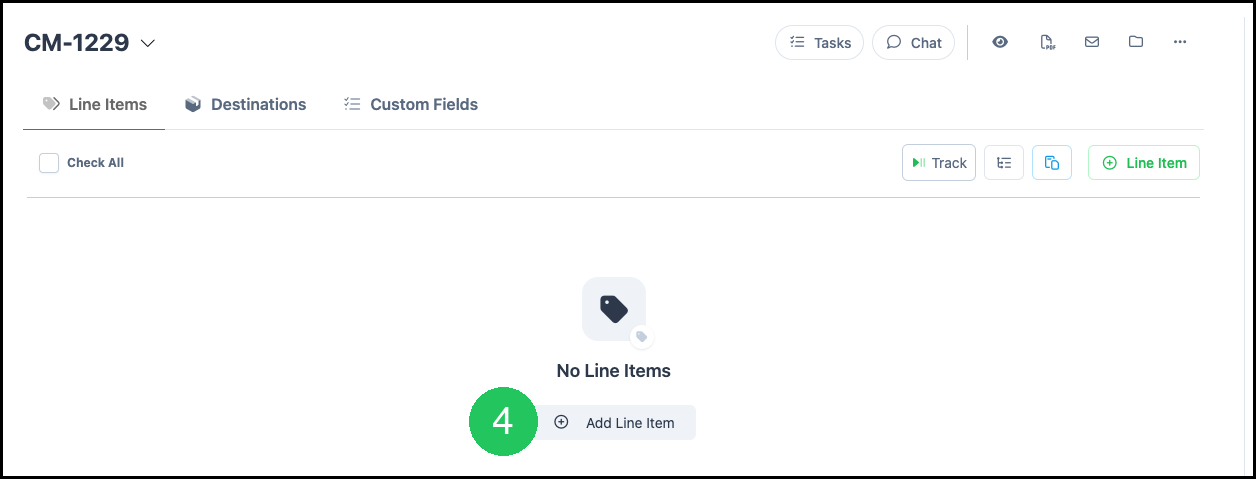
4. Click Add Line Item to add what the Credit Memo covers. For more information, please see Line Items Overview.
Frequently Asked Questions
1. How is a Credit Memo different from In-Store Credit and a Refund?
Answer: A Credit Memo is a document that reduces what the Customer owes, and the Invoice stays in place. A Refund returns money the Customer already paid. In-Store Credit is a balance on the Company that can be applied to a later Order.
2. Why don’t I see Credit Memos?
Answer: Credit Memos appear under Accounting only when Enable Credit Memos is turned on in Accounting Options.
3. What does Posted mean?
Answer: Posted is a Credit Memo Status. A Posted Credit Memo shows Locked. A new Credit Memo starts as Unposted. Status can also be Voided.
4. Why does the description say the Credit Memo was created during the Order unlock process?
Answer: That Credit Memo was created when the Order was unlocked. The description reads “This Credit Memo was automatically created during the Order unlock process.” For more information, please see Full Unlock Feature.