
Favorites lets you keep Products, Labor, Materials, and Quick Products you use often in a personal shortcut list on Add Line Item.
Remove an item from that list with the filled heart on the Products, Labor, Materials, or Quick Products list; the Favorites panel shows the shortcuts that remain.
Favorites are saved to your login when you click the heart.
Table of Contents
Important Information
- Favorites is a per-user shortcut list on the Add Line Item dialog. Items you favorite appear in the Favorites panel while you add a Line Item.
- The Favorites panel stays visible on the left of Add Line Item. Clicking an item there selects it to add; it does not remove the Favorite.
- To remove a Favorite, open the matching source list (Products, Labor, Materials, or Quick Products) and click the filled heart on that row. The item leaves the Favorites panel for your login.
- Inactive Products, Labor, Materials, and Quick Products do not stay in Favorites.
Before You Begin
Favorites belong to the signed-in person. Sign in as the person whose Favorites you want to change. You cannot remove another person's Favorites from their employee profile.
Remove a Favorite
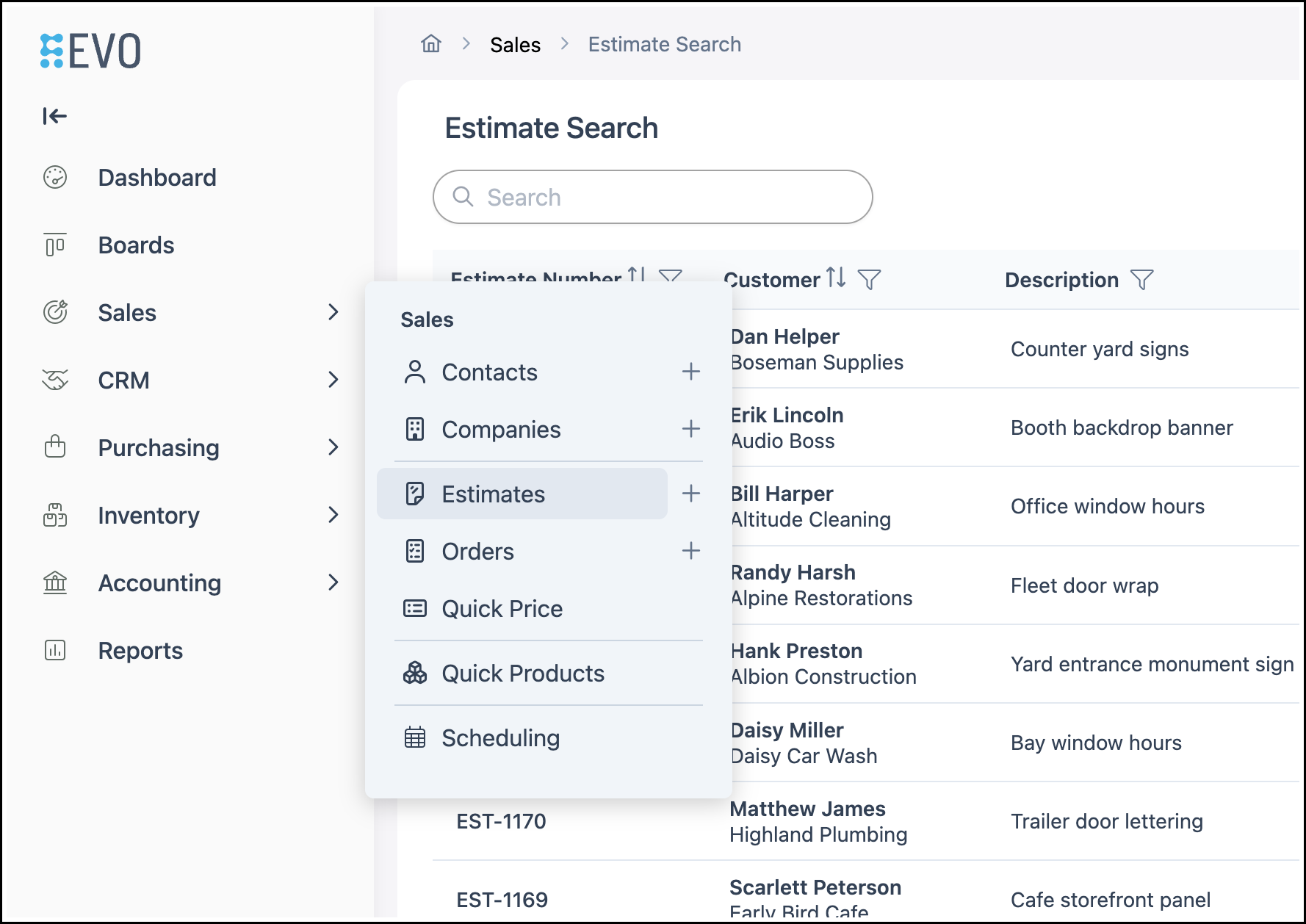
Navigate to Sales / Estimates.
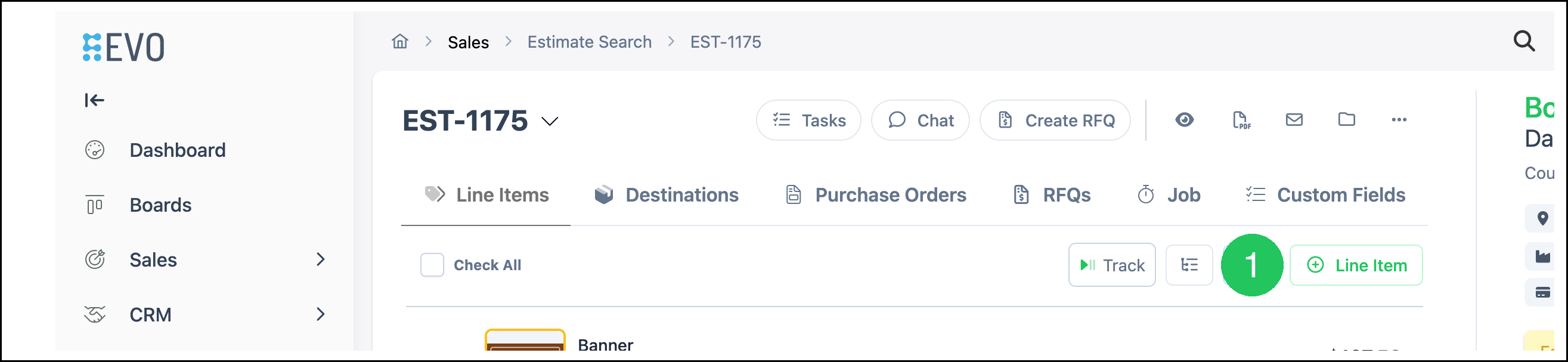
Open an Estimate. The Line Items tab is selected by default.
Note: You can also remove a Favorite from an Order the same way.
1. Click Line Item. The Add Line Item dialog opens. The Favorites panel lists the items you have favorited.
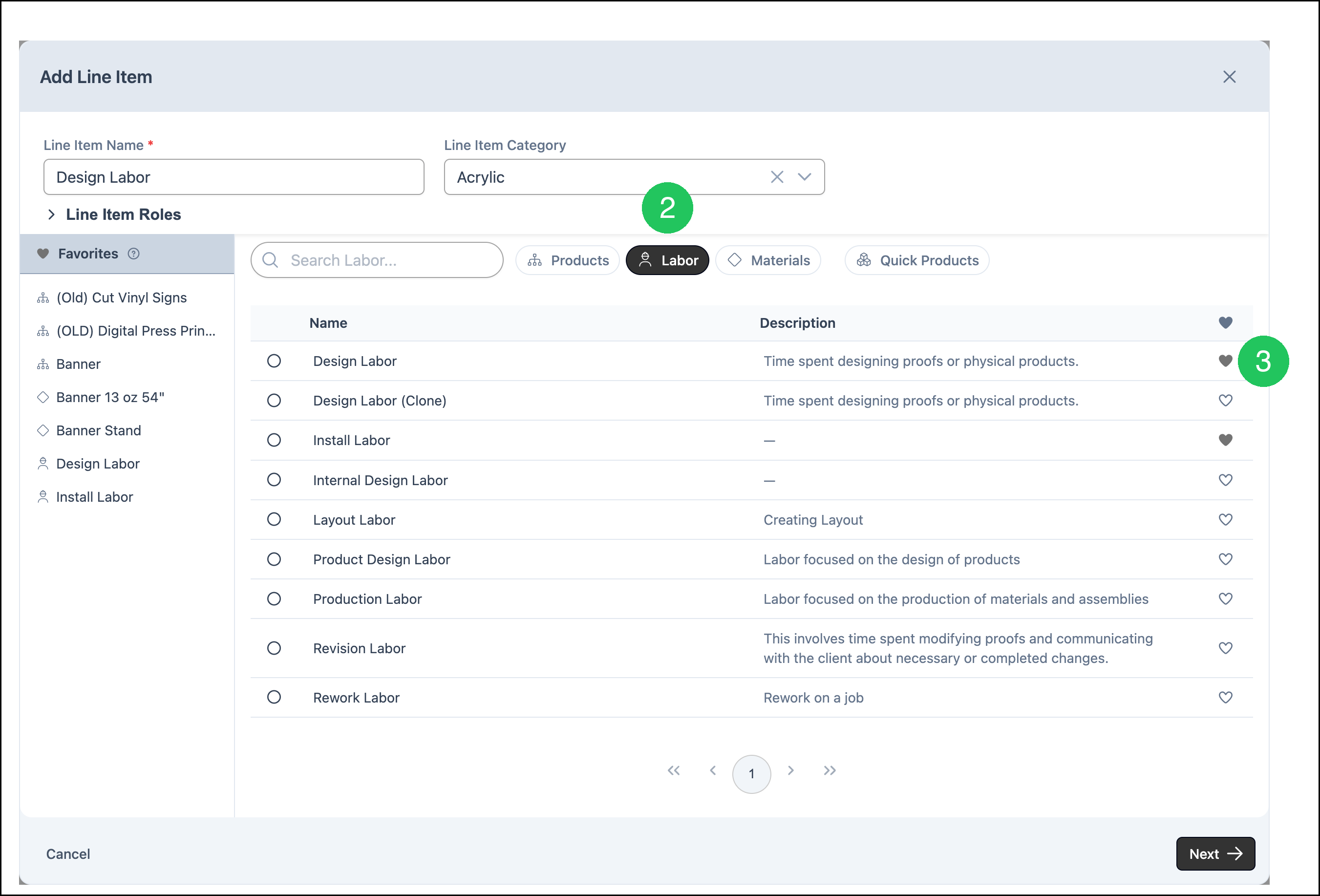
2. Select Products, Labor, Materials, or Quick Products so the item you want to remove appears in the list.
3. Click the filled heart on that item's row. The item leaves the Favorites panel for your login.
Frequently Asked Questions
1. Why do I still see an old product in Favorites after I added a newer one?
Answer: Adding a Favorite does not remove other Favorites. Open the matching source list and click the filled heart on each item you no longer want.
2. Can an administrator clear Favorites for someone else?
Answer: Favorites are managed while signed in as that person. Have them sign in and click the filled heart on the item, or sign in with their credentials only when your shop process allows it.
3. I see the item in the Favorites panel. Where do I click to remove it?
Answer: Clicking an item in the Favorites panel selects it to add as a Line Item. To remove it from Favorites, select Products, Labor, Materials, or Quick Products, find the same item, and click the filled heart on that row.