
A Visibility Formula decides when a field, group, or label shows on the Sales Form.
It is available on a Product and on a Modifier, including a choice that appears only after another choice is made.
When the formula is false, the element is hidden on the form, and the price behind that element stays on the Estimate or Order.
Table of Contents
Important Information
- Shown when opens the Visibility Formula dialog. When no formula is set, Shown when shows Always shown and Add formula.
- Hiding an element does not remove its price from the Estimate or Order. To leave a Material, Labor, Machine, or Modifier off the price, use Included on the order when on that component.
- Expanded when controls whether a checkbox or toggle group starts open. It does not hide the element.
- The formula belongs to the element. It is the same formula on each layout where that element is used. The panel shows how many layouts use it, such as Used on 2 Layouts.
Add a Visibility Formula
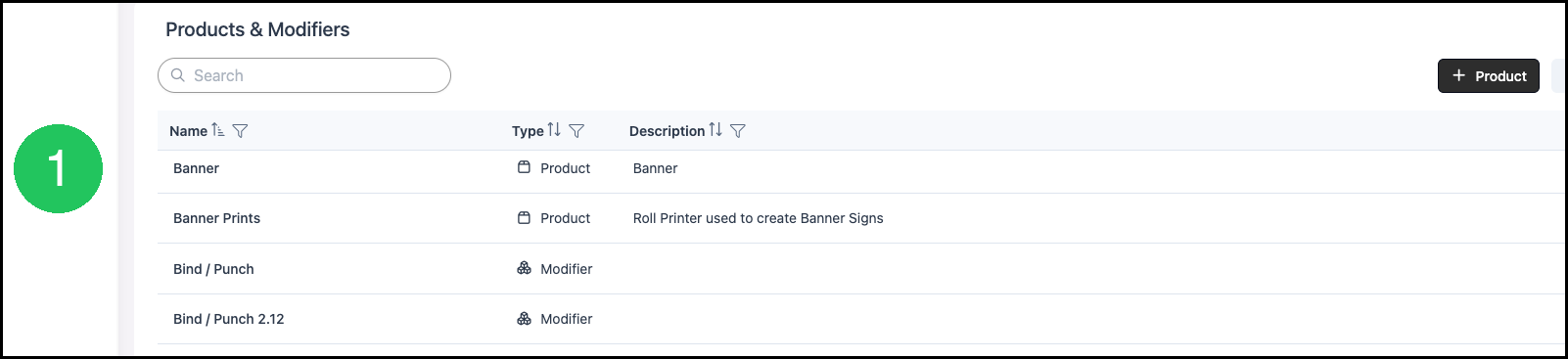
Navigate to System Settings / Components / Products & Modifiers.

1. Click the Product or Modifier name. For example, click Banner.
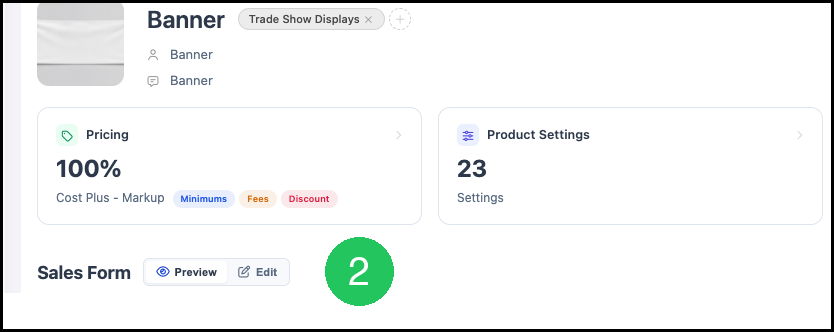
2. Click Edit.
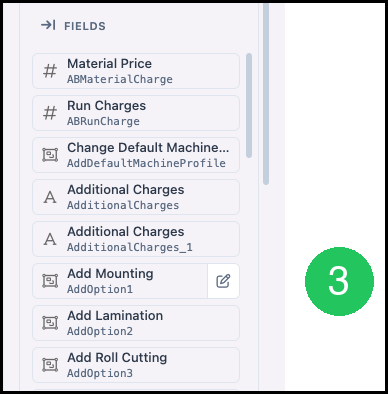
3. In Fields, click the edit icon for the element. For example, click the edit icon for Add Mounting.
4. Under Logic, click the formula under Shown when. The Visibility Formula dialog opens.
a. Click Add formula when Shown when shows Always shown.
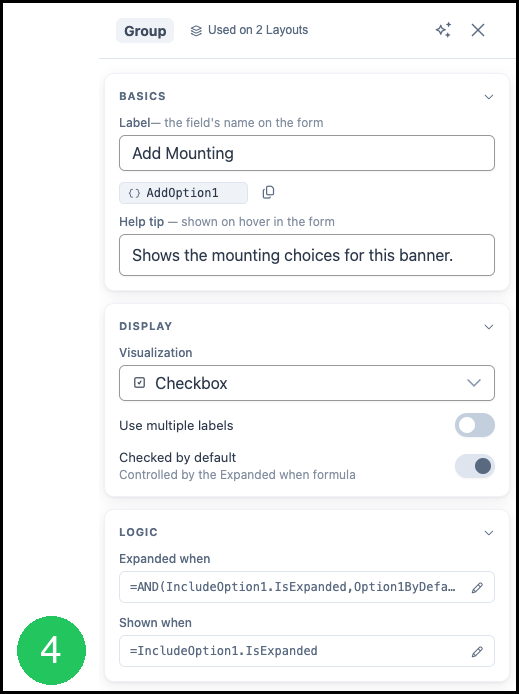
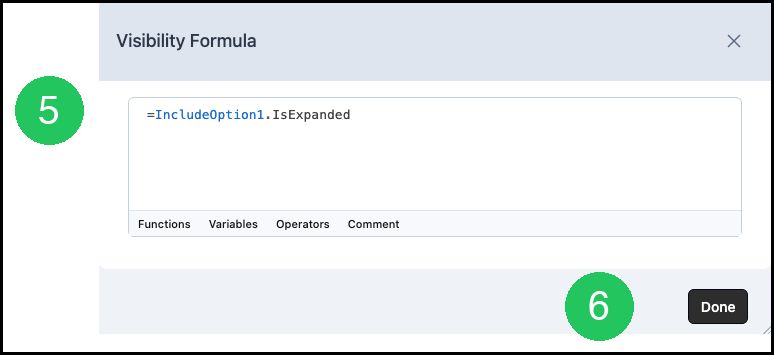
5. Enter the formula.
a. Click Variables to insert a field from this Product or Modifier. Functions, Operators, and Comment are also in the dialog.
6. Click Done.
7. Click Save.
Frequently Asked Questions
1. Does a Visibility Formula remove the price?
Answer: No. The element is hidden on the Sales Form. The price stays on the Estimate or Order. Use Included on the order when to leave a Material, Labor, Machine, or Modifier off the price.
2. Why does a Material show Included on the order when instead of Shown when?
Answer: A Material, Labor, Machine, or Modifier linked on the form uses Included on the order when. Shown when is for a field, group, or label.