
CoreBridge Expression Language (CBEL) uses Excel-style formulas to calculate values on Estimates and Orders. Formulas are configured for Products and Modifiers in the Product Designer and recalculate as information on the form changes. These calculations can determine material usage, labor and machine time, pricing, and other values.
Table of Contents
- Where Formulas Are Used
- Opening a Formula
- Formula Dialog
- Variable Names
- Consumption and Inclusion
- Shown When and Expanded When
- Data Types and Blank Values
- Formula Patterns
- Functions and Operators
- Best Practices
- Frequently Asked Questions
- Related Articles
Where Formulas Are Used
A formula can supply any of these results:
- Custom pricing, where the price is the result of the formula
- Default Value on a field, filled in when the field first appears on an order
- Custom formula under Calculating Consumption, for how much of a material, labor, or machine is used
- Shown when and Expanded when, which control whether a field or group is visible or expanded on the form
- Included on the order when, which controls whether a linked material, labor, machine, or modifier counts on the order
- Minimums, fees, discounts, and values looked up from a pricing table
Shown when and Included on the order when solve different problems. Hiding a field does not stop it from calculating or pricing. If clearing a checkbox should remove a part from the price, that part needs an Included on the order when formula that references the checkbox.
Opening a Formula
Navigate to System Settings / Components / Products & Modifiers.
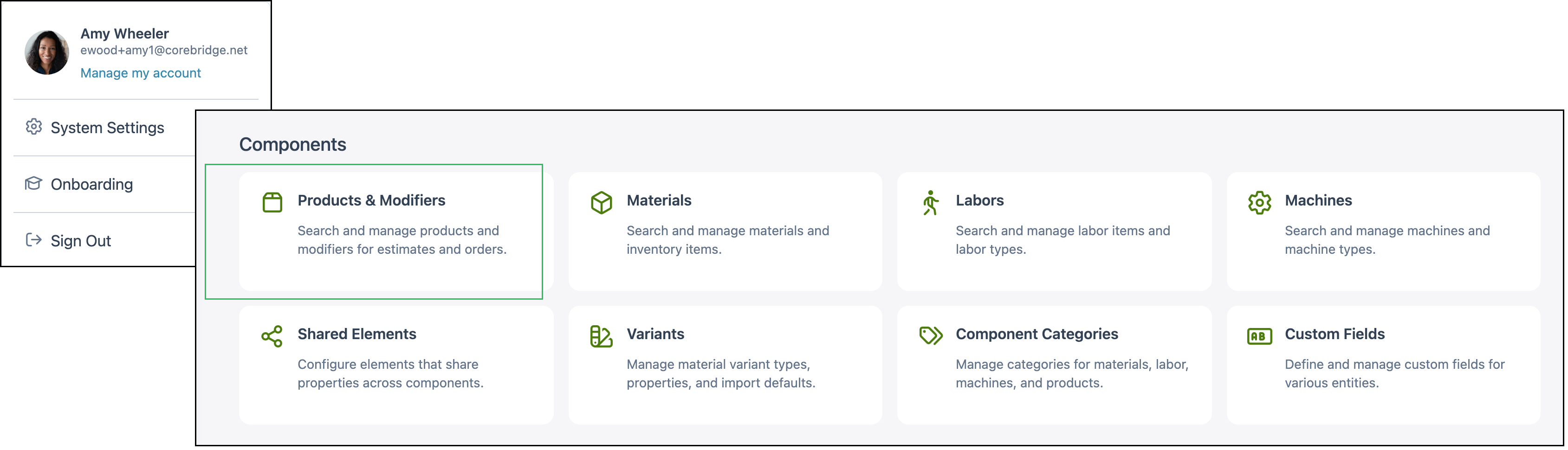
1. Select the Product.

2. Click Edit beside Sales Form.

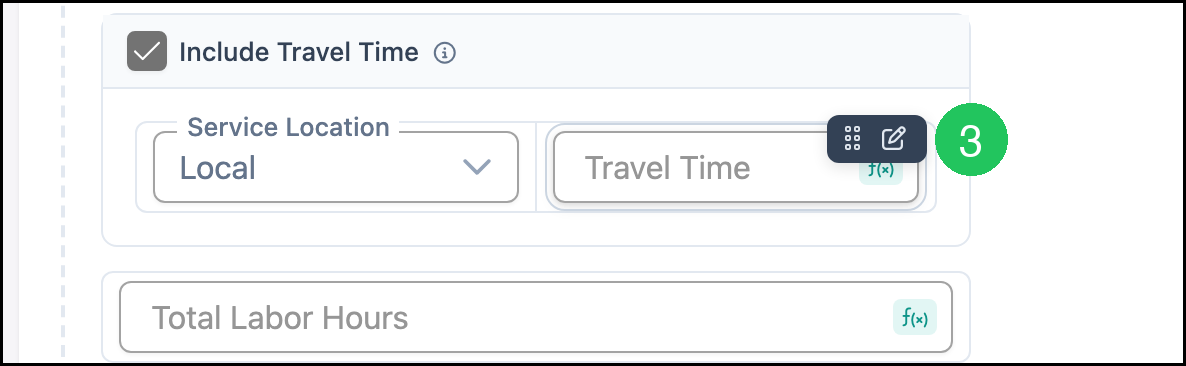
3. On the form, point to the field and click the Edit icon.
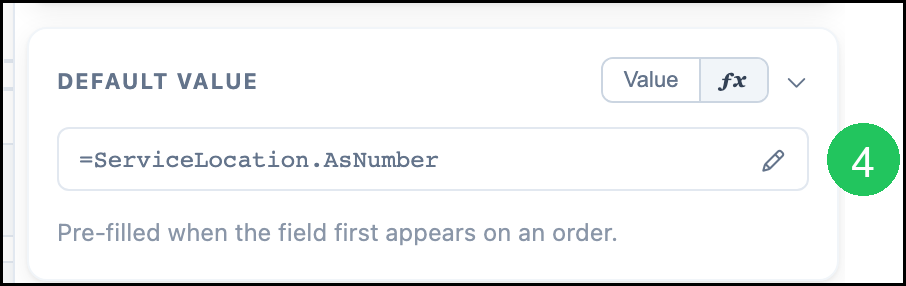
4. Under Default Value, click the Edit icon beside the formula.
Formula Dialog
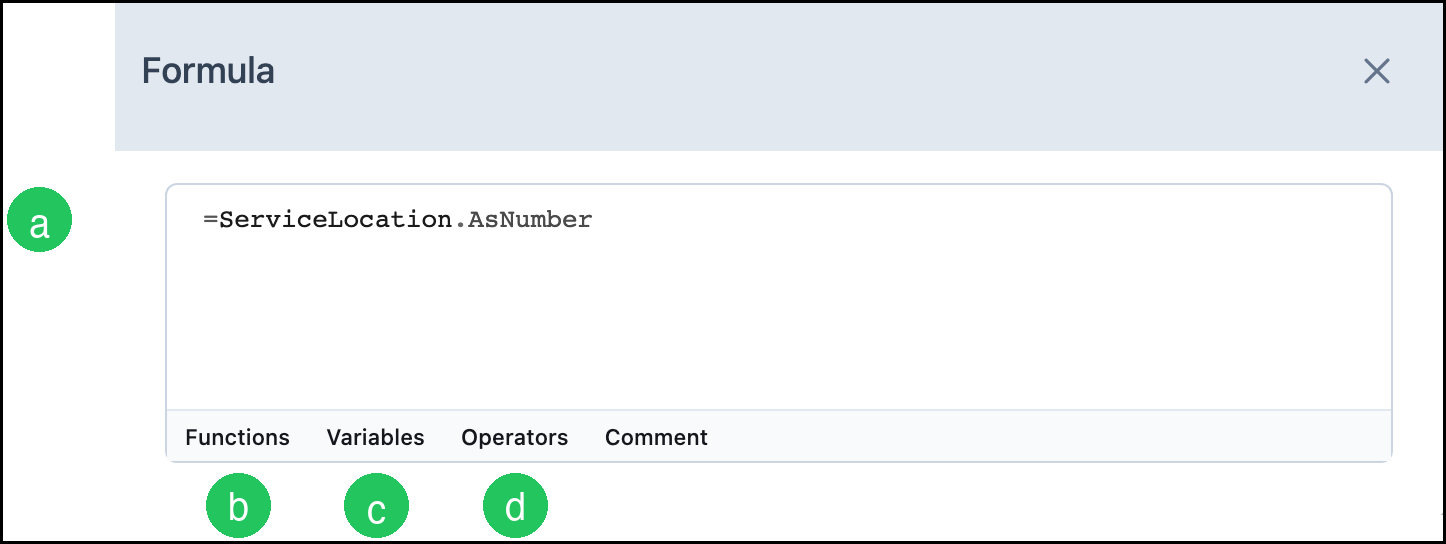
The Formula dialog is where the expression is written. Most formulas start with an equals sign, the same way an Excel formula does.
a. The formula text is the expression CoreBridge evaluates.
b. Functions inserts a function, such as IF or ROUND.
c. Variables inserts a field name from the product.
d. Operators inserts math or comparison operators, such as multiply or greater than.
Note: Comment inserts a comment in the formula. Comments do not change the result.
Variable Names
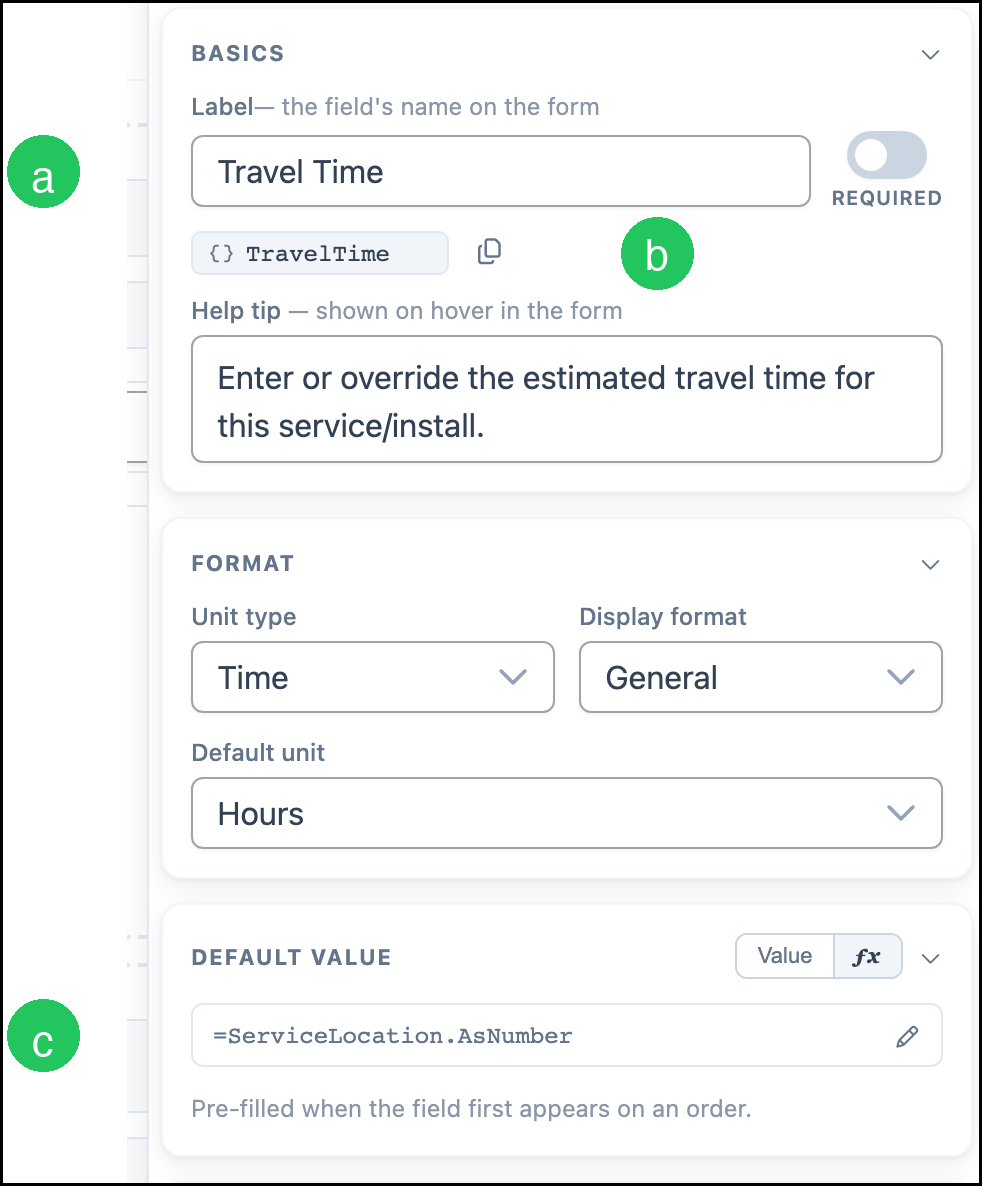
Each field has a label people see on the form and a variable name used in formulas. Variable names are unique on the product and cannot contain spaces.
a. Label is the name shown on the form.
b. The variable name is the name used in formulas. The copy control copies that name.
c. Default Value can be a fixed value or a formula. Choose fx when the value is calculated. The formula is pre-filled when the field first appears on an order.
Many fields also expose a property after the variable name. Use the property when the formula needs a number, a true or false result, or a unit.
Example: =ServiceLocation.AsNumber
Example: =TotalLaborHours.InHours
Example: =IncludeTravelTimeOption.AsBoolean
Consumption and Inclusion
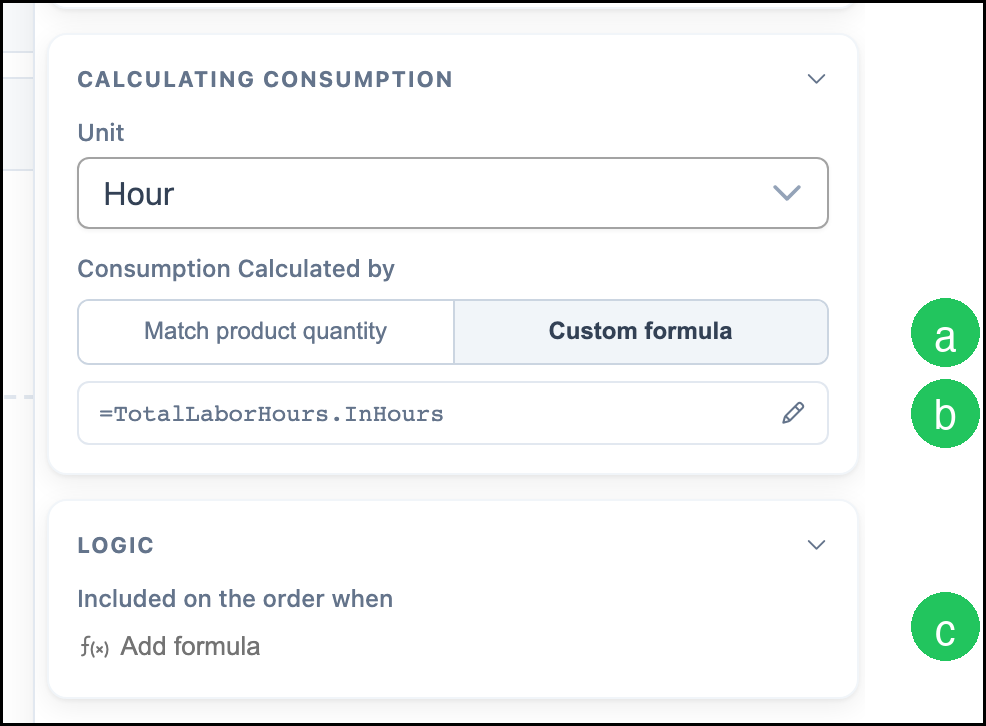
A linked labor, material, or machine can calculate how much is used, and whether that part is included on the order.
a. Custom formula under Calculating Consumption uses a formula for the amount consumed. Match product quantity uses the product quantity instead.
b. The consumption formula is the amount used, in the unit selected above it.
c. Included on the order when is the formula that decides whether this part is included. Add formula opens the Formula dialog when no inclusion formula is set yet. When the part is always included, this section reads Always included.
Example: =TotalLaborHours.InHours
Shown When and Expanded When
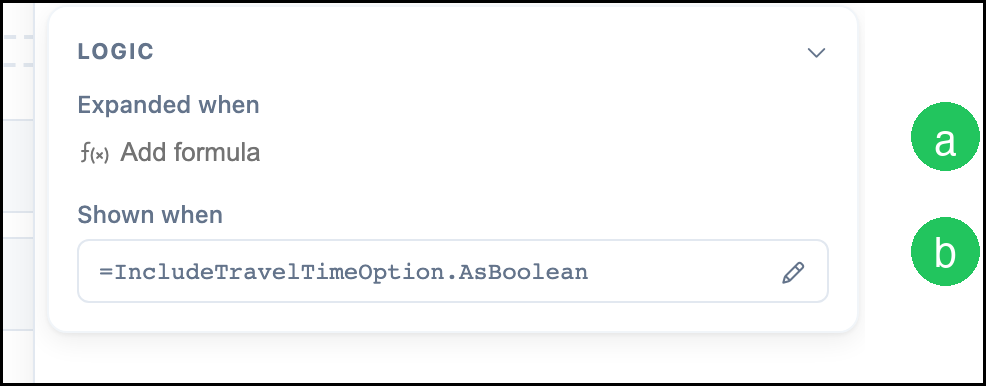
On a group or field, Logic holds the formulas that control the form. These formulas do not, by themselves, add or remove the part from the price.
a. Expanded when controls whether the group is expanded on the form. Add formula opens the Formula dialog.
b. Shown when controls whether the group is shown on the form.
Example: =IncludeTravelTimeOption.AsBoolean
Data Types and Blank Values
Formulas work with these kinds of values:
- Number. Any numeric value, including decimals. There is no separate whole-number type.
- True / False. A comparison or a checkbox, such as IncludeTravelTimeOption.AsBoolean.
- Text. Words and labels, such as a color name or a status.
- Date / Time. A date, a time, or both.
A field can also be blank when no meaningful value has been entered. A blank value is different from empty text ("").
A value is blank when:
- The field has no default and nothing has been entered yet
- A lookup does not find a match
- A price cannot be determined from the current answers and needs a manual price
Blank values follow these rules:
- A comparison with a blank value, including greater than, less than, equal, AND, and OR, returns false.
- Math with a blank value returns blank.
- IF treats a blank condition as false and uses the false branch.
- When FIND does not locate the text, the result is blank.
If a calculated price is blank, CoreBridge cannot price the item from the current answers. That is useful for oversized or special work that needs a manual price.
Formula Patterns
Use IF when the result depends on a condition. Combine conditions with AND or OR.
Example: =IF(IncludeTravelTimeOption.AsBoolean, TotalLaborHours.InHours, 0)
After a pricing table returns a number, multiply that variable by quantity in a Custom formula.
Example: =ServiceLocation.AsNumber
Prefer a unit property, such as .InHours or .AsNumber, when the field already provides one.
Functions and Operators
The Functions menu lists the functions CBEL can evaluate. Many of them behave like the Excel function of the same name.
Logic: AND, AreEqual, AreNotEqual, IF, IsGreaterThan, IsGreaterThanOrEqual, IsLessThan, IsLessThanOrEqual, IsTrue, NOT, OR, ToBool
Checks: ISBLANK, ISEVEN, ISNONTEXT, ISNUMBER, ISODD, ISTEXT
Math: ABS, AVERAGE, CEILING, COS, COT, EVEN, EXP, FACT, FLOOR, INT, LN, LOG, LOG10, MAX, MEDIAN, MIN, MOD, MROUND, ODD, PI, POWER, RAND, ROUND, ROUNDDOWN, ROUNDUP, SIGN, SIN, SQRT, SUM, TAN, TRUNC
Text: CHAR, CHARCOUNT, CLEAN, CONCATENATE, EXACT, FIND, FIXED, GETPLAINTEXT, LEFT, LEN, LINECOUNT, LOWER, MID, NUMBERVALUE, PROPER, REPLACE, RIGHT, SEARCH, SUBSTITUTE, T, TEXT, TRIM, UPPER, VALUE, WORDCOUNT
Date and time: DATE, DATEDIF, DATEVALUE, DAY, DAYS, EOMONTH, HOUR, MINUTE, MONTH, NOW, SECOND, TIME, TIMEVALUE, TODAY, WEEKDAY, WEEKNUM, YEAR
Other: CONVERTUNITS, CURRENCY, DOLLAR, DoNothing, ERROR, ToDecimal, ToString
The Operators menu inserts Add, Subtract, Multiply, Divide, Exponentiate, Percentage, Open Parenthesis, Close Parenthesis, Greater Than, Less Than, Set, Greater Than or Equal To, Not Equal, and Less Than or Equal To. Set is the equals sign that assigns the formula result.
Best Practices
- Build the form fields first, then add one formula at a time.
- Name variables so the formula stays readable, such as TravelTime or TotalLaborHours.
- Use a unit property, or CONVERTUNITS, instead of typing a conversion when CoreBridge already provides the unit.
- Test the formula on a sample Estimate or Order after each meaningful change.
- Saving the Product or Modifier applies the formula to Estimates and Orders that use it afterward. Changing a value on one Estimate or Order affects that document.
- For a custom pricing table, a formula that spans several products, or a price that should stay blank until someone enters it manually, contact CoreBridge Support at supportdesk@corebridge.net.
Frequently Asked Questions
1. Do formulas start with an equals sign?
Answer: Yes. A formula starts with =, the same way an Excel formula does.
2. What is the difference between Shown when and Included on the order when?
Answer: Shown when controls whether the field or group appears on the form. Included on the order when controls whether a linked material, labor, machine, or modifier counts toward cost, price, production, and documents. Hiding a field does not remove it from the price.
3. What does a blank formula result mean?
Answer: A blank result means CoreBridge does not have a meaningful value yet. For a price, that usually means the current answers cannot be priced automatically and the price should be entered manually.
4. Who should I contact for a complex pricing formula?
Answer: Contact CoreBridge Support at supportdesk@corebridge.net for help with custom pricing tables, formulas that span several products, unusual unit conversions, or formulas that should force a manual price.